
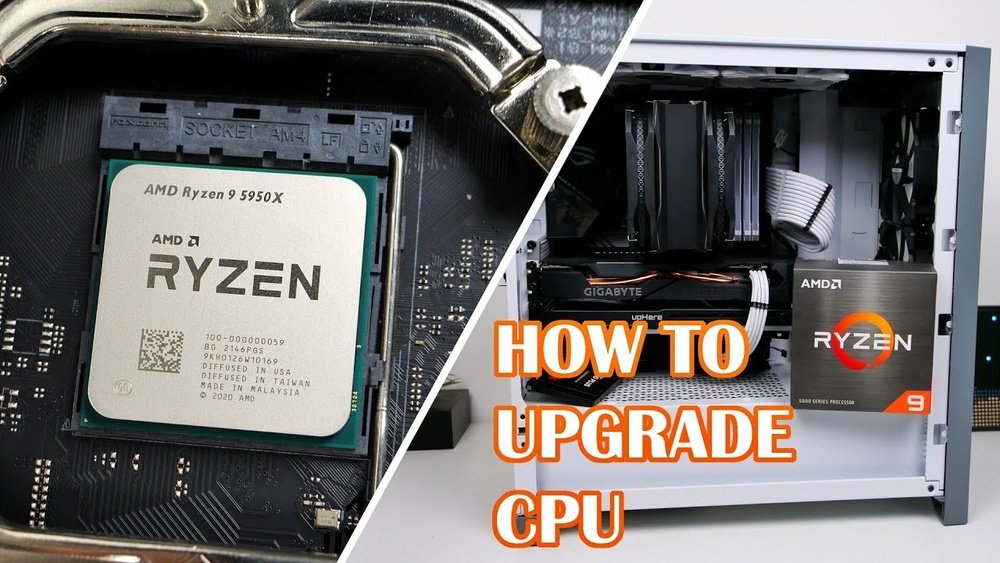
Are you feeling like your PC is slowing down or struggling to keep up with your tasks? Upgrading your CPU can give your computer a serious boost in speed and performance.
But where do you start? This guide will walk you through everything you need to know to upgrade your PC’s CPU confidently and safely. By the end, you’ll have the power to make your computer run faster and smoother, without the hassle or confusion.
Ready to unlock your PC’s full potential? Let’s dive in!

Credit: www.instructables.com
Choosing The Right Cpu
Choosing the right CPU is the first step in upgrading your PC. It affects speed, power, and how well your system runs. Picking the best one means knowing what works with your PC and what suits your needs. This guide helps you find the perfect CPU for your upgrade.
Compatibility With Motherboard
Check your motherboard’s socket type before buying a CPU. The socket must match the CPU’s design. Also, review the motherboard’s chipset to ensure it supports the CPU features. BIOS updates may be needed for newer CPUs. Without compatibility, the CPU won’t fit or work properly.
Performance Needs
Decide what you want to do with your PC. Basic tasks like browsing need less power. Heavy tasks like video editing need a strong CPU with many cores. More cores help with multitasking and faster processing. Balance speed and core count based on your tasks.
Budget Considerations
Set a clear budget before shopping. CPUs range from affordable to expensive. Choose one that fits your price range but still meets your needs. Spending more does not always mean better performance for everyday use. Find the best value for your money.

Credit: www.youtube.com
Preparing For The Upgrade
Preparing for a CPU upgrade is a key step. It helps avoid problems and saves time. This stage involves organizing tools, securing data, and setting up a safe workspace. Careful preparation makes the upgrade smooth and safe.
Gathering Necessary Tools
Start by collecting all tools needed for the upgrade. A screwdriver, thermal paste, and cleaning cloth are must-haves. Check if your motherboard requires special tools. Having everything ready avoids delays during the upgrade.
Backing Up Important Data
Backing up data protects your files from loss. Use an external hard drive or cloud storage. Save important documents, photos, and settings. This step ensures your data stays safe even if errors occur.
Creating A Static-free Workspace
Static electricity can damage computer parts. Set up a clean, static-free area to work in. Use an anti-static wrist strap or touch a grounded metal object often. Work on a wooden or non-metal surface to reduce static risks.
Removing The Old Cpu
Removing the old CPU is the first step in upgrading your computer’s processor. This process requires careful handling to avoid damage to the motherboard or the new CPU. Follow each step slowly and with attention.
Start by preparing your workspace. Make sure you have a clean, static-free area. Use an anti-static wrist strap if possible. This protects sensitive parts from static electricity.
Powering Down And Disconnecting
Turn off your PC completely. Unplug the power cable from the wall socket. Disconnect all other cables attached to the case. This ensures no power flows through the system during the upgrade.
Removing The Cooling System
The cooling system covers the CPU and keeps it cool. It often includes a fan and a heat sink. Carefully unscrew or unclip the cooling system from the motherboard. Gently lift it away, avoiding sharp movements. If thermal paste sticks the cooler, twist it slightly to loosen.
Unlocking The Cpu Socket
The CPU sits in a socket on the motherboard. This socket has a locking mechanism. Find the small lever or latch next to the CPU. Slowly lift or push it to unlock the CPU. Do not force the lever, as it can break easily.
Taking Out The Old Cpu
Once unlocked, the CPU lifts straight out of the socket. Hold it by the edges only. Avoid touching the pins or the bottom side. Place the old CPU on an anti-static surface or in a safe container.
Installing The New Cpu
Installing the new CPU is a key step in upgrading your PC. It requires careful handling to avoid damage to the processor or motherboard. Follow the steps below to install the CPU properly and ensure your system works smoothly.
Aligning The Cpu Correctly
Look for the small triangle or mark on one corner of the CPU. Match this mark with the corresponding triangle on the socket. This ensures the pins line up perfectly. Never force the CPU into the socket. It should fit gently and snugly.
Securing The Cpu In The Socket
Lower the metal lever or locking mechanism on the socket. This holds the CPU in place firmly. Make sure the CPU does not move after locking it. A secure fit prevents connection issues and damage.
Applying Thermal Paste
Place a small pea-sized dot of thermal paste in the center of the CPU. This helps transfer heat from the CPU to the cooler. Spread the paste evenly, or let the cooler spread it when installed. Too much paste can cause problems.
Reattaching The Cooling System
Position the cooling fan or heatsink over the CPU. Align it with the mounting points on the motherboard. Press down gently and secure the cooler using screws or clips. Connect the fan cable to the motherboard header. This keeps the CPU cool and prevents overheating.
Post-installation Steps
After installing your new CPU, several important steps follow. These steps ensure your computer runs smoothly and takes full advantage of the upgrade. Proper post-installation checks help prevent issues and confirm everything works well.
Reconnecting Power And Peripherals
Start by reconnecting the power cable to your PC. Attach all necessary peripherals like your keyboard, mouse, and monitor. Make sure all cables are secure and plugged into the right ports. Double-check connections to avoid power or hardware issues.
Booting Up The System
Turn on your computer carefully. Listen for unusual sounds or error beeps. Watch the screen for any messages or signs of trouble. If the system boots correctly, proceed to the next step. A successful boot confirms the CPU installation went well.
Updating Bios And Drivers
Visit your motherboard manufacturer’s website to check for BIOS updates. A new CPU may require the latest BIOS to function properly. Also, update your CPU drivers and chipset software. These updates improve compatibility and boost system stability.
Running Performance Tests
Run performance tests to check CPU speed and stability. Use simple benchmarking tools to compare results with your old CPU. Monitor system temperature and ensure the cooling works well. These tests help confirm your upgrade is successful and safe.
Credit: www.cyberpowerpc.com
Troubleshooting Common Issues
Upgrading your PC CPU can boost your computer’s power. Yet, problems can happen after the upgrade. Troubleshooting common issues helps fix these problems fast. This guide covers three main issues you might face.
System Fails To Boot
Sometimes, the computer does not start after a CPU upgrade. Check if the CPU is correctly seated in the socket. Make sure the power cables connect properly to the motherboard. Reset the BIOS by removing the CMOS battery for a few minutes. This step clears old settings that may block startup.
Overheating Problems
New CPUs may run hot if cooling is not enough. Confirm the CPU cooler is firmly attached. Apply fresh thermal paste between the CPU and the cooler. Check if the cooling fan spins freely and is dust-free. Poor cooling can cause shutdowns or slow speeds.
Performance Not Improving
Your PC might not run faster after a CPU change. Verify the new CPU is compatible with your motherboard. Update the BIOS to support the new processor. Check your system settings to ensure the CPU runs at full speed. Old software or background tasks can also slow performance.
Frequently Asked Questions
What Tools Do I Need To Upgrade My Pc Cpu?
You need a screwdriver, thermal paste, and anti-static wrist strap. These tools help safely remove and install the CPU. Thermal paste ensures proper heat transfer between the CPU and cooler. Always power off and unplug the PC before starting.
How To Check Cpu Compatibility With My Motherboard?
Check your motherboard’s socket type and chipset model. Verify if the new CPU supports that socket and chipset. Visit the motherboard manufacturer’s website for a CPU compatibility list. This ensures your new CPU will fit and function properly.
Can I Upgrade Cpu Without Reinstalling Windows?
Usually, yes. Most Windows versions handle CPU upgrades without reinstalling. However, major CPU changes may require reactivation or driver updates. Always back up important data before upgrading to avoid data loss or system issues.
How To Safely Remove Old Cpu From Motherboard?
First, unplug the PC and ground yourself to avoid static. Unlock the CPU socket lever carefully. Gently lift the CPU straight up without bending pins. Clean off old thermal paste from the cooler and CPU surface before installing the new CPU.
Conclusion
Upgrading your PC CPU can boost your computer’s speed and performance. Choose a compatible CPU to avoid issues. Take time to follow each step carefully. Double-check your motherboard and cooling system before starting. Small mistakes can cause big problems. After upgrading, test your PC to ensure it runs well.
Enjoy a smoother and faster computing experience. Keep learning and stay patient with the process. Your effort will pay off with better results.
