
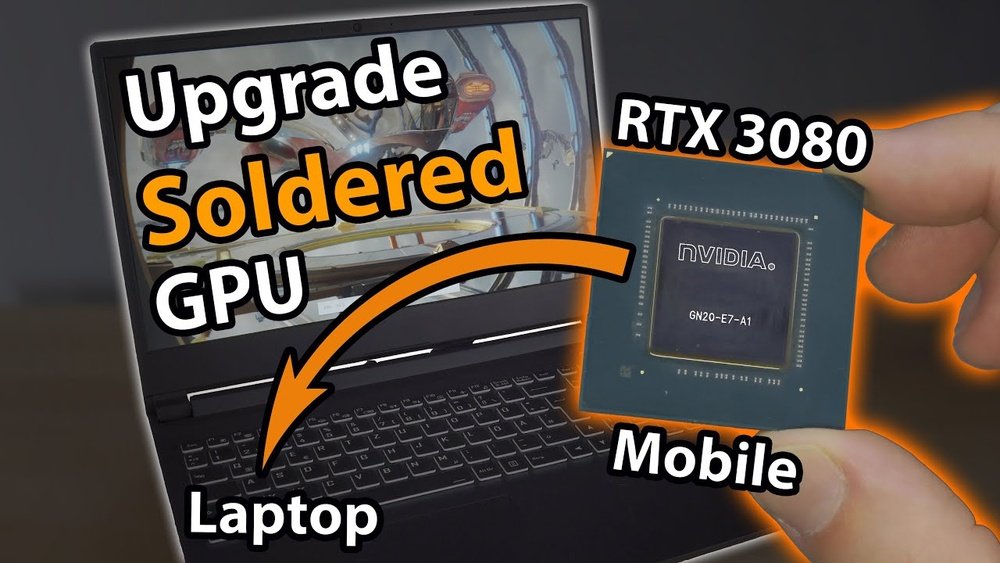
Is your laptop struggling to keep up with the latest games or heavy software? Upgrading your laptop GPU might be the key to unlocking better performance and smoother graphics.
But how do you do it without breaking your device or your budget? In this guide, you’ll discover simple, clear steps to give your laptop a powerful boost. Whether you’re a gamer, designer, or just want faster visuals, this article will help you make the right move with confidence.
Ready to transform your laptop’s graphics? Let’s dive in.
Choosing The Right Gpu
Choosing the right GPU for your laptop upgrade is a key step. The right GPU improves your laptop’s speed and graphics quality. It also fits your budget and power limits. Understanding some basics helps you pick the best option.
Compatibility With Your Laptop
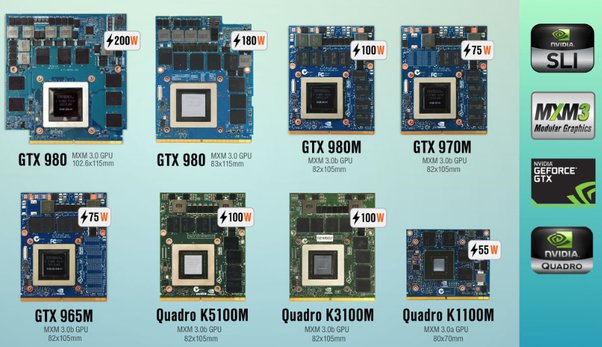
Not all GPUs fit every laptop. Check your laptop’s model and hardware first. Many laptops have a fixed GPU that cannot be changed. Some support external GPUs via special docks. Your laptop’s motherboard and BIOS must support the new GPU. Also, ensure the GPU physically fits inside your laptop case.
Performance Vs Budget
GPUs come in many price ranges. High-end GPUs deliver great speed and graphics but cost more. Mid-range GPUs offer good performance for less money. Set a budget before choosing. Match your GPU choice with the tasks you do. Simple tasks need less power. Gaming and video editing need stronger GPUs.
Power And Cooling Requirements
GPUs use different amounts of power. Your laptop’s power supply must handle the new GPU. Some GPUs need extra power connectors. Cooling is important to avoid overheating. More powerful GPUs generate more heat. Check if your laptop’s cooling system can manage that heat. Good cooling keeps your laptop safe and fast.

Credit: www.youtube.com
Preparing Your Laptop
Preparing your laptop before upgrading the GPU is very important. This step helps avoid data loss and hardware damage. Taking time to get ready makes the process smoother and safer. Follow these steps to prepare properly.
Backing Up Important Data
Save all important files to an external drive or cloud storage. This protects your data if something goes wrong during the upgrade. Backing up is a simple way to avoid losing photos, documents, or work files. Do this before opening your laptop.
Gathering Necessary Tools
Collect all tools needed for the upgrade. Usually, you will need small screwdrivers, an anti-static wrist strap, and a clean cloth. Having the right tools ready saves time and prevents damage. Check your laptop manual for any special tools required.
Ensuring Proper Workspace
Set up a clean, flat surface to work on. Make sure the area is well-lit and free from dust. Avoid working on carpets to prevent static electricity. A tidy workspace helps keep screws and parts organized during the upgrade.
Removing The Old Gpu
Removing the old GPU is a crucial step in upgrading your laptop’s graphics card. It requires care and attention to avoid damage to your laptop components. This section guides you through the process in clear, easy steps.
Accessing The Laptop Interior
First, shut down your laptop and unplug it from power. Close the lid and turn it upside down on a clean surface. Remove all screws holding the back panel. Gently pry the panel open with a plastic tool. Avoid using metal tools that can scratch or break the case. Keep the screws safe for reassembly.
Disconnecting Power And Cables
Look for the battery connector and unplug it carefully. This step prevents electrical damage. Identify cables connected to the GPU, such as cooling fans or power connectors. Disconnect these cables gently to avoid pulling or tearing. Make sure no cables are still attached before removing the GPU.
Careful Gpu Removal
Locate the screws or clips securing the GPU to the motherboard. Unscrew or unclip them slowly. Hold the GPU by its edges and pull it out straight. Do not twist or force it out. Place the old GPU on an anti-static surface to protect it from static electricity.
Installing The New Gpu
Installing the new GPU is a key step in upgrading your laptop’s graphics power. It needs careful handling to avoid damage. Follow each step slowly and check your work as you go.
Aligning And Seating The Gpu
Start by holding the new GPU gently. Find the slot on the laptop’s motherboard. Match the GPU’s connector with the slot carefully. Push the GPU straight down until it fits snugly. Avoid forcing it in. The GPU should click or sit firmly without gaps.
Securing The Gpu In Place
Once seated, secure the GPU using the screws or clips provided. Tighten the screws evenly but not too tight. The GPU must stay in place during laptop use. A loose GPU can cause problems or damage. Check that the GPU does not move after securing it.
Reconnecting Power And Components
Locate the power cables and connectors you removed earlier. Attach each cable back to the GPU’s power ports. Ensure connectors click or fit tightly. Reconnect any other components, like cooling fans or sensors. Double-check all connections before closing the laptop.
Updating Drivers And Software
Updating your laptop’s GPU drivers and software is key to better performance. New drivers fix bugs and improve compatibility. They help games run smoother and prevent crashes. Without updates, your GPU may not work well with new programs.
Keep your GPU drivers current to get the best from your hardware. This section shows how to download, install, and set up drivers for better gaming.
Downloading Latest Gpu Drivers
Visit the official website of your GPU brand. Common brands include NVIDIA, AMD, and Intel. Find the support or drivers section. Enter your GPU model or use an automatic detection tool. Download the latest driver version available. Make sure the driver matches your operating system.
Installing And Configuring Drivers
Run the downloaded installer file. Follow the on-screen instructions carefully. Choose the “clean installation” option if available. This removes old drivers and avoids conflicts. Restart your laptop after installation completes. Check the device manager to confirm the driver update.
Optimizing Settings For Gaming
Open your GPU’s control panel or software. Adjust settings like resolution, refresh rate, and power mode. Set performance to “maximum” or “high.” Disable unnecessary effects to boost frame rates. Use game-specific profiles if supported. These tweaks improve gameplay without extra hardware.
Credit: www.shoshitamam.com
Testing Performance
Testing performance is an important step after upgrading your laptop GPU. It shows how well the new GPU works with your system. This helps you see if the upgrade was successful. Also, it reveals any issues that might need fixing. Checking performance keeps your laptop running smoothly and safely.
Running Benchmark Tools
Benchmark tools measure your GPU’s speed and power. Use popular tools like 3DMark or Unigine Heaven. These tests give scores that compare performance before and after the upgrade. Run the tests multiple times for reliable results. Save the scores to track improvement over time.
Monitoring Temperatures And Stability
High temperatures can harm your GPU and laptop. Monitor the heat using software like HWMonitor or MSI Afterburner. Watch for spikes during heavy use. Check if the system crashes or slows down. Stable performance means the GPU works well with your cooling system.
Adjusting Settings For Best Results
Optimize GPU settings for balance between speed and heat. Lower graphics quality to reduce temperature if needed. Adjust fan speeds for better cooling. Update drivers to ensure compatibility. Small changes can improve performance and prevent damage.
Troubleshooting Common Issues
Upgrading your laptop GPU can improve performance, but issues can occur. Troubleshooting common problems helps keep your system stable. Understanding these issues saves time and frustration.
Gpu Not Detected
Your laptop may not recognize the new GPU. Check the connection to ensure the card is firmly seated. Restart the laptop after installation. Enter BIOS settings to confirm the GPU is enabled. Update the BIOS if needed. Confirm the GPU is compatible with your laptop model.
Overheating Problems
New GPUs can produce more heat than old ones. Ensure your laptop’s cooling system works well. Clean dust from fans and vents. Use a cooling pad to improve airflow. Monitor temperatures with software tools. Reduce graphics settings if overheating continues.
Driver Conflicts
Old drivers can clash with new GPU software. Uninstall previous GPU drivers completely. Download the latest drivers from the official website. Install drivers in safe mode for best results. Restart your laptop after installation. Check device manager for any errors.
Credit: www.shoshitamam.com
Frequently Asked Questions
Can I Upgrade My Laptop Gpu Easily?
Upgrading a laptop GPU is often challenging. Most laptops have integrated or soldered GPUs. External GPU enclosures offer an alternative for performance boosts without internal upgrades.
What Tools Are Needed To Upgrade A Laptop Gpu?
You typically need a screwdriver set, anti-static wrist strap, and thermal paste. Some laptops require special tools. Always consult your laptop’s service manual for precise requirements.
Will Upgrading My Laptop Gpu Improve Gaming Performance?
Yes, a better GPU can significantly enhance gaming visuals and frame rates. However, your CPU and RAM also affect overall gaming performance. Balance all components for best results.
Are External Gpus Better Than Internal Upgrades?
External GPUs offer easy upgrades and portability. They connect via Thunderbolt 3 or USB-C. Internal upgrades often provide better performance but are limited by hardware compatibility.
Conclusion
Upgrading your laptop GPU can improve performance greatly. Choose a compatible GPU that fits your laptop’s design. Take your time to carefully follow all steps. Always check power and cooling requirements before installation. A better GPU means smoother games and faster work.
Don’t forget to update drivers after upgrading. Small changes can make a big difference. Now, enjoy your laptop’s new graphics power!
