
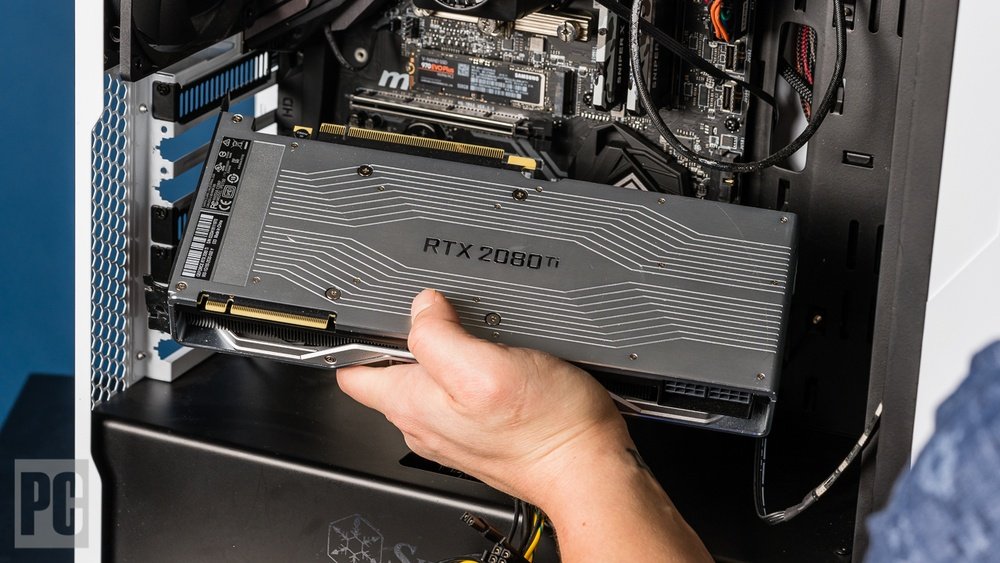
Looking to boost your PC’s performance and get better graphics for gaming or creative work? Upgrading your GPU is one of the smartest moves you can make.
But if you’re unsure where to start or worried about breaking something, you’re not alone. This guide will walk you through simple, clear steps to upgrade your GPU with confidence. By the end, you’ll know exactly how to choose the right graphics card and install it without hassle.
Ready to unlock your PC’s full potential? Let’s dive in.

Credit: www.pcmag.com
Choosing The Right Gpu
Choosing the right GPU is an important step when upgrading your PC. The right graphics card can improve your computer’s performance and make your tasks easier. Picking a GPU that fits your needs, budget, and system is key. Let’s explore how to choose the best GPU for your setup.
Assessing Your Needs
First, think about what you will use your PC for. Do you play video games, edit videos, or just browse the web? Different tasks require different GPU power. Gaming needs strong graphics cards. Simple tasks need less power. Knowing your needs helps avoid spending on features you don’t need.
Compatibility Check
Check if the GPU fits your PC. Look at the size of your case and power supply limits. Your motherboard must support the GPU. Also, check the power connectors on your PSU. A compatible GPU ensures smooth installation and performance. Avoid buying a card that won’t fit or work with your system.
Budget Considerations
Set a clear budget before buying a GPU. Prices vary a lot. More expensive cards offer better speed and features. However, cheaper models can be enough for basic use. Balance price and performance. Choose a GPU that offers good value for your money.
Preparing Your Pc
Preparing your PC before upgrading the GPU is important. It helps avoid problems and makes the process smoother. Take time to get ready. This ensures your new GPU works well with your system.
Gathering Tools
Start by collecting all tools needed for the upgrade. A screwdriver is usually essential. Have a clean workspace to keep small parts safe. Use an anti-static wristband to prevent damage to components. Prepare a flashlight to see inside the case clearly.
Backing Up Data
Backing up your data protects your files from accidental loss. Use an external drive or cloud storage to save important documents. This step saves you from stress if something goes wrong during the upgrade. Make sure backup is complete before starting work.
Power Supply Requirements
Check if your power supply can support the new GPU. New graphics cards often need more power than older ones. Look at the wattage and connector types on the GPU box. Upgrade the power supply if it cannot meet these needs. This prevents shutdowns and hardware damage.
Removing The Old Gpu
Removing the old GPU is the first step before upgrading your PC’s graphics card. It requires care and attention to avoid damage. Follow simple steps to take out the old GPU safely. These steps prepare your PC for the new hardware.
Shutting Down And Unplugging
Turn off your PC completely. Do not use sleep or hibernate modes. Unplug the power cord from the wall outlet. Disconnect all other cables like monitor and peripherals. This prevents electric shock and protects your computer parts.
Opening The Case
Find the screws on the side panel of your PC case. Use a screwdriver to remove them. Slide or lift the panel off gently. Keep the panel and screws safe for later. Inside, you will see the components clearly.
Disconnecting Cables
Locate the GPU inside the case. Look for any cables connected to it. These may include power connectors or display cables. Carefully unplug these cables by pulling on the connectors, not the wires. This avoids damage to the cables or the GPU.
Unscrewing The Gpu
Find the screws that hold the GPU to the case. Use the screwdriver to remove these screws. Hold the GPU firmly and gently pull it out of its slot. Avoid forcing it to prevent damage to the motherboard or the card. Set the old GPU aside safely.

Credit: www.youtube.com
Installing The New Gpu
Installing the new GPU is a key step after removing the old one. It requires care and attention to avoid damage. Follow the steps carefully for a safe and proper installation.
Aligning The Gpu
Hold the GPU by its edges. Line up the gold connectors with the PCIe slot on the motherboard. Make sure the card fits into the slot straight and flat. Avoid forcing the GPU into place.
Securing The Card
Once the GPU is seated, fasten it to the case. Use screws to secure the metal bracket of the card. This keeps the GPU stable and prevents movement inside the case.
Connecting Power Cables
Check if the GPU needs extra power. Find the correct power cables from your power supply. Connect these cables firmly to the GPU ports. Loose cables can cause power issues or crashes.
Post-installation Steps
After installing your new GPU, some key steps ensure it runs smoothly. These post-installation actions prepare your PC for optimal use and protect your hardware.
Follow each step carefully. This process avoids common problems and improves your experience.
Closing The Case
First, close your PC case carefully. Check that no cables block fans or vents. Secure the side panel with screws. A well-closed case keeps dust out and maintains airflow.
Booting Up The Pc
Turn on your computer. Watch for any unusual sounds or error messages. The system should start without issues. If the screen stays black, recheck the GPU seating and power connections.
Installing Drivers
Install the latest GPU drivers from the manufacturer’s website. This step allows your computer to use the new hardware properly. Follow the installation prompts and restart the PC if asked.
Testing Performance
Run some games or graphics applications to test the GPU. Check for smooth gameplay and clear visuals. Use benchmark tools to compare performance. If problems appear, revisit driver installation or hardware setup.
Troubleshooting Common Issues
Upgrading a GPU can sometimes cause issues. These problems may stop your PC from working well. Knowing how to fix common troubles saves time and stress. Troubleshooting helps you get the best from your new graphics card.
No Display Problems
No picture on the screen after installing a new GPU is common. Check if the card is firmly in the slot. Make sure the monitor cable is connected to the GPU, not the motherboard. Try reseating the GPU and powering off before trying again. Resetting the BIOS can fix display detection issues.
Overheating Concerns
New GPUs can get very hot. Check if the fans spin when the PC starts. Clean dust from vents and fans to improve airflow. Use software to monitor GPU temperature during use. If the card overheats, lower graphics settings or improve case cooling. Overheating may cause the PC to shut down or crash.
Driver Conflicts
Old drivers often cause problems with new GPUs. Uninstall previous graphics drivers before installing new ones. Use official driver software from the GPU maker’s website. Restart the PC after driver installation for the best results. Driver conflicts can cause crashes, freezes, or poor graphics performance.
Maintaining Your Gpu
Maintaining your GPU is key to keeping your PC running smoothly. A well-kept graphics card works better and lasts longer. Simple care steps help avoid overheating and slowdowns. Regular attention keeps your GPU in top shape.
Regular Cleaning
Dust and dirt build up inside your PC over time. They block airflow and cause your GPU to heat up. Use a can of compressed air to blow dust from the GPU fan and heatsink. Clean your PC case too. Do this every few months for best results.
Monitoring Temperatures
High temperatures can damage your GPU. Check its temperature using free software tools like HWMonitor or MSI Afterburner. Keep your GPU temperature below 85°C during heavy use. Adjust fan speeds or improve case airflow if it gets too hot.
Updating Drivers
GPU drivers control how your graphics card works with your system. Outdated drivers can cause crashes or poor performance. Visit your GPU maker’s website to download the latest drivers. Update regularly to enjoy smoother graphics and better stability.

Credit: www.youtube.com
Frequently Asked Questions
What Are The Basic Requirements To Upgrade A Gpu On Pc?
Upgrading a GPU requires checking your PC’s power supply, motherboard compatibility, and physical space. Ensure the new GPU fits and your PSU provides enough wattage for it. Verify your motherboard supports the GPU interface, typically PCIe, for optimal performance and compatibility.
How Do I Safely Remove The Old Gpu From My Pc?
Turn off the PC and unplug it. Open the case and disconnect power cables from the GPU. Unscrew the GPU from the slot and gently pull it out of the PCIe slot. Handle the GPU by its edges to avoid damage to components.
Can Any Gpu Work With My Existing Pc Components?
Not all GPUs are compatible with every PC. Compatibility depends on your motherboard, power supply, and case size. Check GPU interface type, PSU wattage, and physical dimensions before buying. Also, ensure your CPU won’t bottleneck the new GPU’s performance.
What Steps Ensure Proper Installation Of A New Gpu?
Insert the new GPU firmly into the PCIe slot and secure it with screws. Connect the necessary power cables from the PSU to the GPU. Close your PC case, plug in the power, and install the latest GPU drivers for optimal functionality.
Conclusion
Upgrading your GPU can boost your PC’s performance greatly. Choose a card that fits your needs and budget. Make sure your power supply supports the new GPU. Install the card carefully, following simple steps. Test your PC after the upgrade to check everything works well.
Enjoy faster graphics and smoother gameplay. This upgrade helps your computer stay useful longer. It’s a smart way to improve your system without buying a new PC. Take your time, and your effort will pay off.
