
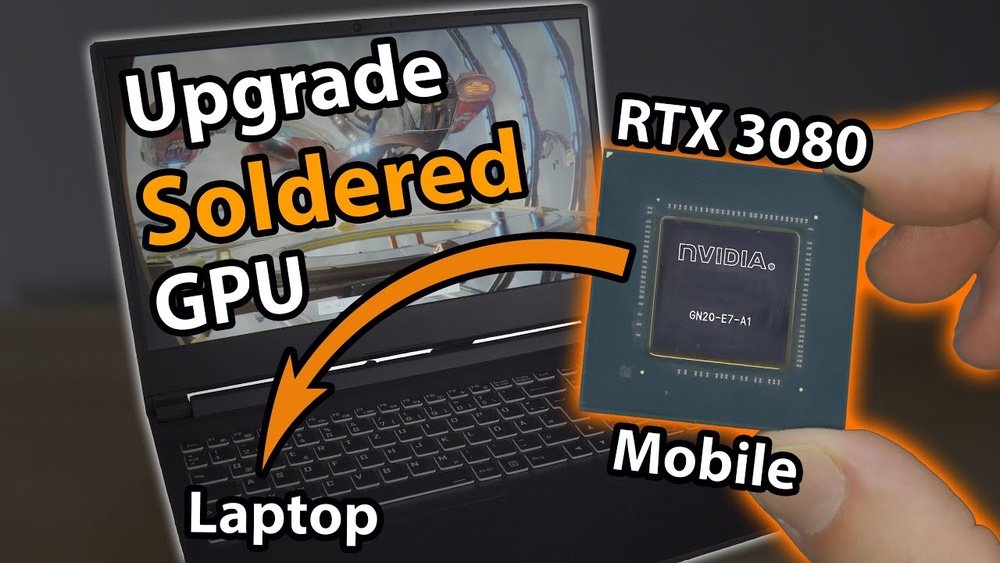
Is your laptop struggling to keep up with the latest games or graphic-heavy programs? Upgrading your GPU could be the game-changer you need.
But you might be wondering, “Is it even possible to upgrade a laptop’s GPU? ” The answer may surprise you. In this guide, you’ll discover simple steps and insider tips to boost your laptop’s graphics power without breaking the bank.
Keep reading to unlock the secrets that can transform your laptop’s performance and give you the smooth, stunning visuals you’ve been craving.
Laptop Gpu Upgrade Basics
Upgrading a laptop GPU can improve graphics performance significantly. It helps run games, videos, and design software smoother. Understanding the basics of laptop GPU upgrades is important before starting. Not all laptops support GPU upgrades, so knowing the types and limits is key.
Types Of Laptop Gpus
Laptops use two main GPU types. Integrated GPUs are built into the CPU. They share memory with the system and are less powerful. Dedicated GPUs are separate chips with their own memory. These offer better performance for graphics tasks. Some laptops have MXM modules, allowing GPU swaps. Many models have GPUs soldered to the motherboard, making upgrades impossible.
Benefits Of Upgrading Gpu
A better GPU boosts gaming and video editing speed. It allows higher screen resolutions and better image quality. Upgraded GPUs help run newer software smoothly. This can extend the laptop’s useful life. Improved graphics support virtual reality and 3D applications. Overall, a stronger GPU enhances visual experience and productivity.
Limitations To Consider
Laptop GPU upgrades face several limits. Most laptops have fixed GPUs soldered on. Only a few support removable GPU modules. Power and cooling systems may not handle stronger GPUs. Physical size and connector type must match. Upgrading may void the laptop warranty. Cost can be high compared to buying a new laptop. Checking compatibility is essential before any upgrade.
Checking Laptop Compatibility
Before upgrading your laptop’s GPU, check if your device can handle it. Compatibility is key. Not all laptops allow GPU upgrades. Some parts need to match perfectly. This step saves time and money.
Identifying Your Current Gpu
Find out which GPU your laptop has now. Use system tools like Device Manager or DirectX Diagnostic Tool. Note the brand and model number. This info helps you select the right replacement. Some laptops have integrated GPUs that cannot be changed.
Motherboard And Bios Constraints
The motherboard controls what hardware fits inside. Some motherboards only support specific GPUs. BIOS settings also matter. BIOS must recognize the new GPU for it to work. Check your laptop’s manual or manufacturer website for details. Upgrading may need a BIOS update.
Power And Cooling Requirements
New GPUs often need more power. Your laptop’s power supply must support the upgrade. Cooling is also important. Higher-performance GPUs produce more heat. Make sure your laptop’s cooling system can handle it. Overheating can damage components and lower performance.
Selecting The Right Gpu
Selecting the right GPU for your laptop upgrade is a key step. The GPU affects your laptop’s speed and battery life. Choosing the best one depends on your needs. Gaming, video editing, or everyday use require different GPUs. Understanding your options helps you make a smart choice.
Consider your laptop’s power limits and compatibility. Not all GPUs fit every model. Knowing the balance between performance and power use is important. Let’s explore the main factors to help you pick the right GPU.
Performance Vs. Power Consumption
High-performance GPUs offer fast graphics and smooth gameplay. They use more power and create more heat. This can reduce battery life and cause noise. Lower-power GPUs save battery but run slower. Choose a GPU that matches your use. For heavy tasks, pick stronger GPUs. For basic work, power-saving models work well.
Integrated Vs. Dedicated Gpus
Integrated GPUs are built into the laptop’s processor. They share memory and are less powerful. Dedicated GPUs have their own memory and are faster. They handle games and graphics programs better. Most laptops have integrated GPUs by default. Upgrading often means adding or switching to a dedicated GPU.
Popular Upgrade Options
Some laptops support external GPUs through ports like Thunderbolt. These eGPUs boost graphics without internal changes. Models from Nvidia and AMD are common choices. Nvidia’s GeForce and AMD’s Radeon series offer many options. Check compatibility with your laptop before buying. External GPUs provide good upgrades for gaming and design work.

Credit: www.youtube.com
Upgrade Methods
Upgrading a laptop’s GPU can boost its performance significantly. There are a few ways to do this, depending on your laptop model and budget. Each method has its benefits and limits. Understanding these methods helps you choose the right upgrade path.
Replacing Mxm Modules
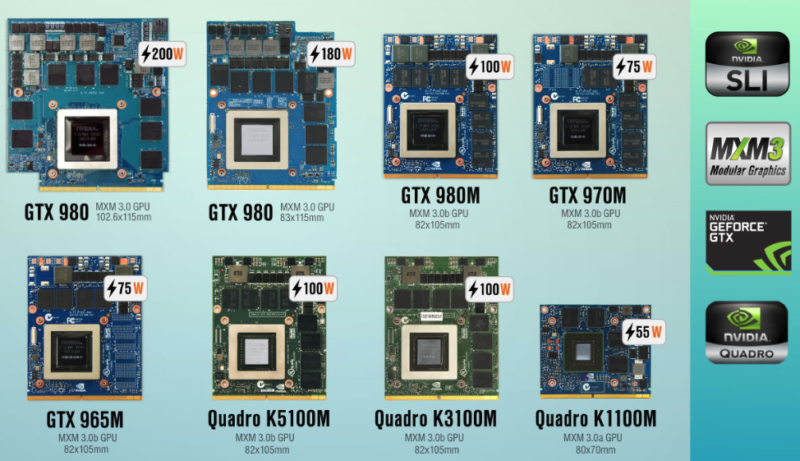
Some laptops use MXM modules for their GPUs. These modules are small cards that slide into a slot on the motherboard. Replacing an MXM module means swapping the old GPU for a new one. This method requires opening the laptop and careful handling. Not all laptops support MXM modules, so check your model first. This upgrade can improve gaming and graphic work performance.
External Gpu Solutions
External GPUs, or eGPUs, connect to your laptop via ports like Thunderbolt 3. They are separate boxes that house a desktop-grade graphics card. This method avoids opening your laptop. It provides a big performance boost for gaming and design tasks. eGPUs need power and space but offer flexibility. Choose this if your laptop supports external GPU connections.
Using Egpu Docks
eGPU docks are special enclosures for external graphics cards. They connect through fast ports and supply power to the GPU. These docks make setup easy and neat. They often include extra ports for USB and Ethernet. Using an eGPU dock improves graphics performance without changing the laptop itself. This solution is good for users needing high graphics power on the go.
Step-by-step Upgrade Process
Upgrading the GPU in a laptop can boost its performance significantly. This step-by-step process guides you through each part. Follow the instructions carefully. Take your time to avoid damage. This method works best for laptops with removable GPUs.
Preparing Your Workspace
Choose a clean, flat surface with good lighting. Gather all tools before starting. You will need a small screwdriver, an anti-static wrist strap, and a plastic prying tool. Keep a container for screws. Avoid carpet or soft surfaces to reduce static electricity.
Disassembling The Laptop
Turn off the laptop and unplug it. Remove the battery if possible. Unscrew all screws on the back panel. Use the plastic tool to gently lift the panel. Do not force it. Keep track of all screws and parts carefully.
Removing The Old Gpu
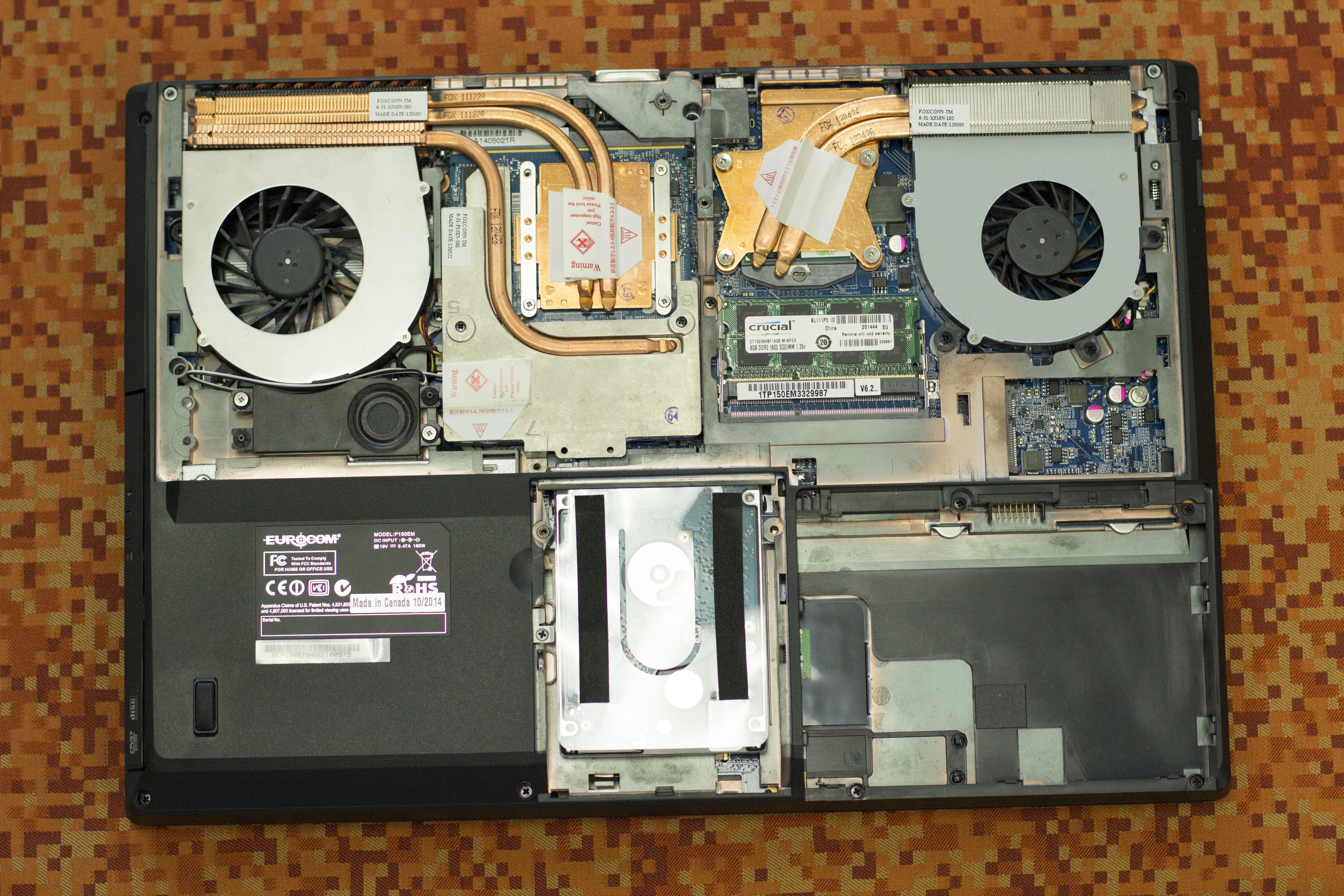
Locate the GPU inside the laptop. It usually has a heat sink and fan attached. Unscrew the heat sink carefully. Disconnect any cables connected to the GPU. Release the locking mechanism holding the GPU in place. Gently pull the GPU out of the slot.
Installing The New Gpu
Align the new GPU with the slot. Insert it firmly but gently. Lock the GPU into place with the mechanism. Reconnect any cables you removed earlier. Screw the heat sink back onto the GPU. Make sure it fits tightly to prevent overheating.
Reassembling And Testing
Replace the back panel and screw it in. Reinsert the battery if removed. Power on the laptop to check if it boots. Install the latest GPU drivers from the manufacturer’s site. Run a simple graphics test to ensure proper function.
Credit: www.liftingitalia.com
Driver Installation And Optimization
After upgrading your laptop’s GPU, installing the right drivers is crucial. Drivers help your system recognize the new hardware. They also ensure the GPU runs smoothly and efficiently. Optimizing these drivers can boost your laptop’s graphics performance. This section guides you through the key steps for driver installation and optimization.
Installing Gpu Drivers
Start by downloading drivers from the official GPU manufacturer’s website. Choose the correct model and operating system for your laptop. Run the installer and follow the on-screen instructions. Restart your laptop after the installation completes. This ensures the new drivers load properly and your GPU works at its best.
Updating Bios And Firmware
Check your laptop manufacturer’s website for BIOS updates. Updated BIOS improves hardware compatibility, including new GPUs. Follow the provided steps carefully to update your BIOS. Also, update your firmware if available. This process helps fix bugs and can improve GPU performance.
Tweaking Settings For Best Performance
Open your GPU control panel to adjust settings. Set the power mode to maximum performance. Adjust resolution and refresh rate to match your display. Disable unnecessary features that may slow down your GPU. Regularly check for driver updates to keep performance steady and reliable.
Troubleshooting Common Issues
Troubleshooting is key when upgrading your laptop’s GPU. Issues can stop your new hardware from working well. Knowing common problems helps you fix them fast. This saves time and prevents frustration. Below are some frequent issues and how to solve them.
Gpu Not Detected
Your laptop might not see the new GPU. Check the physical connection first. Make sure the GPU is properly seated in its slot. Update your laptop’s BIOS and GPU drivers. Sometimes, the system needs a reboot after installation. Disable the old GPU in device manager if needed. This helps the laptop recognize the new card.
Overheating Problems
Upgraded GPUs can run hotter than old ones. Make sure your laptop’s cooling system works well. Clean dust from vents and fans regularly. Use a cooling pad to improve airflow. Monitor temperatures with software tools to avoid damage. Lower graphics settings if overheating continues during use.
Performance Bottlenecks
Even with a new GPU, slow performance can happen. Check if your CPU or RAM limits the GPU’s power. Upgrading these parts may be necessary. Close unnecessary programs to free up system resources. Adjust game or app settings for smoother performance. Keep your drivers and system updated for best results.
Alternative Performance Boosters
Upgrading the GPU in a laptop can be tough or impossible for many models. Still, you can boost performance in other ways. These alternative methods help your laptop run games and programs smoother. They improve speed and reduce lag without changing the graphics card. Explore some simple upgrades and tweaks below.
Upgrading Ram And Storage
Adding more RAM helps your laptop handle more tasks at once. It reduces slowdowns in games and apps. Faster storage like an SSD cuts loading times. It also speeds up file transfers and system boot. Both RAM and SSD upgrades make your laptop feel quicker overall.
Optimizing Software Settings
Adjusting game and program settings lowers the load on your laptop. Reduce resolution and graphics quality to get better frame rates. Close unused apps to free up memory and CPU power. Keep your drivers and software updated for smooth performance. Small changes here improve your experience a lot.
Using Cooling Pads And Accessories
High temperatures slow down your laptop’s performance. Cooling pads help keep it cool during heavy use. They reduce overheating and prevent throttling. You can also clean vents and fans to improve airflow. Cooler laptops run faster and last longer.
Credit: www.shoshitamam.com
Frequently Asked Questions
Can I Upgrade The Gpu In Any Laptop?
Most laptops have integrated GPUs that cannot be upgraded. Only some gaming or workstation laptops support GPU upgrades via MXM modules or external eGPUs. Check your laptop model specifications before attempting an upgrade.
What Tools Do I Need To Upgrade My Laptop Gpu?
You typically need a precision screwdriver set, anti-static wrist strap, thermal paste, and cleaning materials. These tools help safely open your laptop and install the new GPU without damaging components.
How Much Does A Laptop Gpu Upgrade Cost?
Costs vary by GPU model and laptop compatibility. Expect to spend anywhere from $200 to $700 or more, including the GPU and possible professional installation fees.
Will Upgrading My Laptop Gpu Void The Warranty?
Upgrading your GPU often voids the manufacturer’s warranty. Always check your warranty terms before proceeding to avoid losing coverage on your device.
Conclusion
Upgrading your laptop’s GPU can boost its performance well. Choose a compatible GPU that fits your laptop model. Carefully follow the steps to avoid damage during installation. Test the new GPU to ensure it works properly. This upgrade helps run graphics-heavy tasks more smoothly.
Keep in mind, not all laptops support GPU upgrades. Always check your laptop’s manual before starting. With patience and care, your laptop can handle more demanding software. A better GPU means better visuals and faster processing. Ready to enjoy improved graphics on your laptop?
