
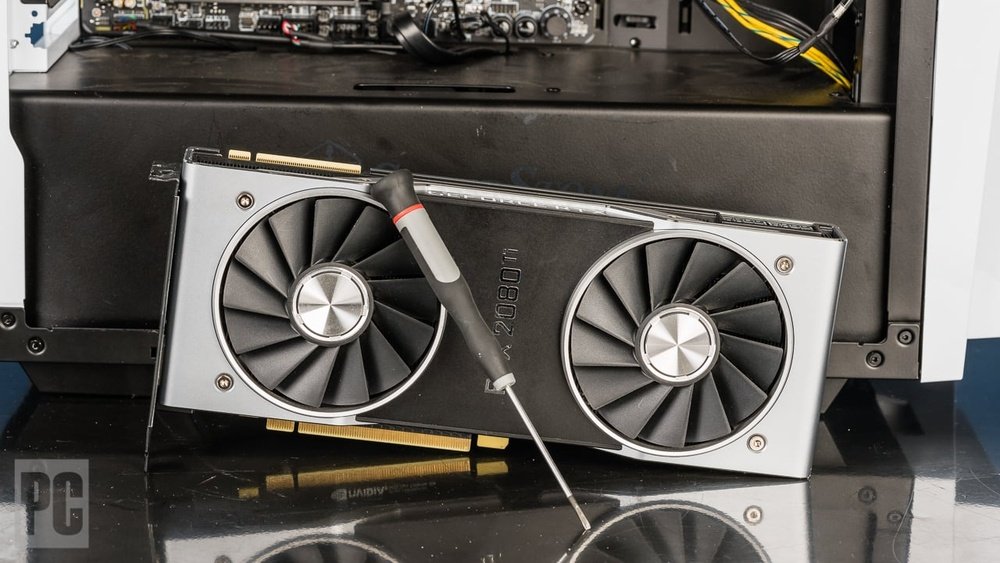
Are you ready to boost your gaming or creative work with better graphics? Upgrading your GPU can make a huge difference in how your computer performs.
But if you’re unsure where to start or worried about making mistakes, you’re not alone. This guide will walk you through simple steps to upgrade your GPU quickly and safely. By the end, you’ll have the confidence to choose the right card and install it yourself, unlocking smoother gameplay and faster rendering.
Keep reading, and let’s get your system running at its best!
Choosing The Right Gpu
Choosing the right GPU is key to a smooth gaming experience. It affects how well games run and how good they look. Picking the wrong GPU can slow down your system or waste money. Focus on your needs, compare models, and plan your budget. This helps you find a GPU that fits your setup perfectly.
Assessing Your Gaming Needs
Think about the games you play most. Some games need powerful GPUs for high settings. Others run well on mid-range cards. Check the recommended GPU for your favorite games. Also, decide if you want to play in 1080p, 1440p, or 4K resolution. Higher resolution needs a stronger GPU. Consider if you want smooth frame rates or better graphics details.
Comparing Gpu Models
Look at the specs of different GPUs. Focus on core count, memory size, and clock speed. Read reviews to see real-world performance. Notice power consumption and cooling needs too. Some GPUs run hotter and need better cooling. Check if the GPU fits your PC case and power supply. Compare brands and warranty options for peace of mind.
Budget Considerations
Set a clear budget before shopping. GPUs range from budget to premium prices. Decide how much you want to spend. Balance price with performance and features. Avoid overspending on features you won’t use. Watch for sales or older models that offer value. Remember, a good GPU today can last for years.
Preparing For The Upgrade
Preparing to upgrade your GPU is an important step. It helps avoid problems during the process. Taking time to prepare makes the upgrade smooth and safe. This section guides you through key preparation steps.
Checking System Compatibility
Check if your motherboard supports the new GPU. Look at the PCIe slot type and size. Confirm your power supply can handle the new GPU’s power needs. Check for enough space inside your case. Make sure your CPU won’t limit the GPU’s performance.
Gathering Necessary Tools
Get a screwdriver to open your PC case. Have an anti-static wrist strap to prevent static damage. Prepare cleaning materials to remove old dust. Keep your new GPU box and manuals nearby. Organize your workspace with good lighting and enough space.
Backing Up Important Data
Save all important files before starting. Use an external drive or cloud storage. Back up game saves and documents. This protects your data in case of issues. It gives peace of mind during the upgrade.
Removing The Old Gpu
Removing the old GPU is an important first step in upgrading your graphics card. This process needs care to avoid damage to your PC parts. Follow each step patiently to ensure a smooth removal.
Powering Down And Unplugging
Turn off your computer completely. Do not use sleep or hibernate mode. Unplug the power cable from the wall socket. Also, disconnect all other cables connected to your PC. This ensures safety during the removal process.
Opening The Pc Case
Place your PC on a flat, stable surface. Find the screws or latches holding the case side panel. Use a screwdriver if needed. Remove the side panel carefully and set it aside. This exposes the inside of your computer.
Disconnecting Cables And Screws
Locate your GPU inside the case. It sits in a PCIe slot on the motherboard. Unplug any power cables attached to the GPU. Next, find the screws securing the GPU to the case. Use a screwdriver to remove these screws gently.
Careful Removal Techniques
Release the clip or latch at the end of the PCIe slot. Hold the GPU firmly by its edges. Pull the GPU out slowly and straight. Avoid bending or twisting the card. Place the old GPU in an anti-static bag or safe spot.

Credit: www.youtube.com
Installing The New Gpu
Installing the new GPU is the next step after preparing your computer. It requires careful handling and attention to detail. Follow these steps to fit your new graphics card correctly and safely.
Inserting The Gpu Into The Slot
First, locate the PCIe slot on your motherboard. Hold the GPU by its edges and align it with the slot. Press down gently but firmly until it clicks into place. Make sure the card is seated evenly and fully inside the slot.
Securing The Card
Once the GPU is in place, secure it with screws to the case. This stops the card from moving and keeps it stable. Use the screws removed from the old card or those included with your new GPU.
Connecting Power Cables
Most modern GPUs need extra power from the PSU. Find the correct power cables and plug them into the GPU. Ensure the connectors fit snugly and lock into place for a steady power supply.
Updating Drivers And Software
Updating your GPU drivers and software is essential after installing a new graphics card. Drivers help your computer communicate with the GPU. Outdated drivers cause problems like crashes or poor performance. Keeping drivers updated ensures smooth gameplay and better graphics quality.
Follow these steps to update your GPU drivers and set up software for the best results.
Downloading Latest Drivers
Visit the official website of your GPU manufacturer. Common brands include NVIDIA, AMD, and Intel. Find the driver download section. Enter your GPU model and operating system. Download the latest stable driver version available. Avoid third-party sites to prevent malware risks.
Uninstalling Old Gpu Drivers
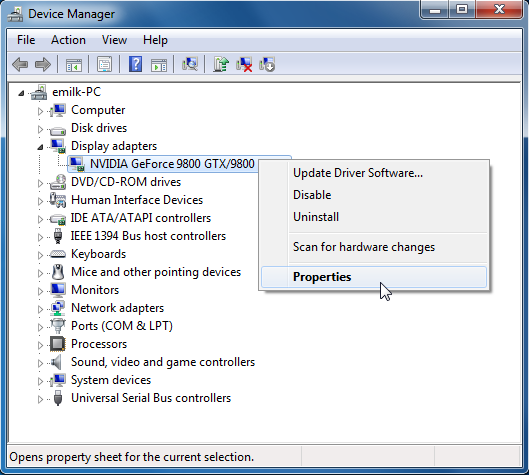
Before installing new drivers, remove old ones. Go to Control Panel and open Programs and Features. Find current GPU driver software in the list. Select and uninstall it completely. Use driver removal tools if needed. This step prevents conflicts and errors.
Installing New Gpu Drivers
Run the driver installer you downloaded. Follow on-screen instructions carefully. Choose the clean install option if available. This removes leftover files from old drivers. Restart your computer after installation completes. This ensures the new driver loads properly.
Configuring Settings For Optimal Performance
Open your GPU control panel after installation. Adjust settings like resolution, refresh rate, and power management. Enable features such as V-Sync or anti-aliasing if needed. Customize options based on your games and applications. Save settings to improve overall GPU performance.

Credit: www.molnlyckedjurklinik.se
Testing And Troubleshooting
After upgrading your GPU, testing and troubleshooting are key steps. These steps ensure the new card works well and delivers the best performance. They help spot any issues early and fix them before they become serious. This section covers how to test your GPU and fix common problems.
Running Benchmark Tests
Benchmark tests measure your GPU’s performance. Use popular software like 3DMark or Unigine Heaven. Run the tests to see how fast and smooth your GPU works. Compare results with similar GPUs to check if your upgrade is successful. These tests also show if your system is stable under heavy load.
Monitoring Temperature And Performance
Keep an eye on your GPU’s temperature during use. Tools like MSI Afterburner or HWMonitor show real-time data. High temperatures can cause your GPU to slow down or shut off. Aim to keep the temperature below 85°C. Watch the frame rates and clock speeds too. This helps spot performance drops or overheating issues early.
Common Issues And Fixes
Some problems may appear after the upgrade. No display on the monitor? Check if the GPU is seated properly in the slot. Drivers not installing? Download the latest version from the official website. Crashes or freezes? Lower the GPU clock speed or check the power supply. Use safe mode to uninstall old drivers if needed. Many issues have simple fixes that save time and frustration.
Maximizing Gaming Performance
Maximizing gaming performance is key after upgrading your GPU. The new hardware can deliver better frame rates and smoother gameplay. It is important to optimize settings and software to fully benefit from the upgrade. Small changes can have a big impact on how games run.
Adjusting In-game Settings
Start by lowering settings like shadows and reflections. These options use a lot of GPU power. Set the resolution to match your monitor for clear images. Turn off unnecessary effects such as motion blur. Balance quality and performance to avoid lag. Test different settings to find what feels best.
Using Performance-boosting Software
Many programs help improve game speed and stability. They close background apps that use CPU and memory. Some software optimizes GPU usage automatically. Use game mode features in Windows or GPU control panels. These tools make sure your system focuses on gaming. Keep them updated for best results.
Keeping Drivers Updated
GPU drivers control how hardware works with games. New driver updates fix bugs and improve speed. Check for updates regularly on the manufacturer’s website. Use automatic update tools if available. Updated drivers help your new GPU run smoothly. They also add support for the latest games.
Credit: www.algodoo.com
Frequently Asked Questions
How Do I Know If My Gpu Needs Upgrading?
Check your GPU’s performance in games or software. Lag, low frame rates, or outdated tech signal upgrade needs. Also, compare your GPU specs with recommended requirements for new software or games.
What Are The Steps To Upgrade A Gpu Safely?
First, power off your PC and unplug it. Open the case, remove the old GPU carefully. Insert the new GPU into the PCIe slot. Secure it, connect power cables, then close the case and power on.
Can Upgrading Gpu Improve Gaming Performance Significantly?
Yes, upgrading your GPU can boost gaming graphics and frame rates. A newer GPU supports higher resolutions and advanced features like ray tracing. This leads to smoother and more visually impressive gameplay.
Do I Need A New Power Supply For A Gpu Upgrade?
It depends on the new GPU’s power requirements. Check the wattage and connectors needed. If your current power supply is insufficient, upgrade it to avoid performance issues or damage.
Conclusion
Upgrading your GPU can boost your computer’s performance. Choose a compatible card that fits your needs and budget. Take time to install it carefully and safely. Test your system after the upgrade to ensure all works well. A better GPU helps with gaming, video editing, and other tasks.
Enjoy smoother graphics and faster speeds. Stay patient and follow each step clearly. This simple upgrade can make a big difference in your computer experience.
