
If you want your computer to run smoothly and get the best performance from your games and apps, updating your GPU driver is a must. But maybe you’re not sure how to do it, or you worry about making a mistake.
Don’t worry—this guide will walk you through the process step-by-step, using simple language you can easily follow. By the end, you’ll know exactly how to update your GPU driver quickly and safely, so your system stays fast, stable, and ready for anything.
Keep reading to unlock the full power of your graphics card!
Check Your Gpu Model
Before updating your GPU driver, knowing your GPU model is key. It helps you find the right driver version. Each GPU model has specific drivers made for it.
Checking your GPU model is quick and easy. It takes only a few steps on your computer.
Check Gpu Model On Windows
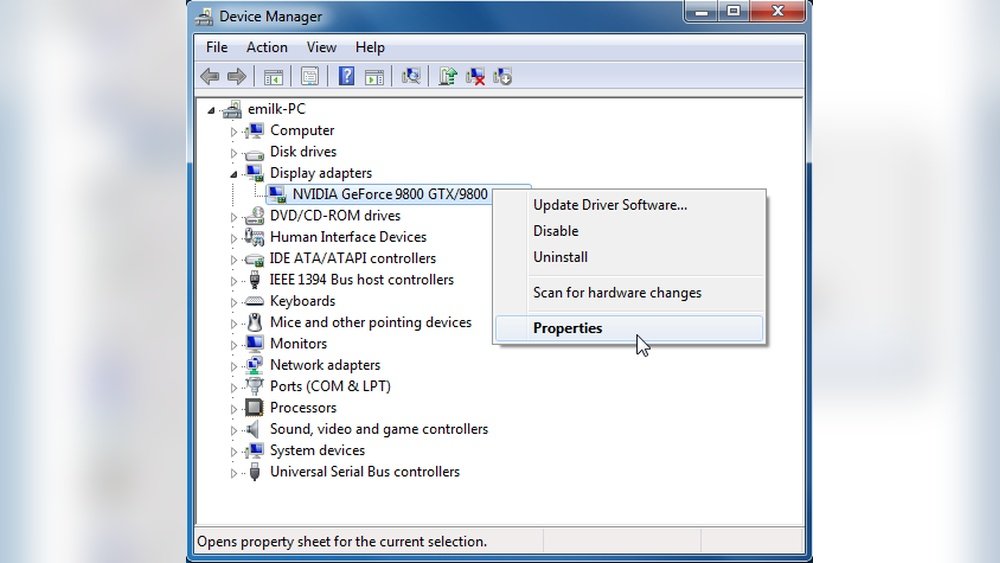
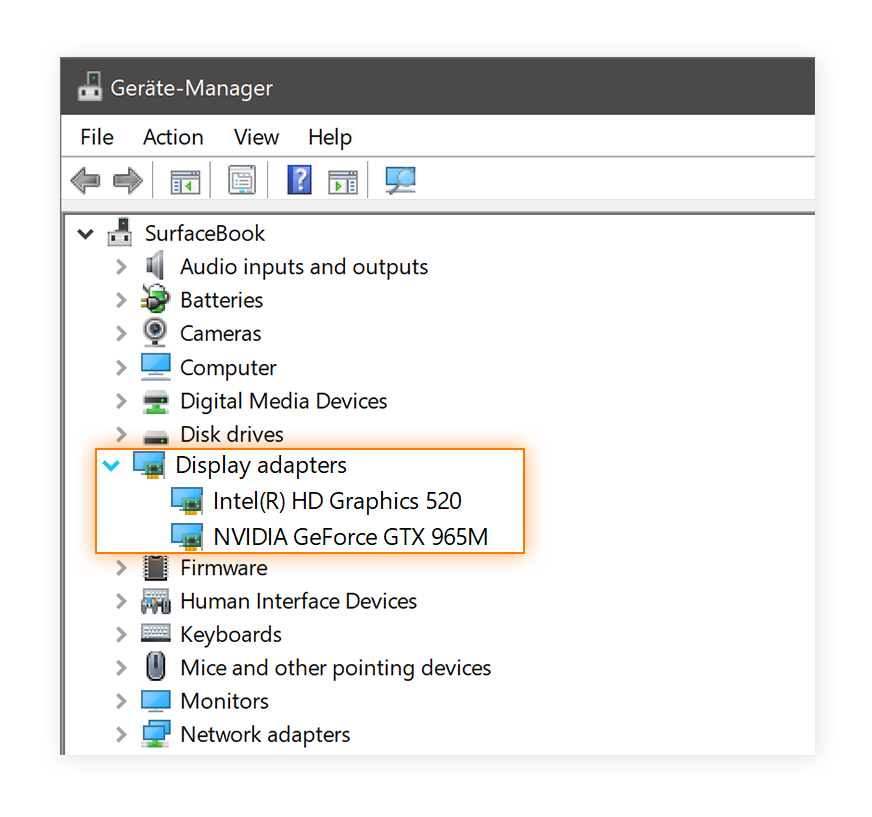
Press the Windows key and type “Device Manager.” Open it. Expand the “Display adapters” section. Here, you see your GPU model listed.
Check Gpu Model On Mac
Click the Apple icon on the top-left. Select “About This Mac.” In the window, your GPU model appears under “Graphics.”
Use Command Prompt On Windows
Open Command Prompt. Type “dxdiag” and press Enter. In the tool, go to the “Display” tab. Your GPU model is shown there.
Find Your Current Driver Version
Knowing your current GPU driver version is the first step in updating it. This helps you check if an update is needed. You can find this information easily on your computer. It only takes a few clicks to see the version number. This section explains how to find your GPU driver version on different systems.
Check Driver Version On Windows
Press the Windows key and type “Device Manager”. Open it. Find “Display adapters” and click the arrow. Right-click your GPU name and select “Properties”. Go to the “Driver” tab. The driver version is listed there.
Find Driver Version On Mac
Click the Apple menu and select “About This Mac”. Click “System Report”. Choose “Graphics/Displays” in the sidebar. Look for the driver version next to your GPU details.
Use Gpu Manufacturer Software
Most GPUs come with software like NVIDIA GeForce Experience or AMD Radeon Software. Open the software. It usually shows the current driver version on the main page. This method works for both Windows and Mac.
Visit Official Gpu Manufacturer Sites
Updating your GPU driver is vital for better performance and stability. The safest way to get the latest driver is through the official manufacturer’s website. These sites provide the most accurate and up-to-date software for your graphics card. Avoid third-party websites to reduce risks of wrong or harmful downloads.
Each major GPU brand has a dedicated site with easy steps to find and download your driver. Below are the main sources for NVIDIA, AMD, and Intel drivers.
Nvidia
NVIDIA’s official site offers a user-friendly interface for driver updates. Select your graphics card model and operating system from dropdown menus. The site then shows the latest driver available. Download the file and follow the installation guide on the page. NVIDIA also provides an automatic detection tool for convenience.
Amd
AMD’s website helps you find your GPU driver quickly. Use the search tool or select your product from a list. The site displays the most recent driver version compatible with your device. Download the installer and run it following the instructions. AMD also offers a software called Radeon Software for easier updates.
Intel
Intel’s support page lists drivers for integrated and discrete graphics. Choose your GPU model and operating system to get the right driver. The download includes a setup wizard that guides you through the process. Intel also provides a tool that automatically finds the correct driver for your system.
Download The Latest Driver
Downloading the latest GPU driver is the key step to keep your graphics card running smoothly. New drivers bring important fixes and better performance. They also add support for new games and software. Updating your driver helps avoid bugs and crashes. It ensures your PC uses your GPU to its full potential.
Finding and downloading the correct driver is easy. Follow clear steps to get the right version for your system. This process keeps your GPU up to date and stable.
Identify Your Gpu Model
Start by knowing your exact GPU model. Open your device manager or use system information tools. Look for the display adapters section. Note down the GPU name and model number. This detail helps find the right driver on the manufacturer’s site.
Visit The Official Manufacturer Website
Go to the website of your GPU maker. Nvidia, AMD, and Intel have dedicated driver pages. Avoid third-party sites to prevent unsafe downloads. Official sites provide the latest, tested drivers directly.
Select The Correct Operating System
Choose your computer’s operating system on the download page. Drivers vary between Windows versions and Linux. Picking the right OS ensures the driver works properly with your PC.
Download The Driver File
Click the download button for your GPU model and OS. Save the file in a location you can easily find. The file usually has an executable format like .exe or .zip. Wait for the download to finish before moving on.
Prepare For Installation
Preparing your computer before updating the GPU driver is very important. It helps avoid problems during installation. Taking a few simple steps can save you time and trouble later.
Getting ready means protecting your data and making sure nothing blocks the update process. Follow these tips for a smooth and safe installation.
Backup Important Data
Backing up important files is a smart first step. Save your documents, photos, and other key data. Use an external drive or cloud storage. This keeps your information safe if anything goes wrong.
Driver updates are usually safe. Still, accidents can happen. Having a backup means you won’t lose your files. It’s easy and only takes a few minutes.
Close Running Applications
Close all programs before starting the update. This includes web browsers, games, and any software using the GPU. Open apps can cause errors or slow down the process.
Shutting down applications frees up system resources. It helps the driver install faster and more cleanly. Save your work first to avoid losing data.
Credit: www.flumidieselbosch.com.br
Install The New Driver
Installing the new GPU driver is a key step to improve your computer’s graphics performance. This process replaces the old driver with the latest version. It ensures your GPU works smoothly with new games and software. Follow the steps carefully to avoid errors.
Run The Installer
Locate the downloaded driver file on your computer. Usually, it is in the Downloads folder. Double-click the file to start the installer. The installer will open a new window. Wait a few seconds for it to load.
Do not close the installer window during the process. The installer checks your system for compatibility. It prepares files needed for the update.
Follow On-screen Prompts
The installer gives instructions one step at a time. Read each prompt carefully. Click “Next” or “Continue” to proceed. You may see options like “Express” or “Custom” install. Choose “Express” for a quick and safe update.
Wait as the installer copies files and updates drivers. Your screen may flicker or go black briefly. This is normal during the update. Do not turn off your PC until the process finishes.
Restart Your Computer
Restarting your computer is a key step after updating your GPU driver. It lets your system apply the new changes properly. Without a restart, the update might not work well or show errors.
Turning off and on your computer clears temporary files and resets hardware. This refresh helps the new driver run smoothly. It also avoids conflicts with old driver versions still in use.
Save Your Work Before Restarting
Close all open files and programs. Save important documents to avoid losing data. Restarting closes everything without warning.
How To Restart Your Computer
Click the Start menu on your desktop. Select the power icon, then choose Restart. Wait for your computer to turn off and start again.
Check For Driver Functionality After Restart
After reboot, check if your GPU works correctly. Open your graphics settings or use software to verify the driver version. If the problem persists, consider reinstalling the driver.
Credit: www.rtk-holding.ru
Verify The Driver Update
After updating your GPU driver, checking if the update worked is important. Verifying the driver update helps ensure your graphics card runs smoothly. This step also prevents problems caused by wrong or incomplete installations.
Verification is simple and quick. It confirms your system uses the latest driver version. Let’s see how to check and confirm the update is successful.
Check Driver Version In Device Manager
Open Device Manager on your PC. Find the “Display adapters” section and click it. Right-click your GPU and select “Properties.” Go to the “Driver” tab. Here, you will see the driver version and date. Compare this with the latest version from your GPU maker’s website. The numbers should match or be newer.
Use Gpu Manufacturer Software
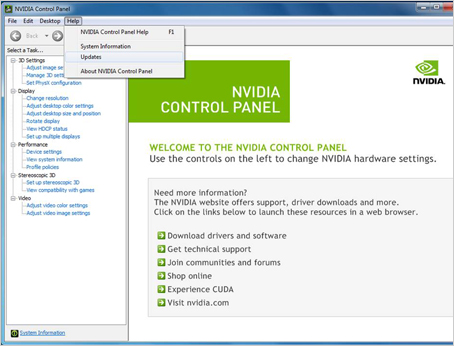
Many GPU brands offer software to manage drivers. For example, NVIDIA has GeForce Experience, AMD has Radeon Software. Open the software and look for the driver version info. It often checks updates automatically and tells you if your driver is current. This method is easy and reliable for most users.
Run A Graphics Test Or Benchmark
Running a simple graphics test can confirm driver performance. Use built-in tools like Windows “DirectX Diagnostic Tool” (dxdiag). This tool shows detailed graphics info. You can also try free benchmark apps online. If your GPU works without errors or crashes, the driver update likely succeeded.
Troubleshoot Common Issues
Updating your GPU driver usually goes smoothly. Still, some common issues can occur. These problems might stop the update or cause poor performance afterward. Knowing how to fix these helps keep your system running well.
Driver Installation Errors
Sometimes the driver won’t install correctly. Error messages may appear during setup. These can happen if the previous driver is not fully removed. Or if the driver version does not match your GPU model.
Try uninstalling the old driver completely. Use a tool like Display Driver Uninstaller for a clean removal. Then, download the correct driver from the official website. Run the installer as an administrator to avoid permission issues.
Performance Problems After Update
After updating, your GPU may run slower or crash. This often results from incompatible or buggy drivers. Rolling back to the previous version can help. Check for updates from the GPU maker regularly. Sometimes, waiting for a patch fixes performance problems.
Also, adjust your system settings. Disable unnecessary background apps that use GPU power. Keep your operating system updated for better compatibility. These steps improve stability and speed after driver updates.
Use Automatic Driver Update Tools
Using automatic driver update tools simplifies the process of keeping your GPU driver current. These tools scan your system, find the right driver version, and install it for you. This saves time and avoids errors that come with manual updates.
Automatic tools work in the background and alert you only when updates are available. They support many GPU brands and models. Even beginners find them easy to use and reliable.
What Are Automatic Driver Update Tools?
These are software programs that check your computer’s hardware and software. They identify outdated drivers and download the correct updates. The process is mostly automatic, requiring minimal input from you.
Benefits Of Using Automatic Tools
They reduce the risk of installing wrong drivers that can cause system issues. Updates happen faster and more often. You avoid searching for drivers on multiple websites or manufacturer pages.
How To Choose A Reliable Tool
Select tools with good user reviews and regular updates. Check if the software supports your GPU brand. Avoid tools that require too many permissions or show excessive ads.
Step-by-step Guide To Using Automatic Tools
Download and install the tool from a trusted site. Run a scan to detect outdated GPU drivers. Follow prompts to download and install the update. Restart your computer to apply changes.
:max_bytes(150000):strip_icc()/001-how-to-update-your-graphics-driver-in-windows-4aba09bd4c374392b9d1ad2cc0e8a96e.jpg)
Credit: vixencomposites.com
Frequently Asked Questions
How Do I Check My Current Gpu Driver Version?
You can check your GPU driver version via Device Manager on Windows. Expand “Display adapters,” right-click your GPU, and select “Properties. ” The driver version appears under the “Driver” tab. This helps ensure you download the correct update for your graphics card.
Why Is Updating My Gpu Driver Important?
Updating your GPU driver improves performance, fixes bugs, and adds new features. It enhances compatibility with the latest games and software. Keeping your driver updated ensures a smooth and stable experience while using your graphics card.
How Often Should I Update My Gpu Driver?
It’s best to update your GPU driver every few months or when you encounter issues. Check for updates before installing new games or software. Regular updates maintain optimal GPU performance and security.
Can I Update My Gpu Driver Without Software?
Yes, you can manually update your GPU driver by visiting the manufacturer’s website. Download the latest driver compatible with your GPU model and operating system. Then, install it by following the on-screen instructions.
Conclusion
Updating your GPU driver keeps your computer running smoothly. It helps fix bugs and improves performance. Regular updates make games and apps work better. Always download drivers from the official website. Avoid unknown sources to stay safe. Remember to restart your computer after updating.
This simple step can prevent many problems. Keep your system fresh by checking for updates often. Staying up to date protects your device and enhances your experience. Don’t skip this easy but important task.
