
Is your Ryzen CPU running slower than you expected? Keeping your Ryzen CPU drivers up to date is one of the easiest ways to boost your computer’s performance and fix annoying issues.
But if you’re not sure how to update these drivers safely and quickly, you might miss out on smoother gaming, faster processing, and better stability. You’ll learn exactly how to update your Ryzen CPU drivers step by step—no confusion, no tech jargon.
Stick with me, and you’ll have your system running at its best in no time.
Credit: culturahistorica.org
Why Update Ryzen Drivers
Updating Ryzen CPU drivers is important for your computer’s health and speed. Drivers act as a bridge between your hardware and software. Keeping them current helps your system run smoothly and efficiently. Below are key reasons why updating Ryzen drivers matters.
Performance Improvements
New driver versions often bring better performance. They can make your Ryzen CPU work faster and handle tasks with less effort. This means smoother gaming, quicker app launches, and faster multitasking. Updates optimize how your CPU uses power and resources.
Bug Fixes And Stability
Drivers sometimes have errors that cause crashes or slowdowns. Updates fix these bugs to keep your system stable. A stable system means fewer freezes and unexpected restarts. Updating reduces the chance of software conflicts and errors.
Compatibility With New Software
New programs and games need the latest drivers to run well. Updated Ryzen drivers ensure your CPU works correctly with new software. This prevents crashes and improves the overall experience. Staying current means your system supports the latest technology.

Credit: www.gamecrate.com
Preparing For Driver Update
Preparing for a Ryzen CPU driver update is important for a smooth process. It helps avoid errors and keeps your system safe. Taking some simple steps before updating saves time and effort later.
Start by knowing your current driver status. Then, protect your important files. Finally, make sure no programs interfere with the update.
Check Current Driver Version
Find out which Ryzen driver version your system uses now. This helps confirm if an update is needed. Open Device Manager, locate your CPU under “Processors,” and check the driver details. Write down the version number for comparison.
Backup Important Data
Save your important files before updating drivers. A backup protects your data if something goes wrong. Use an external drive or cloud storage to keep copies safe. This step avoids data loss and stress.
Close Running Applications
Close all open programs before starting the driver update. Running apps can cause errors or slow down the process. Shut down browsers, games, and background software. This ensures the update works quickly and correctly.
Finding The Right Ryzen Drivers
Finding the right Ryzen drivers is important for your PC’s performance. Drivers help your processor communicate well with the operating system. Using the correct drivers avoids errors and slowdowns. This section shows easy ways to find the best Ryzen drivers safely and quickly.
Official Amd Website
The official AMD website offers the most reliable Ryzen drivers. Visit amd.com and go to the “Drivers & Support” section. Enter your Ryzen CPU model to find compatible drivers. Download the latest version to keep your system updated. This method ensures genuine drivers from the source.
Using Amd Radeon Software
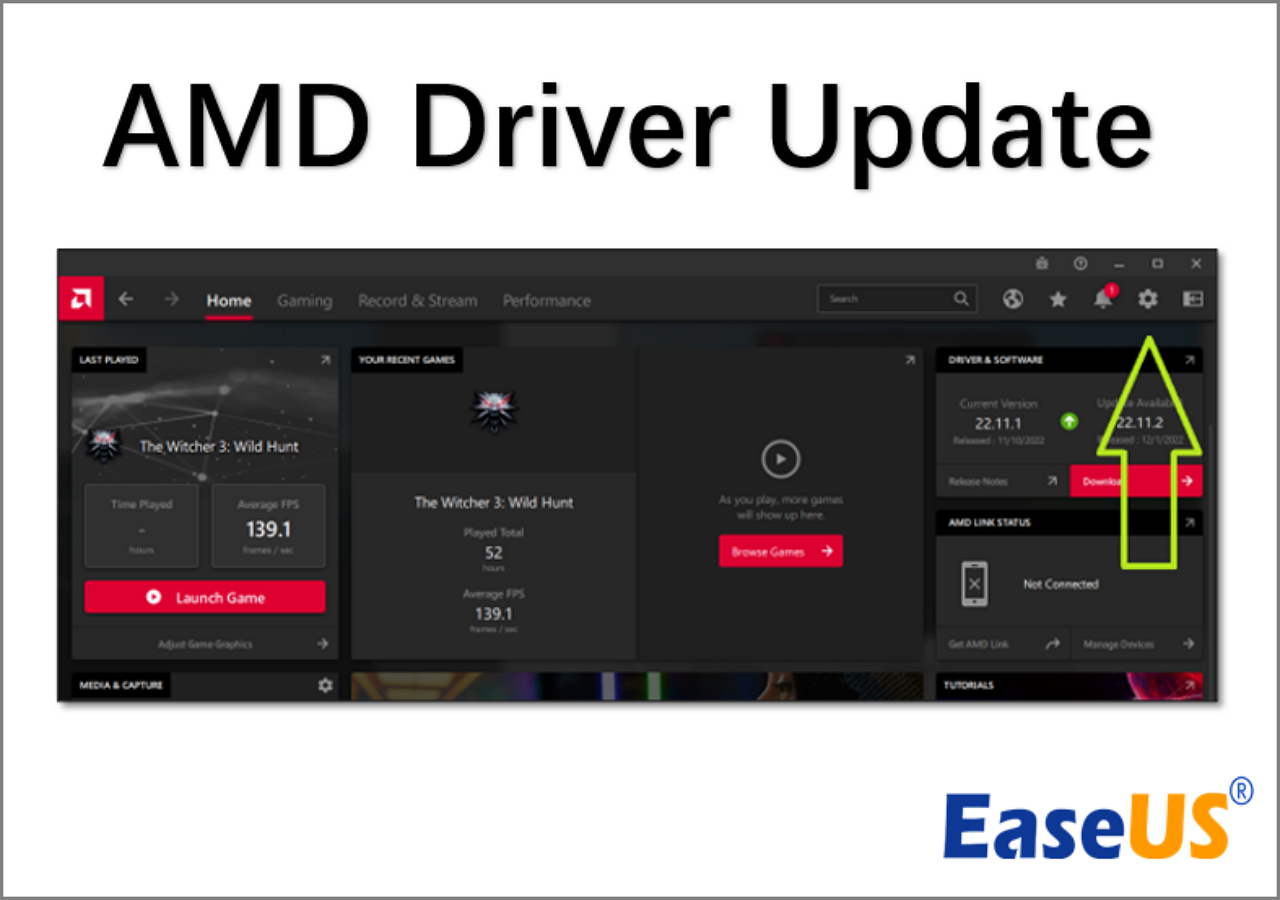
AMD Radeon Software can detect and update Ryzen drivers automatically. Install this software on your PC to simplify the update process. It scans your hardware and suggests the right driver versions. Click the update button to install new drivers without manual searching. This tool helps keep your drivers current with ease.
Third-party Driver Tools
Third-party driver tools can also find Ryzen drivers. Programs like Driver Booster or Snappy Driver Installer scan your PC for outdated drivers. They offer updates for many device types, including CPUs. Use trusted tools only to avoid security risks. These tools save time but check results carefully before installing.
Step-by-step Update Process
Updating Ryzen CPU drivers keeps your computer fast and stable. This step-by-step process helps you do it right. Follow each step carefully to avoid problems and make sure your system works well.
Download The Latest Drivers
Start by visiting the official AMD website. Find the support section for Ryzen CPUs. Choose your exact CPU model from the list. Download the latest driver version available for your system.
Save the file to an easy-to-find folder. This makes the next steps quicker and smoother.
Uninstall Old Drivers
Open the Control Panel on your PC. Select “Programs and Features” or “Apps & Features.” Find the current AMD Ryzen driver in the list. Click it and choose “Uninstall.”
Follow the prompts to remove the old driver completely. This step prevents conflicts with the new driver.
Install New Drivers
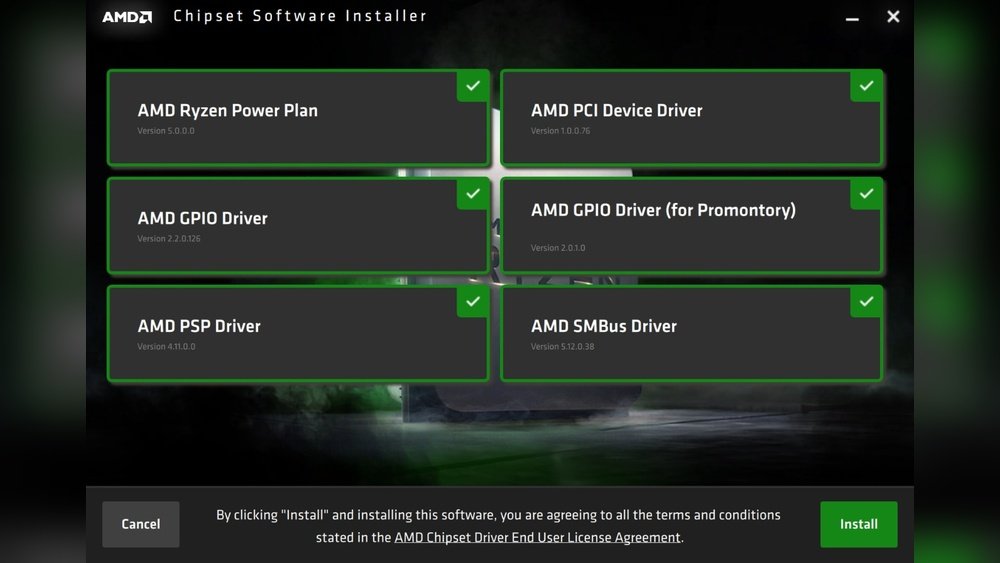
Locate the downloaded driver file. Double-click it to start the installation. Follow the on-screen instructions carefully. Choose default settings unless you know what to change.
Wait for the installer to finish. This may take a few minutes.
Restart Your System
After installation, restart your computer. This step applies the new driver changes. Your Ryzen CPU will now run with updated support and improved performance.
Troubleshooting Common Issues
Updating Ryzen CPU drivers can sometimes cause issues. These problems can stop your computer from working well. This section helps you fix common troubles. Follow simple steps to keep your PC running smoothly.
Driver Installation Errors
Errors during driver installation happen often. Sometimes the update file is corrupted or incomplete. Check your internet connection before downloading drivers. Disable antivirus software temporarily as it may block the installer. Run the installer as an administrator to avoid permission issues. Restart your PC after installation to apply changes.
Performance Drops After Update
Performance may slow down after updating drivers. This can happen if the new driver is not stable. Clear your system cache to remove old files. Check for conflicting software that may slow your CPU. Use the Task Manager to monitor CPU usage. Update your motherboard BIOS to improve compatibility with new drivers.
Rolling Back To Previous Drivers
Rolling back helps if the new driver causes problems. Open Device Manager and find your CPU under processors. Right-click the driver and select “Properties.” Go to the “Driver” tab and click “Roll Back Driver.” Follow the instructions to restore the old driver version. Restart your computer to complete the rollback process.
Optimizing Ryzen For Peak Performance
Optimizing your Ryzen CPU ensures it runs smoothly and efficiently. It helps your system perform better in everyday tasks and demanding applications. Small tweaks can boost speed and stability. Follow simple steps to keep your Ryzen at its best.
Adjusting Bios Settings
BIOS controls your CPU’s basic functions. Enter BIOS during startup by pressing a key like Delete or F2. Look for CPU settings or advanced options. Enable features like Precision Boost and XMP for better speed. Avoid overclocking without knowledge; it can cause damage. Save changes and restart your PC to apply settings.
Using Ryzen Master Utility
Ryzen Master is a free tool from AMD. It allows easy control of CPU performance on Windows. Open the app and check CPU temperature and speed. Use presets for balanced or high-performance modes. Manual adjustments can improve performance but require caution. Always monitor temperatures to avoid overheating.
Regular Driver Maintenance
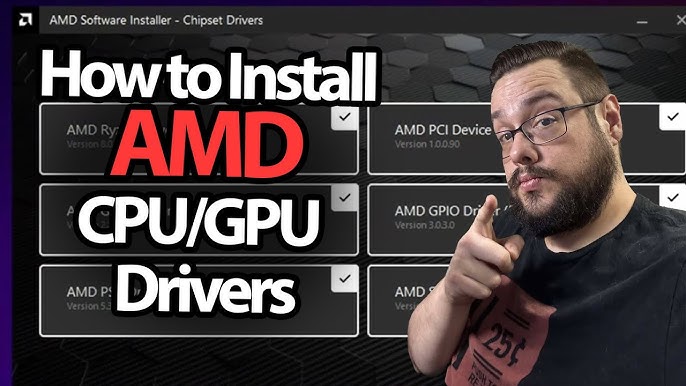
Drivers keep your CPU communicating with the system. Update Ryzen chipset drivers from AMD’s official website. Use the latest version for better compatibility and fixes. Check for updates monthly or after Windows updates. Clean old drivers if you face issues. Proper maintenance prevents crashes and improves speed.
Credit: www.youtube.com
Frequently Asked Questions
How Do I Check My Ryzen Cpu Driver Version?
You can check your Ryzen CPU driver version via Device Manager. Expand “Processors,” right-click your CPU, and select “Properties. ” Go to the “Driver” tab to see the version and date.
Where Can I Download Ryzen Cpu Drivers Safely?
Download Ryzen CPU drivers from AMD’s official website. This ensures you get the latest, authentic, and compatible drivers for your system.
How Often Should I Update Ryzen Cpu Drivers?
Update Ryzen CPU drivers every 3-6 months or when you face performance issues. Regular updates improve stability and compatibility with new software.
Can I Update Ryzen Cpu Drivers Through Windows Update?
Windows Update sometimes provides Ryzen CPU driver updates. However, for the latest version, visiting AMD’s official site is recommended.
Conclusion
Updating Ryzen CPU drivers keeps your computer running smoothly. It helps fix bugs and improve performance. Regular updates make sure your system stays secure. The process is simple and quick to follow. Check the official AMD website or use their software.
Keep your drivers current to avoid problems later. Stay on top of updates to enjoy better speed. Your PC will thank you with better stability. Don’t skip this easy maintenance step. It saves time and prevents future headaches.
