
Is your Nvidia GPU running slower than it should? Or maybe you’re missing out on the latest features and game improvements?
Updating your Nvidia GPU drivers is the key to unlocking better performance and smoother gameplay. But if you’re unsure how to do it without risking mistakes, don’t worry—you’re in the right place. This guide will walk you through simple, step-by-step instructions to update your Nvidia drivers quickly and safely.
Keep reading to make sure your graphics card is working at its best.
Credit: www.pamsteele.org
Importance Of Updated Nvidia Drivers
Keeping Nvidia GPU drivers updated is very important. These updates improve how your graphics card works. They help your computer run games and programs smoothly. Updated drivers fix problems and add new functions. This makes your experience better and more stable.
Impact On Gaming And Graphics
New Nvidia drivers improve game performance. Games run faster and look better. Updated drivers also fix issues with game crashes. They support the latest graphics technology. This helps games display vivid colors and sharp images.
Fixing Bugs And Enhancing Stability
Driver updates fix bugs in the software. Bugs can cause crashes or slowdowns. Updates make the system more stable and reliable. They reduce errors and improve overall performance. This keeps your computer running smoothly during work or play.
Access To New Features
Updated drivers bring new features to your GPU. These features improve graphics and speed. Some updates add support for new games or apps. Others enhance existing functions for better results. Staying updated ensures you use the full power of your Nvidia card.
Credit: support.pix4d.com
Preparing For The Update
Preparing your system before updating Nvidia GPU drivers is important. It helps avoid problems during and after the update. Taking a few simple steps will save time and protect your data.
Checking Current Driver Version
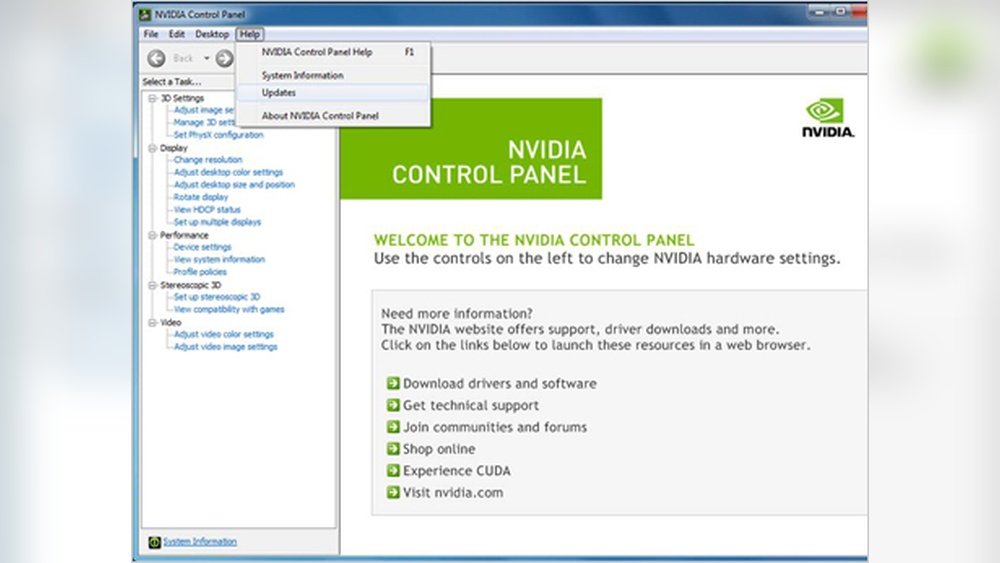
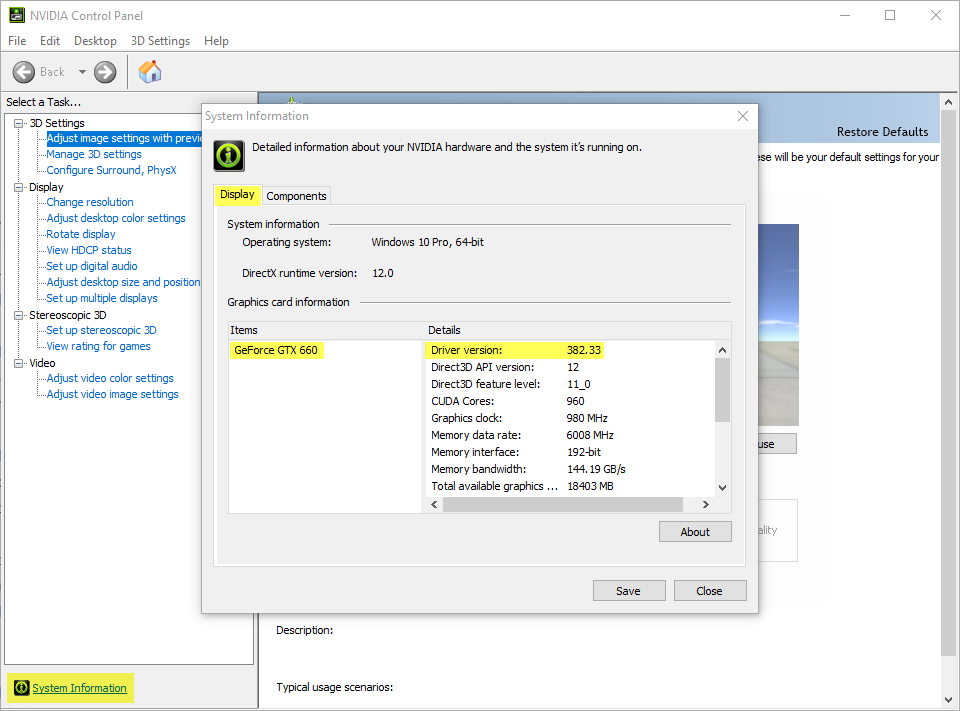
Start by checking your current Nvidia driver version. This helps know if an update is needed. Open the Nvidia Control Panel or use the Device Manager. Look for the “Driver Version” or “Driver Details” section. Write down the version number for reference.
Backing Up Important Data
Backing up important files is a smart step. Updates can sometimes cause errors or crashes. Save your work and personal files to an external drive or cloud storage. This protects your data if the update goes wrong. Better safe than sorry.
Ensuring System Compatibility
Check if your system matches the new driver’s requirements. Visit Nvidia’s official website to find compatibility details. Make sure your operating system and hardware support the update. Incompatible drivers can cause system instability or failure.
Methods To Update Nvidia Drivers
Updating Nvidia GPU drivers is important for better performance and fixing bugs. There are three common methods to update these drivers. Each method suits different users based on their comfort with technology. Choose the method that fits you best.
Using Geforce Experience
GeForce Experience is Nvidia’s official app. It makes updating drivers simple and automatic. After installing the app, open it and sign in. The app checks for new driver updates. Click the update button to start the download. The app installs the driver and restarts your system. This method saves time and avoids errors.
Manual Download From Nvidia Website
Go to the Nvidia official website. Find the driver download page. Select your GPU model and operating system carefully. Download the latest driver version available. Run the downloaded file to start the installation. Follow the on-screen instructions step-by-step. This method gives full control over the update process.
Windows Device Manager Approach
Open Device Manager on your Windows PC. Find “Display adapters” and click to expand. Right-click your Nvidia GPU and select “Update driver.” Choose “Search automatically for updated driver software.” Windows searches and installs the best driver it finds. This method is quick and uses built-in Windows tools.
Step-by-step Update Guide
Updating Nvidia GPU drivers is important for better performance and fewer errors. This guide shows each step clearly. Follow these steps to update your drivers without confusion. It takes only a few minutes.
Downloading The Correct Driver
Go to the official Nvidia website. Find the driver download page. Choose your GPU model from the list. Select your operating system. Click the download button. Save the file to your computer.
Uninstalling Old Drivers
Open the Control Panel on your PC. Find “Programs and Features.” Look for Nvidia graphics drivers. Select the old driver and click uninstall. Follow the instructions on the screen. This removes old files and avoids conflicts.
Installing The New Driver
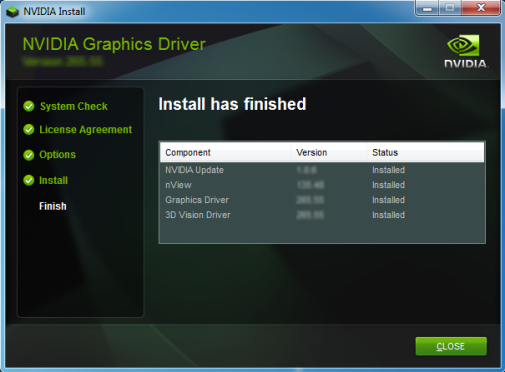
Locate the downloaded driver file. Double-click the file to start installation. Choose “Express” or “Custom” install. The express option is faster and easier. Wait for the installation to finish.
Restarting Your System
After installation, restart your computer. This lets new drivers work correctly. Your GPU is now ready to perform better.
Troubleshooting Common Issues
Updating Nvidia GPU drivers can improve performance and fix bugs. Sometimes, the update process may cause issues. Troubleshooting these problems helps keep your system stable and fast. Understanding common issues saves time and frustration.
Installation Failures
Installation failures happen often during driver updates. This may be due to corrupted files or antivirus blocks. Close all running programs before starting the update. Disable antivirus temporarily to avoid interference. Download the driver from the official Nvidia website only. Restart your PC and try the installation again.
Driver Compatibility Problems
Not all drivers fit every Nvidia GPU model. Using the wrong driver causes errors or crashes. Check your GPU model in Device Manager. Match the driver version with your GPU and Windows version. Avoid beta drivers if you want stability. If issues continue, roll back to the previous driver version.
Performance Issues After Update
Some updates may reduce performance instead of improving it. This happens if the driver has bugs or conflicts. Lower graphics settings to see if performance improves. Use Nvidia Control Panel to adjust settings. Reinstall the driver cleanly using the custom install option. Monitor your system’s temperature and GPU usage for problems.

Credit: totalplumbingfl.com
Keeping Drivers Updated Automatically
Keeping your Nvidia GPU drivers updated is important. Automatic updates make this task easier. You do not need to check for updates manually. Your system will do the work for you. This saves time and keeps your graphics card running smoothly.
Setting Up Automatic Updates
Nvidia offers a tool called GeForce Experience. It can update your drivers automatically. First, download and install GeForce Experience from Nvidia’s website. Open the program and log in or create an account. Go to the “Drivers” tab. Turn on automatic updates. The software will check for new drivers and install them without your input.
This method ensures you always have the latest drivers. It helps improve performance and fix bugs quickly. You can also schedule updates for a convenient time.
Using Third-party Tools
Third-party tools can also manage GPU driver updates. These apps scan your system and find outdated drivers. They offer a simple way to keep drivers current without manual searching. Popular tools include Driver Booster and Snappy Driver Installer.
These tools work well but choose trusted software only. Some free tools may include unwanted programs or ads. Always download from official sites. Using these programs can save time and reduce hassle.
Frequently Asked Questions
How Do I Check My Current Nvidia Gpu Driver Version?
You can check your Nvidia driver version via the Nvidia Control Panel or Device Manager. Open the Control Panel, select “System Information,” and find the driver version under “Details. ” This helps confirm if your drivers need updating for better performance.
What Is The Easiest Way To Update Nvidia Gpu Drivers?
The easiest method is using the Nvidia GeForce Experience app. It automatically detects your GPU and installs the latest drivers with a few clicks. This tool simplifies updates and optimizes your gaming and graphics settings.
Can I Update Nvidia Drivers Without Internet Access?
Yes, you can download drivers on another device with internet access. Transfer the installer via USB and run it offline. This is useful when your main PC lacks a stable internet connection.
How Often Should I Update Nvidia Gpu Drivers?
Update your Nvidia drivers every few months or when experiencing issues. Frequent updates ensure compatibility with new games and improve system stability. Regular updates also provide the latest performance enhancements.
Conclusion
Updating Nvidia GPU drivers keeps your system running smoothly. It helps fix bugs and improve performance. Regular updates ensure compatibility with new games and software. The process is simple and takes just a few steps. Stay safe by downloading drivers only from official Nvidia sites.
Remember to restart your computer after installing updates. Keeping your drivers current protects your hardware and enhances your experience. Don’t skip updates to avoid crashes or slowdowns. Easy to do, worth the effort. Your Nvidia GPU will thank you.
