
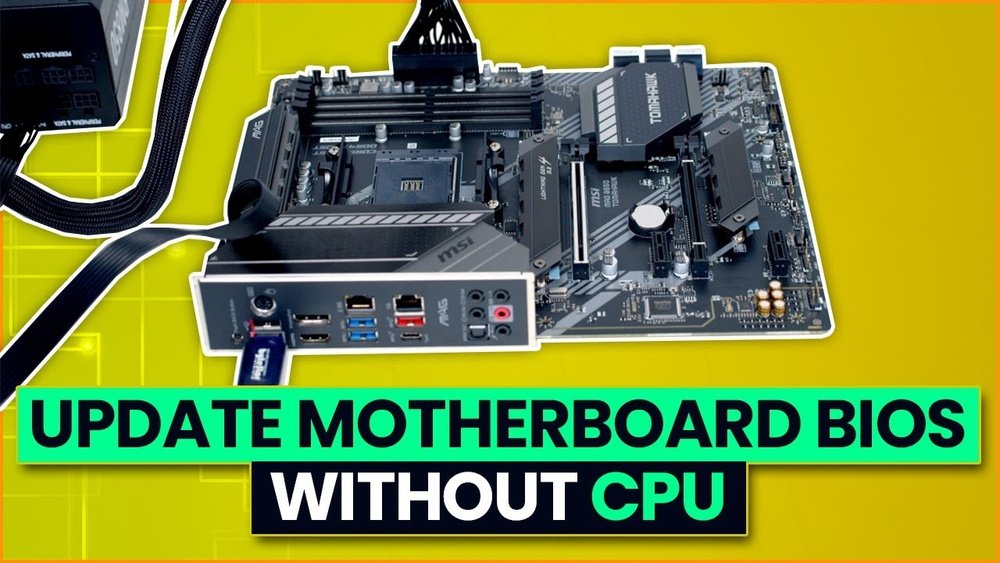
Updating your motherboard BIOS usually means having your CPU installed and ready. But what if your CPU isn’t working or you don’t have one yet?
Don’t worry—there’s a way to update your BIOS without a CPU at all. This can save you time, prevent compatibility issues, and get your system ready faster than you think. In this guide, you’ll learn exactly how to do it step-by-step, even if you’ve never tried it before.
Keep reading, because this simple trick could change the way you build and upgrade your PC forever.
Credit: www.easeus.com
Preparing For Bios Update
Preparing for a BIOS update without a CPU requires careful planning. It is important to follow specific steps. These steps reduce the risk of errors and ensure the process goes smoothly.
Start by confirming your motherboard’s compatibility. Then, download the correct BIOS file. Finally, gather all necessary tools before beginning the update.
Check Motherboard Compatibility
Check your motherboard model and version first. Visit the manufacturer’s website for details. Confirm that your motherboard supports BIOS updates without a CPU. This step avoids using the wrong method or files. A wrong update can harm your motherboard.
Download Correct Bios File
Find the BIOS update section on the official site. Download the exact BIOS file for your motherboard model. Avoid files for different models or versions. Save the file to a USB drive formatted as FAT32. Keep the USB drive free of other files to prevent confusion.
Gather Necessary Tools
Prepare the tools before starting the update. You will need a USB flash drive, a power supply, and the motherboard manual. Some motherboards require a special button or jumper for BIOS update. Read the manual carefully to understand the process. Having all tools ready saves time and prevents mistakes.
Using Bios Flashback Feature
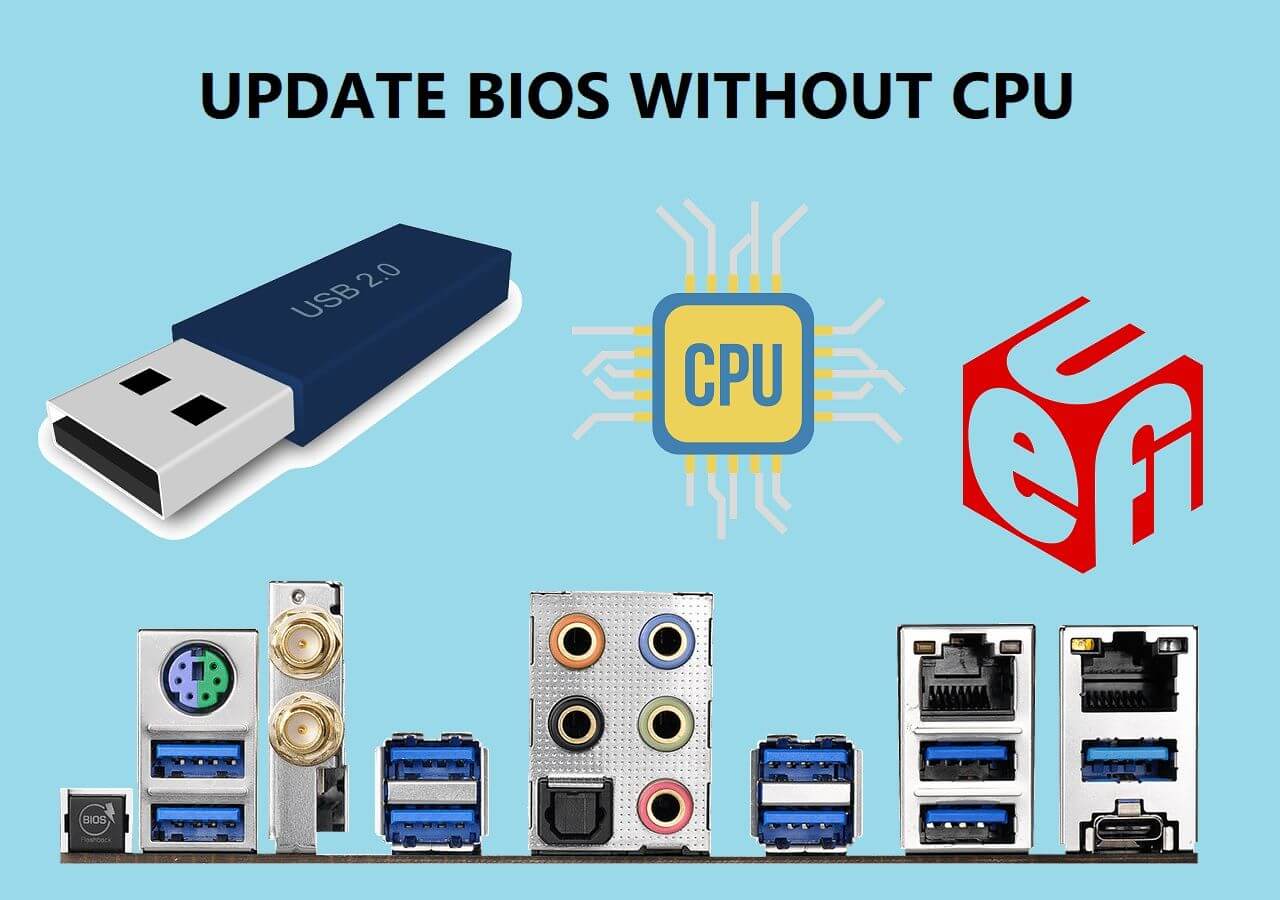
The BIOS Flashback feature helps update your motherboard BIOS without needing a CPU. This is useful if your CPU is not supported by the current BIOS version. The feature uses a special USB port on the motherboard to load the BIOS file directly. It is safe and easy to use with the right steps.
Locate Bios Flashback Port
Find the BIOS Flashback port on your motherboard’s back panel. It is often labeled as “BIOS,” “Flashback,” or “USB BIOS.” This port is usually a single USB port separate from others. Check your motherboard manual for the exact location and label.
Prepare Usb Drive
Use a USB drive formatted to FAT32 file system. Download the correct BIOS file from the motherboard manufacturer’s website. Rename the BIOS file if needed, as per the instructions. Copy the BIOS file to the root folder of the USB drive. Do not put it inside any folder.
Initiate Flashback Process
Plug the USB drive into the BIOS Flashback port. Press and hold the BIOS Flashback button on the motherboard or rear panel. Hold it for a few seconds until the LED starts blinking. The blinking shows the BIOS update is in progress. Wait until the LED stops blinking to finish. Do not turn off the power during this process.
Using External Programmer
Using an external programmer is a reliable way to update a motherboard BIOS without a CPU. This method involves removing the BIOS chip and flashing it with a programmer device. It is a bit technical but effective for many motherboard models. This technique can fix BIOS corruption or allow BIOS updates on new boards before CPU installation.
Select Suitable Programmer
Choose a programmer compatible with your BIOS chip. Common models include CH341A, TL866, or Bus Pirate. Check the chip type before buying the programmer. The device should support the chip’s firmware size and package. Use reliable software that works with your chosen programmer. This ensures smooth communication and safe flashing.
Remove Bios Chip
Power off and unplug the motherboard. Locate the BIOS chip, usually a small 8-pin or 16-pin chip. Use a chip puller or flat tool to gently lift the chip. Avoid bending or damaging the pins. Keep the chip clean and free from static. Handle with care to prevent hardware damage.
Flash Bios Chip Externally
Insert the BIOS chip into the programmer socket correctly. Open the programmer’s software and detect the chip. Load the new BIOS file into the software. Start the flashing process and wait for completion. Verify the flash to ensure success. After flashing, reinstall the BIOS chip on the motherboard.

Credit: www.youtube.com
Troubleshooting Update Issues
Troubleshooting BIOS update issues can save time and prevent hardware problems. BIOS updates without a CPU are helpful but can sometimes go wrong. Knowing how to fix common problems keeps your system safe and running well.
Verify Bios Version
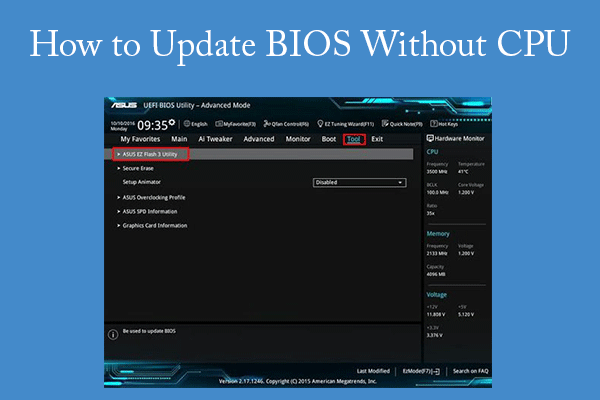
Check the BIOS version on your motherboard before updating. Use the BIOS flash utility or check the version on the motherboard label. Make sure the update file matches your current BIOS. Using the wrong version can cause errors or damage.
Handle Failed Updates
A failed BIOS update might freeze your system or cause boot errors. Do not power off immediately; some boards have recovery modes. Follow your motherboard’s guide for emergency BIOS recovery. Use a USB drive with the correct BIOS file to retry the update.
Reset Cmos Settings
Resetting CMOS clears BIOS settings and can fix update problems. Turn off power, unplug the system, and open the case. Remove the CMOS battery for a few minutes or use the reset jumper. Replace the battery, close the case, and power on to test.
Credit: www.partitionwizard.com
Frequently Asked Questions
How Can I Update Motherboard Bios Without Cpu?
You can update BIOS using the motherboard’s USB BIOS Flashback feature. It allows BIOS updates without installing a CPU or RAM. Simply prepare a USB drive with the BIOS file and use the dedicated BIOS Flashback button on the motherboard.
Which Motherboards Support Bios Update Without Cpu?
Most modern motherboards from brands like ASUS, MSI, and Gigabyte support BIOS Flashback or similar features. Check your motherboard’s manual or official website to confirm if it supports CPU-less BIOS updates.
Is Bios Flashback Safe For Updating Without Cpu?
Yes, BIOS Flashback is safe and designed for CPU-less updates. It prevents bricking by allowing recovery from a corrupted BIOS. Always use the correct BIOS file and follow manufacturer instructions carefully to avoid issues.
What Tools Are Needed To Update Bios Without Cpu?
You only need a USB flash drive formatted to FAT32 and the correct BIOS file from the motherboard’s website. No additional hardware or software is required when using the BIOS Flashback feature.
Conclusion
Updating your motherboard BIOS without a CPU is possible and useful. Many newer boards support USB BIOS flashback. This lets you prepare your system before installing the processor. Always check your motherboard manual for exact steps. Use a reliable USB drive and follow instructions carefully.
This method saves time and avoids extra costs. Stay patient and double-check each step for success. Your system will be ready for new CPUs faster and safer. Give it a try and keep your PC up to date.
