
Are you noticing your computer running slower or facing unexpected crashes? The problem might be with your Intel CPU drivers.
Keeping these drivers updated is key to making sure your system runs smoothly and efficiently. You’ll learn simple, step-by-step ways to update your Intel CPU drivers quickly and safely. By the end, you’ll have the tools to boost your computer’s performance and avoid frustrating issues.
Ready to take control of your PC’s speed and stability? Let’s get started.
Why Update Intel Cpu Drivers
Updating Intel CPU drivers is important for your computer’s health. These drivers help your CPU work well with your operating system and software. Keeping them current improves performance and fixes problems. It also protects your computer from security threats. Regular updates ensure your system runs smoothly and stays reliable.
Benefits Of Updated Drivers
Updated Intel CPU drivers improve your computer’s speed and stability. They fix bugs that cause crashes or slowdowns. Updates can add new features for better efficiency. Your CPU works better with other hardware and software. This means fewer errors and smoother multitasking. Updated drivers also help extend your CPU’s lifespan.
Risks Of Outdated Drivers
Outdated CPU drivers can cause many problems. Your computer may run slower or freeze often. Some programs might not work correctly or crash. Old drivers can cause security holes that hackers exploit. This puts your personal data at risk. You may miss important fixes and features. Using outdated drivers makes your system less reliable.
Credit: www.drivereasy.com
Check Your Current Driver Version
Checking your current Intel CPU driver version helps you know if an update is needed. It ensures your processor runs smoothly and avoids performance issues. You can find this information easily using built-in Windows tools or Intel’s software.
Using Device Manager
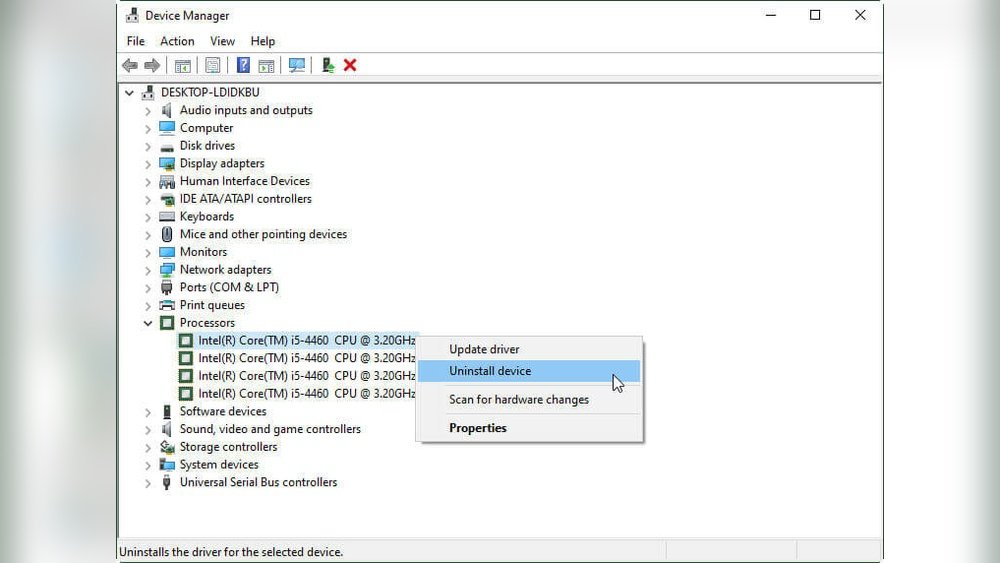
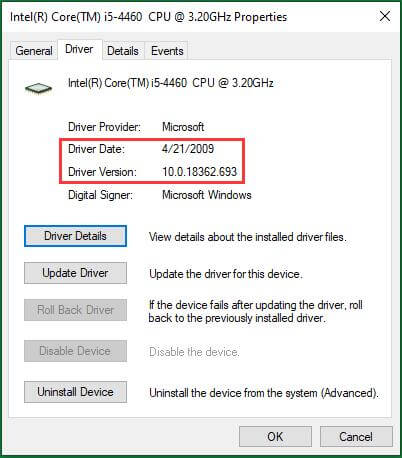
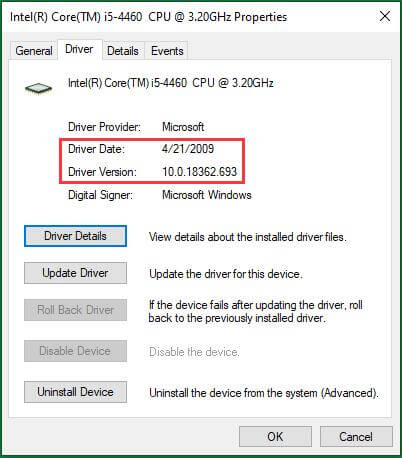
Open the Device Manager by right-clicking the Start button. Choose “Device Manager” from the menu that appears. Find “Processors” and click to expand the list. Right-click your Intel CPU and select “Properties.” In the new window, go to the “Driver” tab. Here, you see the driver version and date. Write down this info to compare with the latest version online.
Using Intel Driver & Support Assistant
Download and install the Intel Driver & Support Assistant from Intel’s official website. Launch the tool, and it scans your system automatically. It shows the current driver version for your Intel CPU. The tool also lists available updates if your driver is outdated. This method is quick and user-friendly for all skill levels.
Download The Latest Intel Cpu Drivers
Downloading the latest Intel CPU drivers keeps your computer running smoothly. Updated drivers improve performance and fix bugs. They also help your system stay secure and compatible with new software. Follow simple steps to get the newest Intel CPU drivers from trusted sources.
From Intel Official Website
Visit the Intel official website to find the latest CPU drivers. Go to the Intel Download Center and select your processor model. Use the search bar to enter your CPU name or number. Download the correct driver version for your operating system.
Check the driver details before downloading to ensure compatibility. Save the file to your computer and run the installer. Follow the on-screen instructions to complete the update. Restart your PC to apply the changes.
Using Intel Driver & Support Assistant Tool
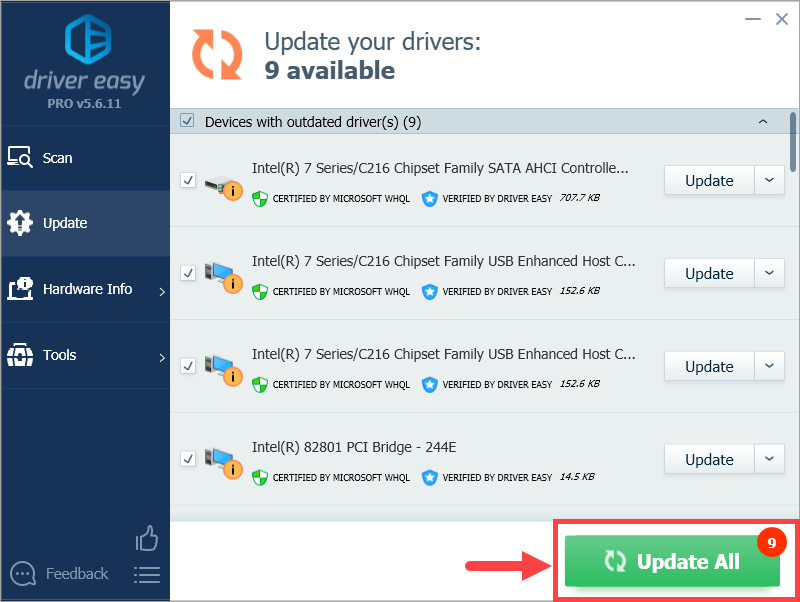
The Intel Driver & Support Assistant (IDSA) tool simplifies driver updates. Download and install the IDSA from Intel’s website. Run the tool to scan your system automatically. It identifies outdated or missing drivers quickly.
The tool lists available updates and guides you through the download. Click to install the latest Intel CPU drivers. The process is fast and reduces errors. Restart your computer after installation to finalize the update.
Install Intel Cpu Drivers Step-by-step
Installing Intel CPU drivers is a key step to keep your computer running smoothly. Updated drivers help your CPU work better with your system. This guide shows simple ways to install these drivers. Follow the steps carefully to avoid errors.
Manual Installation Process
First, identify your Intel CPU model. Visit the official Intel website. Find the “Support” or “Downloads” section. Enter your CPU model in the search box. Download the latest driver for your operating system. Open the downloaded file and run the installer. Follow the on-screen instructions. Restart your computer after installation. This process updates your CPU drivers manually.
Automatic Installation Via Intel Tool
Intel offers a tool to update drivers automatically. Download the Intel Driver & Support Assistant from Intel’s website. Install and launch the tool on your PC. It will scan your system for outdated drivers. The tool shows available updates for your CPU. Click “Install” to update the drivers. Wait for the process to finish. Restart your computer to apply changes. This method is faster and easier for most users.
Troubleshoot Driver Update Issues
Updating Intel CPU drivers can sometimes cause problems. These issues may stop the update or cause errors. Knowing how to troubleshoot helps fix these problems quickly. This section shows common issues and easy fixes.
Common Installation Errors
Installation errors often occur due to corrupted files or interrupted downloads. Make sure your internet connection is stable. Restart your computer before trying again. Check if your antivirus blocks the update. Temporarily disable it if needed.
Another error is running the wrong driver version. Confirm the driver matches your Intel CPU model. Use Intel’s official website for the correct driver. Avoid third-party sites that may have incorrect files.
Fixing Compatibility Problems
Compatibility issues arise if the driver does not fit your operating system. Verify the driver supports your Windows version. Sometimes, older CPUs need legacy drivers. New drivers might not work on outdated hardware.
Use Windows Update to check for system updates. Updated systems often fix compatibility problems. If needed, run the driver in compatibility mode. Right-click the file, select Properties, and choose Compatibility settings. This helps the driver work on your system.
Credit: www.partitionwizard.com
Keep Drivers Updated Regularly
Keeping your Intel CPU drivers updated regularly helps your computer run smoothly. Updates fix bugs and improve performance. They also protect your system from security risks. Regular updates ensure your hardware works well with new software.
Setting Up Automatic Updates
Automatic updates save time and avoid missing important driver upgrades. You can enable this feature in your system settings or through Intel’s software. This process checks for new drivers and installs them without your input. It helps keep your CPU running at its best without extra effort.
Monitoring Driver Updates
Sometimes, automatic updates may not catch every new driver. Check Intel’s official website for the latest driver versions. Use Intel Driver & Support Assistant to scan your system for updates. Regular monitoring ensures you have the newest drivers. This step keeps your system stable and fast.
Credit: www.partitionwizard.com
Frequently Asked Questions
How Do I Check My Intel Cpu Driver Version?
Open Device Manager, expand “Processors,” right-click your Intel CPU, select “Properties,” then check the “Driver” tab. This shows the current driver version installed on your system. Keeping this info helps confirm if an update is needed for better performance.
Where Can I Download Intel Cpu Drivers Safely?
Visit the official Intel website or use the Intel Driver & Support Assistant tool. These sources provide the latest, verified drivers, ensuring your CPU runs efficiently and securely without risking malware from unofficial sites.
Can Updating Intel Cpu Drivers Improve Performance?
Yes, updating Intel CPU drivers can enhance system stability and speed. New drivers often fix bugs, improve compatibility, and optimize your processor’s performance, making your computer run smoother and more efficiently.
How Often Should I Update Intel Cpu Drivers?
Check for driver updates every few months or when you experience issues. Regular updates ensure your CPU functions well, stays compatible with new software, and benefits from Intel’s latest improvements.
Conclusion
Updating Intel CPU drivers keeps your computer running smoothly. It helps fix bugs and improves performance. Regular updates also protect your system from security risks. Use Intel’s official website or trusted software for updates. Always follow simple steps to avoid errors.
Stay patient and check your system after updating. Keeping drivers current saves time and prevents problems later. You can enjoy a faster, safer computer with updated drivers. Simple actions make a big difference in your PC’s health.
