
Is your GPU running slower than it should or causing unexpected crashes? Updating your GPU firmware could be the simple fix you need.
You might think firmware updates are complicated or risky, but they’re often easy and can boost your graphics card’s performance, stability, and compatibility. You’ll learn exactly how to update your GPU firmware step-by-step, avoiding common mistakes and ensuring your system runs smoothly.
Keep reading to make sure your graphics card is working at its best.
Why Update Gpu Firmware
Updating your GPU firmware is important for better performance and stability. Firmware controls how your graphics card works with your computer. Without updates, the GPU may miss important fixes and improvements. Keeping firmware current helps your system run smoothly and safely.
Benefits Of Firmware Updates
Firmware updates can improve GPU speed and power use. They fix bugs that cause crashes or errors. Updates can add support for new games or software. They also improve compatibility with the latest operating systems. Regular updates keep your GPU working at its best.
Risks Of Outdated Firmware
Old firmware can cause your GPU to perform poorly. It may lead to crashes or freezes during use. Outdated firmware can cause overheating or hardware damage. Some games or apps might not run properly. Not updating firmware puts your system at risk of failure.

Credit: www.youtube.com
Preparing For The Update
Preparing for a GPU firmware update is important to avoid problems. Before starting, take simple steps to make the process safe and smooth. These steps help protect your data and keep your hardware safe.
Check Current Firmware Version
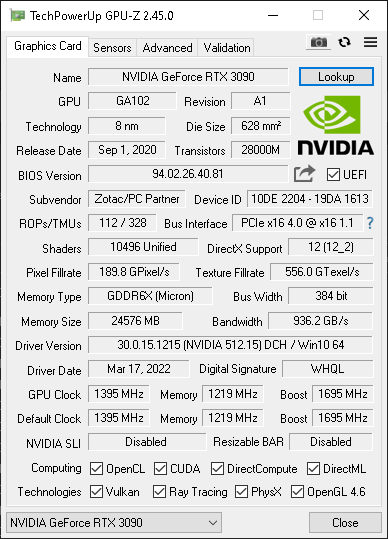
First, find out which firmware your GPU has now. This helps you know if an update is needed. You can check the version in your GPU’s control panel or system settings. Write down the version number for reference.
Backup Important Data
Save your important files before updating. Firmware updates can sometimes cause errors. Backing up keeps your data safe if something goes wrong. Use an external drive or cloud storage for backups.
Ensure Stable Power Supply
Make sure your computer has a steady power source. A power cut during update can damage your GPU. Plug your PC into a power strip or use a laptop with a full battery. Avoid updating during storms or unstable power times.
Finding The Right Firmware
Finding the right firmware is the first step to update your GPU safely. Using the wrong firmware can damage your device. It is important to get the exact version made for your GPU model. Take time to search carefully. This ensures your update process is smooth and risk-free.
Visit Official Manufacturer Website
Start by visiting the official website of your GPU manufacturer. This is the safest source for firmware files. Avoid third-party sites to prevent malware or incorrect files. Official sites often have support pages dedicated to firmware updates. Check these sections for the latest and most reliable files.
Identify Your Gpu Model
Knowing your exact GPU model is crucial. Look for model numbers on the GPU itself or in your computer settings. You can find this info in the device manager or system information tool. Match this model number with the details on the manufacturer site. Correct identification helps avoid downloading the wrong firmware.
Download Correct Firmware File
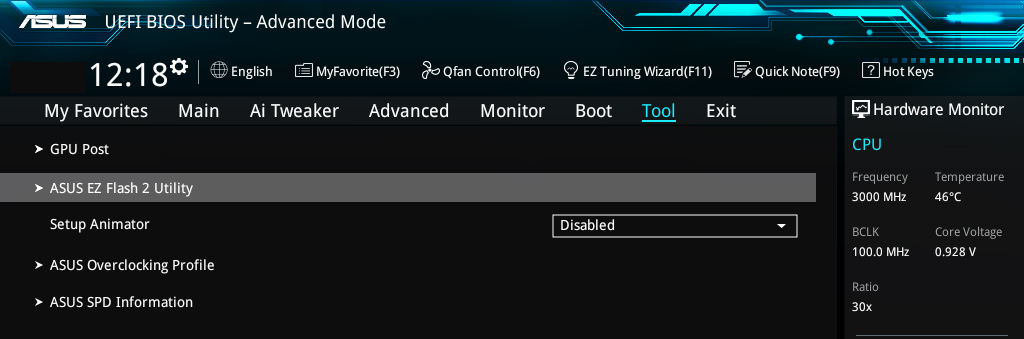
After identifying your model, locate the firmware download section. Select the file that matches your GPU model and version. Check the file name and description carefully before downloading. Always choose the latest version unless a specific older one is recommended. Saving the right file ensures your update will work correctly.
Credit: www.pamsteele.org
Step-by-step Update Process
Updating your GPU firmware can improve performance and fix bugs. The process is simple but requires careful steps. Follow this guide to update your GPU firmware safely and correctly.
Install Required Tools
First, download the official firmware update tools from your GPU maker’s website. These tools help your computer communicate with the GPU. Save them to a folder you can find easily. Make sure the tools match your GPU model.
Run Firmware Update Utility
Open the firmware update tool you installed. Run it as an administrator for full access. The utility will detect your GPU and check the current firmware version. This step is key before starting the update.
Follow On-screen Instructions
The update tool will show clear steps to follow. Read each instruction carefully. Do not turn off your PC or close the tool during the process. Wait patiently until the update finishes. Restart your computer if prompted.
Troubleshooting Common Issues
Updating GPU firmware can sometimes cause issues. These problems may stop the update or affect your GPU performance. Knowing how to solve common problems helps you save time and avoid damage. This section guides you through basic fixes for common update troubles.
Dealing With Update Failures
Update failures happen often due to interrupted downloads or power loss. Restart your computer and try the update again. Use a stable internet connection to avoid broken downloads. Close all other programs before updating. If the update still fails, check for error messages. These messages help identify the problem quickly.
Reverting To Previous Firmware
Sometimes new firmware causes more problems than it solves. Reverting to the old firmware can fix this. Most GPU tools offer an option to roll back updates. Save your current settings before starting the rollback. Follow the tool’s instructions carefully. This step restores your GPU to a stable state.
Contacting Support
If problems continue, contact the GPU manufacturer’s support team. Provide details about your GPU model and firmware version. Explain the issue clearly and include any error codes. Support teams have tools and knowledge to assist you. They can guide you through complex fixes or replacements.
Credit: myminingrig.com
Optimizing Performance Post-update
After updating your GPU firmware, focus on optimizing its performance. Firmware updates can improve stability and add features. Adjusting settings, updating drivers, and monitoring performance helps you get the best results.
Adjusting Gpu Settings
Start by opening your GPU control panel. Adjust core clock speeds and memory frequencies carefully. Avoid pushing settings too high to prevent overheating. Check power limits to ensure stable performance. Use preset profiles for balanced or high-performance modes. These tweaks help the GPU run smoothly after the update.
Updating Drivers
Download the latest GPU drivers from the official website. Drivers work with the firmware to improve compatibility. Install the drivers fully and restart your system. Updated drivers fix bugs and improve speed. Keeping drivers current ensures the GPU uses new firmware features effectively.
Monitoring Performance
Use monitoring software to check GPU temperature, usage, and clock speed. Watch for unusual spikes or drops in performance. Record benchmarks before and after updates for comparison. Monitoring helps spot issues early and maintain optimal GPU health. Consistent checks keep your system stable and efficient.
Frequently Asked Questions
What Is Gpu Firmware And Why Update It?
GPU firmware controls your graphics card’s hardware functions. Updating it improves performance, fixes bugs, and adds new features.
How Do I Check My Gpu Firmware Version?
You can check your GPU firmware in the device manager or use GPU software utilities from the manufacturer.
Is It Safe To Update Gpu Firmware Myself?
Yes, if you follow official instructions carefully. Incorrect updates can damage your GPU, so backup and proceed cautiously.
How Often Should I Update My Gpu Firmware?
Update only when the manufacturer releases a new firmware version addressing bugs or performance improvements.
Conclusion
Updating your GPU firmware keeps your system running smoothly. It helps fix bugs and improve performance. Always follow the steps carefully to avoid problems. Back up important data before starting the update. Check the official website for the latest firmware version.
Regular updates can extend your GPU’s lifespan. Stay patient during the process. A successful update means better graphics and stability. Keep your device safe and enjoy improved gaming or work experience. Simple steps lead to great results.
