
Are you noticing your games lagging or your graphics running slower than usual? The problem might be your GPU driver.
Keeping your GPU driver updated is one of the easiest ways to boost your computer’s performance and fix bugs that slow you down. You’ll learn simple, step-by-step instructions to update your GPU driver quickly and safely. By the end, you’ll have smoother graphics, better speed, and a system that runs just the way you want.
Ready to take control of your PC’s power? Let’s get started!
Credit: www.drivereasy.com
Why Update Gpu Drivers
Updating your GPU drivers is important for your computer’s health. Drivers help your GPU talk to your system and software. New driver versions bring important changes that improve your experience. This section explains why keeping your GPU drivers up to date matters.
Benefits Of Latest Drivers
Latest drivers add new features to your GPU. They improve how your graphics card works with new software. Updated drivers also support new games and applications better. This keeps your system ready for new tech and software updates.
Performance Improvements
New drivers often make your GPU run faster and smoother. They optimize how the GPU handles tasks. This can increase frame rates in games and speed up graphic-heavy apps. Better performance means less lag and more enjoyment.
Bug Fixes And Stability
Drivers fix problems found in older versions. These fixes stop crashes and errors. They make your system more stable and reliable. Updating reduces the chance of glitches during work or play.
Check Your Current Gpu Driver
Before updating your GPU driver, check the current driver version first. This helps ensure you download the correct update. Checking your driver also shows if an update is needed.
Finding your GPU model and driver version is simple. You can do this within your computer’s system settings. Follow the steps below to identify your GPU and find the driver version.
Identify Your Gpu Model
Press Windows + R to open the Run dialog. Type dxdiag and press Enter.
In the DirectX Diagnostic Tool, go to the Display tab. Here, you will see your GPU model listed as “Name.”
Note the exact name of your GPU. It is important for downloading the right driver.
Find Driver Version
On the same Display tab, look for the Driver section. You will find the Driver Version and Date listed here.
Write down the driver version number. This helps compare with the latest available driver online.
Knowing this version tells you if your driver is outdated or current.
Prepare For Driver Update
Preparing for a GPU driver update is a key step to ensure a smooth process. Taking a few simple precautions can prevent data loss and system issues. This preparation helps your computer stay stable and ready for the new driver installation.
Backup Important Data
Backing up your important files protects them from accidental loss. Save documents, pictures, and work to an external drive or cloud storage. This step secures your data if the update causes unexpected problems.
Close Running Applications
Close all open programs before starting the update. Running apps can interfere with the installation and cause errors. Shutting them down frees system resources, making the update faster and safer.
Credit: www.nvidia.com
Update Gpu Drivers Automatically
Updating GPU drivers is important for better performance and stability. Automatic updates save time and reduce errors. Your computer can handle this task with simple tools.
Use Manufacturer Software
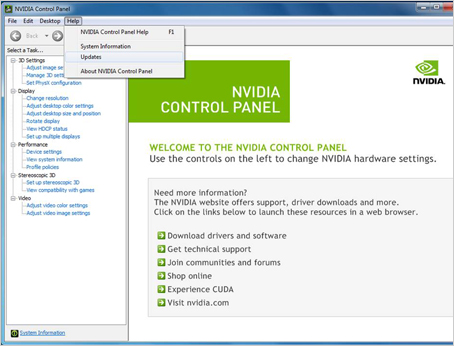
Many GPU makers offer software to update drivers automatically. Nvidia has GeForce Experience. AMD users get Radeon Software. Intel provides Intel Driver & Support Assistant. These tools scan your system and find the right driver version.
They download and install updates without manual searching. You get alerts for new drivers. This method keeps your GPU running smoothly. It also helps avoid compatibility issues.
Windows Device Manager Method
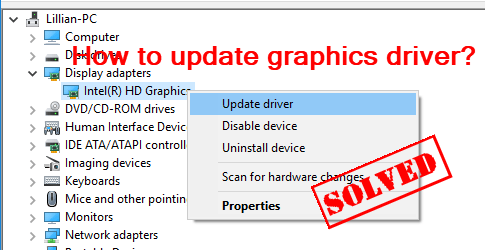
Windows Device Manager can update GPU drivers too. Open it by typing “Device Manager” in the search bar. Find “Display adapters” and click to expand. Right-click your GPU and select “Update driver.”
Choose “Search automatically for updated driver software.” Windows will check online for the latest driver. If found, it will install the update. This option is easy for users without extra software.
Update Gpu Drivers Manually
Updating GPU drivers manually gives you control over the process. It helps ensure you get the exact driver version your system needs. This method is useful if automatic updates fail or you want the latest features right away.
The manual update involves two main steps: downloading the correct driver and installing it carefully. Follow each step to keep your graphics card running smoothly and avoid errors.
Download Drivers From Official Site
Start by visiting the GPU manufacturer’s official website. Common sites include NVIDIA, AMD, and Intel. Avoid third-party websites to prevent downloading harmful files.
Next, find the driver download section. Enter your GPU model and operating system details carefully. Check the driver version and release date to pick the latest one.
Click the download button and save the file to a known folder on your computer. Ensure the download completes without interruption to avoid corrupted files.
Install The Driver Step-by-step
Locate the downloaded driver file on your computer. Double-click the file to start the installation wizard. Follow the on-screen instructions step-by-step.
Choose the installation type, usually “Express” or “Custom.” Express is faster and suitable for most users. Custom allows you to select specific components if needed.
Wait patiently while the installer copies files and updates settings. Your screen may flicker or go black briefly during this process. Do not turn off your computer or interrupt the installation.
Once finished, restart your computer to apply changes. Check the GPU driver version in the device manager to confirm a successful update.
Troubleshoot Update Issues
Updating your GPU driver can sometimes cause issues. These problems may stop your graphics card from working correctly. Knowing how to fix update issues helps keep your PC stable. It also ensures your games and apps run smoothly. Follow these tips to troubleshoot common problems and recover from bad updates.
Common Problems And Fixes
One common issue is the update not installing at all. Check your internet connection and try again. Another problem is the driver causing crashes or glitches. Restart your PC and try updating again. Sometimes, antivirus software blocks the update. Temporarily disable it before updating. Also, ensure your GPU matches the driver version. Using the wrong driver can cause errors.
Rollback To Previous Driver
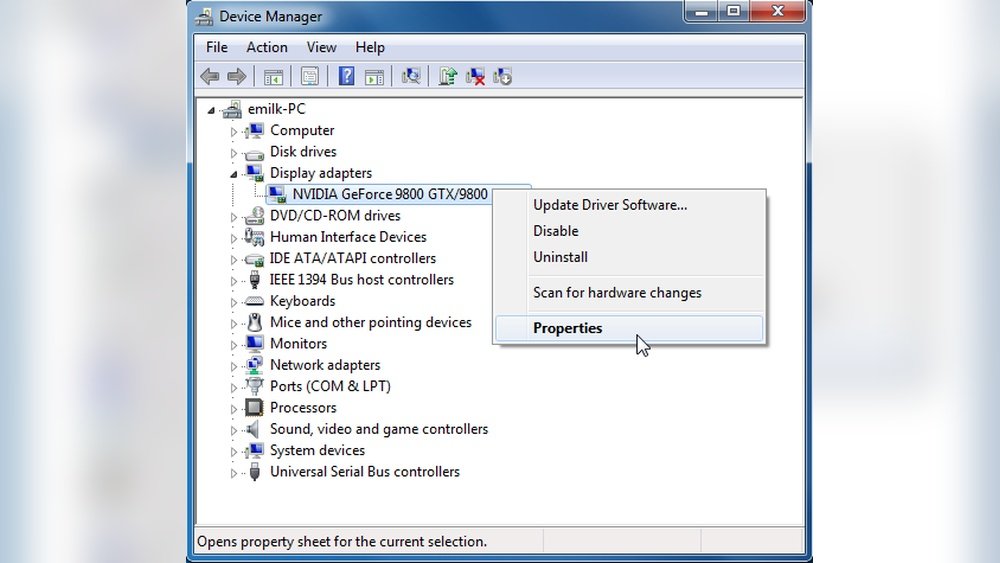
If the new driver causes problems, rollback to the old one. Open Device Manager and find your GPU under Display Adapters. Right-click it and select Properties. Go to the Driver tab and click Roll Back Driver. This will restore the previous driver version. Restart your PC after rolling back. This step often fixes issues caused by faulty updates.
Maintain Gpu Driver Health
Maintaining the health of your GPU driver is key to smooth computer performance. A well-kept driver ensures better graphics, fewer crashes, and faster updates. It also helps your system run new software without issues. Follow simple steps to keep your GPU driver in top shape and avoid common problems.
Regular Update Schedule
Set a fixed time to check for GPU driver updates. Weekly or biweekly checks keep your driver current. Frequent updates fix bugs and improve performance. Use your computer’s update tool or the GPU maker’s app. Regular checks prevent slowdowns and compatibility problems.
Use Reliable Sources
Download GPU drivers only from official websites. Use trusted sources like NVIDIA, AMD, or Intel. Avoid third-party sites to prevent malware or faulty drivers. Official sites provide the latest and safest versions. Always verify the driver matches your GPU model and operating system.

Credit: www.tomshardware.com
Frequently Asked Questions
How Do I Check My Current Gpu Driver Version?
You can check your GPU driver version via Device Manager on Windows. Expand “Display adapters,” right-click your GPU, select “Properties,” then “Driver” tab to view the version.
Why Should I Update My Gpu Driver Regularly?
Updating your GPU driver enhances system stability, boosts performance, and fixes bugs. It also ensures compatibility with new games and software.
Can I Update Gpu Drivers Automatically?
Yes, many GPU manufacturers offer automatic update tools. These tools detect your GPU and install the latest drivers without manual searching.
What Risks Exist When Updating Gpu Drivers?
Risks include installation errors or compatibility issues causing crashes. Always create a system restore point before updating to prevent problems.
Conclusion
Updating your GPU driver keeps your system running smooth and fast. It helps fix bugs and improve graphics performance. Regular updates protect your computer from security risks. Always download drivers from official sources only. A simple update can make a big difference in gaming and work tasks.
Stay patient and follow each step carefully for best results. Keep your drivers current to enjoy a better computer experience every day.
