
If you want your GPU to run smoother, faster, and more reliably, updating its BIOS might be the key. But the thought of tinkering with your graphics card’s firmware can feel risky and confusing.
Don’t worry—you’re not alone, and this guide is here to help. By the time you finish reading, you’ll know exactly how to update your GPU BIOS safely and easily. Ready to unlock better performance and fix pesky issues? Let’s get started.

Credit: temperville.com.br
Why Update Your Gpu Bios
Updating your GPU BIOS can improve your computer’s graphics card. It helps your GPU run better and fixes problems. Sometimes, it makes your card work with new hardware or software. Understanding these benefits shows why updating is important.
Performance Improvements
New BIOS updates can make your GPU faster. They improve speed and power use. This helps games and apps run smoother. Updates can also unlock better performance settings.
Bug Fixes And Stability
Updates fix errors in the old BIOS. These bugs can cause crashes or slowdowns. Fixing them makes your GPU more stable. Your system will run without sudden stops or freezes.
Compatibility Enhancements
New BIOS versions support new software and hardware. They help your GPU work with the latest games. Updates also improve support for new operating systems. This keeps your system up-to-date and ready for changes.
Check Your Current Gpu Bios Version
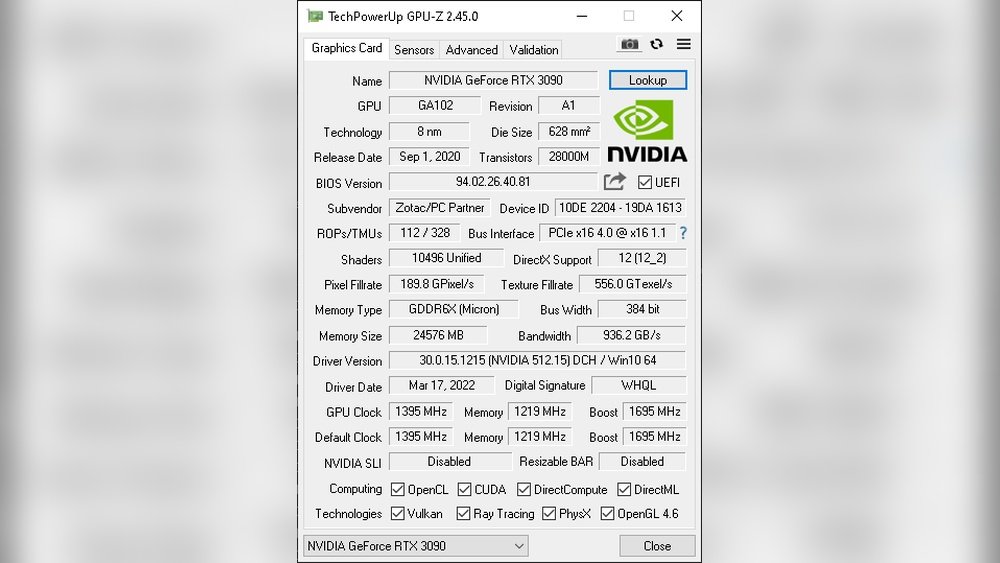
Before updating your GPU BIOS, you must know the current BIOS version. This helps ensure you download the correct update. Checking the BIOS version is simple and quick. Two common ways are using the GPU-Z tool or the Device Manager.
Using Gpu-z Tool
GPU-Z is a free program that shows detailed GPU info. Download and install GPU-Z from a trusted site. Open the program and look for the “BIOS Version” field. It shows your current GPU BIOS version clearly. Note this version before proceeding with any update. This method works for most graphics cards.
Via Device Manager
Device Manager on Windows can also show BIOS info. Press Windows + X and select Device Manager. Expand the “Display adapters” section and right-click your GPU. Choose “Properties” and go to the “Details” tab. Select “Hardware Ids” or “Device Instance Path” from the dropdown. The BIOS version might be part of the string shown. This method is less direct but useful without extra software.
Prepare For The Bios Update
Preparing for a GPU BIOS update is very important. It helps avoid problems during the update process. Taking the right steps makes the update smooth and safe. This section explains what you need to do before updating your GPU BIOS.
Backup Existing Bios
First, save a copy of your current BIOS. This is a safety step. If something goes wrong, you can restore the old BIOS. Use a reliable tool to back up the BIOS. Keep the backup file in a safe place. This protects your system from permanent damage.
Gather Necessary Tools
Collect all tools needed for the update. This includes the BIOS update software and the correct BIOS file. Make sure your USB drive is ready if needed. Check that your computer has enough battery or is plugged in. Having everything ready saves time and stress.
Ensure System Stability
Close all programs before starting the update. This prevents crashes or interruptions. Avoid running heavy tasks during the process. Restart your computer to clear any errors. A stable system lowers the risk of update failure.
Find The Correct Bios Update
Finding the correct BIOS update is a crucial step before upgrading your GPU. Using the wrong BIOS can cause serious problems. It can damage your graphics card or make it stop working. Take time to find the exact BIOS version that fits your GPU model. This ensures a smooth and safe update process.
Visit Manufacturer’s Website
The first place to check is the GPU manufacturer’s website. They host official BIOS updates for their products. Look for the support or download section. This is where you will find the latest BIOS files. Avoid downloading BIOS from third-party sites. These files might be outdated or unsafe.
Match Gpu Model And Version
Check your GPU’s exact model and version before downloading. Look at your GPU label or use software tools to find this info. The BIOS update must match your GPU model perfectly. Even small differences can cause errors. Double-check the version number on the manufacturer’s site. This step prevents installation problems later on.
Step-by-step Bios Update Process
Updating your GPU BIOS can improve performance and fix bugs. The process may seem tricky but following clear steps helps. This guide breaks down the update into simple actions. Each step ensures safety and success. Keep your computer powered and avoid interruptions during the update. Let’s start with preparing the tools you need.
Create A Bootable Usb Drive
First, prepare a USB drive with no important files. Download a tool like Rufus to make the USB bootable. Select the USB drive and choose the correct bootable image. This image should come from your GPU manufacturer’s website. Follow the tool’s instructions to create the bootable drive. This step lets your computer start with the update software.
Flash The Bios Safely
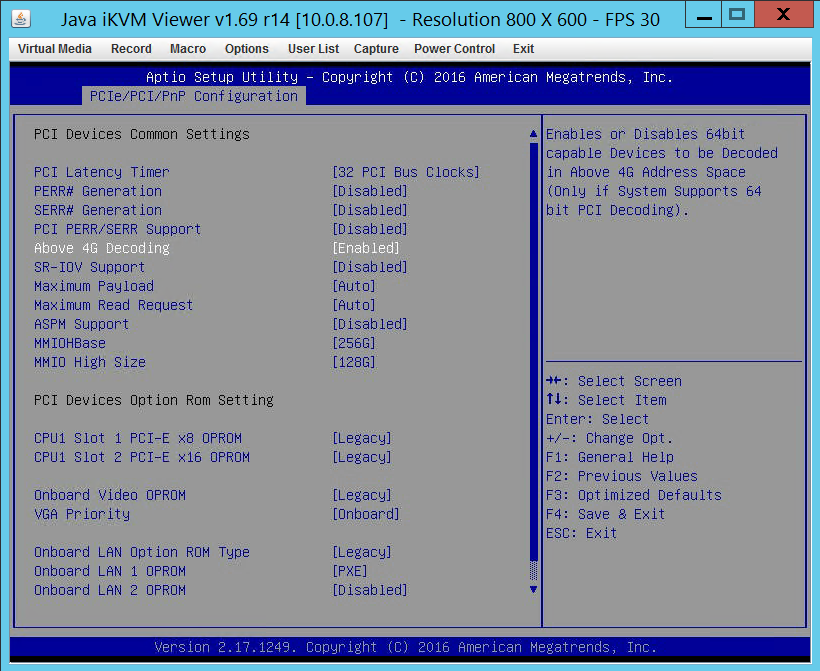
Restart your computer and enter the BIOS or boot menu. Choose to boot from the USB drive you created. Run the BIOS update program found on the USB. Follow the on-screen instructions carefully. Do not turn off your computer or remove the USB during flashing. Patience is key as the process may take several minutes.
Verify The Update
After the update finishes, restart your computer normally. Check the GPU BIOS version in your system info or using a utility tool. Confirm that the version matches the update you installed. This step ensures the update was successful. If the version did not change, repeat the process or seek help.
Credit: www.esseg.eu
Troubleshooting Common Issues
Updating your GPU BIOS can improve performance and fix bugs. Sometimes, problems happen during the update process. Knowing how to handle these issues helps protect your hardware and save time. This section guides you through common problems and solutions.
Handling Update Failures
Update failures happen when the BIOS does not flash correctly. Causes include power loss, wrong BIOS file, or software errors. Stay calm. First, check your power supply is stable. Use the exact BIOS version for your GPU model.
Try running the update tool as an administrator. Close other programs to avoid conflicts. If the update stops, do not turn off your PC immediately. Wait a few minutes to see if it resumes. If it fails completely, prepare to recover the BIOS.
Recovering From A Bad Bios Flash
A bad BIOS flash can cause your GPU to stop working. Some GPUs have dual BIOS chips for recovery. Use the switch to activate the backup BIOS. If your GPU lacks this, find a recovery method from the manufacturer.
You might need a USB BIOS programmer or a rescue tool. Follow instructions carefully to avoid further damage. Contact support if unsure. Avoid forcing restarts or disconnecting power during recovery. Patience is key to restoring your GPU.
Tips To Maintain Gpu Performance
Maintaining your GPU’s performance is key for smooth graphics and fast computing. Good care helps avoid slowdowns and errors. Small steps keep your GPU working well for longer.
Focus on simple habits that protect and improve your GPU. Regular updates and proper settings help it run at its best. These tips make a real difference.
Regular Driver Updates
Update GPU drivers often to fix bugs and improve speed. New drivers support the latest games and software better. Check the manufacturer’s website for updates. Install updates carefully to avoid errors. This keeps your GPU compatible and efficient.
Optimizing Gpu Settings
Adjust GPU settings for better performance and less heat. Lower unnecessary effects to reduce load on the GPU. Use software tools to find the best balance of speed and quality. Monitor temperatures to prevent overheating. Optimized settings extend GPU life and boost speed.
Credit: vixencomposites.com
Frequently Asked Questions
What Is Gpu Bios And Why Update It?
GPU BIOS controls your graphics card’s hardware settings. Updating it can improve performance, fix bugs, and add features. It ensures compatibility with new software and enhances stability during gaming or intensive tasks.
How Do I Check My Current Gpu Bios Version?
Open your GPU management software or use tools like GPU-Z. It shows your current BIOS version clearly. Knowing this helps you find the correct update for your graphics card model.
Is Updating Gpu Bios Risky For My Computer?
Yes, it can be risky if done incorrectly. A failed update may brick your GPU. Always follow official instructions, back up your current BIOS, and use reliable tools to minimize risks.
Where Can I Safely Download Gpu Bios Updates?
Download updates only from your GPU manufacturer’s official website. Avoid third-party sites to prevent malware or incorrect BIOS versions. Official sources ensure the update matches your exact GPU model.
Conclusion
Updating your GPU BIOS can improve performance and fix bugs. Follow each step carefully to avoid problems. Always back up your current BIOS before making changes. Use official tools and files from your GPU maker’s website. Take your time and stay patient throughout the process.
A smooth update keeps your graphics card running well. Keep learning and stay safe when handling hardware updates. This simple task helps your computer work better and last longer.
