

Are you looking to unplug your GPU safely but aren’t sure where to start? Whether you’re upgrading your graphics card or troubleshooting a problem, knowing the right steps can save you time and prevent damage.
In this guide, you’ll learn exactly how to unplug your GPU with simple, clear instructions. By the end, you’ll feel confident handling your hardware like a pro—no stress, no guesswork. Keep reading to make sure you get it right the first time.
Prepare Your Workspace
Preparing your workspace is the first step to safely unplug your GPU. A clean and organized space helps avoid mistakes and keeps your parts safe. Take time to set up before touching any hardware.
Clear your desk or table of clutter. Have enough light to see inside your computer case clearly. A calm area helps you focus on the task without distractions.
Gather Necessary Tools
Start by collecting the right tools. You will need a screwdriver, usually a Phillips head, to remove screws from the case and GPU. Have a small container ready to hold screws so they don’t get lost.
Keep your tools within easy reach. Avoid using too many tools to keep the process simple and fast.
Power Down Your Computer
Turn off your computer completely. Use the normal shutdown option on your operating system. Unplug the power cable from the wall or power strip to be safe.
Wait a few minutes before opening the case. This lets all power drain and lowers the risk of electric shock.
Ground Yourself Against Static
Static electricity can damage computer parts easily. Before touching the GPU, ground yourself to remove static charge. Use an anti-static wrist strap connected to a metal part of the case.
If you don’t have a wrist strap, touch a metal surface inside the case often. Avoid working on carpet or wearing clothes that create static.
Open Your Computer Case
Opening your computer case is the first step to unplug your GPU. This gives you clear access to the inside parts of your PC. It is important to work on a clean, flat surface to avoid losing screws or damaging components. Make sure the computer is completely turned off and unplugged from the power source. This keeps you safe and protects your computer parts.
Next, you will remove the side panel of the case. This panel covers the main area where the GPU and other parts sit. Removing it allows you to see and reach the graphics card easily. Take your time and use the right tools to avoid any damage.
Remove Side Panel
Most computer cases have screws at the back holding the side panel in place. Use a screwdriver to remove these screws carefully. Keep the screws in a safe place for later. Once the screws are out, slide or pull the panel gently away from the case. Some cases may have clips; press them lightly to release the panel.
Locate The Graphics Card
The graphics card is usually located near the bottom half of the case. It sits in a long slot on the motherboard called the PCIe slot. The GPU has one or more fans and display ports on its back side. These ports are where you connect your monitor cables. Identifying the card clearly helps you unplug it without confusion.
Disconnect Power Cables
Disconnecting the power cables from your GPU is a key step before removing the card. Power cables supply the GPU with electricity needed to work. Handling these cables carefully avoids damage to your hardware.
Take your time and focus on this task. Proper disconnection prevents potential problems later.
Identify Gpu Power Connectors
Look for the cables plugged into the GPU. These usually have 6 or 8 pins. Some GPUs need one connector, others need two.
Check the shape of the connector. It matches the port on the GPU. Make sure you know which cables go to the GPU, not to other parts.
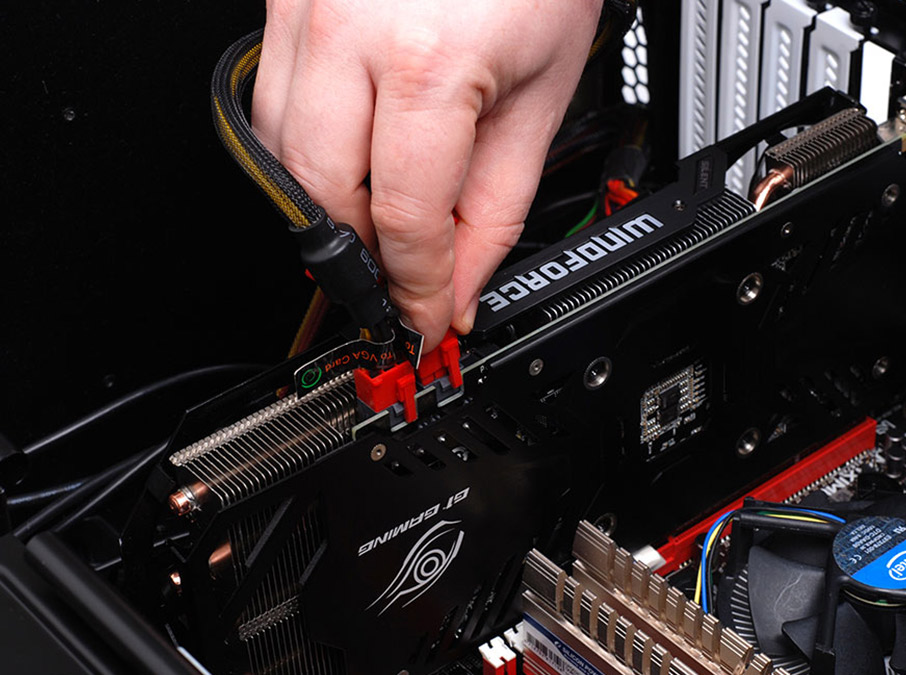
Gently Unplug Power Cables
Press the clip or latch on the connector. This unlocks the cable from the GPU port. Pull the cable straight out without twisting.
Do not use force. If the cable feels stuck, press the latch again and try gently. Keep the cable steady to avoid bending pins.
Release The Graphics Card
Releasing the graphics card is a key step to safely remove your GPU from the computer. This step requires care to avoid damaging the card or motherboard. Follow simple actions to unlock and detach the card properly.
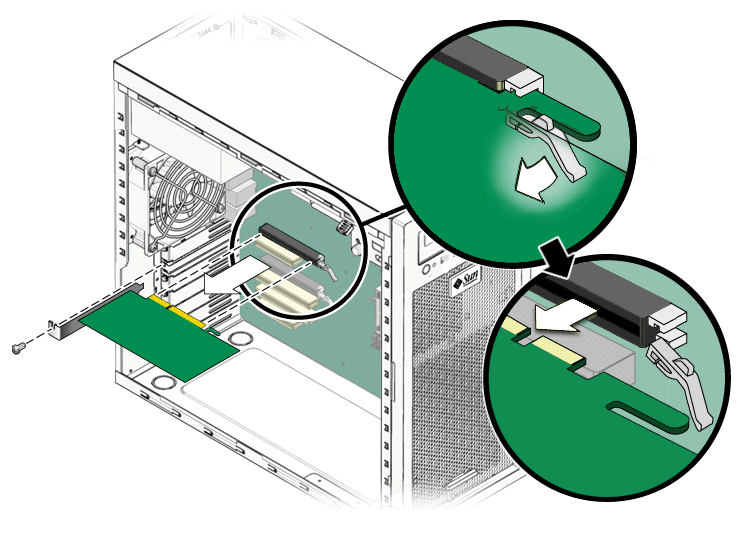
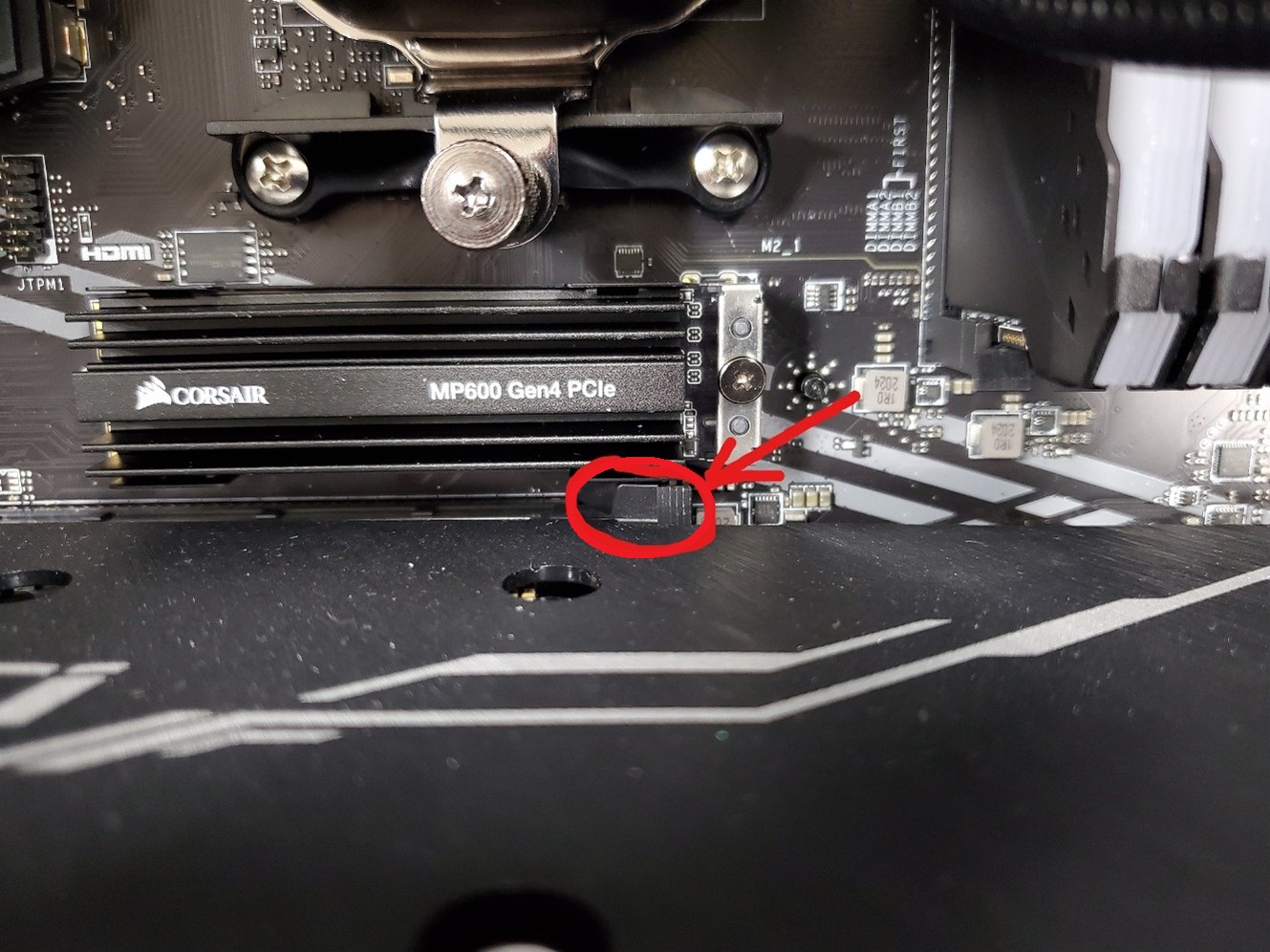
Unlock Pcie Slot Clip
The PCIe slot holds the graphics card firmly in place. It has a small clip at the end that locks the card. Gently push or pull the clip to release it. Do not force the card out without unlocking this clip. This prevents damage to the slot and card pins.
Unscrew Mounting Brackets
The graphics card is usually fixed to the case with screws. These screws keep the card stable during use. Use a screwdriver to remove all screws from the mounting brackets. Keep the screws safe for reinstallation later. Once loose, the card can slide out easily.
Remove The Graphics Card
Removing the graphics card is a key step in unplugging your GPU safely. It requires care to avoid damage to the card or your computer. This part explains how to remove the graphics card properly. Follow these steps to protect your hardware.
Carefully Pull Out The Gpu
First, locate the latch or screw holding the graphics card. Gently release this lock without forcing it. Hold the card firmly by its edges. Slowly pull the card straight out of the slot. Avoid bending or twisting the card during removal. Take your time to prevent any damage.
Store Or Replace Safely
After removal, place the graphics card on an anti-static surface. Do not put it on carpet or bare wood. Use an anti-static bag if you have one. Keep the card away from dust and moisture. If replacing, align the card carefully before reinserting. Secure it with the latch or screw once in place.
Credit: support.cyberpowersystem.co.uk
Close The Computer Case
Closing the computer case is the final step after unplugging your GPU. It protects the internal parts from dust and damage. A properly closed case also helps keep the airflow steady inside your computer.
Taking time to close the case carefully ensures your system stays safe and cool. It also prepares your computer for the next use without any loose parts inside.
Reattach Side Panel
Start by aligning the side panel with the case frame. Make sure it fits snugly without forcing it. Gently push the panel until it clicks or sits flush with the rest of the case. Use screws to secure the panel in place. Tighten screws evenly to keep the panel stable.
Reconnect Power And Peripherals
Plug the power cable back into the computer. Connect your keyboard, mouse, and monitor cables. Check each connection to ensure they are secure. Turn on your computer to confirm everything works well. This step readies your system for normal use after GPU removal.
Post-removal Tips
Removing your GPU is just the first step. Taking care of your computer after removal keeps it running well. Follow these simple tips to protect your system and prepare for future use.
Clean Dust And Debris
Dust builds up inside your PC over time. It can block airflow and cause overheating. Use a soft brush or compressed air to clean the GPU slot and nearby areas. Remove any dust or debris gently. Keep your workspace clean to avoid pushing dirt inside the case.
Check For Firmware Updates
Updating your GPU firmware improves performance and fixes bugs. Visit the manufacturer’s website for the latest updates. Download and install firmware only from trusted sources. Check your GPU model and follow the update instructions carefully. Staying updated keeps your hardware stable and secure.
Credit: docs.oracle.com
Credit: www.rtk-holding.ru
Frequently Asked Questions
How Do I Safely Unplug A Gpu From My Pc?
First, shut down and unplug your PC. Then, remove the side panel. Disconnect power cables from the GPU. Unscrew the GPU from the case. Press the release latch on the PCIe slot and gently pull the GPU out.
What Tools Are Needed To Unplug A Gpu?
You typically need a Phillips screwdriver to remove screws securing the GPU. No special tools are required for unplugging the power connectors or releasing the PCIe slot latch. Having an anti-static wrist strap is recommended to avoid static damage.
Can Unplugging A Gpu Damage The Hardware?
If done carefully, unplugging a GPU does not damage it. Always power off and unplug the PC first. Avoid forcing the card out of the slot. Handle the GPU by its edges to prevent damage.
How To Identify The Gpu Power Connectors To Unplug?
GPU power connectors are usually 6-pin or 8-pin cables plugged into the GPU’s side. They come from the power supply unit (PSU). Look for clips on the connectors; press these to safely unplug them.
Conclusion
Unplugging a GPU is simple with the right steps. Always turn off your computer first. Then, carefully disconnect power cables and release the card from the slot. Handle the GPU gently to avoid damage. Taking your time helps prevent mistakes.
Following these tips keeps your hardware safe. Now, you can confidently unplug your GPU when needed.
