

If your GPU runs hot or loud, undervolting could be the simple fix you need. Imagine getting the same power from your graphics card but with less heat, less noise, and longer lifespan.
Sounds good, right? You’ll learn exactly how to undervolt your GPU safely and effectively. Whether you’re a gamer, designer, or just want a cooler PC, this guide will help you boost performance without spending a dime. Keep reading and take control of your GPU’s power today!
Credit: sff.life
Benefits Of Gpu Undervolting
Undervolting a GPU means lowering its voltage while keeping it stable. This process offers many benefits that improve your computer’s overall experience. It helps the GPU work more efficiently without wasting power or causing heat problems.
Many users undervolt their GPUs to get better performance and longer hardware life. The benefits go beyond just saving energy or reducing heat. They impact how well your system runs every day.
Improved Performance
Lowering the GPU voltage can reduce thermal throttling. This means the GPU can maintain higher clock speeds for longer periods. The result is smoother gameplay and faster rendering times in creative software. A cooler GPU runs more reliably, which helps keep performance steady.
Reduced Temperature
Undervolting cuts down the heat the GPU produces. Less heat means the cooling system does not have to work as hard. This keeps your computer quieter and prevents overheating issues. Cooler hardware also feels safer and more stable during use.
Lower Power Consumption
Using less voltage means the GPU uses less electricity. This lowers your overall power bill and helps the environment. It also makes laptops run longer on battery. Less power use reduces stress on your power supply and other components.
Extended Hardware Lifespan
Heat and high voltage can damage your GPU over time. Undervolting reduces stress on the hardware parts. This can extend the life of your GPU and other system components. A longer lifespan means fewer repairs or replacements are needed.
Credit: www.youtube.com
Preparing For Undervolting
Preparing for undervolting your GPU is an important step to ensure safety and success. It helps avoid problems and keeps your system stable. Taking time to prepare makes the process easier and less risky.
Follow these simple steps before you start undervolting. They guide you through checking your hardware, updating software, and backing up settings.
Check Your Gpu Model
First, know the exact model of your GPU. Different models behave differently with undervolting. You can find your GPU model in the device manager or system information. Knowing your model helps find the right undervolting guide and tools.
Update Drivers And Software
Next, update your GPU drivers to the latest version. Updated drivers improve compatibility and performance. Also, update your operating system and any software used for undervolting. This reduces errors and helps your GPU run smoothly during the process.
Backup Current Settings
Save your current GPU settings before changing anything. Many GPU tuning tools allow you to export or save profiles. This step is important to restore your original setup if undervolting causes issues. Always keep a backup to avoid losing important configurations.
Download Necessary Tools
Get the right software tools for undervolting. Popular ones include MSI Afterburner, AMD WattMan, and NVIDIA Inspector. Download these from official sources to avoid malware. Having the correct tools ready helps you control voltage and monitor GPU behavior effectively.
Step-by-step Undervolting Process
Undervolting your GPU helps reduce power use and heat. This process keeps your graphics card running cooler and quieter. It also can improve your system’s stability and extend hardware life. Follow these steps carefully to undervolt your GPU safely.
Launch Gpu Tuning Software
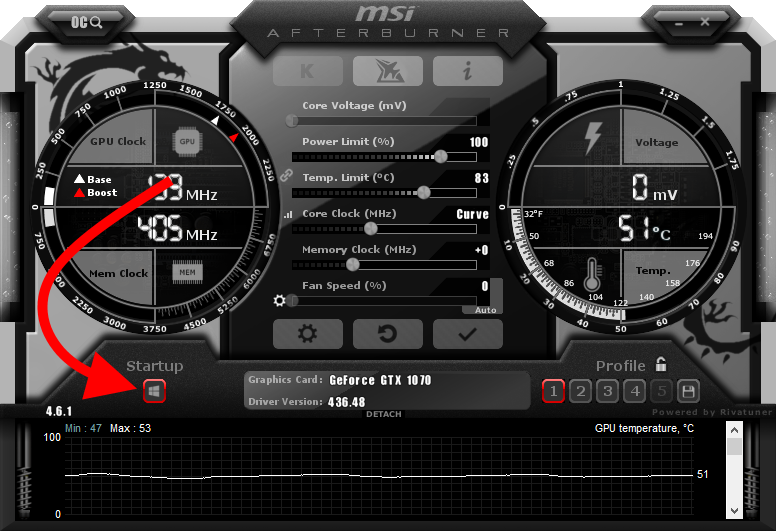
Start by opening your GPU tuning software. Popular tools include MSI Afterburner and EVGA Precision X1. These programs allow you to change voltage and power settings. Make sure your software supports your GPU model.
Adjust Core Voltage
Find the core voltage slider in the tuning software. Slowly lower the voltage in small steps, about 10-20 mV at a time. Avoid big jumps to prevent crashes. After each change, save your settings.
Modify Power Limit
Next, reduce the power limit to match the new voltage. This step helps prevent the GPU from using more power than needed. Lower the power limit by 5-10% to start. Save your changes before testing.
Test Stability And Performance
Run a stress test or game to check stability. Watch for crashes, freezes, or artifacts on screen. Monitor GPU temperature and clock speed. If problems appear, increase voltage slightly and test again.
Fine-tune Settings
Repeat voltage and power adjustments in small steps. Test after each change to find the best balance. Stop once you reach stable performance with lower power use. Save your final profile for easy access.

Credit: rog.asus.com
Monitoring And Testing
Monitoring and testing are key steps after undervolting your GPU. They ensure your system runs stable and cool. Proper checks help avoid damage and performance drops. Regular monitoring keeps your GPU healthy and efficient.
Use Stress Testing Tools
Stress testing tools push your GPU to its limits. They reveal how your system handles the new voltage settings. Popular tools include FurMark, 3DMark, and Unigine Heaven. Run these tests for at least 15-30 minutes. Watch for any signs of instability or crashes during the test.
Monitor Temperature And Clock Speeds
Keep an eye on GPU temperature and clock speeds. Use software like MSI Afterburner or HWMonitor. Healthy temperatures usually stay below 85°C. Clock speeds should remain stable without sudden drops. Sudden changes may indicate undervolting issues.
Check For Crashes Or Artifacts
Look out for crashes or visual glitches called artifacts. These may appear as strange lines or colors on the screen. Crashes could cause your computer to freeze or restart. Both problems signal that undervolting is too aggressive. Stop testing immediately if these occur.
Adjust If Necessary
Make small changes if you find instability or high temperatures. Increase voltage slightly or lower clock speeds. Test again after each adjustment. Keep repeating until your system runs smoothly. Patience is key to finding the best balance.
Common Issues And Fixes
Undervolting your GPU can improve performance and reduce heat. Yet, some common issues may appear during the process. Knowing how to fix these problems helps keep your system stable and efficient.
System Instability
System crashes or freezes can happen after undervolting. This usually means the voltage is too low for your GPU. Raise the voltage slightly and test again. Use stress test tools to check stability. Small changes make a big difference.
Performance Drops
Lowering voltage too much may cause slower GPU speeds. Your graphics card might not run at full power. Watch for frame rate drops in games or apps. Increase voltage a bit and monitor performance. Balance is key between power saving and speed.
Overheating Problems
Undervolting often lowers temperature, but issues can still occur. Dust or poor airflow may cause heat build-up. Clean your PC fans and vents regularly. Check if undervolting settings affect cooling. Adjust fan speeds if needed to keep the GPU cool.
Reverting To Default Settings
If problems continue, reset your GPU to original settings. Use your GPU software or BIOS to restore defaults. This stops any damage from incorrect undervolting. Start fresh and try a milder undervolt next time. Always save your stable settings for safety.
Tips For Optimal Results
Getting the best results from GPU undervolting needs care and attention. Small steps help avoid problems and keep your system stable. Follow these tips to make your GPU run cooler and quieter without losing power.
These simple rules keep your GPU safe and effective while you adjust its voltage.
Undervolt Gradually
Reduce the voltage in small steps. Test your GPU after each change. This method helps spot issues early. It keeps your system stable and avoids crashes. Patience is key for good results.
Keep Drivers Updated
Update your GPU drivers regularly. New drivers fix bugs and improve performance. They help your undervolting efforts work better. Visit the official GPU website for the latest versions.
Maintain Proper Cooling
Good cooling is essential for undervolting. Clean dust from fans and vents often. Use quality thermal paste if needed. Cooler GPUs stay stable and last longer.
Regularly Monitor Performance
Check your GPU’s temperature and speed daily. Use reliable software tools for monitoring. Watch for any signs of instability or crashes. Monitoring helps catch problems early and keeps your GPU healthy.
Frequently Asked Questions
What Is Gpu Undervolting And Why Use It?
GPU undervolting reduces the voltage supplied to the graphics card. It lowers power consumption and heat output while maintaining performance. This improves system stability, reduces fan noise, and extends GPU lifespan, especially during gaming or heavy workloads.
How To Safely Undervolt A Gpu?
Use reliable software like MSI Afterburner to adjust voltage settings. Reduce voltage gradually in small steps and test stability after each change. Monitor temperatures and performance to avoid crashes or artifacts. Always keep backups of original settings for safety.
Can Undervolting Improve Gpu Temperature And Noise?
Yes, undervolting decreases power usage, which lowers GPU temperature. Cooler GPUs run quieter as fans spin slower. This reduces noise levels during gaming or intensive tasks, making the system more comfortable and energy-efficient.
Will Undervolting Affect Gpu Performance?
Proper undervolting maintains the same GPU performance while using less power. However, aggressive undervolting might cause instability and crashes. Testing after each adjustment ensures stable performance without compromising speed or graphical quality.
Conclusion
Undervolting a GPU helps reduce heat and save power. It can make your computer run quieter and last longer. Start slow and test your settings carefully. Small changes can bring good results without risks. Remember to watch your GPU’s performance and temperature.
This simple step improves your PC’s efficiency. Try it yourself and see the difference. Keep learning and stay safe while tweaking your hardware.
