
If you want to get more from your AMD GPU without spending extra money, undervolting is a smart move. By lowering the voltage your graphics card uses, you can reduce heat, cut down on noise, and even boost performance stability.
But how do you start undervolting safely and effectively? This guide will walk you through simple steps to help you unlock your GPU’s potential. Keep reading, and you’ll learn how to make your AMD GPU run cooler, quieter, and smoother—right now.
Benefits Of Undervolting Amd Gpus
Undervolting AMD GPUs offers several key benefits. It helps improve the overall experience by making the GPU work more efficiently. This process reduces power use and heat, which protects the hardware. Users often see better stability and longer device life after undervolting.
Improved Performance
Undervolting can lead to smoother performance. The GPU avoids overheating, which often causes slowdowns. Stable temperatures keep the GPU running at its best speed. This means games and apps run without unexpected lags or crashes.
Reduced Heat Output
Lower voltage means less heat production. The GPU stays cooler during heavy use. Cooler hardware reduces the risk of damage. It also helps maintain a quieter computer environment, as fans run less.
Lower Power Consumption
Undervolting cuts down the power the GPU needs. This saves electricity and reduces your energy bill. It is also better for the environment. Less power means less strain on your PC’s power supply.
Extended Hardware Lifespan
Running cooler and using less power extends GPU life. Heat is a major cause of hardware wear and tear. Undervolting lowers heat stress and protects circuits. This means your AMD GPU can last longer without issues.

Credit: www.reddit.com
Preparing For Undervolting
Preparing for undervolting your AMD GPU is an important step. It helps ensure a smooth and safe process. Taking time to prepare reduces risks and improves results. Follow these key steps before you start undervolting.
Check Gpu Compatibility
Not all AMD GPUs support undervolting. Verify if your model can be undervolted. Visit AMD’s official site or trusted tech forums for info. Knowing compatibility prevents wasted effort and possible errors.
Update Drivers And Software
Outdated drivers can cause problems during undervolting. Update your AMD GPU drivers to the latest version. Also, update any software you use to control GPU settings. This ensures better stability and performance.
Backup Current Settings
Save your current GPU settings before making changes. Use software tools to export or note down your settings. This allows you to restore them if undervolting causes issues. Backup keeps your system safe.
Gather Necessary Tools
Prepare the software needed for undervolting. Popular tools include AMD Radeon Software and third-party apps like MSI Afterburner. Have these installed and ready. Also, ensure you have monitoring tools to track GPU temperature and performance.
Choosing The Right Software
Choosing the right software is key to undervolting your AMD GPU safely. The software controls voltage and clock speeds. It must be easy to use and reliable. Some programs come from AMD itself. Others are made by third parties. Monitoring tools help track your GPU’s performance during undervolting. This section covers the best options for each type.
Amd Radeon Software
AMD Radeon Software is the official app for AMD GPUs. It offers built-in tools to adjust voltage and clock speeds. The interface is user-friendly and simple to understand. It supports most AMD graphics cards. You can create custom profiles for undervolting. It also has features for monitoring temperatures and performance. Using this software reduces risks of errors. It keeps your GPU stable and efficient.
Third-party Tools
Some users prefer third-party apps for more control and features. These tools often provide detailed voltage and frequency adjustments. Popular options include MSI Afterburner and AMD Overdrive. They allow precise tuning but need careful handling. These apps support many GPU models, not just AMD. They can offer more options than official software. It is important to download them from trusted sites. Use them carefully to avoid damaging your GPU.
Monitoring Utilities
Monitoring utilities track your GPU’s health during undervolting. Programs like HWMonitor and GPU-Z show temperatures, voltages, and clock speeds. They help spot issues early and keep your GPU safe. These apps run in the background while you adjust settings. They provide real-time data for better decisions. Using monitoring tools is a smart step in undervolting. They ensure your GPU runs cool and stable.
Credit: www.pcworld.com
Step-by-step Undervolting Process
Undervolting an AMD GPU helps lower power use and heat. This process keeps performance stable while using less energy. Follow these simple steps to undervolt your GPU safely and efficiently. Each step guides you through the tools and settings needed.
Accessing Voltage Control
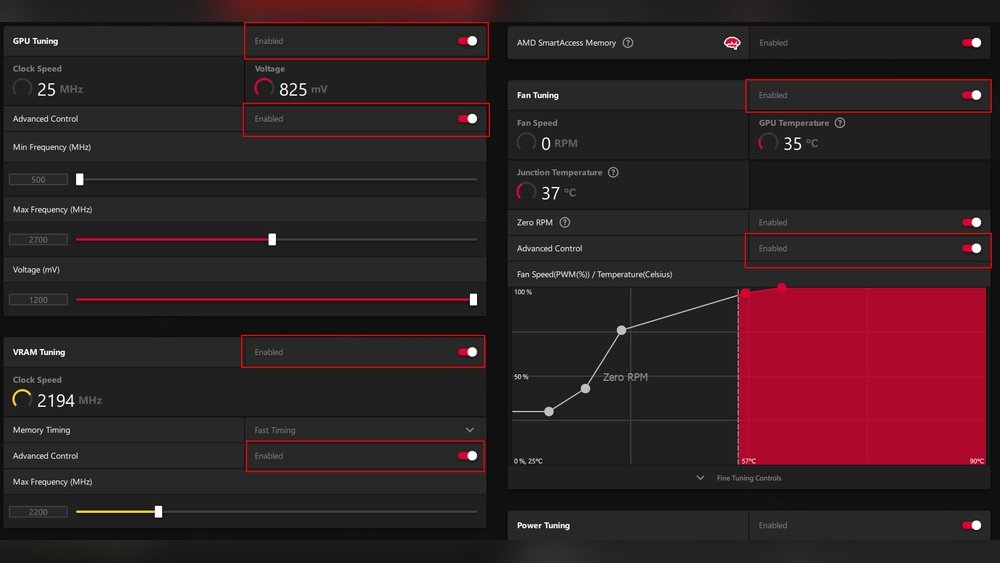
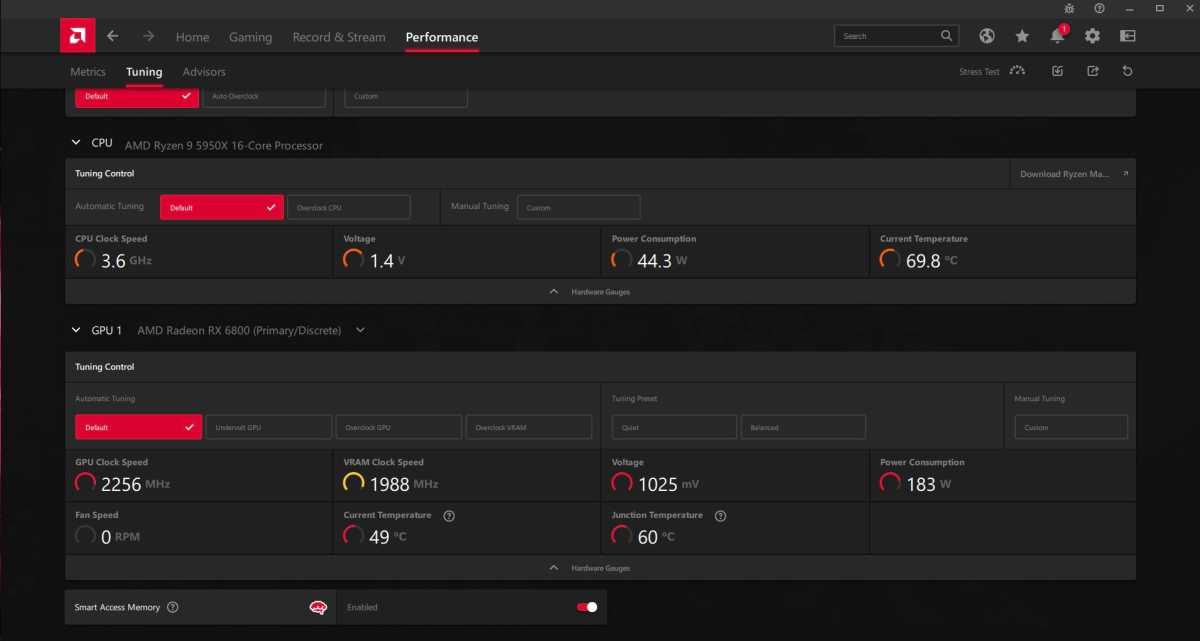
First, open your AMD GPU software. Look for the tuning or performance tab. This area controls voltage and clock speeds. Some tools might require you to enable advanced settings. Make sure your GPU drivers are up to date for best results.
Adjusting Voltage Settings
Locate the voltage control slider or input box. Lower the voltage slightly below the default value. Do this in small steps, such as 10-20 millivolts. Avoid dropping voltage too fast to prevent crashes. Keep track of changes for easy reversal.
Testing Stability
Run a GPU stress test or game to check stability. Watch for crashes, freezes, or artifacts. If the GPU runs smoothly, the voltage is stable. If issues occur, increase voltage slightly and test again. Stability is key to a successful undervolt.
Fine-tuning Values
Adjust voltage and test again to find the lowest stable setting. Make small changes for precise control. Balance power savings with performance needs. Save your settings in the AMD software to apply on startup.
Monitoring Performance And Temperature
Monitoring your AMD GPU’s performance and temperature is key after undervolting. It helps ensure your GPU runs smoothly and stays cool. Careful tracking avoids damage and shows if undervolting improves efficiency.
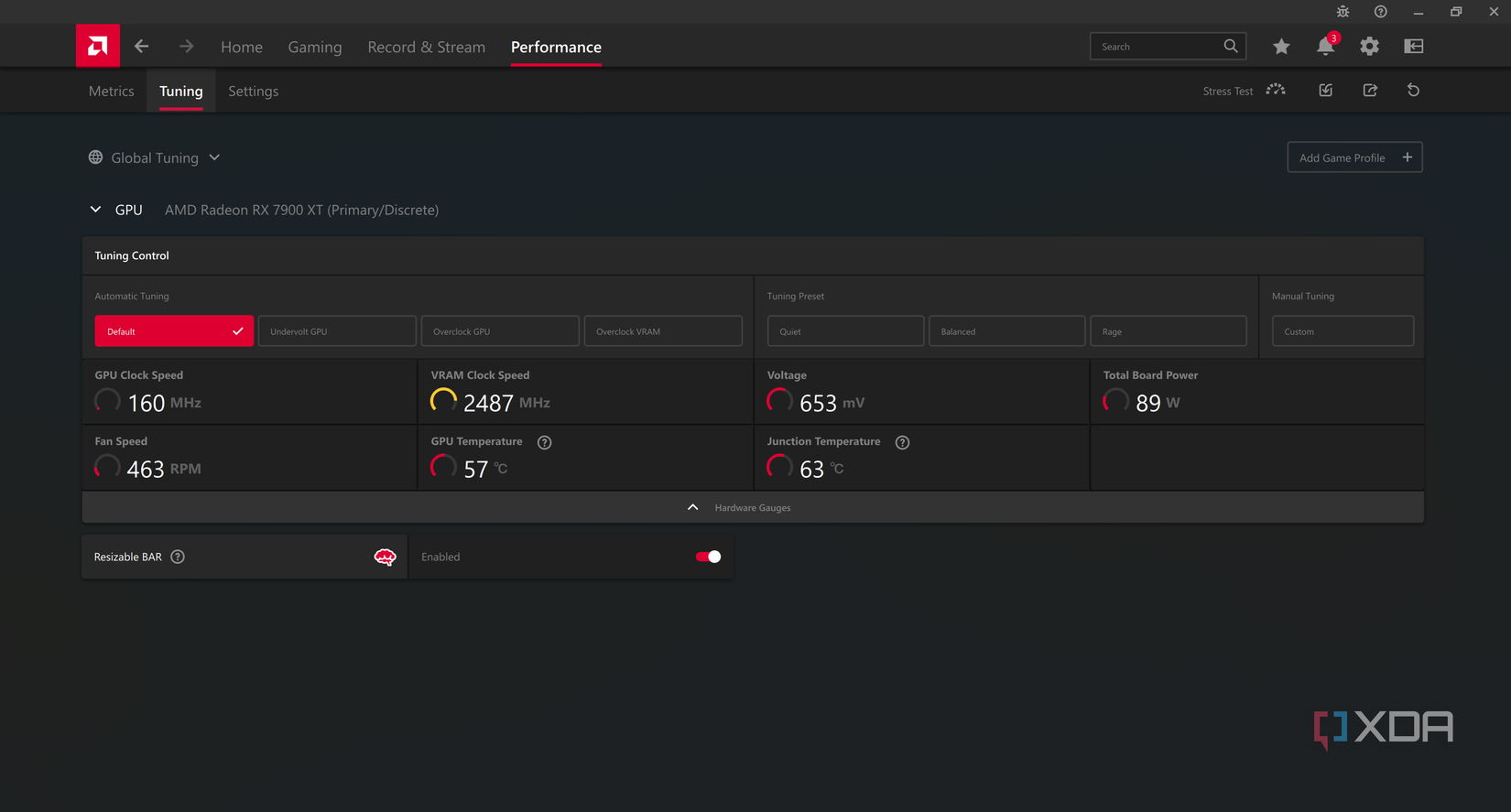
Use tools to check how your GPU handles games and apps. Watch the temperature to keep it safe. Check power use to see energy savings. Look for any boost or drop in speed.
Using Benchmark Tools
Benchmark tools test your GPU’s speed and power. Run these tests before and after undervolting. Compare scores to see performance changes. Popular tools include 3DMark and Unigine Heaven. They show if your GPU stays stable with less voltage.
Tracking Temperature Changes
Temperature monitoring is vital. Use software like HWMonitor or MSI Afterburner. Watch for spikes or drops in heat levels. Lower temperatures mean better cooling and longer GPU life. Check temps during heavy use for best results.
Analyzing Power Draw
Power draw shows how much energy your GPU uses. Use tools like GPU-Z to track this. Lower power draw means higher efficiency. Compare power use before and after undervolting. Aim for a balance between saving energy and maintaining performance.
Identifying Performance Gains
Performance gains mean faster speeds or smoother gameplay. Check frame rates and load times after undervolting. Use game benchmarks or real-world testing. Notice if your GPU handles tasks better or stays cooler. Small gains can still mean big improvements in efficiency.
Credit: www.xda-developers.com
Troubleshooting Common Issues
Undervolting an AMD GPU can improve performance and reduce heat. Sometimes, it may cause issues. These problems usually happen due to incorrect settings or hardware limits. Knowing how to fix common issues helps keep your system running smoothly.
System Instability
System instability means your computer acts strange or slow. It may freeze or show errors. This happens when the voltage is too low for your GPU. Increase the voltage slightly to fix this. Test each change carefully to avoid damage.
Unexpected Crashes
Crashes occur when the GPU cannot handle the undervolt settings. Your screen might go black or the system may restart. Lower the undervolt steps and test again. Use stress tests to find a stable setting without crashes.
Performance Drops
Performance drops happen if the GPU does not get enough power. Games or apps run slower than usual. Adjust your voltage to balance power and performance. Avoid lowering voltage too much to keep good speeds.
Reverting To Default Settings
If problems persist, reset your GPU settings to default. Use AMD software or BIOS options to undo undervolting. This restores original voltage and solves most issues. Then, try undervolting again with smaller changes.
Tips For Maintaining Optimal Gpu Health
Maintaining your AMD GPU after undervolting is key for long-lasting performance. Good care keeps your GPU stable and efficient. Small habits make a big difference in how your GPU runs over time.
Regular Cleaning
Dust and dirt block airflow and cause heat build-up. Clean your GPU and PC case often. Use a soft brush or compressed air to remove dust. Keep fans and vents clear. Cooler parts last longer and work better.
Updating Firmware
Firmware updates fix bugs and improve stability. Check for updates from AMD regularly. Use official tools to install updates safely. Updated firmware helps your GPU run smoothly and prevents crashes.
Avoiding Overclocking Conflicts
Overclocking can cause instability, especially with undervolting. Avoid mixing overclocking and undervolting unless you test carefully. Run stress tests to check stability. Keep settings balanced for safe performance.
Monitoring Long-term Performance
Track your GPU’s temperature and speed over time. Use monitoring software to spot problems early. Watch for unusual drops in performance or spikes in heat. Early detection helps prevent damage and keeps your GPU healthy.
Frequently Asked Questions
What Is Amd Gpu Undervolting?
AMD GPU undervolting reduces the voltage supplied to the GPU. This lowers power consumption and heat generation. It can improve efficiency without sacrificing performance.
How Do I Undervolt My Amd Gpu Safely?
Use software like AMD Radeon Software or MSI Afterburner. Lower voltage gradually in small steps. Test stability after each change to avoid crashes or damage.
Will Undervolting Improve My Amd Gpu Performance?
Undervolting mainly reduces power use and heat. It does not increase raw performance but can maintain stable speeds under load. This may prevent thermal throttling.
Can Undervolting Extend My Amd Gpu Lifespan?
Yes, undervolting reduces heat and electrical stress. Lower temperatures can extend the GPU’s lifespan. It helps maintain stable operation over time.
Conclusion
Undervolting your AMD GPU helps lower power use and heat. It can make your graphics card run cooler and last longer. This process also keeps your system quiet by reducing fan noise. Start slow and test your settings for safety.
Small changes bring good results without risks. Stay patient and watch your GPU’s performance closely. Undervolting is a smart way to improve your PC’s efficiency. Give it a try to enjoy smoother, cooler gaming or work sessions.
