
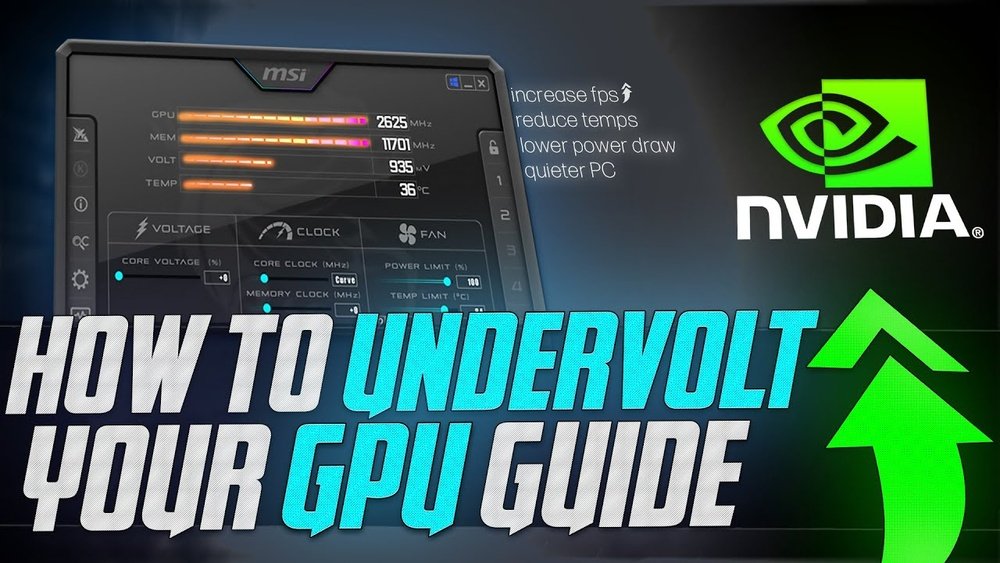
Are you looking to make your Nvidia GPU run cooler, quieter, and use less power? Underclocking your graphics card might be the solution you need.
It’s a simple tweak that can extend your GPU’s lifespan and improve your overall PC experience—especially if you don’t need top performance all the time. In this guide, you’ll learn exactly how to underclock your Nvidia GPU safely and effectively.
Keep reading, and you’ll discover easy steps that anyone can follow to get the most out of their hardware.

Credit: www.wepc.com
Benefits Of Underclocking Nvidia Gpus
Underclocking Nvidia GPUs offers several practical benefits. It helps reduce power usage, lower heat, and extend the life of your hardware. This process is useful for users who want a quieter, cooler PC or wish to save energy. It also protects the GPU from stress during long use or light tasks.
Reduced Power Consumption
Underclocking lowers the GPU’s core speed and voltage. This change makes the graphics card use less electricity. Lower power use means smaller electricity bills. It also helps when running on limited power sources like laptops or small PCs.
Lower Heat Output
When the GPU runs slower, it creates less heat. Cooler GPUs reduce the need for loud fans. This keeps the computer quieter and more comfortable to use. Lower heat also prevents overheating problems that can cause crashes or slowdowns.
Extended Hardware Lifespan
Heat and high power stress shorten GPU life. Underclocking reduces these stresses. The GPU stays cooler and runs under less pressure. This leads to fewer hardware failures and longer-lasting performance. It’s a simple way to protect your investment over time.
Credit: www.youtube.com
Preparing Your System
Preparing your system is the first step before underclocking your Nvidia GPU. It helps protect your data and ensures smooth performance. Taking a few simple actions can prevent problems and make the process easier. Follow these steps carefully to get ready.
Backup Important Data
Backing up important data protects your files from loss. Save your documents, photos, and work to an external drive or cloud storage. This step is key if anything goes wrong during underclocking. It keeps your information safe and gives peace of mind.
Update Nvidia Drivers
Updated Nvidia drivers improve GPU stability and compatibility. Visit the Nvidia website or use the GeForce Experience app to get the latest drivers. New drivers fix bugs and improve performance. Running the newest version helps avoid errors when underclocking.
Install Monitoring Software
Monitoring software tracks your GPU’s temperature and performance. Programs like MSI Afterburner or GPU-Z show real-time data. This helps you see the effects of underclocking. Watching these stats ensures your GPU stays safe and stable.
Using Nvidia Control Panel
Using the Nvidia Control Panel is a simple way to underclock your Nvidia GPU. This method helps reduce heat and power use. It also can improve system stability for some users. The Control Panel gives you direct access to clock speed settings. You can make changes without extra software.
Accessing The Control Panel
Right-click on the desktop screen. Select “Nvidia Control Panel” from the menu. If not visible, check if the Nvidia driver is installed. You can also find it in the Windows Control Panel under “Hardware and Sound.”
Open the Nvidia Control Panel. Look for the “Manage 3D settings” option. This section allows you to customize GPU settings.
Adjusting Clock Speeds
Inside “Manage 3D settings,” find the “Global Settings” tab. Scroll to options related to clock speeds or performance. Lower the GPU clock speed to reduce power usage. Adjust the memory clock speed for balance.
Make small changes first. Avoid large drops that could cause instability. Save the new settings after adjustment.
Applying And Testing Changes
Apply the changes in the Nvidia Control Panel. Restart your computer for the settings to take effect fully. Use stress tests or games to check GPU stability. Watch for crashes or freezes.
If problems appear, return to the Control Panel. Increase clock speeds slightly until stable. Repeat testing to ensure smooth performance.
Using Third-party Tools
Using third-party tools makes underclocking your Nvidia GPU easier and safer. These tools offer user-friendly interfaces to control your GPU’s clock speeds without complex commands. They allow precise adjustments to reduce heat and power use. Many tools also provide extra features, like fan control and temperature monitoring.
Popular Software Options
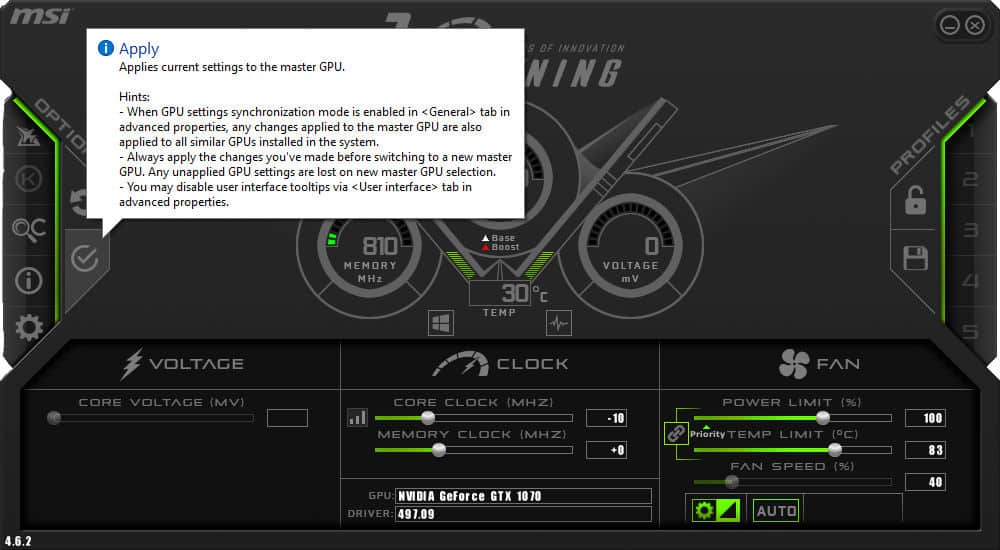
MSI Afterburner is a top choice for underclocking Nvidia GPUs. It works with most Nvidia cards and offers detailed controls. EVGA Precision X1 is another popular tool, especially for EVGA brand cards. Both programs are free and provide real-time monitoring. ASUS GPU Tweak II also supports many Nvidia models and offers easy performance tuning.
Step-by-step Underclocking Guide
First, download and install your chosen tool. Open the program and find the core clock slider. Move the slider left to lower the clock speed. Make small changes, around 10-20 MHz at a time. Next, reduce the memory clock similarly. Apply the changes and watch for any system warnings. Save your settings if the system runs stable.
Monitoring Performance And Stability
Watch your GPU temperature closely after underclocking. Use the tool’s monitoring features or separate software like HWMonitor. Run a stress test or play a game to check performance. Ensure no crashes or glitches occur. If problems appear, increase the clock speeds slightly. Proper monitoring keeps your GPU safe and efficient.
Troubleshooting Common Issues
Troubleshooting is an important part of underclocking your Nvidia GPU. Sometimes, things do not work as expected. Common problems can affect your system’s stability and performance. Understanding these issues helps you fix them quickly. Below are some common problems and their solutions.
System Crashes And Freezes
System crashes happen when the GPU settings are too low for stable operation. Freezes may occur if the underclocked speed is not supported by your hardware. Check the voltage and clock speeds carefully. Lower the underclock values gradually to find a stable setting. Ensure your drivers are up to date. Overly aggressive underclocking often leads to these problems.
Performance Drops
Performance drops are common after underclocking. The GPU runs slower, causing lag in games or applications. Balance your settings to avoid too much reduction. Test your GPU with different tasks to see the impact. Use benchmarking tools to compare before and after results. Adjust the clock speeds to find a good middle ground.
Reverting To Default Settings
Sometimes, you need to reset your GPU to default. This fixes issues caused by wrong settings. Most software allows easy restoration of default values. Restart your system after resetting to ensure proper application. Keep track of your changes before underclocking. This helps you return to original settings without trouble.
Credit: www.wepc.com
Tips For Maintaining Efficiency
Maintaining efficiency while underclocking your Nvidia GPU helps save energy and lowers heat. Small steps can keep your system stable and responsive. Focus on simple habits to protect your hardware and improve performance over time.
Regular Driver Updates
Keep your Nvidia drivers up to date. New updates fix bugs and improve efficiency. Updated drivers help your GPU run smoothly at lower speeds. Check for updates often to avoid issues.
Keeping Your System Cool
Cool systems work better and last longer. Use good airflow inside your PC case. Clean dust from fans and vents regularly. Cooler temperatures reduce stress on your GPU.
Balancing Performance And Power
Find the right balance between speed and energy use. Lower clock speeds save power but can slow down tasks. Test settings to keep your GPU efficient without losing too much speed. Adjust gradually and watch the results.
Frequently Asked Questions
What Is Underclocking An Nvidia Gpu?
Underclocking an Nvidia GPU means reducing its clock speed below the default. This lowers power use and heat output. It helps improve system stability and extends hardware lifespan, especially during light tasks or in overheating situations.
How To Safely Underclock My Nvidia Gpu?
Use Nvidia’s official tools like Nvidia Control Panel or MSI Afterburner. Gradually reduce the core clock speed in small steps. Monitor temperature and performance. Stop if you notice instability or crashes to ensure safe underclocking.
Does Underclocking Reduce Nvidia Gpu Performance?
Yes, underclocking lowers GPU performance by reducing clock speed. However, the performance drop is often minimal for everyday tasks. It mainly benefits power saving and thermal management without significantly affecting casual gaming or video playback.
Can Underclocking Help Reduce Nvidia Gpu Heat?
Underclocking reduces the GPU’s power consumption, which directly lowers heat generation. This helps keep your Nvidia GPU cooler, especially in hot environments or small cases with limited airflow. It’s an effective way to manage temperature without additional cooling.
Conclusion
Underclocking your Nvidia GPU helps reduce heat and power use. It can make your system quieter and more stable. The process is simple with the right tools and care. Always test your settings to avoid crashes or slowdowns. Small changes can make a big difference.
Take your time and follow the steps carefully. This way, your GPU runs cooler and lasts longer. Keep your computer safe and enjoy smoother performance.
