
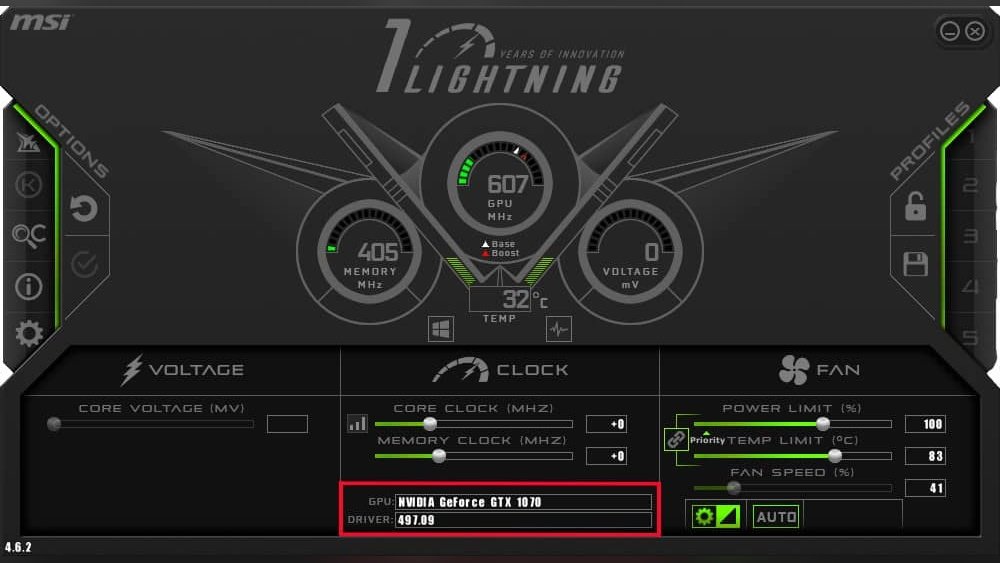
If your GPU is running too hot, causing your computer to slow down, or using too much power, underclocking might be the solution you need. By lowering your GPU’s clock speeds, you can reduce heat, save energy, and even extend your hardware’s lifespan.
But how exactly do you underclock a GPU safely and effectively? You’ll learn simple, step-by-step methods to get the job done right. Keep reading to take control of your GPU’s performance and protect your system from overheating or instability.
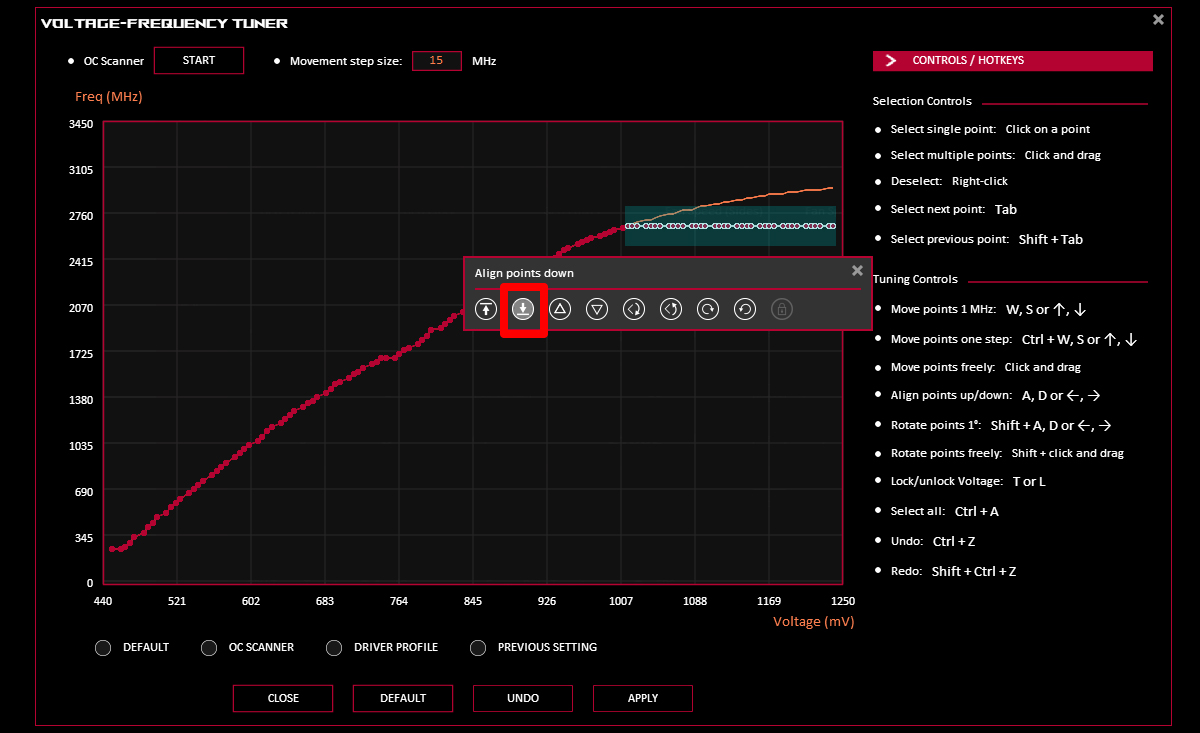
Credit: rog.asus.com
Why Underclock A Gpu
Underclocking a GPU means reducing its clock speed below the factory settings. This change can help in different situations. It is not about making the GPU faster but about balancing power, heat, and noise. Many users do not know why they might want to underclock their GPU. This section explains the reasons and benefits of this process.
Benefits Of Lower Clock Speeds
Lower clock speeds reduce the power the GPU uses. This means less electricity and longer life for the card. It also creates less heat, which can protect other computer parts. Fans run slower and quieter, making the computer more comfortable to use. Underclocking can help save energy and keep the system stable.
Impact On Performance And Heat
Reducing the clock speed lowers the GPU’s performance, but the effect may be small. The GPU uses less power and runs cooler. This cooler state prevents overheating and can stop the computer from shutting down. It also helps avoid the loud noise from fast-running fans. A cooler GPU is often more reliable over time.
When To Consider Underclocking
Try underclocking if the GPU gets too hot or noisy. It helps in small PC cases with poor airflow. Also good for older GPUs that struggle with high temperatures. Underclocking can be useful when running less demanding tasks. It saves power and keeps the system calm during long use.

Credit: rog.asus.com
Tools Needed For Underclocking
Underclocking a GPU requires the right tools to adjust settings safely. These tools help control the speed and monitor the GPU’s performance. Using proper software and hardware utilities ensures you can lower the clock speed without risks.
Choosing the correct tools makes underclocking easier and more effective. It also helps avoid overheating or instability. Below are the main tools you need for underclocking your GPU.
Popular Software Options
Several software options allow you to change your GPU clock speeds. MSI Afterburner is a favorite for many users. It has a simple interface to adjust clock speeds and voltage. EVGA Precision X1 is another option, mainly for EVGA cards. It offers detailed control over GPU settings. AMD Radeon Software also lets you underclock AMD GPUs easily. NVIDIA’s Control Panel can help with basic clock adjustments too. These programs work on most Windows systems.
Hardware Monitoring Utilities
Monitoring your GPU’s temperature and performance is vital. HWMonitor is a popular tool that shows real-time data. It tracks temperature, fan speed, and power use. GPU-Z is another monitoring tool focused on GPU details. It provides clock speeds, temperature, and memory usage. These utilities help you check stability after underclocking. They prevent damage by keeping an eye on heat and power.
Preparing For Underclocking
Preparing for underclocking your GPU is a key step. It helps protect your system and saves your current setup. This preparation reduces risks and makes the process smoother.
Underclocking changes how your GPU works. It lowers its speed to reduce heat and power use. But doing this without preparation can cause problems. Follow these steps to get ready and keep your system safe.
Backing Up Current Settings
Save your current GPU settings before making changes. Use software like MSI Afterburner or GPU manufacturer’s tools. Export or write down all clock speeds and voltages. This backup lets you restore settings if needed. It keeps your system safe from mistakes.
Ensuring System Stability
Check your system’s stability before underclocking. Run stress tests or benchmark programs to see how it performs now. Look for crashes or errors. Fix any issues before changing GPU speeds. A stable system helps underclocking go smoothly and safely.
Step-by-step Underclocking Process
Underclocking your GPU can help reduce heat and power use. This process involves lowering the clock speeds of your graphics card. Follow these steps carefully to do it safely. You will adjust core and memory clocks, then check if your system runs stable. This guide breaks down each step clearly.
Adjusting Core Clock Speeds
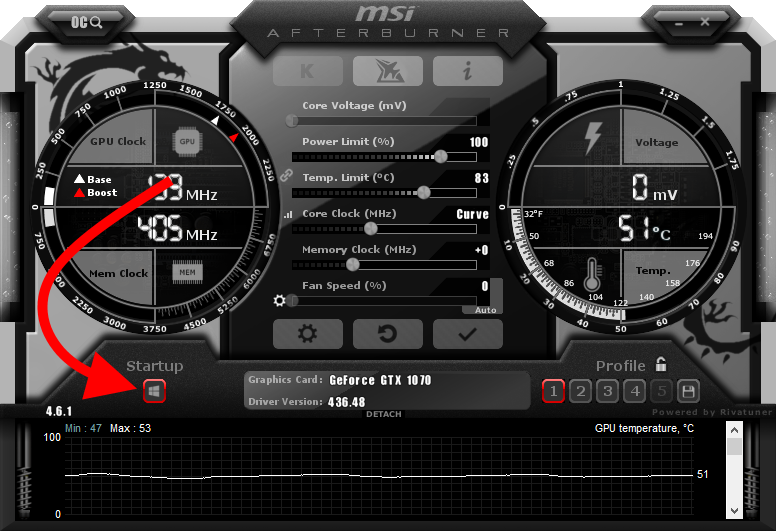
Start by opening your GPU tuning software, like MSI Afterburner or similar. Find the slider labeled “Core Clock” or “GPU Clock.” Slowly drag the slider down in small steps, such as 10-20 MHz at a time. Apply the changes and note how much you lowered the speed. Avoid large drops all at once to keep the system stable.
Modifying Memory Clock Speeds
Next, locate the “Memory Clock” slider in the same software. Lower the memory clock speed by small amounts, similar to the core clock. Decreasing memory speed reduces power and heat further. Make small adjustments and apply them step-by-step. Keep track of the changes for later testing.
Testing Stability After Changes
After adjusting clocks, test your GPU’s stability. Run a graphics benchmark or a game for 10-15 minutes. Watch for crashes, freezes, or artifacts on the screen. If problems appear, raise the clock speeds slightly. Repeat testing until the system runs smooth without errors. This step ensures your underclocked GPU works well every day.
Monitoring Gpu Temperature And Performance
Monitoring GPU temperature and performance is vital when underclocking your graphics card. It helps ensure your GPU runs cooler and stays stable. Watching these factors prevents damage and keeps your system reliable.
Careful tracking of GPU stats lets you find the best balance. You can reduce heat without losing too much speed. This section explains how to check temperature and performance with easy tools. It also shows how to read those numbers and adjust settings smartly.
Using Monitoring Tools
Use software like MSI Afterburner or HWMonitor to watch your GPU. These apps show real-time temperature, clock speeds, and fan speed. They give clear graphs and numbers for easy reading. You can set alerts for high temperatures. This helps avoid overheating during tests.
Interpreting Temperature Readings
Look for GPU temps under 85°C for safe use. Higher temps risk damage and reduce lifespan. Notice how temps change under load or idle. Sudden spikes may mean poor cooling or too high clocks. Keep an eye on fan noise and speed changes too. These clues help you decide if adjustments are needed.
Balancing Performance And Heat
Lower clock speeds reduce heat but slow performance. Find the sweet spot where temperatures drop yet games run smoothly. Test with benchmarks or games to check stability. Adjust fan curves to improve cooling without much noise. Small tweaks can make your GPU last longer and run cooler.
Troubleshooting Common Issues
Troubleshooting common issues is important when underclocking a GPU. Small mistakes can cause problems. Understanding how to fix them helps keep your system stable and running well. This section covers some typical problems and how to solve them quickly.
Handling System Crashes
System crashes happen if the GPU settings are too low. The computer may freeze or restart suddenly. To fix this, raise the clock speed slightly. Test with small steps until the system is stable. Also, check your drivers are up to date. Stable drivers reduce crashes during underclocking.
Dealing With Performance Drops
Performance drops can occur if the GPU is underclocked too much. Your games or apps may lag or run slow. To improve this, increase the clock speed a bit. Find a balance where the GPU stays cool but still performs well. Use monitoring tools to compare speeds and temperatures.
Reverting To Default Settings
If problems persist, revert to the default GPU settings. Most software offers a reset option. This restores original clock speeds and voltages. Reverting helps check if issues come from underclocking. Always save your original settings before making changes.
Tips For Maintaining Gpu Health
Maintaining your GPU’s health is key to better performance and longer life. Small steps keep the GPU running cool and stable. Underclocking helps, but care is essential. Follow these tips to protect your graphics card.
Regular Cleaning And Maintenance
Dust and dirt block airflow, causing heat build-up. Clean the GPU and its fans regularly. Use compressed air to remove dust from vents and heatsinks. Avoid touching sensitive parts to prevent damage. Check cables and connections for looseness or wear. A clean GPU runs cooler and lasts longer.
Optimizing Cooling Solutions
Good cooling stops overheating and improves stability. Check that all fans spin freely and work properly. Replace old thermal paste between the GPU chip and heatsink every year. Consider adding extra case fans for better airflow. Keep your computer in a cool, ventilated space. Cooler temperatures reduce stress on the GPU and help it perform well.
Credit: sff.life
Frequently Asked Questions
What Is Gpu Underclocking And Why Use It?
GPU underclocking reduces your graphics card’s clock speeds. It lowers heat and power consumption. This helps improve system stability and lifespan, especially in older GPUs or laptops.
How Do I Safely Underclock My Gpu?
Use reliable software like MSI Afterburner. Gradually reduce the core clock speed by small increments. Test stability after each change to avoid crashes or glitches.
Can Underclocking Improve Gpu Temperature?
Yes, underclocking lowers GPU frequency and voltage. This reduces heat generation and fan noise. It helps maintain cooler operating temperatures for better performance longevity.
Will Underclocking Affect Gaming Performance?
Underclocking decreases GPU speed, which can reduce game frame rates. However, it may prevent overheating and crashes. Balance performance needs with thermal control for best results.
Conclusion
Underclocking a GPU helps reduce heat and save power. It can make your computer run quieter and last longer. Always test your settings carefully to avoid crashes. Start slow and check performance step by step. This process suits users who want cooler systems or longer battery life.
Remember, small changes can bring steady improvements. Take your time and enjoy smoother, cooler computing.
