
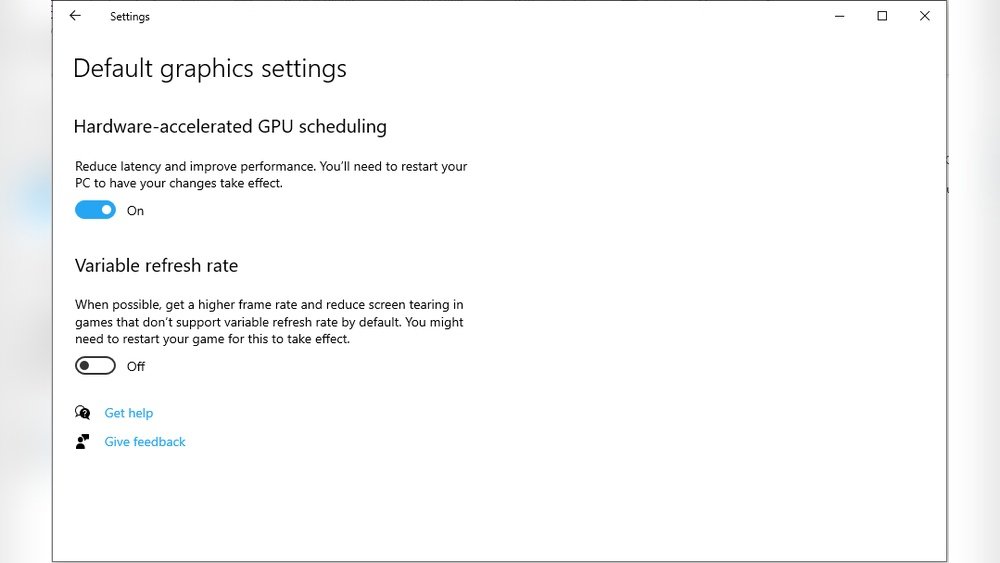
Are you looking to boost your computer’s performance and get smoother graphics? Turning on Hardware Accelerated GPU Scheduling can make a big difference.
This feature helps your system handle graphics tasks more efficiently, leading to faster response times and less lag. If you want to unlock better gaming, video editing, or overall system speed, you’re in the right place. Keep reading, and you’ll learn exactly how to enable this powerful feature step by step—no tech jargon, just simple instructions you can follow right now.
What Is Hardware Accelerated Gpu Scheduling
Hardware Accelerated GPU Scheduling lets your computer handle graphics tasks faster. To turn it on, open Settings, go to Display, then Graphics settings, and enable the feature. This can improve your system’s performance and reduce lag.
What Is Hardware Accelerated Gpu Scheduling?
Hardware Accelerated GPU Scheduling is a feature in Windows that helps your computer run graphics tasks more smoothly. It allows the GPU to manage its own memory and processes directly, reducing the workload on the CPU.
This change can make your system faster and more efficient, especially in games and graphic-heavy applications. It aims to lower the delay between the CPU and GPU, improving overall performance and responsiveness.
How Hardware Accelerated Gpu Scheduling Works
Normally, the CPU controls the scheduling of graphics tasks. This means the CPU decides when the GPU should work on each task. With Hardware Accelerated GPU Scheduling, the GPU gets more control to manage its tasks independently.
This shift reduces the back-and-forth communication between the CPU and GPU. It can lower input lag and increase frame rates in some cases. The GPU handles its own scheduling faster and with less delay.
Benefits Of Hardware Accelerated Gpu Scheduling
Using this feature can improve your computer’s efficiency. It may help games run smoother and make video editing or 3D rendering faster. It also reduces stuttering and improves frame pacing in certain games.
Your CPU can focus on other tasks since the GPU schedules its work. This balance can lead to better multitasking and a more responsive system overall.
Benefits Of Enabling Gpu Scheduling
Enabling hardware accelerated GPU scheduling improves how your computer handles graphics. It lets the GPU manage its own memory and tasks better. This change leads to smoother performance and less lag in games and apps.
With GPU scheduling on, the system can reduce delays. This means images and videos load faster. It also helps keep your computer cooler and quieter during heavy use.
Improved Graphics Performance
GPU scheduling allows smoother frame rates in games and videos. It reduces stutters and screen tearing. This leads to a better visual experience overall.
Lower Latency
Latency means the delay between input and response. Enabling GPU scheduling cuts down this delay. Games feel more responsive and controls react faster.
Reduced Cpu Load
The GPU takes over some tasks from the CPU. This lowers the CPU workload. Your computer runs more efficiently and multitasks better.
Better Power Efficiency
Hardware accelerated scheduling helps manage power use. It reduces unnecessary energy consumption. This can extend battery life on laptops and reduce heat.
Check System Compatibility
Before enabling Hardware Accelerated GPU Scheduling, check if your system supports it. Compatibility depends on your Windows version, GPU driver, and hardware. These elements must meet specific requirements for smooth performance.
Windows Version Requirements
Your PC needs Windows 10 version 2004 or later. Older versions do not support this feature. Use the Settings app to find your Windows version quickly. Open Settings, then go to System > About, and look under “Windows specifications.”
Gpu Driver Support
GPU drivers must support Hardware Accelerated GPU Scheduling. Update your graphics driver to the latest version. Visit your GPU maker’s website to download the newest driver. Outdated drivers may cause issues or block the feature.
Hardware Needs
Your graphics card must support this scheduling method. Most modern NVIDIA and AMD GPUs do, but older models do not. Check your GPU model and compare it with the supported list on the manufacturer’s site. Also, ensure your system has enough RAM and CPU power.
Credit: www.windowslatest.com
Enable Gpu Scheduling In Windows
Enabling GPU scheduling in Windows helps your computer manage graphics tasks better. This feature uses your graphics card to handle scheduling, reducing the load on the CPU. It can improve performance and lower latency in games and apps.
Turning on hardware-accelerated GPU scheduling is simple. Follow the steps below to activate it on your Windows device.
Accessing Graphics Settings
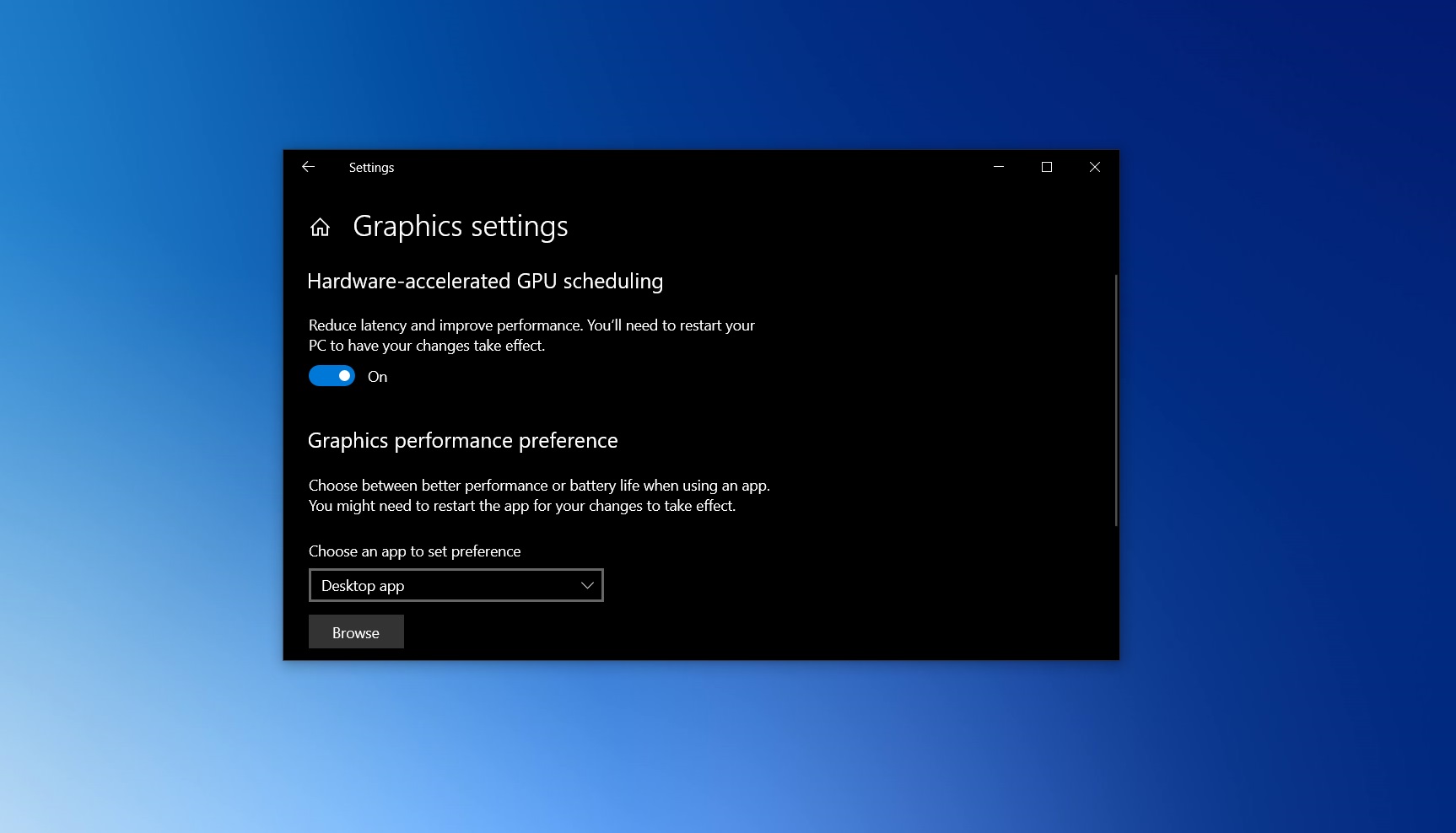
Open the Start menu and select Settings. Click on System, then choose Display from the sidebar. Scroll down and find the Graphics settings link. Click it to open advanced graphics options.
Turning On The Feature
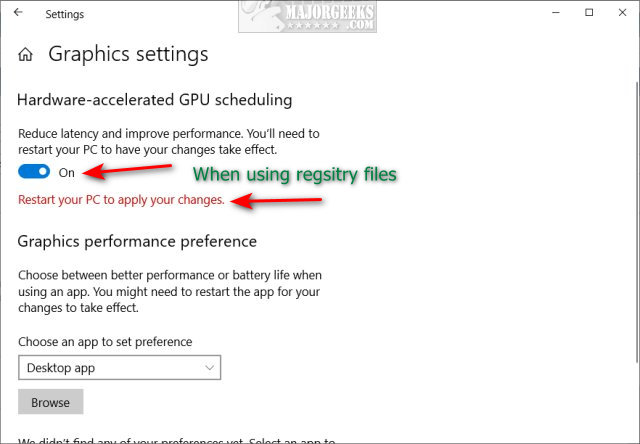
In the Graphics settings window, look for Hardware-accelerated GPU scheduling. Toggle the switch to On. Restart your computer to apply the changes. After reboot, your GPU will handle scheduling tasks more efficiently.
Update Gpu Drivers
Updating your GPU drivers is a key step to enable Hardware Accelerated GPU Scheduling. Fresh drivers improve performance and fix bugs. They ensure your system supports the latest features from your graphics card.
Most graphics card makers offer easy tools for driver updates. You can also update drivers manually if needed. Both methods are straightforward and safe.
Using Manufacturer Software
Graphics card brands like NVIDIA, AMD, and Intel provide special apps. These apps scan your PC to find the right driver version. They download and install updates automatically. This method is quick and reduces errors.
To use this tool, download it from the official website. Open the app and check for updates. Follow the on-screen instructions to complete the update. Restart your computer after installation for changes to take effect.
Manual Driver Update
You can update drivers manually by visiting the manufacturer’s website. Search for your graphics card model in the support or download section. Download the latest driver compatible with your operating system.
Run the installer and follow the prompts to update the driver. Manual updates give you control over the version installed. Always choose drivers from official sources to avoid security risks.

Credit: www.youtube.com
Troubleshooting Common Issues
Troubleshooting common issues with Hardware Accelerated GPU Scheduling helps keep your PC running smoothly. Some problems may appear after turning this feature on. Knowing how to fix them saves time and frustration.
Many users report changes in performance or unexpected errors. These can result from hardware limits or driver conflicts. Identifying the cause is the first step toward a solution.
Performance Problems
Performance problems might include slower games or stuttering videos. This happens if your GPU or drivers do not fully support the feature. Outdated drivers often cause these issues.
Check for the latest GPU driver updates from the manufacturer’s website. Restart your PC after updating to apply changes. Also, close unnecessary apps to free up system resources.
Disabling The Feature
Disabling Hardware Accelerated GPU Scheduling may solve persistent issues. Open the Windows Settings and go to System > Display > Graphics Settings. Find the toggle for Hardware Accelerated GPU Scheduling and turn it off.
Restart your computer to finalize the change. This step helps if your system behaves worse after enabling the feature. You can always turn it back on later if needed.
Measuring Performance Improvements
Measuring performance improvements is key after turning on Hardware Accelerated GPU Scheduling. It shows if the change helps your computer run better. Testing helps spot real benefits or issues. Use clear methods to track changes in speed and smoothness. This makes your results reliable and easy to understand.
Benchmarking Tools
Benchmarking tools give precise numbers about your system’s performance. These programs test your GPU with set tasks. They measure frame rates, loading times, and processing power. Popular tools include 3DMark, Unigine Heaven, and MSI Afterburner. Run tests before and after enabling GPU scheduling. Compare results to see if scores improve. Use the same settings to keep tests fair.
Real-world Testing
Real-world testing checks how your computer performs in daily use. Play games, watch videos, or use apps that need graphics power. Notice any faster loading or smoother visuals. Record frame rates during gameplay for better data. Look for less screen tearing and fewer delays. This type of test shows if changes affect your experience. Combine it with benchmarks for a full view.
Credit: m.majorgeeks.com
Tips For Maximizing Gpu Performance
Maximizing your GPU performance helps your computer run faster and smoother. It improves graphics in games and makes video editing easier. Small changes can make a big difference in how well your system performs.
Here are some simple tips to get the most from your GPU and keep it working at its best.
Update Your Graphics Drivers Regularly
Graphics drivers control how your GPU works with your computer. Updated drivers fix bugs and add new features. Check the manufacturer’s website often for the latest version. Installing updates keeps your GPU fast and stable.
Adjust In-game Settings For Better Performance
Lowering settings like shadows and texture quality can boost frame rates. Turning off unnecessary effects helps your GPU focus on important tasks. Balance visuals and speed for a smoother experience in games.
Enable Hardware Accelerated Gpu Scheduling
This Windows feature allows the GPU to manage its own memory. It can reduce latency and improve performance. Turn it on in your system settings for better GPU efficiency.
Keep Your Gpu Cool
Heat slows down your GPU and can cause crashes. Make sure your computer has good airflow. Clean dust from fans and vents often. Use a cooling pad for laptops to keep temperatures low.
Close Unnecessary Background Apps
Running many apps uses GPU power and slows your system. Close apps you don’t need while gaming or editing. This frees up resources and improves performance.
Frequently Asked Questions
What Is Hardware Accelerated Gpu Scheduling?
Hardware Accelerated GPU Scheduling reduces latency by letting your GPU manage its memory. It improves game and app performance. This feature enhances system responsiveness and lowers CPU load during graphics-heavy tasks. It requires Windows 10 or later and compatible hardware.
How Do I Enable Hardware Accelerated Gpu Scheduling?
Go to Settings > System > Display > Graphics Settings. Toggle on Hardware Accelerated GPU Scheduling if available. Restart your PC to apply changes. Ensure your graphics driver is updated for the feature to appear and work properly.
Which Gpus Support Hardware Accelerated Gpu Scheduling?
Most recent NVIDIA and AMD GPUs support this feature. Ensure your GPU driver is version 451. 48 or later for NVIDIA. AMD drivers from version 20. 5. 1 or newer also support it. Check your GPU manufacturer’s website for compatibility details.
Does Hardware Accelerated Gpu Scheduling Improve Gaming Performance?
Yes, it can improve gaming performance by reducing latency and CPU usage. Results vary by system and game. Some users notice smoother gameplay and faster frame rates. Testing it on your setup can help determine the actual benefit.
Conclusion
Turning on Hardware Accelerated GPU Scheduling can improve your PC’s performance. It helps your graphics card work more smoothly and fast. The process is simple and quick to follow. Just make sure your system supports this feature first. After enabling it, you may notice better game play and video quality.
Keep your drivers updated for best results. Try it out and see the difference yourself. Small changes like this can help your computer run better every day.
