
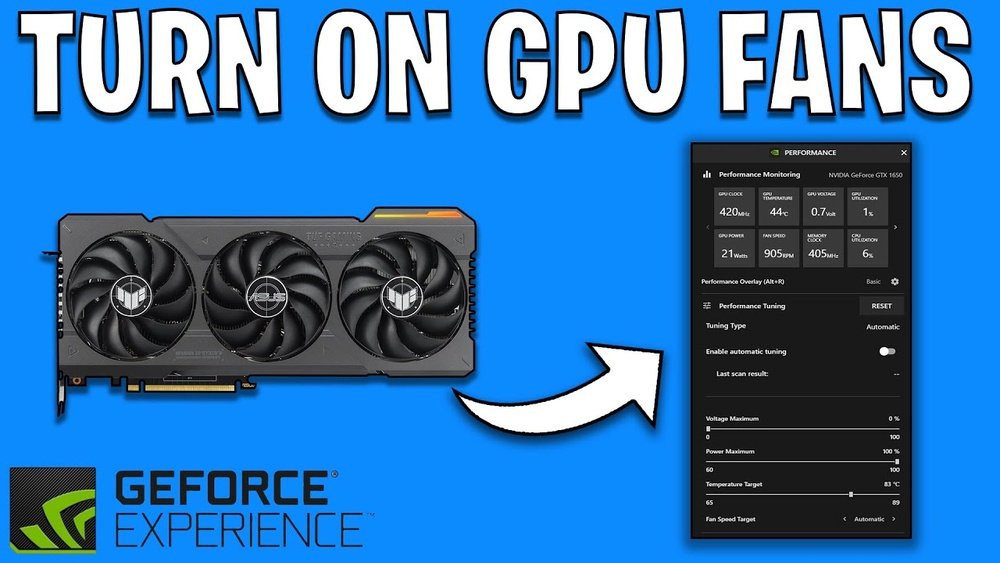
Is your GPU running hotter than it should? You might be wondering how to turn on your GPU fans to keep things cool and avoid damage.
Knowing how to control your GPU fans can save you from unexpected crashes and improve your computer’s performance. You’ll discover simple steps to get your GPU fans spinning just right. Keep reading to learn how to protect your system and enjoy smoother gaming or work sessions without overheating worries.

Credit: softwareg.com.au
Check Fan Control Software
Checking the fan control software is the first step to turn on your GPU fans. Most graphics cards come with software that helps control fan speed. This software lets you set when and how fast the fans spin. It protects your card from overheating and keeps it quiet during light use.
Sometimes, the fan might not start because the software settings are off. Adjusting these settings can make your fans run properly. Below are common ways to manage fan control through software.
Use Manufacturer Utilities
Many GPU makers provide their own fan control software. For example, NVIDIA has the GeForce Experience, and AMD offers Radeon Software. These utilities let you adjust fan speed easily.
Open the software and find the fan control section. You can set fan speed profiles or enable automatic control. This helps the fan run only when needed.
Using official tools ensures compatibility and safer control. They update with your GPU drivers to keep settings correct.
Third-party Fan Control Apps
Third-party apps offer more detailed fan control options. Programs like MSI Afterburner or SpeedFan work with many GPUs. They allow custom fan curves and temperature monitoring.
These apps are useful if manufacturer software lacks features. They provide a simple interface to increase fan speed manually.
Download trusted apps from official sites to avoid risks. Always check if your GPU model is supported before use.

Credit: forums.developer.nvidia.com
Adjust Fan Settings In Bios
Adjusting fan settings in the BIOS helps control your GPU fans directly. This method allows you to manage fan speed for better cooling and quieter operation. Changing these settings can improve your computer’s temperature and performance.
Access Bios Fan Controls
Restart your computer and press the BIOS key during startup. Common keys are Delete, F2, or Esc. Look for the section named “Hardware Monitor,” “Fan Control,” or “PC Health.” Here you will find GPU fan settings if supported by your motherboard.
Use arrow keys to navigate and Enter to select options. Some BIOS versions show fan speed as a percentage or RPM. Make sure to save changes before exiting the BIOS.
Set Custom Fan Curves
Custom fan curves let you change fan speed based on GPU temperature. Set low speed for cool temps and higher speed for hot temps. This prevents the fan from running too loud or too slow.
Adjust points on the curve to match your cooling needs. Save the curve and test your GPU under load. Fine-tune the curve for the best balance between noise and cooling.
Update Gpu Drivers
Updating your GPU drivers can help control the GPU fans better. New drivers often fix bugs and improve hardware function. This step ensures your GPU works smoothly and keeps cool.
Download Latest Drivers
Go to the official website of your GPU brand. Choose the exact model of your graphics card. Download the newest driver version available. Make sure the driver matches your computer’s operating system.
Install And Restart
Open the downloaded driver file to start installation. Follow the on-screen instructions carefully. After installation, restart your computer. This step applies the changes and helps your GPU fans work properly.
Inspect Physical Fan Connections
Inspecting the physical fan connections is the first step to turn on GPU fans. Fans need power and a clear path to spin well. Sometimes, loose or dirty connections stop them from working. Checking these connections helps find the problem fast.
Make sure the fan wires are plugged in correctly. Look closely for any dirt or damage. Fixing small issues here can get your fans running again.
Check Power Cables
Start by looking at the power cables that connect the GPU fans. These cables carry electricity from the power supply to the fans. Check if the cables are firmly connected to the fan and the GPU board. A loose cable means no power for the fan. Also, look for broken or frayed wires. Replace any damaged cables to avoid problems.
Clean Dust And Debris
Dust and dirt can block the fan blades and stop them from turning. Use a soft brush or compressed air to clean the fans gently. Pay attention to the fan motor and surrounding areas. Clean fans work better and last longer. Avoid using wet cloths or liquids that can damage the parts.
Enable Fan Spin At Startup
Enabling GPU fans to spin at startup helps keep your graphics card cool right away. This prevents heat buildup that can damage components. Many GPUs stop the fans when they are cool, but you can change this setting. Starting the fans early ensures better cooling and longer hardware life.
Modify Fan Startup Behavior
Access your GPU’s control software, like MSI Afterburner or similar. Look for fan settings or fan curve options. Find the option to enable fan spin at startup. Turn this feature on to make fans start spinning as soon as the computer boots. Save the settings and exit the program. This simple change activates your GPU fans automatically.
Test Fan Operation
Restart your computer after modifying the settings. Watch the GPU fans during the startup process. Fans should spin immediately or very quickly after booting. Use monitoring software to check fan speed and temperature. Confirm the fans work properly and cool the GPU as needed. Testing ensures your changes are effective and safe.
Monitor Gpu Temperature
Monitoring your GPU temperature is key to keeping your graphics card cool and safe. Overheating can cause slowdowns and damage. Knowing the temperature helps you control the fans and avoid problems.
Checking the temperature often lets you catch heat spikes early. You can then adjust settings to keep your GPU running smoothly. This step is simple but very effective for GPU care.
Use Monitoring Tools
Many tools show GPU temperature in real time. Programs like MSI Afterburner and HWMonitor are popular. They give clear temperature readings and fan speed info. You can watch your GPU’s heat as you use your computer. This helps you see when the fans need to work harder.
Adjust Fan Speed Based On Temperature
Set your fan speed to change with the GPU temperature. Most software lets you create fan curves. Fans run faster when the GPU gets hotter. This keeps your card cool without making too much noise. You control the speed to match the temperature for best cooling and quietness.
Consider Hardware Upgrades
Sometimes, turning on GPU fans is not enough to keep your graphics card cool. Your hardware might need upgrades to improve airflow and prevent overheating. Upgrading parts can help the fans work better and extend the life of your GPU. Check your current setup and think about what needs improvement for better cooling.
Replace Faulty Fans
Fans can wear out over time. Faulty fans may not spin or cool properly. Replacing old or broken fans can restore proper airflow. Choose fans that fit your GPU model. Quality fans run quietly and keep the temperature low. This upgrade ensures your GPU stays cool during heavy use.
Add Additional Cooling Solutions
Extra cooling tools can boost your GPU’s performance. Consider installing more fans in your case to increase airflow. You can also use liquid cooling systems for better heat control. These solutions help reduce fan noise and keep the GPU at a safe temperature. Adding cooling parts protects your hardware from damage.
Credit: www.youtube.com
Frequently Asked Questions
How Do I Manually Turn On Gpu Fans?
You can manually turn on GPU fans using software like MSI Afterburner. This tool lets you control fan speed and monitor temperature. Adjust fan curves for optimal cooling based on your GPU’s heat levels. Always ensure your GPU drivers are up to date for best compatibility.
Why Are My Gpu Fans Not Spinning?
GPU fans may not spin if the temperature is low, as many GPUs keep fans off at low temps. Check power connections and clean dust buildup. If fans still don’t spin, update drivers or test with fan control software to diagnose hardware issues.
Can I Control Gpu Fan Speed With Software?
Yes, software like MSI Afterburner or EVGA Precision X1 allows you to adjust GPU fan speed manually. These tools provide custom fan curves and real-time monitoring. Proper fan speed control improves cooling and reduces noise during high-demand tasks.
What Causes Gpu Fans To Stop Working?
GPU fans can stop working due to dust accumulation, bearing failure, or electrical issues. Overheating and poor ventilation also damage fans. Regular cleaning and monitoring help prevent failure. Replace fans if physical damage or persistent malfunction occurs.
Conclusion
Keeping your GPU fans on helps your computer stay cool and work well. Check your fan settings regularly to avoid overheating problems. Use simple software tools or your computer’s BIOS to control fan speed. Clean the fans often to keep air flowing freely.
This small care helps your GPU last longer and run smoother. Stay alert to any unusual noise or heat from your GPU. Taking these easy steps protects your device and improves its performance. Keep your system healthy by managing your GPU fans right.
