
Are you tired of slow video exports and lagging previews in Premiere Pro? Unlocking GPU acceleration can transform your editing experience by making everything faster and smoother.
If you want to get the most out of your computer’s graphics power, you need to know exactly how to turn on GPU acceleration in Premiere Pro. This simple change can save you hours and boost your productivity. Keep reading, and you’ll learn step-by-step how to activate this feature so your editing workflow feels effortless.
Credit: www.drivereasy.com
Enable Gpu Acceleration In Premiere Pro
Enabling GPU acceleration in Premiere Pro helps speed up video editing tasks. It uses your computer’s graphics card to process effects and playback faster. This can make editing smoother and reduce rendering time. Follow these simple steps to turn on GPU acceleration.
Check System Requirements
Make sure your computer supports GPU acceleration. Premiere Pro needs a compatible graphics card. Nvidia and AMD cards usually work well. Also, check if your operating system is up to date. Without the right hardware and software, GPU acceleration won’t work.
Update Graphics Drivers
Keep your graphics drivers current. Updated drivers improve performance and fix bugs. Visit your graphics card manufacturer’s website to download the latest drivers. Install them carefully and restart your computer. This step ensures Premiere Pro can use your GPU properly.
Select Renderer In Project Settings
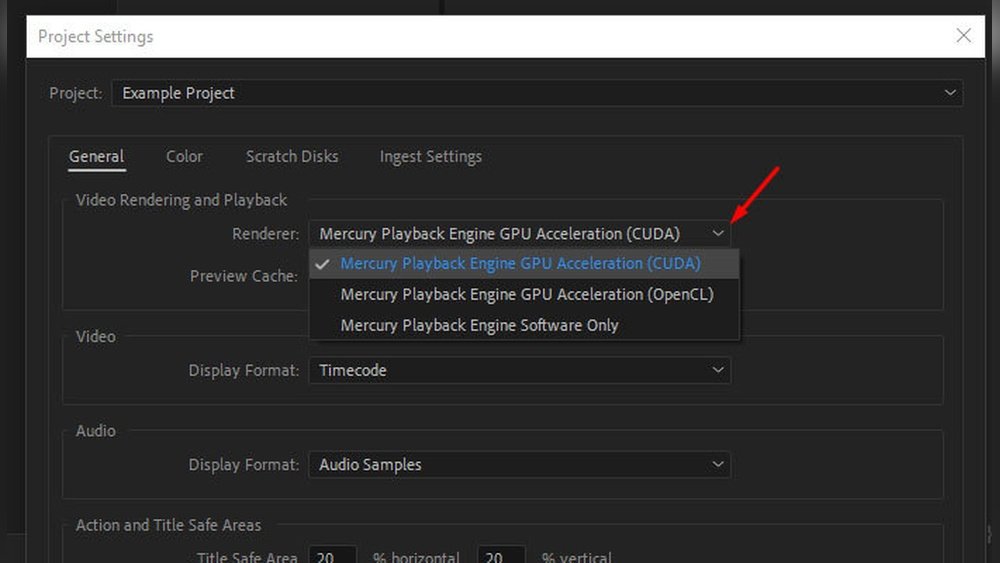
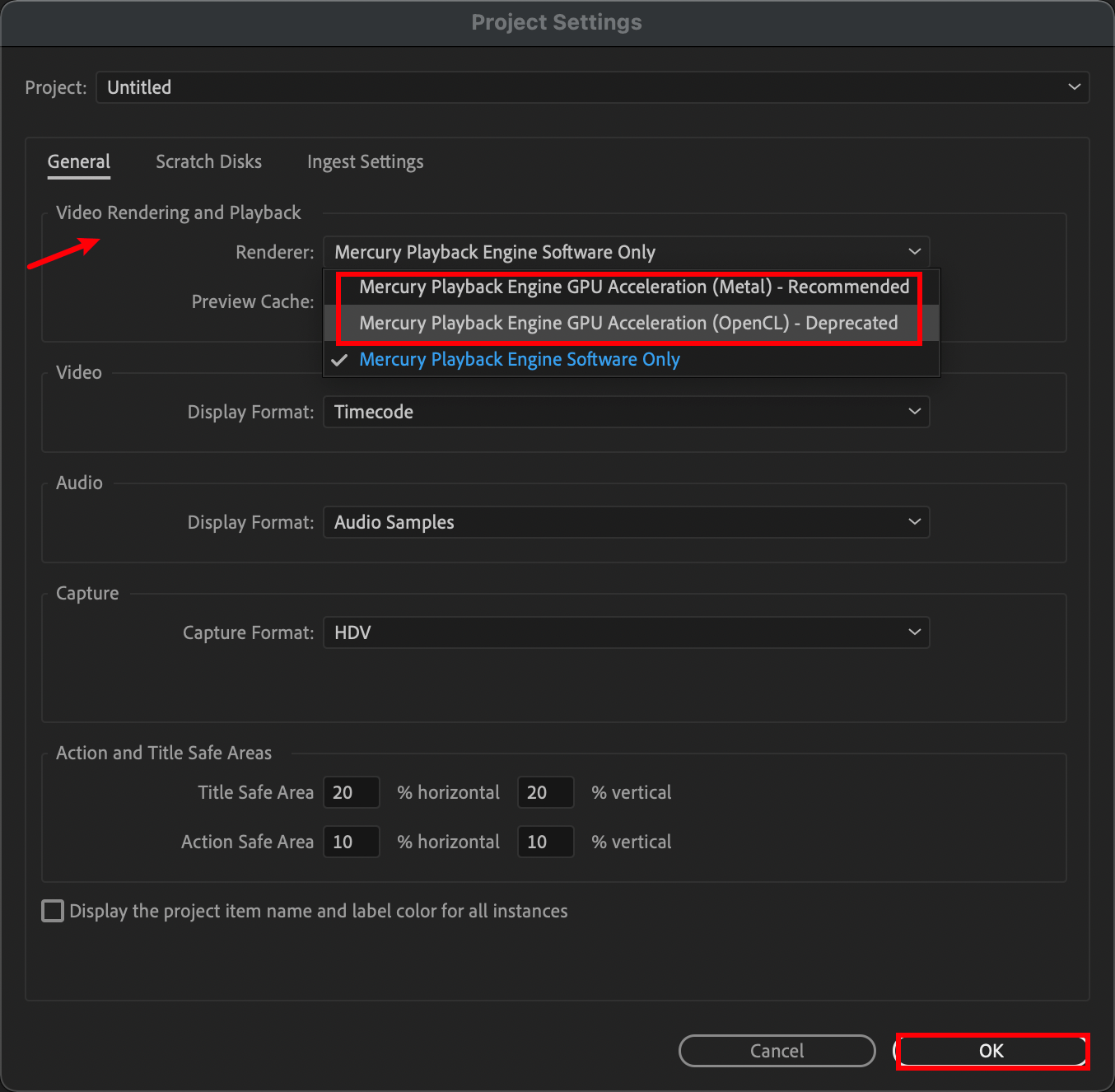
Open your Premiere Pro project. Go to File > Project Settings > General. Find the “Renderer” option and select “Mercury Playback Engine GPU Acceleration.” Choose your GPU from the list. Click OK to save changes. This setting tells Premiere Pro to use your graphics card for acceleration.
.png)
Credit: community.adobe.com
Benefits Of Gpu Acceleration
GPU acceleration in Premiere Pro uses your computer’s graphics card to help process videos faster. This feature makes editing smoother and saves time. It reduces the load on your main processor and speeds up many tasks. Below are some key benefits of using GPU acceleration.
Improved Playback Performance
GPU acceleration helps videos play smoothly during editing. It reduces lag and stuttering. This allows you to see changes in real-time without delays. You can work on high-resolution videos without slowing down your computer.
Faster Rendering Times
Rendering is the process of creating the final video file. GPU acceleration makes rendering faster by using the graphics card’s power. You spend less time waiting for your video to export. This speeds up your entire editing workflow.
Enhanced Effects Processing
Many effects use heavy calculations that slow down editing. GPU acceleration speeds up these effects. You can add color corrections, transitions, and filters without long delays. This helps you try different looks quickly and easily.
Troubleshooting Gpu Issues
GPU acceleration can make video editing smoother and faster in Premiere Pro. Sometimes, the GPU might not work as expected. Troubleshooting GPU issues can help fix these problems quickly. Follow these simple steps to get GPU acceleration running well.
Verify Gpu Compatibility
Check if your GPU supports Premiere Pro’s acceleration. Adobe lists supported GPUs on their website. Older or low-end GPUs might not work properly. Use the latest GPU model for best results. Ensure your system meets the minimum requirements.
Resolve Driver Conflicts
Outdated or conflicting drivers cause many GPU problems. Update your GPU driver to the latest version from the manufacturer’s site. Uninstall old drivers before installing new ones. Restart your computer after updating drivers. This clears any conflicts and improves performance.
Adjust Premiere Pro Preferences
Open Premiere Pro and go to Preferences. Find the “Renderer” setting under the “Project Settings.” Switch it to “Mercury Playback Engine GPU Acceleration.” Save changes and restart the app. This forces Premiere Pro to use the GPU for processing.
Optimizing Premiere Pro For Speed
Optimizing Premiere Pro for speed helps you edit videos smoothly. Slow playback or lagging can waste your time. Small changes can make a big difference in performance. These tips focus on improving speed without losing quality.
Faster editing means less waiting and more creating. Use these methods to get the best results from your software.
Use Proxy Files
Proxy files are low-resolution copies of your videos. Premiere Pro uses them to reduce the load on your computer. You can edit with proxies, then switch back to full quality for export. This saves processing power and speeds up playback. Creating proxies is simple and helps with large or 4K files.
Manage Media Cache
Media cache stores temporary files to speed up loading. Over time, it can grow too large and slow your system. Clear the cache regularly to keep Premiere Pro running fast. Go to preferences and delete unused cache files. This frees space and improves performance.
Adjust Playback Resolution
Playback resolution controls the quality of your video preview. Lowering it reduces the strain on your GPU and CPU. Set playback to half or quarter resolution for smoother editing. This does not affect the final export quality. It helps keep the timeline responsive, especially with heavy projects.

Credit: vixencomposites.com
Frequently Asked Questions
How Do I Enable Gpu Acceleration In Premiere Pro?
To enable GPU acceleration, open Premiere Pro, go to File > Project Settings > General. Under Renderer, select “Mercury Playback Engine GPU Acceleration. ” Click OK to apply the changes and enhance video processing speed.
Which Gpus Are Compatible With Premiere Pro Acceleration?
Premiere Pro supports NVIDIA, AMD, and Intel GPUs with CUDA or OpenCL. Check Adobe’s official list to ensure your GPU supports acceleration for optimal performance.
Can Gpu Acceleration Improve Video Rendering Speed?
Yes, GPU acceleration significantly speeds up rendering by offloading tasks from the CPU. This results in faster previews and exports, saving valuable editing time.
What If Gpu Acceleration Option Is Missing In Premiere Pro?
If missing, update your GPU drivers and Premiere Pro to the latest versions. Ensure your hardware meets minimum requirements and restart the software to enable the feature.
Conclusion
Enabling GPU acceleration in Premiere Pro speeds up your editing process. It helps your computer handle effects and previews better. Check your system and settings carefully to turn it on. This small step improves video rendering and playback quality. Keep your software and drivers updated for best results.
Using GPU acceleration makes editing smoother and saves time. Try these steps next time you work on a project. Enjoy faster performance with a few simple clicks.
