

Are you looking to speed up your computer and get the most out of your graphics card? Turning on GPU acceleration can make a huge difference in how fast and smoothly your programs run.
Whether you’re editing videos, playing games, or working with heavy software, enabling this feature helps your system handle tasks more efficiently. You’ll discover simple steps to activate GPU acceleration and unlock your device’s full potential. Keep reading to find out how easy it is to boost your performance right now!
Credit: www.windowslatest.com
Benefits Of Gpu Acceleration
GPU acceleration improves how computers handle tasks. It uses the graphics card to do work faster. This helps programs run smoothly and saves time. Many users see better results with GPU acceleration enabled.
Speeding Up Processing Tasks
GPU acceleration speeds up many tasks on the computer. It processes data in parallel, unlike CPUs. This means many calculations happen at once. Programs like video editing and 3D rendering finish quicker. Users spend less time waiting for results.
Enhancing Graphics Performance
Graphics look better with GPU acceleration on. The graphics card handles images and videos smoothly. Games run with higher frame rates and less lag. Videos play without stuttering or freezing. Visual effects appear sharper and more detailed.
Reducing Cpu Load
GPU acceleration takes some work off the CPU. This lowers the CPU’s workload and heat. The computer runs cooler and uses less power. Other programs on the CPU can work faster. Multitasking becomes easier and more efficient.

Credit: www.wikihow.com
Checking Gpu Compatibility
Before turning on GPU acceleration, check if your system supports it. Compatibility is key for smooth performance. Knowing your GPU’s capabilities helps avoid errors and slowdowns.
Check hardware, operating system, and driver details first. These factors affect your ability to use GPU acceleration.
Supported Hardware Requirements
Your GPU must support acceleration features. Most modern NVIDIA and AMD cards do. Older or integrated GPUs may not work well. Look for models with CUDA or OpenCL support. These technologies enable acceleration in many apps.
Check your GPU model number and compare it with software requirements. Some programs list supported GPUs on their websites.
Compatible Operating Systems
GPU acceleration depends on your operating system. Windows 10 and 11 support most GPUs. macOS supports acceleration on newer Apple and some AMD GPUs. Linux support varies by distribution and drivers. Using an outdated OS may block acceleration features.
Make sure your OS version matches the software needs. Update your system if necessary to improve compatibility.
Driver Version Essentials
GPU drivers connect your hardware to software. Up-to-date drivers enable proper acceleration. Old drivers cause crashes and poor performance. Download the latest driver from NVIDIA, AMD, or your GPU maker’s site.
Check driver version in your system settings. Update it regularly to maintain smooth GPU acceleration.
Enabling Gpu Acceleration On Windows
Enabling GPU acceleration on Windows helps your computer run tasks faster. It uses your graphics card to handle heavy processes. This improves performance in apps like video editors, games, and design software. The process is simple and takes only a few steps. Follow the guide below to enable GPU acceleration easily.
Accessing Graphics Settings
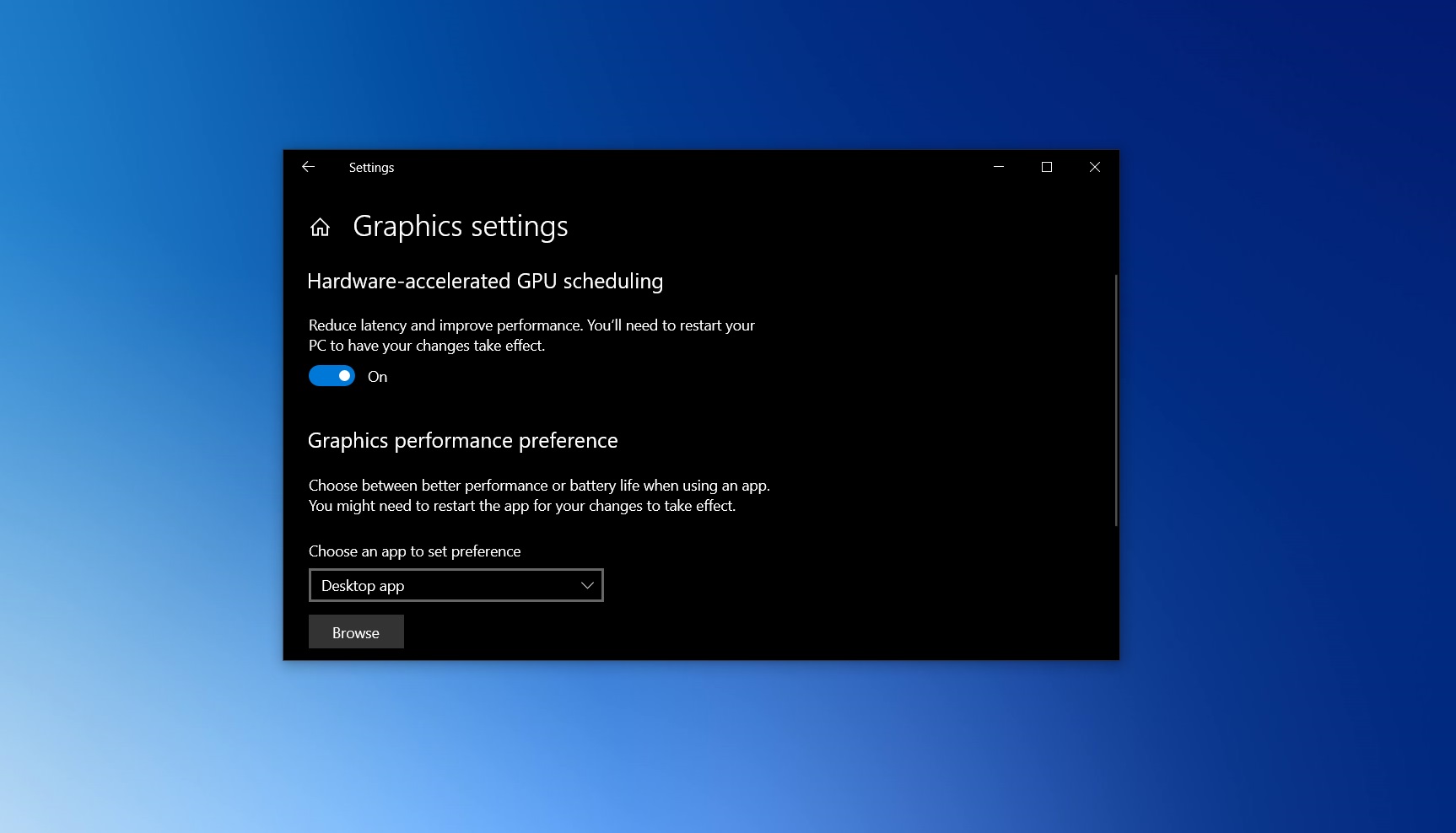
First, open the Start menu and click on Settings. Choose System, then select Display from the sidebar. Scroll down and click on Graphics settings. This area lets you manage GPU preferences for apps. You can add apps and choose which GPU they use.
Activating Hardware Acceleration
In the Graphics settings, find the option for Hardware-accelerated GPU scheduling. Toggle it On to activate hardware acceleration. This setting helps your system use the GPU efficiently. Some apps also have their own hardware acceleration options. Check the app’s settings and enable acceleration if available.
Troubleshooting Common Issues
Sometimes GPU acceleration may not work as expected. Check if your graphics drivers are updated to the latest version. Outdated drivers can cause problems. Restart your computer after changing settings. Disable and re-enable hardware acceleration if issues persist. If problems continue, consult the app’s support or Windows help center.
Turning On Gpu Acceleration On Macos
Turning on GPU acceleration on macOS can improve your system’s performance. It helps apps run faster by using the graphics card. This feature is useful for video editing, gaming, and design software. Activating GPU acceleration is simple and only takes a few steps.
System Preferences Adjustments
Start by opening System Preferences on your Mac. Click on the “Energy Saver” or “Battery” option. Look for the setting called “Automatic graphics switching.” Turn it off to force the Mac to use the dedicated GPU. This setting ensures your Mac uses the more powerful graphics card instead of the integrated one.
Using Activity Monitor For Verification
Open Activity Monitor from the Applications folder. Click the “Window” menu and select “GPU History.” This window shows GPU usage in real time. Run your app and watch the graph. If the GPU usage rises, acceleration is active. This simple check confirms your Mac uses the GPU for tasks.
Resolving Activation Problems
Some apps may not use GPU acceleration automatically. Check the app’s preferences or settings for GPU options. Restart your Mac if the GPU does not activate. Update macOS and your apps to the latest versions. If problems persist, reset the System Management Controller (SMC). This often fixes hardware-related issues.
Configuring Gpu Acceleration In Applications
Configuring GPU acceleration in applications can greatly improve performance and speed. It allows your computer to use the graphics card to handle complex tasks. This reduces the load on the CPU and makes software run smoother. Many popular programs support GPU acceleration. You can enable this feature in their settings. Below are steps to activate GPU acceleration in common types of applications.
Web Browsers Settings
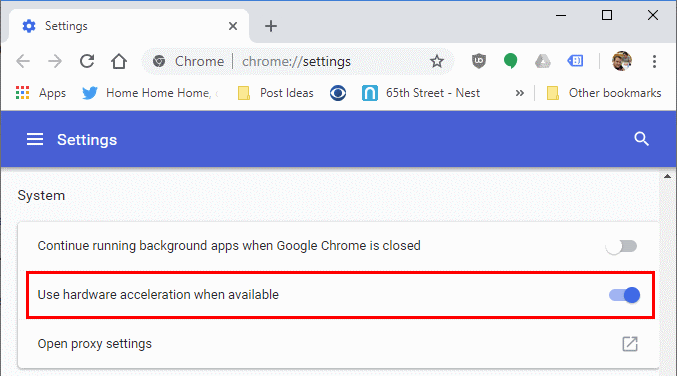
Most modern web browsers support GPU acceleration for faster rendering. To enable it, open the browser settings menu. Look for options like “hardware acceleration” or “use GPU.” Turn on the toggle or checkbox for hardware acceleration. Restart the browser to apply changes. This helps with video playback and smoother animations on websites.
Video Editing Software
Video editing programs use GPU acceleration to speed up rendering and effects. Open the software preferences or settings panel. Find the section for performance or hardware. Enable GPU acceleration by selecting your graphics card. Some programs let you choose between different GPU options. Save the settings and restart the software to boost editing speed.
3d Rendering Programs
3D rendering applications rely heavily on GPU power. Access the program’s settings or preferences menu. Navigate to the rendering or display options. Activate GPU acceleration by selecting your GPU device. This reduces rendering times and improves preview quality. Restart the program after changing these settings to take effect.
Monitoring Gpu Performance
Monitoring GPU performance is important to ensure your graphics card runs smoothly. It helps track how well your GPU handles tasks and if it faces any issues. You can check performance using built-in tools or third-party software. Understanding the metrics shown can guide you to better GPU use.
Using Built-in Tools
Your computer has tools to monitor GPU activity. Windows users can open Task Manager by pressing Ctrl + Shift + Esc. Under the Performance tab, select GPU to see usage, temperature, and memory. Mac users can check Activity Monitor for similar details. These tools are easy to access and give basic performance info.
Third-party Monitoring Software
Third-party apps offer more detailed GPU data. Programs like MSI Afterburner and GPU-Z show real-time stats. They provide information on clock speeds, voltage, and fan speeds. These tools help spot overheating or bottlenecks during heavy use. Most third-party apps are free and simple to install.
Interpreting Performance Metrics
GPU usage shows how much work your card is doing. High usage means full load; low means idle or light use. Temperature is key; too hot can cause damage or slowdowns. Memory usage indicates how much VRAM your programs use. Watch for spikes or drops that seem unusual. Understanding these numbers helps keep your GPU healthy.
Optimizing Gpu Settings For Best Results
Optimizing GPU settings improves performance and efficiency. Tweaking the settings helps your GPU work faster and cooler. It also balances power use and graphics quality. This section shows simple ways to get the best from your GPU.
Adjusting Power Management
Set the power mode to high performance. This stops the GPU from slowing down to save energy. Use your GPU control panel to find power management options. Choose a setting that lets the GPU use full power during tasks. This prevents lag and boosts speed.
Updating Gpu Drivers
Keep your GPU drivers updated for smooth performance. Driver updates fix bugs and add new features. Visit the official GPU website or use software to check for updates. Install the latest drivers regularly to avoid crashes and improve speed.
Balancing Quality And Speed
Adjust graphics settings to suit your needs. Lower settings increase speed but reduce image quality. Higher settings improve visuals but may slow performance. Find a balance by testing different levels. This keeps your system running fast and looking good.
Common Issues And Fixes
Turning on GPU acceleration can speed up many tasks on your computer. Sometimes, issues stop it from working well. This section shows common problems and how to fix them. Follow these tips to get GPU acceleration running smoothly.
Gpu Not Detected
Your computer may not see the GPU. Check if the GPU is properly installed. Update your graphics driver to the latest version. Make sure your system supports GPU acceleration. Restart your PC after updates. Use device manager to see if the GPU appears. Disable integrated graphics if needed to force GPU use.
Acceleration Not Activating
The GPU might be detected but not active. Open the software settings and enable GPU acceleration. Confirm the program supports GPU use. Verify your GPU meets the minimum requirements. Close and reopen the app after changing settings. Check for conflicting software that may block acceleration.
Performance Drops After Enabling
Speed may slow after turning on GPU acceleration. Lower the graphics quality in settings. Update your GPU driver again for fixes. Check your system temperature; overheating can reduce speed. Close other programs that use GPU resources. Try disabling and enabling acceleration to reset it.
Credit: www.liftingitalia.com
Frequently Asked Questions
What Is Gpu Acceleration And Why Enable It?
GPU acceleration uses a computer’s graphics card to speed up processing. It improves performance in tasks like video editing and gaming. Enabling it allows software to run faster and more efficiently by offloading work from the CPU to the GPU.
How Do I Turn On Gpu Acceleration In Windows?
Go to Settings > System > Display > Graphics settings. Choose the app and select “High performance” to enable GPU acceleration. This lets your system use the dedicated GPU for better performance in that application.
Can All Software Benefit From Gpu Acceleration?
Not all software supports GPU acceleration. It mainly benefits apps that perform heavy graphics or parallel processing tasks. Check the software documentation to see if GPU acceleration is supported and how to enable it.
Will Enabling Gpu Acceleration Improve Gaming Performance?
Yes, enabling GPU acceleration often boosts gaming performance. It allows games to use the GPU fully, resulting in smoother graphics and higher frame rates. Make sure your GPU drivers are updated for the best experience.
Conclusion
Enabling GPU acceleration can boost your computer’s speed and performance. It helps run programs more smoothly and saves time. The process is simple and takes only a few steps. Try turning it on to see the difference yourself. Keep your drivers updated for best results.
With GPU acceleration, tasks like video editing and gaming improve a lot. Take control of your system’s power today. You will notice faster and better work on your device.
