
If you’ve ever noticed screen tearing or choppy gameplay, turning on FreeSync with your Nvidia GPU could be the game-changer you need. But maybe you’re wondering how to make it work since FreeSync was originally designed for AMD cards.
Don’t worry—you’re in the right place. In this guide, you’ll learn simple, step-by-step instructions to enable FreeSync and enjoy smoother visuals, reduced lag, and a more immersive gaming experience. Keep reading, and by the end, your games will look and feel better than ever.
What Is Freesync
FreeSync is a technology that helps make games and videos look smoother. It stops the screen from tearing and reduces stuttering. This makes the images on your monitor flow better during fast movements.
Many monitors support FreeSync, and it works by matching the refresh rate of the screen with the frame rate of your graphics card. This syncing improves the viewing experience, especially in games.
What Freesync Does
FreeSync matches the monitor’s refresh rate to the GPU’s frame rate. This stops screen tearing, which happens when the two rates do not line up. It also lowers input lag and reduces stutter. The result is a smoother and clearer image.
How Freesync Works
The monitor adjusts its refresh rate dynamically. It changes the rate to match the frames sent by the graphics card. This ensures the display only shows full frames, avoiding half or broken images.
Freesync Vs. Other Technologies
FreeSync is similar to Nvidia’s G-Sync but works differently. FreeSync uses the monitor’s built-in capabilities, making it cheaper. G-Sync requires special hardware inside the monitor.

Credit: www.youtube.com
Freesync And Nvidia Compatibility
FreeSync is a technology from AMD that reduces screen tearing. It makes games look smoother by syncing the monitor’s refresh rate with the GPU.
Nvidia introduced support for FreeSync monitors with its newer GPUs. This means Nvidia users can now use FreeSync without needing an AMD card.
This compatibility lets Nvidia users enjoy tear-free gaming on many FreeSync monitors. It broadens the choices for gamers who want smooth graphics.
What Is Freesync?
FreeSync helps to match the monitor’s refresh rate with the frame rate. This stops the screen from showing broken or split images. It works best in fast-moving games.
Which Nvidia Gpus Support Freesync?
Nvidia began supporting FreeSync with the GeForce GTX 10 series and later models. Most RTX cards also support it. Check your GPU model to be sure.
How Does Nvidia Use Freesync?
Nvidia calls this feature “G-Sync Compatible.” It uses FreeSync monitors but adds Nvidia’s own technology to improve performance. This ensures smooth gameplay.
Check Your Hardware
Before turning on FreeSync with your Nvidia GPU, check your hardware first. This step ensures your setup supports FreeSync technology. Not all GPUs and monitors work with FreeSync. Verifying compatibility saves time and avoids frustration.
Compatible Nvidia Gpus
Nvidia started supporting FreeSync with its newer GPU models. Most GTX 10-series and later support FreeSync. The feature also works on RTX 20-series and RTX 30-series cards. Older Nvidia GPUs do not support FreeSync. Check your GPU model in the device manager or system settings. Ensure your driver is updated to the latest version. Nvidia’s official website lists compatible GPUs for FreeSync support.
Freesync Monitors
FreeSync is a technology built into certain monitors. These monitors reduce screen tearing and stuttering. To use FreeSync with an Nvidia GPU, the monitor must support it. Look for monitors labeled “FreeSync” or “Adaptive Sync.” Check the monitor’s specifications on the manufacturer’s website. Verify it supports FreeSync over DisplayPort or HDMI. Not all FreeSync monitors work perfectly with Nvidia GPUs. User reviews can help confirm compatibility before buying.
/cdn.vox-cdn.com/uploads/chorus_asset/file/14743154/gsync1.jpg)
Credit: www.i-monon.com.sa
Enable Freesync On Your Monitor
FreeSync helps reduce screen tearing and stuttering. It creates smooth visuals during gameplay. To use FreeSync with an Nvidia GPU, start by enabling it on your monitor first.
Most modern monitors have FreeSync built-in but turned off by default. You must activate it through the monitor’s on-screen menu. This step is essential before using FreeSync with your graphics card.
Access Your Monitor’s On-screen Display (osd) Menu
Press the menu button on your monitor. This button is usually on the side or bottom bezel. Navigate through the OSD using the monitor’s buttons or joystick.
Look for settings related to display, gaming, or FreeSync. The exact location varies by brand and model.
Find And Enable Freesync Setting
Within the OSD menu, find the FreeSync or Adaptive Sync option. Select it and switch it to “On” or “Enabled.” This action activates FreeSync on your monitor.
Some monitors may call it Adaptive Sync instead of FreeSync. Both terms mean the same technology.
Save Settings And Exit The Menu
After enabling FreeSync, save the changes in the OSD menu. Exit the menu to apply the new settings. Your monitor is now ready to use FreeSync with your Nvidia GPU.
Double-check that FreeSync stays enabled after turning off the monitor. This ensures consistent performance in games and videos.
Update Nvidia Drivers
Updating Nvidia drivers is important to enable FreeSync on your Nvidia GPU. Drivers allow your computer and graphics card to work well together. Old drivers may not support FreeSync or cause issues with performance.
Keeping drivers up to date improves compatibility and fixes bugs. It also ensures your GPU uses the latest features from Nvidia. This step is simple and quick but very necessary for FreeSync to work.
Check Your Current Nvidia Driver Version
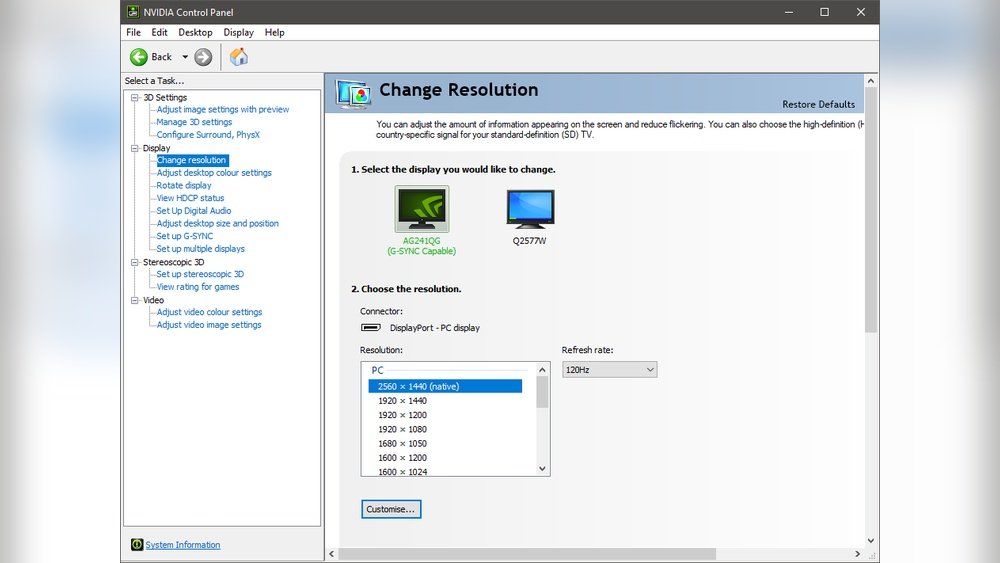
First, find out which driver version is installed. Open the Nvidia Control Panel by right-clicking on your desktop. Click on “System Information” in the bottom left corner. Look for the “Driver Version” listed in the window. Note this number to compare with the latest available version.
Download The Latest Nvidia Drivers
Visit the official Nvidia website to get the newest drivers. Choose your GPU model and operating system carefully. Download the recommended driver, usually called “Game Ready Driver.” Save the file to a known folder on your PC.
Install Nvidia Drivers Properly
Run the downloaded file to start the installation. Follow the on-screen instructions step by step. Select “Custom Installation” for more options. Check the box for “Perform a clean installation” to remove old files. Restart your computer after installation completes to apply changes.
Turn On Freesync In Nvidia Control Panel
Turning on FreeSync with an Nvidia GPU helps reduce screen tearing and stuttering. This feature works by syncing your monitor’s refresh rate with your GPU’s frame rate. Nvidia calls this G-Sync Compatible mode. It improves your gaming experience by making visuals smoother and more fluid.
Accessing The Control Panel
First, open the Nvidia Control Panel. Right-click on your desktop and select “Nvidia Control Panel” from the menu. If it does not appear, check that your Nvidia drivers are up to date. The Control Panel is where you manage all your GPU settings, including display options.
Once open, navigate to the “Display” section on the left side. Look for the option labeled “Set up G-Sync.” This is where you will enable FreeSync support for your monitor.
Activating G-sync Compatible Mode
In the “Set up G-Sync” window, check the box that says “Enable G-Sync, G-Sync Compatible.” Choose whether to enable it for full screen or windowed mode. Select the display you want to apply this to. Usually, it is your main gaming monitor.
Make sure your monitor supports FreeSync and is connected via DisplayPort or HDMI. Click “Apply” at the bottom right to save your changes. Your Nvidia GPU will now work with FreeSync to provide smoother gameplay.
Configure In-game Settings
Configuring in-game settings is key to enjoy FreeSync on an Nvidia GPU. This step ensures smooth gameplay without screen tearing or stuttering. Adjusting these settings helps your monitor and GPU work well together.
Each game may have different options to tweak. Focus on settings that affect frame rate and synchronization. This will help you get the best experience with FreeSync active.
Enable V-sync In Game Settings
Turn on V-Sync to sync the game’s frame rate with your monitor. This prevents screen tearing and makes the image smooth. Some games have V-Sync off by default, so check this option carefully.
Set Frame Rate Limit
Limit your frame rate to match your monitor’s refresh rate. This reduces input lag and avoids pushing your GPU too hard. Use a frame rate limiter in the game settings or Nvidia control panel.
Adjust Graphics Quality
Lowering some graphics settings can help maintain steady frame rates. Focus on textures, shadows, and effects that use a lot of power. Smooth frame rates boost FreeSync performance and improve gameplay.
Troubleshooting Tips
Troubleshooting FreeSync with an Nvidia GPU can solve many common problems quickly. This section covers key tips to fix issues and improve your experience. Try these simple steps to get FreeSync running smoothly.
Freesync Not Working
Check if your monitor supports FreeSync with Nvidia cards. Not all FreeSync monitors work with Nvidia GPUs. Use a DisplayPort cable. HDMI might not support FreeSync on your setup. Update your Nvidia drivers to the latest version. Outdated drivers often cause compatibility problems. Enable G-Sync in the Nvidia Control Panel. FreeSync only works when G-Sync is turned on. Make sure you set the correct refresh rate on your monitor. Incorrect settings can disable FreeSync.
Performance Issues
FreeSync may cause screen flickering or stuttering in some games. Lower your game’s frame rate limit to match your monitor’s refresh rate. Disable V-Sync in the game settings. It can conflict with FreeSync and cause lag. Close background programs that use GPU power. FreeSync works best when the GPU is focused on your game. Check your cable quality and connection. A faulty cable can reduce performance and cause glitches.
Benefits Of Using Freesync With Nvidia
Using FreeSync with an Nvidia GPU offers clear advantages for gaming and everyday use. It helps improve your screen’s performance by reducing screen tearing and stuttering. This leads to a smoother and more enjoyable viewing experience. FreeSync works by syncing your monitor’s refresh rate with your GPU’s frame rate.
The result is less visual disruption and better image quality. You get fluid motion, which is important for fast action scenes in games and videos. FreeSync also helps reduce input lag, making your controls feel more responsive. This can give you a slight edge in competitive gaming.
Improved Visual Smoothness
FreeSync eliminates screen tearing by matching frame rates. This creates smooth motion during gameplay. You will see less flickering and image jumps. The overall visual experience becomes much more pleasant.
Reduced Input Lag
FreeSync lowers the delay between your commands and what happens on screen. This makes controls feel quicker and more precise. The benefit is noticeable in fast-paced games.
Better Compatibility
Nvidia GPUs now support FreeSync on many monitors. This lets you use FreeSync without buying a new graphics card. It expands your options for affordable monitors with smooth performance.
Energy Efficiency
FreeSync can help reduce power use by syncing refresh rates. Your GPU and monitor work together more efficiently. This saves energy, especially during less demanding tasks.

Credit: softwareg.com.au
Frequently Asked Questions
How Do I Enable Freesync On Nvidia Gpu?
To enable FreeSync, first connect a FreeSync-compatible monitor via DisplayPort. Then open Nvidia Control Panel, go to “Display” > “Set up G-SYNC,” and check “Enable G-SYNC, G-SYNC Compatible. ” Finally, apply settings and ensure FreeSync is active in your monitor’s menu.
Which Nvidia Gpus Support Freesync Technology?
FreeSync support starts from Nvidia’s GTX 10 series and newer GPUs. Ensure your GPU driver is version 417. 71 or later. Compatible models include GTX 16 series, RTX 20, 30, and 40 series, providing adaptive sync with FreeSync monitors for smoother gameplay.
Can I Use Freesync With Hdmi On Nvidia Gpus?
FreeSync over HDMI is limited and less reliable on Nvidia GPUs. DisplayPort is recommended for stable FreeSync functionality and better compatibility. Always use DisplayPort to achieve optimal FreeSync performance and avoid flickering or tearing issues.
Does Freesync Improve Gaming Performance On Nvidia Gpus?
Yes, FreeSync reduces screen tearing and stuttering by syncing the GPU’s frame rate with the monitor’s refresh rate. This results in smoother gameplay and better visual experience, especially during fast-paced games, without impacting overall GPU performance.
Conclusion
Turning on FreeSync with an Nvidia GPU is simple and helpful. It reduces screen tearing and makes games smoother. Just follow the steps carefully in your Nvidia Control Panel. Check that your monitor supports FreeSync and that your cables are correct.
Once set, enjoy better visuals and less lag. This small change can improve your gaming experience a lot. Keep your drivers updated for best results. Try it out and see the difference yourself.
