
Have you ever found yourself needing to turn on your CPU but the power button just won’t work? It’s frustrating, right?
Whether your power button is broken or you’re building a custom PC, knowing how to start your computer without it can save you time and stress. You’ll discover simple, step-by-step methods to power on your CPU without relying on that button.
Keep reading—you’re about to learn tricks that can get your system up and running faster than you think.
Check Motherboard Manual
Checking the motherboard manual is the first step to turn on a CPU without a power button. The manual holds key information about the motherboard’s features and functions.
Each motherboard model has different ways to start the system. The manual explains how to find the power switch pins or alternative methods to power up the CPU.
Understanding your motherboard helps avoid mistakes. It guides you safely through the process of turning on the computer.
Locate The Power Switch Pins
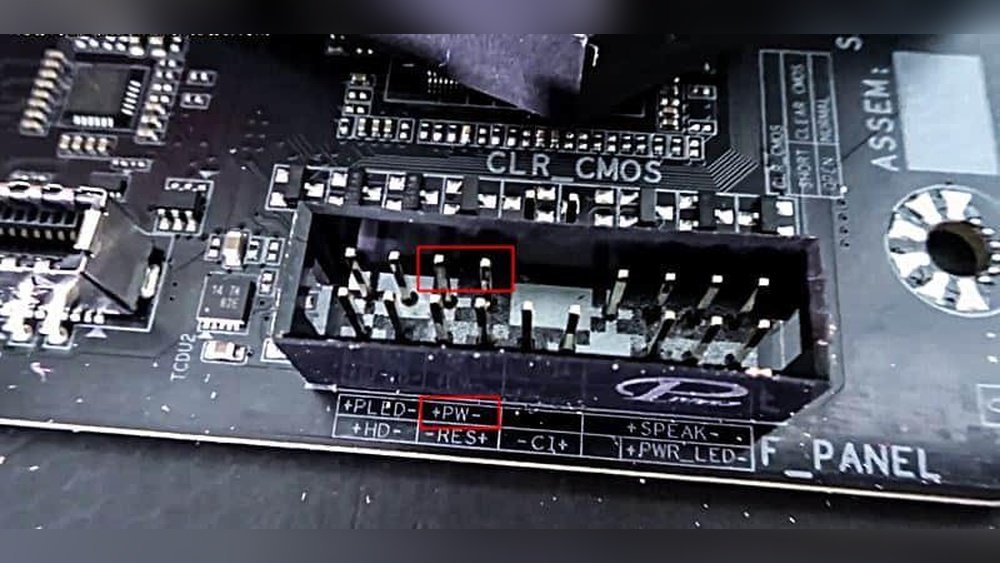
The manual shows the exact position of power switch pins on the motherboard. These pins connect to the case’s power button. Shorting these pins can start the CPU.
Identify Any Built-in Power Buttons
Some motherboards have built-in power buttons. The manual tells if your motherboard has one and where it is located. Pressing this button can turn on your computer.
Check For Bios Or Jumper Settings
The manual explains BIOS settings or jumper options for powering on the CPU. Some boards allow configuring power options through BIOS or jumper changes.
Understand Safety Instructions
Safety tips in the manual prevent damage or injury. Follow these instructions carefully while handling motherboard pins or buttons.
Use A Screwdriver To Short Pins
Sometimes the power button on a PC stops working. You can still turn on the CPU using a simple tool. A screwdriver can help by shorting the power switch pins on the motherboard. This method sends a signal to start the computer without pressing the button. It is a quick and handy trick for troubleshooting or testing your PC.
Locate Power Switch Pins
Open the computer case carefully. Look for the motherboard inside. Find a group of small pins near the front panel connectors. These pins are usually labeled “PWR SW” or “Power Switch.” Check the motherboard manual for exact location and names. Identifying the right pins is important to avoid damage.
Short Pins Safely
Take a small flat screwdriver. Touch both power switch pins at the same time gently. This action closes the circuit, like pressing the power button. Hold the screwdriver for a second or two. The computer should start powering on. Do not force or hold too long to prevent harm.
Jumpstart With A Paperclip
Sometimes, the power button on a computer can stop working. A quick way to turn on the CPU is by using a paperclip. This method is called “Jumpstart with a Paperclip.” It helps you start the computer without pressing the power button. This trick is useful for testing or fixing your PC.
Identify Front Panel Connectors
Open your computer case carefully. Look for a group of small wires connected to the motherboard. These wires come from the front panel of your case. They usually have labels like “PWR SW,” “Power Switch,” or “Power.” Find the two pins for the power switch. These pins are the key to jumpstarting your CPU.
Perform The Jumpstart
Straighten a paperclip and touch its ends to the two power switch pins. Hold it for a second or two. This action simulates pressing the power button. Your computer should start running. Be careful not to touch other pins with the paperclip. Remove the paperclip after the CPU powers on.

Credit: www.reddit.com
Enable Wake-on-lan
Enabling Wake-on-LAN (WoL) lets you start your computer using a network signal. This method works without pressing the power button. It helps in remote management and saves time.
Wake-on-LAN sends a special message called a “magic packet” to the computer’s network card. The network card then tells the motherboard to power on the CPU. This feature requires some setup in the BIOS and network settings.
Configure Bios Settings
Enter your computer’s BIOS menu during startup. Look for the “Power Management” or “Advanced” tab. Find the Wake-on-LAN option and enable it. Save the changes before exiting BIOS.
Some BIOS menus label it as “Wake on PCI-E” or “Power On By PCI Devices.” Enabling these options activates WoL support on your machine. Without this step, Wake-on-LAN won’t work.
Use Network To Power On
After enabling WoL in BIOS, configure your operating system and router. Use software that sends a magic packet to your PC’s MAC address. This packet triggers the network card to wake the CPU.
Make sure your PC is connected via Ethernet. Wake-on-LAN works best on wired networks. Wireless connections usually do not support WoL.
Test the setup by sending a magic packet from another device. Your computer should power on remotely without pressing any button.
Use A Remote Power Switch
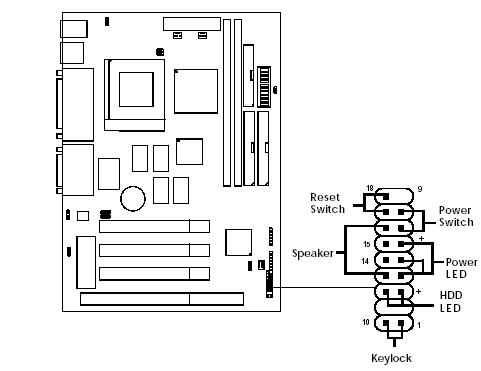
A remote power switch lets you turn on your CPU without touching the power button. This tool connects to your computer’s power pins and controls power remotely. It is useful if your power button is broken or hard to reach.
The switch works by sending a signal to the motherboard. This signal acts like pressing the power button. You can place the switch anywhere and use it with a remote control or a wired button.
What Is A Remote Power Switch?
A remote power switch is a small device. It connects to the motherboard’s front panel pins. It replaces the function of the power button. You press the remote or wired button to turn on your CPU.
How To Connect A Remote Power Switch
Find the power switch pins on your motherboard. Usually, they are in the front panel header area. Attach the remote power switch wires to these pins. Make sure the connection is secure before use.
Benefits Of Using A Remote Power Switch
Remote power switches save time and effort. They help if your power button is damaged. They also allow you to turn on the PC from a distance. This tool is simple and reliable to use.
Credit: www.calvyn.com
Test Power Supply Unit
Testing the power supply unit (PSU) is a key step to turn on a CPU without using the power button. The PSU supplies power to all parts of the computer. If the PSU does not work properly, the system will not start.
Testing the PSU helps to find out if it is faulty or working fine. This step saves time and prevents unnecessary repairs. Two common ways to test the PSU are using the power supply jumper method and checking PSU functionality with tools.
Power Supply Jumper Method
This method uses a simple trick to start the PSU without the motherboard. First, unplug the PSU from the computer but keep it connected to the power outlet. Find the 24-pin main power connector from the PSU.
Use a small metal object, like a paperclip, to connect the green wire pin to any black wire pin on the connector. This connection tells the PSU to power on. After making the connection, turn on the power supply switch. The PSU fan should start spinning if it works.
Stop the test by unplugging the power. Never touch the metal object while the PSU is on. This method checks if the PSU powers on without the motherboard’s help.
Check Psu Functionality
Use a PSU tester or a multimeter to check the PSU’s output voltages. These tools measure the power supply’s voltage levels. Connect the tester or multimeter to the PSU’s connectors.
Turn on the PSU and read the voltage levels. They should match the PSU specifications, usually 3.3V, 5V, and 12V. If the voltages are off or missing, the PSU may be faulty.
Testing PSU functionality ensures the power supply delivers stable power to the CPU and other parts. Replace the PSU if it fails this test to avoid damage.
Consider Temporary External Buttons
Sometimes, the power button on a computer stops working. You still need to turn on the CPU quickly. One easy way is to use a temporary external button. This method lets you power up the computer without fixing the original button first.
Temporary external buttons are simple to use. They connect directly to the motherboard’s power switch pins. This connection tricks the system into thinking the real power button was pressed. It is a quick fix for emergency situations or testing purposes.
What Are Temporary External Buttons?
Temporary external buttons are small switches. They connect to the motherboard’s power switch pins. You press the button to start the CPU. After use, you can remove the button easily.
How To Connect A Temporary Button
Locate the power switch pins on the motherboard. Usually, they are near the edge of the board. Use the motherboard manual to find exact pin location. Attach the external button wires to these pins carefully.
Precautions When Using External Buttons
Make sure the computer is unplugged before connecting the button. Avoid touching other pins to prevent short circuits. Press the button gently to avoid damage. Remove the button after use to keep the setup safe.

Credit: www.youtube.com
Safety Tips And Precautions
Turning on a CPU without a power button needs care. Safety is very important. Small mistakes can cause damage or injury. Follow safety tips to protect yourself and your computer.
Before starting, unplug the power supply. This stops electrical shocks. Handle all parts gently to avoid breaking them. Use tools with care and do not force anything.
Use Anti-static Protection
Static electricity can harm computer parts. Wear an anti-static wristband or touch a metal object to release static. This keeps the CPU and motherboard safe.
Work In A Clean, Dry Area
Keep your workspace clean and free of liquids. Dust and moisture can cause short circuits. A dry area lowers the risk of damage.
Disconnect Power Completely
Always unplug the power cord from the outlet before opening the case. This prevents electric shock. Wait a few minutes to let all power drain.
Handle Components Carefully
Do not touch the metal pins or circuits. Hold parts by the edges. This avoids damage and dirt on sensitive areas.
Use Proper Tools
Use a small screwdriver or a metal object to short the power switch pins. Avoid using sharp or large tools that can slip and cause damage.
Check Connections Twice
Before turning on the PC, check all cables and connections. Loose wires can cause shorts or prevent the PC from starting.
Frequently Asked Questions
How Can I Start A Cpu Without The Power Button?
You can start a CPU by shorting the power switch pins on the motherboard. Use a screwdriver to briefly connect these pins. This simulates pressing the power button, turning the CPU on safely without the physical button.
Is It Safe To Turn On Cpu Without Power Button?
Yes, it is safe if done carefully. Short the correct motherboard pins momentarily. Avoid touching other components to prevent damage. This method is a common troubleshooting step used by technicians.
Can I Use Bios Settings To Power On My Cpu?
Yes, many motherboards support “Power On by RTC” or “Wake on LAN”. Enable these options in BIOS to start your CPU automatically. This bypasses the need for a physical power button press.
What Tools Do I Need To Power On Cpu Without Button?
A small flat-head screwdriver is enough to short the power switch pins. No special tools are required. Ensure the PC is connected to power before attempting this method.
Conclusion
Turning on a CPU without a power button is possible with simple steps. You can use the motherboard’s power switch pins carefully. Always follow safety measures to avoid damage. These methods help when your power button breaks or is missing.
Keep tools ready and stay patient during the process. This knowledge can save time and money. Try these tips next time you face this issue. Easy and quick solutions often work best.
