
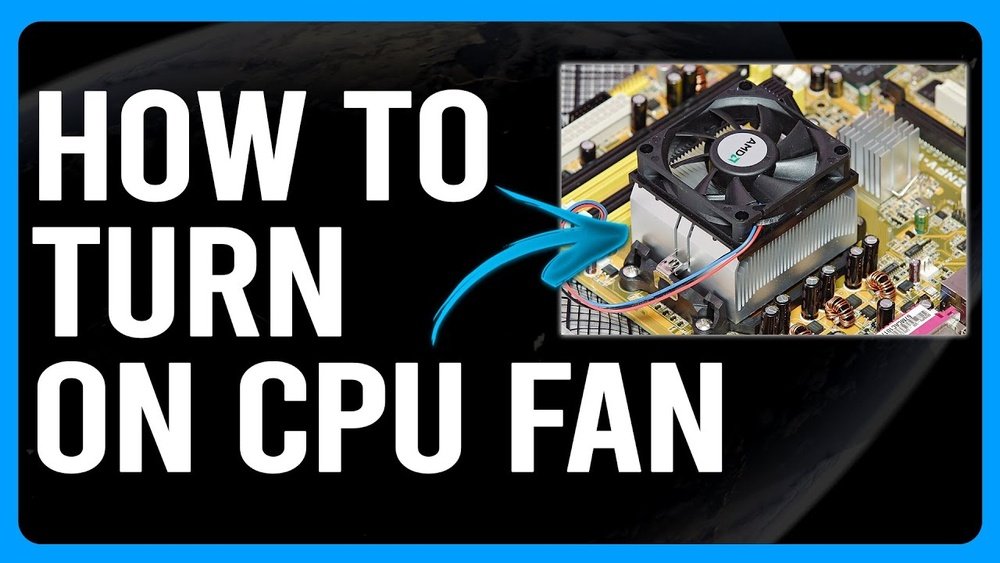
Is your computer overheating or making strange noises? The problem might be your CPU fan not running properly.
Knowing how to turn on your CPU fan can save your device from serious damage and keep it running smoothly. You’ll learn simple, step-by-step instructions to get your CPU fan spinning again. Don’t wait until your computer slows down or shuts off unexpectedly—take control now and protect your investment.
Keep reading to find out exactly what you need to do.
Check Fan Connection
Ensuring the CPU fan is properly connected is essential for your computer’s cooling. Without a secure connection, the fan will not spin, causing the CPU to overheat. This section guides you through checking the fan connection step-by-step.
Start by locating where the CPU fan plugs into the motherboard. Then, carefully inspect the wiring for any damage or loose ends. These simple checks can help you fix fan issues quickly and safely.
Locate The Cpu Fan Header
Open your computer case to access the motherboard. Look for the label “CPU_FAN” or similar near a small plastic connector. This is where the CPU fan cable plugs in. The header usually has 3 or 4 pins. Make sure the fan cable is plugged into this header and not another connector.
Inspect Fan Wiring
Follow the fan cable from the fan to the connector. Check for any cuts, bends, or frayed wires. Gently wiggle the cable to ensure it is firmly attached. Loose connections can stop the fan from working. Replace or repair damaged wires before using the computer.

Credit: netosec.com
Adjust Bios Settings
Adjusting BIOS settings is a key step to control your CPU fan. This helps keep your computer cool and prevents overheating. Changing these settings is simple and improves your PC’s performance and lifespan.
Access Bios Menu
Restart your computer to enter the BIOS menu. Press the BIOS key shown on the screen during startup. Common keys include F2, Delete, or Esc. Use arrow keys to navigate through BIOS options.
Enable Cpu Fan Control
Find the hardware or fan control section in BIOS. Look for “CPU Fan Control” or a similar setting. Change it from “Disabled” to “Enabled” to activate fan management. This lets the system adjust fan speed automatically.
Set Fan Speed Profiles
Choose a fan speed profile based on your needs. Options usually include Silent, Standard, and Performance. Select a profile to balance noise and cooling. Save your changes before exiting BIOS to apply settings.
Use Software Controls
Using software controls to turn on your CPU fan gives you more control over its speed and behavior. This method lets you adjust the fan based on your computer’s temperature and needs. It helps keep your system cool without making too much noise. The process involves installing fan control software, setting fan speeds, and monitoring temperatures.
Install Fan Control Software
First, download and install a reliable fan control program. Many free options exist, such as SpeedFan or HWMonitor. Choose software compatible with your motherboard and operating system. Follow the installation steps carefully. After installation, open the program to access fan settings.
Configure Fan Speeds
Inside the software, find the fan control section. You can set fan speeds manually or create custom profiles. Profiles change speeds based on temperature thresholds. Set low speeds for normal use and higher speeds for heavy tasks. This keeps your CPU cool without excess noise.
Monitor Temperature Levels
Regularly check your CPU temperature using the software. Most programs show real-time temperature data. Adjust fan speeds if temperatures rise too high. Keeping an eye on these levels helps prevent overheating. It also extends your computer’s life and performance.
Credit: www.reddit.com
Troubleshoot Common Issues
Troubleshooting common issues with your CPU fan helps keep your computer cool. Fans may stop working due to simple problems. Checking these issues can save time and money. Follow these steps to find the problem and fix it fast.
Listen For Fan Noise
Turn on your computer and listen closely. A working fan makes a soft buzzing or whirring sound. No noise may mean the fan is not spinning. Sometimes, the fan spins slowly or unevenly. Strange noises like grinding or clicking can show a problem.
Test With Another Fan
Swap your CPU fan with a known working fan. This test shows if the fan or the motherboard is at fault. If the new fan works, your old fan needs replacement. If the new fan also fails, the issue may be the motherboard or power supply.
Check For Dust And Debris
Dust blocks airflow and stops the fan from spinning. Turn off your computer and unplug it. Use compressed air or a soft brush to clean the fan blades. Remove dust from vents and cooling fins too. Keep your fan clean to avoid overheating and damage.
Maintain Optimal Cooling
Keeping your CPU fan running well is key to stopping your computer from getting too hot. Good cooling helps your PC work faster and last longer. Follow simple steps to maintain the best cooling for your system.
Clean Fan Regularly
Dust blocks air and slows fan speed. Clean the fan every few months. Use a soft brush or compressed air. Avoid using water or wet cloths. This keeps the fan running smoothly and cools better.
Replace Faulty Fans
Fans can break after some time. Listen for strange noises or check if the fan stops spinning. Replace broken fans quickly to avoid damage. New fans improve airflow and keep the CPU cool.
Improve Case Airflow
Good airflow moves hot air out and fresh air in. Keep cables neat inside the case. Add extra fans if needed. Make sure vents are not blocked. This helps the CPU fan cool more efficiently.

Credit: softwareg.com.au
Frequently Asked Questions
How Do I Manually Turn On My Cpu Fan?
You can turn on your CPU fan by connecting it to the motherboard’s CPU_FAN header. Ensure the fan cable is securely plugged in. Power on your PC, and the BIOS or UEFI automatically controls the fan speed based on CPU temperature.
Why Is My Cpu Fan Not Spinning?
A CPU fan might not spin due to power issues, loose connections, or dust buildup. Check the fan’s cable, clean dust, and ensure the BIOS settings allow fan operation. Replace the fan if it’s faulty or damaged.
Can I Control Cpu Fan Speed In Bios?
Yes, most BIOS or UEFI setups allow you to control CPU fan speed. Look for “Fan Control” or “Hardware Monitor” settings. You can set fan profiles like silent, standard, or performance to balance noise and cooling.
What Happens If Cpu Fan Is Off During Operation?
If the CPU fan is off, the CPU can overheat quickly. Overheating may cause system shutdowns or damage. Always ensure the CPU fan is running to maintain proper cooling and prevent hardware failure.
Conclusion
Turning on your CPU fan helps keep your computer cool and safe. Check the fan connection and BIOS settings carefully. Use simple steps to avoid mistakes. A running CPU fan prevents overheating and damage. Keep your system clean and monitor the fan regularly.
Small actions can protect your computer’s life. Stay calm and follow clear instructions. Your PC will work better with a cool CPU. Easy to do, worth the effort.
