
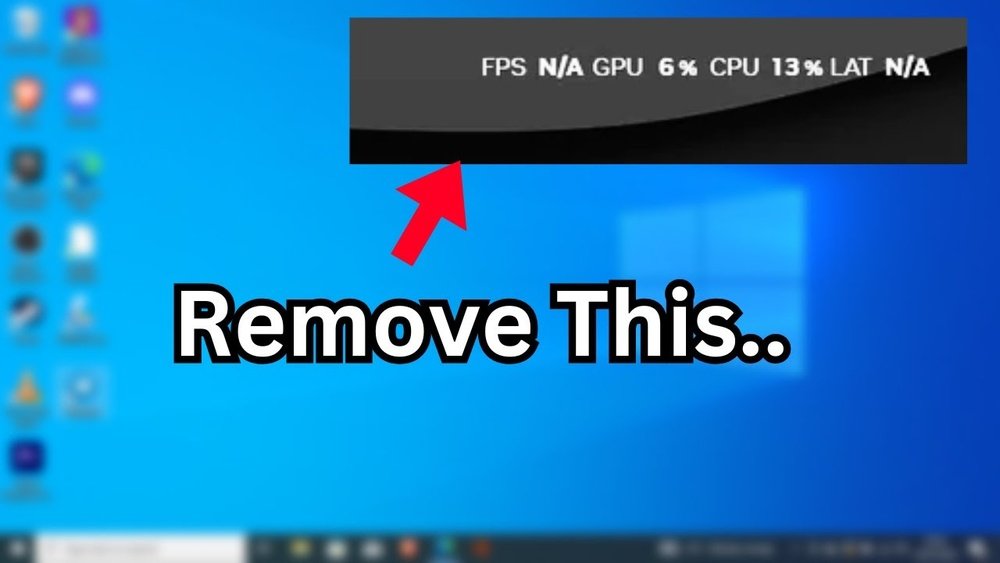
Are those FPS, GPU, and CPU overlays cluttering your screen while you game or work? You’re not alone.
Many users find these real-time stats helpful at first but soon want a cleaner view without distractions. If you’ve been searching for an easy way to turn off these overlays and regain full focus, you’re in the right place. You’ll discover simple steps to switch off those overlays quickly, so you can enjoy your screen exactly how you want it.
Keep reading to find the solution that fits your setup perfectly.
Reasons To Disable Fps Gpu Cpu Overlay
FPS GPU CPU overlay shows real-time data on your screen. This information can be useful. Still, many users choose to turn it off. The reasons vary from better game experience to privacy concerns. Understanding these reasons helps decide if disabling the overlay is right for you.
Here are the main reasons why people disable FPS GPU CPU overlay.
Impact On Performance
Overlay tools use system resources. They run alongside your game or application. This can slow down your computer. Disabling the overlay frees up CPU and GPU power. Games may run smoother without the extra load. It helps keep your system responsive and fast.
Visual Distractions
Overlay shows numbers and graphs on your screen. These visuals can block parts of the game. They distract from the main action. Constant updates on performance can draw your eyes away. Turning off the overlay creates a cleaner view. You focus better on gameplay or work.
Privacy Considerations
Overlay tools collect and display system data. Sometimes, this data might be shared with apps or services. This raises privacy concerns for some users. Turning off the overlay limits data exposure. It helps keep your system information more private and secure.

Credit: www.youtube.com
Common Overlay Sources
Many users see FPS, GPU, and CPU overlays while playing games or using apps. These overlays show real-time performance data. They help track your system’s power but can be distracting. Knowing common overlay sources helps you turn them off easily. Here are the main programs that create these overlays.
Windows Game Bar
Windows Game Bar is built into Windows 10 and 11. It shows FPS and system stats during games. To disable it, open settings, go to Gaming, and turn off Game Bar. This stops the overlay from appearing in your games.
Nvidia Geforce Experience
NVIDIA GeForce Experience offers an overlay called NVIDIA ShadowPlay. It shows FPS and GPU usage. To turn it off, open GeForce Experience, click Settings, go to the General tab, and disable the In-Game Overlay option.
Amd Radeon Software
AMD Radeon Software displays performance overlays on supported GPUs. It shows FPS, GPU load, and temperatures. Open Radeon Software, navigate to the Performance tab, and disable the overlay option to hide these stats.
Intel Graphics Command Center
Intel’s Graphics Command Center includes an overlay for system performance. It displays FPS and CPU usage. To turn it off, open the app, go to System, then disable the Performance Overlay toggle.
Third-party Software
Other apps like MSI Afterburner, RivaTuner, or Discord can also show overlays. Each has its own way to disable the overlay. Usually, find overlay or OSD settings inside the app and turn them off to remove the display.
Disable Overlay On Windows Game Bar
Windows Game Bar shows FPS, GPU, and CPU overlays during gameplay. These overlays can distract or lower game performance. Disabling them helps keep the screen clean and smooth. The process is simple and quick.
Accessing Game Bar Settings
Press Windows + G to open the Game Bar. Click the gear icon for settings. This opens the Game Bar settings menu. You can adjust many features here.
Turning Off Performance Metrics
In settings, find the “Performance” section. Toggle off the option showing FPS, CPU, and GPU stats. This stops the overlay from appearing in games. Your screen stays clear during play.
Disabling Game Bar Completely
Open Settings from the Start menu. Select Gaming and then Game Bar. Turn off the switch for “Record game clips and screenshots.” This disables Game Bar fully. No overlays or notifications will appear.

Credit: www.reddit.com
Turn Off Nvidia Geforce Experience Overlay
Turning off the NVIDIA GeForce Experience overlay can help improve game performance. The overlay shows FPS, CPU, and GPU usage on the screen. Some players find it distracting or want to free up system resources. Disabling this feature is quick and simple.
Opening Geforce Experience
First, open the GeForce Experience app on your PC. You can find it in the Start menu or system tray. Make sure you are signed in to your NVIDIA account. This app controls all NVIDIA settings for your graphics card.
Navigating To In-game Overlay Settings
Next, click on the gear icon to open Settings. Look for the “In-Game Overlay” option. It controls the display of the FPS and other stats during games. Click on it to manage overlay features.
Disabling The Overlay Feature
Toggle the switch next to “In-Game Overlay” to off. This stops the overlay from showing during gameplay. Close the settings window. The overlay will no longer appear while playing games.
Switch Off Amd Radeon Overlay
The AMD Radeon Overlay shows real-time data like FPS, GPU, and CPU usage on your screen. This can be useful but distracting during gaming or work. Turning off this overlay improves screen clarity and reduces interruptions. The process to switch it off is simple and quick.
Launching Radeon Software
First, open the Radeon Software on your PC. Right-click on the desktop and select “AMD Radeon Software” from the menu. Wait a few seconds for the software to load. You will see the main dashboard with various options.
Finding Overlay Options
Look for the gear icon to open settings. Click on the “Graphics” or “Performance” tab. Find the section labeled “Radeon Overlay” or “Performance Monitoring.” This area controls the overlay features. You can toggle different settings here.
Turning Off Performance Monitoring
To disable the overlay, switch off the “Performance Monitoring” option. This stops the FPS, GPU, and CPU data from showing on your screen. Close the settings and the Radeon Software. Your screen will no longer display the overlay during use.

Credit: www.reddit.com
Disable Intel Graphics Overlay
Disabling the Intel Graphics overlay can help reduce screen clutter. It also improves your viewing experience during games or apps. The overlay shows real-time data like FPS, CPU, and GPU usage. Turning it off is simple and quick. Follow these steps to disable the Intel Graphics overlay.
Opening Intel Graphics Command Center
First, open the Intel Graphics Command Center on your PC. Click the Start menu and type “Intel Graphics Command Center.” Click the app to launch it. Make sure your Intel graphics drivers are up to date for smooth access.
Accessing Overlay Settings
Inside the Command Center, find the settings menu. Look for the “System” or “Overlay” tab. This section controls the on-screen display features. Click on it to see overlay options related to performance monitoring.
Switching Off The Overlay
Locate the toggle switch for the performance overlay. It might be labeled as “Show Overlay” or “Performance Monitoring.” Click the toggle to turn it off. The overlay will disappear from your screen immediately.
Manage Third-party Overlays
Managing third-party overlays is key to controlling FPS, GPU, and CPU displays on your screen. These overlays come from apps that run alongside your games or software. They show real-time data like frame rates or hardware usage. Turning them off can improve game performance and reduce screen clutter.
Third-party overlays often run without clear indication. Knowing how to spot and disable them helps keep your screen clean. You can use app settings or system tools to manage these overlays easily.
Identifying Active Overlays
Look for small boxes or text on your screen showing numbers. These usually represent FPS or hardware stats. Check which apps are running in the background. Common apps include Discord, Steam, and graphics card software. Some overlays appear only during games or full-screen apps. Close apps one by one to find the source.
Disabling Overlays In Popular Apps
Discord shows overlays by default during games. Open Discord settings and find the Overlay section. Turn off the in-game overlay toggle. Steam has a similar feature. Go to Steam settings, then In-Game, and uncheck the overlay option. For NVIDIA users, open GeForce Experience. Disable the in-game overlay in its settings. AMD users can turn off the Radeon overlay from their software.
Using System Tools To Manage Overlays
Windows Task Manager helps identify apps using overlays. Press Ctrl + Shift + Esc to open it. Look for apps running in the background. Right-click and choose End Task to close them temporarily. Use system startup settings to prevent apps from launching automatically. This reduces unwanted overlays on boot. Keep your system updated to avoid conflicts with overlays.
Troubleshooting Overlay Issues
Sometimes, turning off the FPS, GPU, or CPU overlay does not work as expected. The overlay might still appear on your screen. This section helps you fix common problems with overlays. Follow the tips below to solve these issues quickly.
Overlay Still Visible After Disabling
If the overlay stays on after you turn it off, try restarting your computer. This simple step often clears any stuck processes. Also, check if the overlay app is fully closed. Some apps run in the background even after closing the main window. Use the Task Manager to end these tasks.
Conflicting Software Solutions
Other programs may interfere with your overlay. Screen recorders, chat apps, or other monitoring tools can cause conflicts. Close or disable these apps one at a time. This helps find which one is causing the problem. You can also change overlay settings in each app to avoid overlap.
Updating Drivers And Software
Outdated drivers or software can cause overlay issues. Update your graphics card drivers regularly for better performance. Check for updates for the overlay app as well. New versions often fix bugs and improve stability. Use official websites or trusted tools to get updates.
Frequently Asked Questions
How Do I Disable Fps Overlay On Windows?
To disable FPS overlay on Windows, open the game or app settings. Locate the overlay or performance section and turn off the FPS display option. Alternatively, use Windows Game Bar settings by pressing Win + G, then toggle off the FPS widget.
Can I Turn Off Gpu Overlay In Nvidia Geforce Experience?
Yes, open Nvidia GeForce Experience, go to Settings, then the In-Game Overlay tab. Disable the overlay toggle to turn off GPU overlay and FPS display. This stops the overlay from showing during gameplay or applications.
Why Is My Cpu Usage Overlay Always On?
Your CPU usage overlay might be enabled in system monitoring apps like MSI Afterburner or RivaTuner. Open those apps and disable the overlay or OSD feature. This will stop the CPU usage overlay from appearing on your screen.
How To Hide Fps Counter In Steam Games?
In Steam, open Settings, navigate to In-Game settings. Find the “In-game FPS counter” option and set it to “Off”. This disables the FPS overlay in all Steam games immediately.
Conclusion
Turning off the FPS, GPU, and CPU overlay helps keep your screen clear. It also improves your focus during games or work. You can follow simple steps to disable these overlays on most systems. Just remember to check your settings carefully.
Doing this saves you from distractions and may improve performance. Try it out to enjoy a cleaner, smoother experience. Keep your device running just the way you want.
