
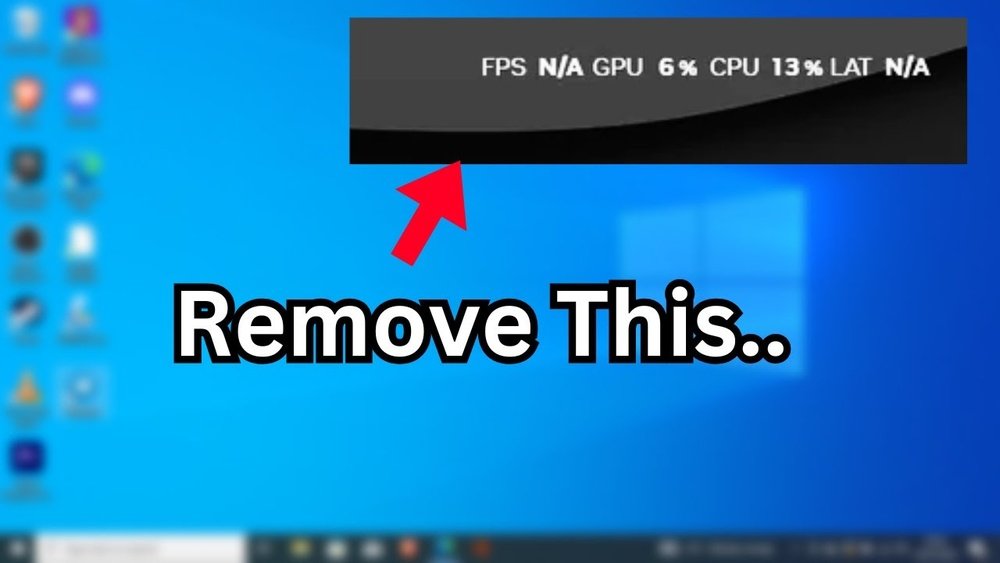
Are you tired of seeing that FPS, GPU, and CPU overlay clutter your screen while gaming or working? It can be distracting and make your experience less enjoyable.
You want a clean, clear display without losing track of your system’s performance. Luckily, turning off these overlays is easier than you think. In this guide, you’ll discover simple steps to disable the FPS, GPU, and CPU overlay quickly—so you can focus on what really matters.
Keep reading, and say goodbye to that annoying screen clutter for good!

Credit: www.reddit.com
Reasons To Disable Fps Gpu Cpu Overlay
Disabling the FPS GPU CPU overlay can improve your overall gaming and computer use. This overlay shows real-time data about your system’s performance. While useful for some, it can cause issues for others. Understanding the reasons to turn it off helps you decide what suits your needs best.
Impact On Gaming Experience
The overlay can block important parts of the screen. This makes it hard to see game details clearly. It may distract you from the game’s graphics and story. Many players prefer a clean screen for full immersion. Removing the overlay can make games feel smoother and more enjoyable.
System Performance Considerations
Running the overlay uses extra system resources. This can lower your computer’s speed during games. Some older or weaker PCs may slow down noticeably. Turning off the overlay frees up CPU and GPU power. This helps the system run games more efficiently.
Visual Distractions
The constant numbers and charts can be overwhelming. It draws your eyes away from the main screen. This can be especially annoying during fast gameplay. The overlay’s colors and updates may clash with game visuals. Disabling it creates a cleaner, less busy display.
Common Overlay Sources
Overlays showing FPS, GPU, and CPU usage appear from different software sources. These overlays help monitor performance during gaming or heavy tasks. Sometimes, these overlays block important parts of the screen. Turning them off can improve your viewing experience.
Understanding where these overlays come from makes it easier to disable them. The most common sources include in-game overlays, graphics card software, and third-party applications.
In-game Overlays
Many games have built-in overlays to show performance data. These overlays can display FPS or hardware usage. Usually, the settings to turn them off are inside the game’s options menu. Look under graphics or display settings to find overlay controls.
Graphics Card Software
Graphics cards often include software that shows overlays. Nvidia’s GeForce Experience and AMD’s Radeon Software are common examples. These programs monitor your system and display real-time stats. You can disable overlays in their settings or control panels.
Third-party Applications
Some apps create overlays independently from games or hardware software. Programs like MSI Afterburner or RivaTuner offer detailed performance info. If you see an overlay and don’t recognize it, check these apps. Disabling overlays in their settings stops the display from appearing.
Disable Overlay Via Graphics Card Software
Overlays from graphics card software can show FPS and CPU/GPU usage during games or apps. Sometimes these overlays block part of the screen or slow down performance. Disabling the overlay through your graphics card software is the easiest way to fix this. Each brand has its own method to turn off these features.
Nvidia Geforce Experience
Open NVIDIA GeForce Experience on your PC. Click the gear icon to open settings. Select the “General” tab. Find the option called “In-game Overlay.” Toggle it off. This stops the FPS and usage display from showing in games.
Amd Radeon Software
Launch AMD Radeon Software by right-clicking the desktop and choosing it. Go to the “Performance” tab. Click on “Metrics Overlay.” Turn off the toggle next to “Show Metrics Overlay.” This disables the FPS and hardware stats on your screen.
Intel Graphics Command Center
Open Intel Graphics Command Center from the Start menu. Select the “System” tab. Click on “Graphics Overlay.” Switch off the overlay feature. This removes the FPS and CPU/GPU data from your display.

Credit: www.reddit.com
Turn Off Overlays In Game Platforms
Overlays from game platforms often show FPS, CPU, and GPU data. These can distract you during gameplay. Turning off these overlays can help improve focus and game performance. Each platform has its own method to disable these overlays. Below are simple steps to turn off overlays on popular game platforms.
Steam Overlay Settings
Open Steam and go to your Library. Right-click the game and select Properties. Find the “Enable the Steam Overlay while in-game” option. Uncheck this box to disable the overlay. Restart your game to apply the change. This stops Steam from showing FPS and other data during play.
Discord Overlay Options
Launch Discord and click on User Settings. Scroll down to the “Game Overlay” section. Toggle off the “Enable in-game overlay” option. You can also disable overlay for specific games in the “Registered Games” list. This turns off Discord’s FPS and chat overlay while gaming.
Xbox Game Bar Controls
Press Windows + G to open Xbox Game Bar. Click on the Settings icon. Go to the “General” tab and uncheck “Open Xbox Game Bar using this button on a controller.” Scroll to find the “Performance” widget. Turn off the FPS and hardware usage display here. This stops Xbox Game Bar from showing overlays during games.
Manage Third-party Overlay Tools
Third-party overlay tools often show FPS, GPU, and CPU data on your screen. These overlays help monitor computer performance but can be distracting. Managing these tools is key to turning off unwanted overlays quickly. Many users find overlays from programs like MSI Afterburner or RivaTuner active without knowing how to disable them. This section explains how to control the most common third-party overlay tools.
Msi Afterburner
MSI Afterburner is a popular tool for GPU monitoring and overclocking. It also shows FPS and hardware stats on your screen. To turn off the overlay, open MSI Afterburner. Go to the settings menu and find the “Monitoring” tab. Here, uncheck the options for “Show in On-Screen Display.” Save changes and close the program. This will stop the overlay from appearing during games or other apps.
Rivatuner Statistics Server
RivaTuner Statistics Server (RTSS) works with MSI Afterburner to display overlays. It runs in the background and controls the on-screen data. Open RTSS from your system tray. Look for the “Show On-Screen Display” option and toggle it off. You can also adjust settings for specific programs to disable overlays only in those apps. Close RTSS after disabling overlays to save your changes.
Other Popular Tools
Other tools like NVIDIA GeForce Experience and AMD Radeon Software also show performance overlays. For NVIDIA, open GeForce Experience, go to settings, then “HUD layout.” Turn off all FPS and performance overlays here. AMD users should open Radeon Software, find the “Performance” tab, and disable the overlay. Some game launchers like Steam and Discord also have built-in overlays. Check their settings to disable these if needed.
Use System Settings To Disable Overlays
Overlays showing FPS, GPU, or CPU usage can distract during games or work. Disabling these overlays improves screen clarity and focus. Windows offers built-in settings to turn off these overlays without extra software. These simple steps help stop unwanted performance info from appearing on your screen.
Windows Game Mode And Game Bar
Windows Game Mode can show FPS and performance stats. To disable it, open Settings and go to Gaming. Select Game Mode and turn it off. Next, go to Game Bar settings in the same menu. Toggle off the option to show performance overlays. This stops the Game Bar from displaying FPS and hardware data.
Task Manager And Startup Programs
Some overlays come from programs that start with Windows. Press Ctrl + Shift + Esc to open Task Manager. Click the Startup tab to see all programs running at startup. Find apps related to FPS or hardware monitoring. Select these apps and click Disable. Restart your computer to apply changes. This prevents overlay apps from running automatically.
Troubleshooting Overlay Issues
Troubleshooting overlay issues can be frustrating. Overlays show extra information on your screen. Sometimes, they do not turn off even after disabling. Other times, your computer might slow down. This section helps you fix these problems quickly. Follow the easy steps below.
Overlay Still Showing After Disabling
Sometimes, the overlay stays visible after turning it off. This happens because the app or game did not close fully. Try closing the program completely. Use the Task Manager to end the process if needed. Restart your computer to clear any stuck overlay. Check your overlay settings again to confirm it is off.
Performance Drops And Fixes
Overlays can cause your PC to slow down. They use extra CPU and GPU power. Turn off any unnecessary overlays during gaming or heavy tasks. Lower the overlay update frequency if possible. Close background apps that use a lot of resources. This can improve your computer’s speed and performance.
Updating Drivers And Software
Old drivers often cause overlay problems. Check for updates on your graphics card drivers. Visit the official website or use software tools to update. Keep your overlay software updated too. New versions fix bugs and improve compatibility. Regular updates help overlays work smoothly without issues.

Credit: www.youtube.com
Frequently Asked Questions
How Do I Disable Fps Overlay On My Pc?
To disable the FPS overlay, open your game or GPU software settings. Locate the overlay or performance monitoring section. Turn off the FPS display option. This stops the FPS counter from showing during gameplay, improving visual clarity and reducing distractions.
Can I Turn Off Cpu And Gpu Usage Overlay Easily?
Yes, open your system’s performance or gaming overlay settings. Find the CPU and GPU usage display options. Toggle them off to hide these overlays. This helps reduce on-screen clutter and focuses on your gaming or work experience.
Why Should I Disable Fps, Gpu, And Cpu Overlays?
Disabling overlays can improve game performance and reduce distractions. It also prevents overlay software from conflicting with other applications. Turning off these overlays can lead to smoother gameplay and a cleaner screen display.
Which Software Commonly Shows Fps And Hardware Overlays?
Common programs include Nvidia GeForce Experience, AMD Radeon Software, and Windows Game Bar. These tools display FPS and hardware stats by default or when enabled. You can disable overlays within these applications’ settings to hide performance metrics.
Conclusion
Turning off the FPS, GPU, and CPU overlay is simple and quick. You just need to follow the steps carefully. This helps improve your screen view and reduces distractions. It also can make your games or apps run smoother. Remember to check your settings often to keep the overlay off.
Enjoy a cleaner and clearer display while using your device. Feel free to try these tips anytime you want a better experience.
