

Are you noticing your GPU getting hotter than usual? Or maybe your graphics card fans aren’t spinning at all when they should be?
Knowing how to turn your GPU fans on can save your computer from overheating and keep your games or work running smoothly. In this guide, you’ll learn simple, effective steps to get your GPU fans working right away. Don’t wait until your system overheats—read on and take control of your GPU’s cooling now!
Reasons To Control Gpu Fans
Controlling your GPU fans is important to keep your graphics card working well. Fans help cool down the GPU and stop it from getting too hot. Too much heat can slow down your computer and cause damage. Turning on the fans at the right time keeps the GPU safe and running smoothly.
Sometimes, GPU fans do not start automatically. Knowing when and how to control them can save your hardware. It also helps to reduce noise and power use. Managing GPU fans gives you better control over your system’s health and performance.
Why Gpu Cooling Matters
GPU cooling stops the device from overheating. High temperatures can cause crashes or slow performance. Good cooling extends the life of your GPU. It also keeps your computer quiet and stable during use. Proper cooling allows your system to run at its best.
Signs Your Gpu Fans Need Activation
Listen for unusual noises or high fan speed. These may mean the fans are working too hard. Check your GPU temperature in software tools. If it is very hot, the fans might need to turn on. Slow or frozen graphics can also show cooling issues.
Watching these signs helps you act fast. Turning on the GPU fans at the right time protects your hardware. It also improves your computer’s overall performance and lifespan.

Credit: forums.developer.nvidia.com
Preparing For Fan Activation
Preparing to turn on your GPU fans requires careful steps. Fans help keep your graphics card cool. This prevents overheating and damage. Before activating the fans, you must check hardware and install software. These steps make sure the fans work properly and safely.
Checking Hardware Compatibility
First, verify your GPU supports fan control. Some older models do not allow manual fan activation. Check the manufacturer’s website or user manual. Look for fan control features or software compatibility. Also, confirm your computer’s motherboard supports fan connections. Without proper hardware, fans may not respond to commands.
Installing Necessary Software
Next, install software that controls GPU fans. Most GPUs use special apps from the manufacturer. Popular tools include MSI Afterburner and EVGA Precision X1. These programs let you set fan speed and monitor temperature. Download the latest version from trusted sources. Install and run the software before turning on the fans.
Manual Fan Control Methods
Manual fan control lets you manage your GPU fans directly. It helps keep your graphics card cool and quiet. You can set fan speeds based on your needs. This control is useful during gaming or heavy tasks. It also helps extend your GPU’s life by avoiding overheating.
Using Gpu Manufacturer Software
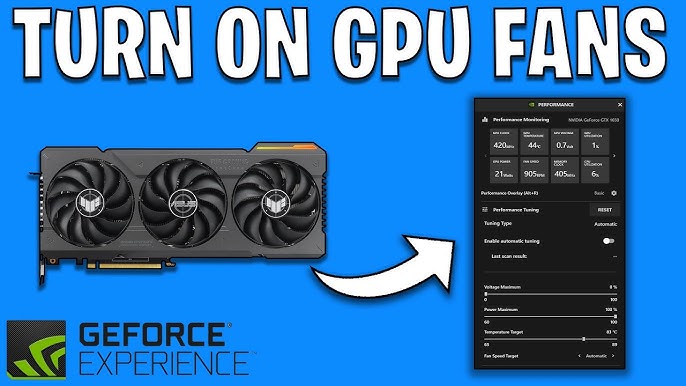
Many GPU brands offer software to control fan speeds. These programs are easy to install and use. For example, NVIDIA has GeForce Experience, and AMD offers Radeon Software. Inside these apps, find the fan control or performance tab. Slide the fan speed bar to set a fixed speed. You can also create custom fan curves. This means the fan speed changes with temperature automatically. This method is safe and keeps your GPU warranty intact.
Adjusting Fan Speed In Bios
You can also change fan settings in your computer’s BIOS. Restart your PC and enter BIOS by pressing a key like Delete or F2. Look for hardware or fan control settings. Some BIOS versions allow you to set GPU fan speeds. Adjust the speed to your desired level or create a fan curve. Save changes and exit BIOS. This method is less common but offers direct control. Be careful not to set fans too low to avoid overheating.

Credit: softwareg.com.au
Third-party Tools For Fan Management
Third-party tools offer a simple way to control your GPU fans. These tools help you manage fan speed and noise without complex settings. They work on many graphics cards and give more control than default software.
You can use these apps to set fan speeds based on temperature. This keeps your GPU cool and quiet. Some tools also let you create custom fan curves for better cooling.
Popular Fan Control Applications
Many users prefer MSI Afterburner for fan control. It supports most GPU brands and is free. Another popular app is SpeedFan, which monitors temperatures and controls fans. EVGA Precision X1 is great for NVIDIA cards, offering fan speed adjustments and monitoring. These apps are easy to install and provide clear settings for fans.
Setting Custom Fan Curves
Custom fan curves let you adjust fan speed at different temperatures. This helps keep your GPU cooler during heavy use and quieter when idle. Most fan control apps have a curve editor. You add points on the curve to set fan speed at specific temperatures. This creates a smooth fan speed change as the GPU heats up. Custom curves improve cooling and reduce noise effectively.
Automating Fan Activation
Automating fan activation helps keep your GPU cool without manual effort. It adjusts fan speed based on temperature changes. This keeps the GPU safe and reduces noise. Automation saves time and improves performance by reacting instantly.
Temperature-based Fan Profiles
Temperature-based fan profiles control fan speed by tracking heat levels. You set different speeds for different temperatures. The fan speeds up as the GPU gets hotter. This method balances cooling and noise. Many software tools offer easy setup for these profiles. Profiles prevent overheating and extend GPU life.
Using Scripts For Fan Control
Scripts allow custom fan control beyond basic settings. They run commands that adjust fan speed automatically. Scripts can monitor temperature and change speed instantly. Users can write simple scripts or use pre-made ones. This option gives more control for advanced users. Scripts help maintain stable GPU temperatures during heavy use.
Troubleshooting Fan Issues
GPU fans are vital for keeping your graphics card cool. Sometimes, these fans might not work as expected. Troubleshooting fan issues helps keep your GPU safe from overheating. This section explains common fan problems and easy ways to fix them.
Fan Not Spinning After Activation
First, check if the fan is connected correctly to the GPU. Loose cables can stop the fan from spinning. Look at the fan’s power connector and make sure it fits well.
Next, test the fan with software tools like MSI Afterburner. These tools let you control fan speed manually. Set the fan speed to a higher percentage and watch if it spins.
If the fan still does not spin, dust or dirt may block it. Clean the fan gently using compressed air. Avoid using water or strong cleaners.
Finally, a dead fan motor is possible. In this case, replace the fan or contact a technician.
Addressing Unusual Fan Noise
Unusual noise can signal fan problems. Rattling or grinding sounds mean the fan blades may hit something. Check for dust or debris stuck in the fan.
Clean the fan carefully. Use a soft brush or compressed air to remove dirt. Avoid forcing the fan blades to move.
Worn-out bearings cause loud noises. If noise remains after cleaning, the fan might need replacement.
Loose screws also create noise. Tighten screws around the fan and GPU to stop vibrations.
Tips For Optimal Gpu Cooling
Keeping your GPU cool is key for strong performance and a longer lifespan. Proper cooling stops overheating and noise issues. Follow these tips to help your GPU fans work better and keep your system stable.
Good GPU cooling also reduces the chance of crashes and slowdowns during heavy use. Small changes can make a big difference in temperature and fan noise.
Cleaning And Maintenance
Dust blocks airflow and raises GPU temperature quickly. Clean your GPU fans and heatsinks regularly. Use compressed air to blow out dust without damaging parts. Avoid using a vacuum near components.
Check fan blades for dirt and debris. Wipe them gently with a soft cloth if needed. Clean the inside of your PC case too, to reduce overall dust buildup.
Improving Case Airflow
Good airflow helps your GPU fans cool more effectively. Arrange cables neatly to avoid blocking air paths. Use cable ties or clips to keep wires organized and out of the way.
Place intake fans at the front or bottom of the case to bring in cool air. Use exhaust fans at the rear or top to push out hot air. This setup creates a smooth airflow flow through your PC.
Choose a case with good ventilation and space around your GPU. Avoid placing your PC in tight or enclosed spaces that trap heat.
Credit: www.youtube.com
Frequently Asked Questions
How Do I Manually Turn Gpu Fans On?
You can manually control GPU fans using software like MSI Afterburner. It lets you set custom fan speeds to cool your GPU actively.
Why Won’t My Gpu Fans Start Automatically?
GPU fans may stay off at low temperatures to reduce noise. They turn on only when the GPU reaches a specific heat threshold.
Can I Control Gpu Fan Speed Without Bios?
Yes, third-party apps like EVGA Precision or SpeedFan allow fan speed control without BIOS adjustments, providing easy and safe fan management.
What Causes Gpu Fans To Stop Spinning?
Dust buildup, power issues, or faulty fan motors can stop GPU fans. Regular cleaning and hardware checks help maintain proper fan function.
Conclusion
Turning on your GPU fans helps keep your computer cool and safe. You can control fan speed through software or BIOS settings. Regularly check your fans to make sure they work well. Clean dust from fans to avoid overheating problems.
Quiet, well-running fans improve your PC’s performance and lifespan. Keep an eye on temperatures and adjust fans as needed. Small steps make a big difference in your computer’s health. Stay patient and follow simple instructions for best results.
