

Want to get more power out of your computer without buying new hardware? Learning how to turbo clock your CPU can unlock extra speed and boost your system’s performance.
Imagine running your favorite games, software, or tasks faster and smoother, simply by tweaking settings you control. You’ll discover simple, effective steps to safely turbo clock your CPU and make your machine work harder for you. Ready to unlock your CPU’s hidden potential?
Keep reading and take control of your computer’s speed today.
What Is Turbo Clocking
Turbo clocking is a feature found in many modern CPUs. It helps the processor run faster than its usual speed for short times. This speed boost improves performance during demanding tasks. Understanding turbo clocking helps you see how CPUs manage power and speed efficiently.
Basics Of Cpu Clock Speed
CPU clock speed measures how fast a processor works. It is usually shown in gigahertz (GHz). One GHz means one billion cycles per second. Each cycle lets the CPU do a small part of a task. Higher clock speeds mean the CPU can do more work quickly. But faster speeds use more power and create more heat.
Difference Between Base And Turbo Clocks
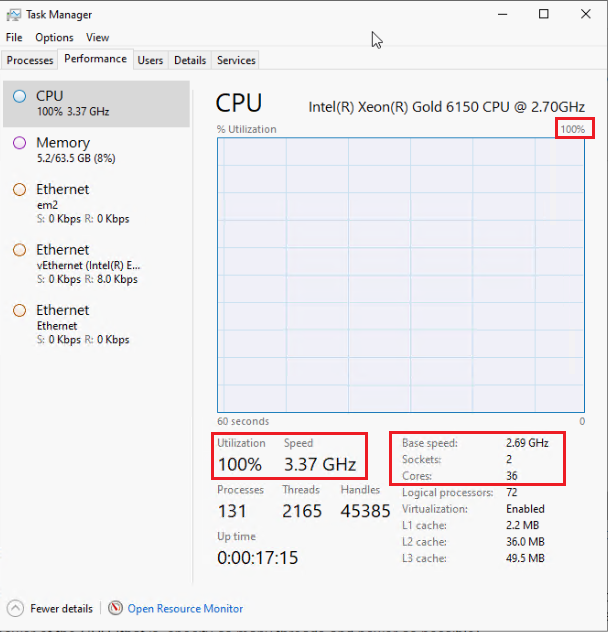
The base clock is the normal speed of a CPU. It runs at this speed during most tasks. The turbo clock is a higher speed the CPU can reach temporarily. This happens when extra power is available and the CPU is cool enough. Turbo clocking helps the CPU handle heavy work faster. It returns to base speed after the task or if it gets too hot.
Benefits Of Turbo Clocking
Turbo clocking a CPU increases its clock speed beyond the base rate. This temporary boost helps the processor handle tasks faster. Many users benefit from this feature without changing hardware. The increased speed improves overall system responsiveness and user experience.
Improved Performance
Turbo clocking allows the CPU to run faster during demanding tasks. This leads to quicker data processing and shorter wait times. Applications open and run smoother. Simple tasks feel faster and more efficient.
Enhanced Gaming Experience
Games rely on strong CPU performance for smooth gameplay. Turbo clocking reduces lag and frame drops. It helps maintain steady frame rates and better graphics. This makes gaming more enjoyable and less frustrating.
Better Multitasking
Running several programs at once can slow down a system. Turbo clocking helps the CPU manage multiple tasks more easily. Switching between apps becomes faster and smoother. It supports a more productive workflow without delays.
Prerequisites For Turbo Clocking
Before turbo clocking your CPU, certain basics must be in place. These basics ensure your computer runs smoothly and safely during the process. Skipping these steps can cause damage or poor performance. Understand what you need before you start.
Compatible Hardware
Your CPU and motherboard must support turbo clocking. Check the model and specifications for overclocking features. Some CPUs have locked multipliers and cannot be turbo clocked. Your BIOS should also offer options for adjusting clock speeds and voltages. Without these, turbo clocking is not possible.
Cooling Solutions
Turbo clocking increases heat output. A strong cooling system is critical to keep temperatures safe. Stock coolers often cannot handle extra heat. Consider aftermarket air coolers or liquid cooling systems. Proper cooling prevents overheating and helps maintain stable speeds.
Power Supply Requirements
Turbo clocking raises power consumption. Your power supply must provide enough stable power. A low-quality or weak PSU risks system crashes or hardware damage. Choose a power supply with higher wattage and good efficiency ratings. Reliable power supports consistent turbo clocking performance.

Credit: www.youtube.com
Step-by-step Turbo Clocking Process
Turbo clocking a CPU means increasing its speed beyond the factory settings. This process can improve your computer’s performance for tasks like gaming or video editing. Follow these clear steps carefully to change settings safely and get better speed.
Accessing Bios/uefi
Start by restarting your computer. Press the key shown on the screen to enter BIOS or UEFI setup. Common keys are Delete, F2, or Esc. Look for CPU or overclocking settings in the menus. Be patient and explore carefully.
Adjusting Clock Speeds
Find the CPU multiplier or clock speed option. Increase the multiplier by small steps, like 0.1 or 1. This raises the processor’s speed. Avoid large jumps to keep the system stable. Save changes and reboot to test the new speed.
Modifying Voltage Settings
Higher clock speeds need more power. Locate CPU core voltage settings. Increase voltage slightly and cautiously. Too much voltage can cause damage. Small increments help maintain safety. Watch temperatures closely after changes.
Testing Stability
Run stress tests to check if your CPU works well. Use tools like Prime95 or AIDA64 for testing. Monitor temperature and performance during the test. If the system crashes or freezes, reduce clock speed or increase voltage carefully. Repeat tests until stable.
Tools For Monitoring Performance
Monitoring your CPU’s performance is key to safe turbo clocking. You need to track temperature, speed, and stability. Various tools help you keep an eye on these important details. These tools give real-time data and help avoid damage or crashes.
Cpu Temperature Monitors
CPU temperature monitors show how hot your processor gets. They alert you if the CPU runs too hot. This helps prevent overheating and hardware damage. Popular tools include HWMonitor, Core Temp, and SpeedFan. These programs are easy to use and display clear temperature readings.
Benchmarking Software
Benchmarking software measures your CPU’s speed and power. It compares your CPU’s performance to other systems. This helps you know if your turbo clock is effective. Common benchmarks are Cinebench, Geekbench, and PassMark. They provide scores that reflect real-world performance.
Stress Testing Utilities
Stress testing tools push your CPU to its limits. They check if your overclock is stable and safe. Prime95, AIDA64, and IntelBurnTest are popular stress tests. Running these tests shows if your CPU can handle high loads without errors.
Common Issues And Fixes
Turbo clocking your CPU can boost speed but may cause issues. Knowing common problems helps you fix them fast. This keeps your system stable and safe. Here are some common issues and their fixes.
Overheating Problems
Turbo clocking makes the CPU hotter than usual. High heat can damage parts or slow down your PC. Check your cooling system first. Clean dust from fans and heatsinks. Use better thermal paste if needed. Add extra fans or upgrade to a stronger cooler. Monitor temperatures with software tools to avoid overheating.
System Crashes
System crashes happen when the CPU runs too fast or is unstable. This causes freezes, blue screens, or sudden restarts. Lower the turbo clock speed slightly. Check if your power supply delivers enough power. Update your motherboard BIOS and drivers. Test the system with stress tools to find a safe clock speed. Stable settings stop crashes and keep your PC reliable.
Performance Throttling
Performance throttling means the CPU slows down to avoid damage. It happens if the chip gets too hot or uses too much power. Fix this by improving cooling and reducing clock speed. Make sure your power settings allow full CPU speed. Close unnecessary background programs that use CPU power. Prevent throttling to keep your system fast and steady.
Tips For Safe Overclocking
Overclocking your CPU can boost performance, but it needs care. Safe overclocking helps avoid damage and keeps your system stable. Follow simple tips to make the process smoother and safer.
Incremental Adjustments
Increase your CPU speed in small steps. Avoid big jumps to prevent crashes or overheating. Test stability after each change before moving forward. This method helps find the best speed without risking harm.
Regular Monitoring
Check your CPU temperature and performance often. Use software tools to watch key metrics in real time. Stop overclocking if temperatures rise too high. Keeping an eye on your system prevents hardware failure.
Backup Configurations
Save your current BIOS or software settings before overclocking. Backups let you restore your system if problems occur. This step protects your work and reduces downtime after errors.
_20220906050451465.png)
Credit: support.lenovo.com
When To Avoid Turbo Clocking
Turbo clocking a CPU can boost your computer’s speed. It pushes the processor beyond its standard limits. This can help with demanding tasks. But turbo clocking is not always a good idea. It can cause problems if done at the wrong time. Knowing when to avoid turbo clocking protects your computer and your data.
Warranty Concerns
Turbo clocking often voids the CPU warranty. Manufacturers do not cover damage caused by overclocking. Repairs or replacements can become costly. Check your warranty terms before changing CPU speeds. Avoid turbo clocking if you want to keep your warranty safe.
Inadequate Cooling
Turbo clocking raises CPU temperature significantly. Your cooling system must handle this extra heat. Stock coolers may not be enough. Overheating can cause crashes and permanent damage. Avoid turbo clocking without a strong cooling system in place.
Limited Power Supply
Turbo clocking increases power consumption. Your power supply must provide stable and sufficient power. Weak or old power supplies can fail. This can cause sudden shutdowns or hardware damage. Do not turbo clock if your power supply is limited.
Credit: support.lenovo.com
Frequently Asked Questions
What Is Turbo Clocking A Cpu?
Turbo clocking a CPU means increasing its clock speed beyond the base frequency. This boosts performance temporarily during demanding tasks. It helps improve processing power for gaming, video editing, and other intensive applications.
How Do I Enable Turbo Boost On My Cpu?
Turbo boost is usually enabled by default in modern CPUs. You can check or enable it in the BIOS or UEFI settings. Make sure your system cooling is adequate to support higher CPU speeds safely.
Does Turbo Clocking Damage The Cpu?
Turbo clocking is safe if done within manufacturer limits. CPUs are designed to handle turbo boost speeds with proper cooling. Overclocking beyond turbo settings without caution can cause overheating and damage.
Can Turbo Clocking Improve Gaming Performance?
Yes, turbo clocking can improve gaming performance by increasing CPU speed during gameplay. It reduces lag and enhances frame rates. However, adequate cooling is essential to maintain stability during extended gaming sessions.
Conclusion
Turbo clocking a CPU can boost your computer’s speed and performance. Always watch your CPU temperature during the process. Small changes can make a big difference. Take your time and adjust settings carefully. This helps avoid damage and keeps your system stable.
Remember, not all CPUs respond the same way. Testing and patience are key to success. Keep learning and practicing to improve your results. Enjoy a faster computer with safe turbo clocking steps.
