
Do you want your computer to run faster and handle tasks more smoothly? Knowing how to turbo boost your CPU can make a huge difference in your daily computing experience.
Whether you’re gaming, working, or just browsing, a faster CPU means less waiting and more doing. You’ll discover simple, effective ways to unlock your CPU’s full potential. Keep reading to learn how to give your computer that powerful speed boost you’ve been looking for.
What Is Cpu Turbo Boost
CPU Turbo Boost is a technology that helps a processor work faster temporarily. It increases the clock speed above the base level. This boost improves performance for demanding tasks. The CPU runs faster only when needed. It saves power during normal use.
Turbo Boost activates when the processor is under heavy load. It adjusts speed based on temperature and power limits. This smart feature balances speed and energy use. It allows your computer to handle tasks more efficiently.
How Cpu Turbo Boost Works
The CPU has a base speed called the base clock. Turbo Boost increases this speed in short bursts. It checks if the processor is cool and has power. If conditions are good, the CPU speeds up. This helps run apps faster without overheating.
Benefits Of Cpu Turbo Boost
Turbo Boost improves computer responsiveness. It makes apps and games run smoother. The CPU uses extra power only when needed. This keeps battery life longer on laptops. It also helps complete tasks quicker.
Limitations Of Cpu Turbo Boost
Turbo Boost only works within safe limits. The CPU cannot run at high speed all the time. Heat and power restrictions stop it from running too fast. If the processor gets too hot, Turbo Boost slows down. This prevents damage and keeps the computer safe.
Benefits Of Turbo Boost
Turbo Boost is a feature in many modern CPUs that increases the processor’s speed temporarily. It helps the CPU run faster during demanding tasks. This feature improves your computer’s performance without using extra power all the time.
Using Turbo Boost can make your computer respond quicker. It is useful for activities that need more power, like gaming, video editing, or running multiple programs at once.
Improved Performance For Demanding Tasks
Turbo Boost speeds up the CPU when you need it most. It allows your computer to handle heavy tasks smoothly. This means less waiting and faster results.
Energy Efficiency
The CPU runs at normal speed during simple tasks. It only boosts speed during high demand. This saves battery life and reduces heat generation.
Smoother Multitasking
Turbo Boost helps when running many programs together. It assigns extra power to active tasks. This keeps your computer running without slowdowns.
Better Gaming Experience
Games require fast processing power. Turbo Boost increases CPU speed for better frame rates. This results in smoother gameplay and less lag.
Enhanced Productivity
Faster CPU speed helps complete work quickly. It reduces the time to open and use apps. This boosts overall efficiency in daily tasks.
How Turbo Boost Works
Turbo Boost is a smart technology inside many CPUs. It helps the processor run faster than its base speed. This happens only when the CPU needs extra power.
The CPU checks its temperature, power use, and workload. If conditions are safe, Turbo Boost increases the speed. This gives better performance for tasks like gaming or video editing.
How The Cpu Decides To Use Turbo Boost
The processor constantly watches its current workload. It checks if the task needs more speed to finish quickly. The CPU also monitors its temperature and power limits. If these are within safe levels, Turbo Boost activates.
Managing Power And Heat
Turbo Boost only works when the CPU stays cool enough. It uses sensors to track heat levels. If the CPU gets too hot, Turbo Boost slows down. This prevents damage and keeps the computer stable.
Speed Changes In Real Time
The CPU changes its speed instantly based on need. When a big task starts, Turbo Boost kicks in fast. When the task ends, speed goes back to normal. This helps save energy and extends battery life on laptops.
Preparing Your System For Turbo Boost
Preparing your system for Turbo Boost is essential to get the best performance. This feature allows your CPU to run faster than its base speed when needed. Before enabling Turbo Boost, some steps must be taken. These steps ensure your system can handle the extra speed safely and efficiently.
Check Cpu Compatibility
Not all CPUs support Turbo Boost. Verify your processor model to confirm compatibility. Visit the official CPU manufacturer website for accurate details. Knowing this prevents unnecessary changes and saves time. A compatible CPU is the first step for Turbo Boost.
Update Bios And Drivers
BIOS updates often include performance improvements. Check your motherboard’s website for the latest BIOS version. Also, update CPU drivers to ensure proper communication with the system. Updated software helps Turbo Boost work smoothly and avoids errors.
Optimize Cooling Solutions
Turbo Boost increases CPU heat output. A good cooling system prevents overheating and throttling. Clean dust from fans and heatsinks regularly. Consider upgrading to a better cooler if needed. Proper cooling keeps the CPU stable during high speeds.
Enabling Turbo Boost In Bios
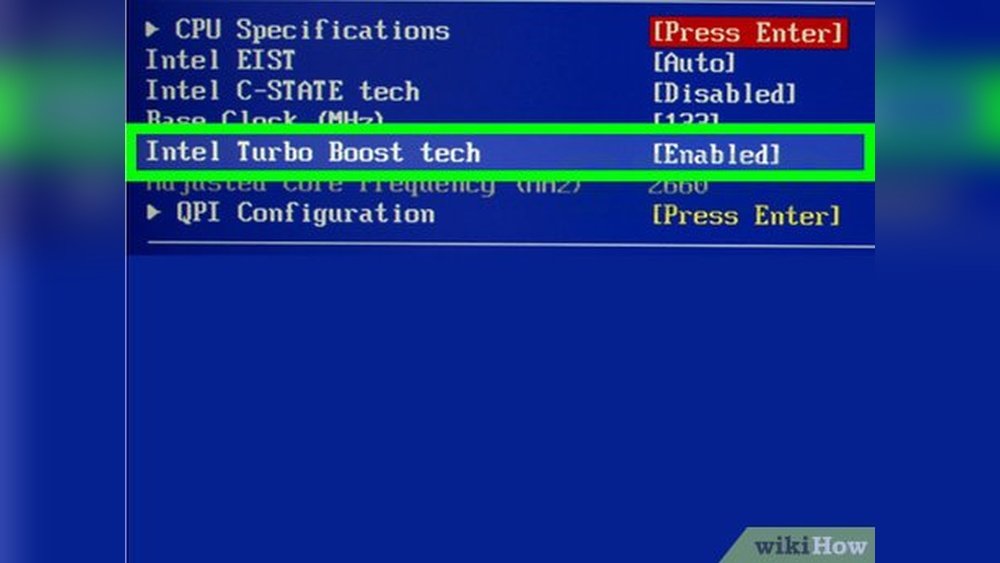
Enabling Turbo Boost in BIOS helps your CPU run faster when needed. It allows the processor to increase its speed beyond the base frequency. This gives better performance for tasks that need more power. Adjusting these settings in BIOS can improve your computer’s speed effectively.
Accessing Bios Settings
Start by restarting your computer. Press the BIOS key during boot. Common keys include F2, Delete, or Esc. The screen usually shows which key to press. Enter the BIOS menu to access system settings.
Locating Turbo Boost Option
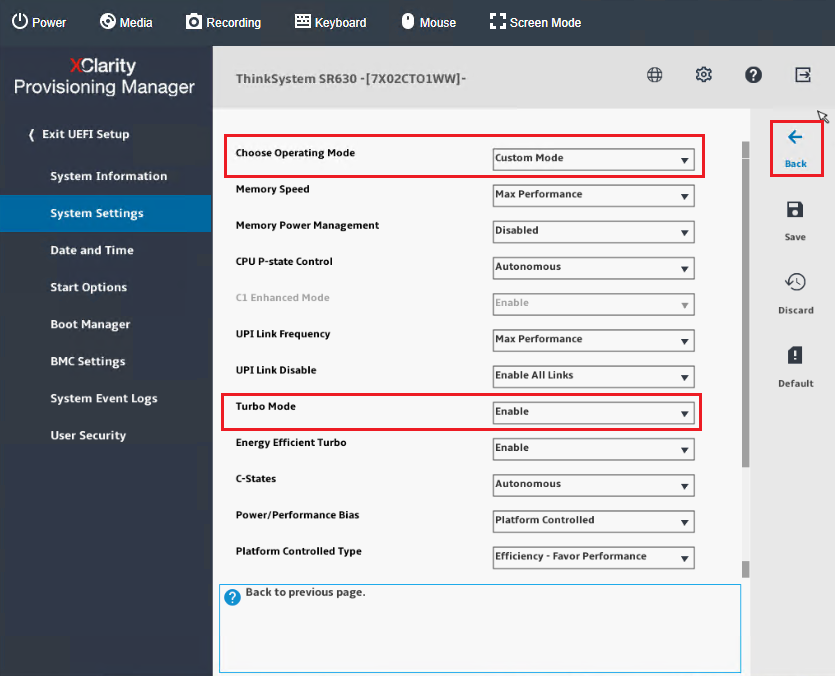
In BIOS, find the “Advanced” or “Performance” tab. Look for CPU-related settings. The Turbo Boost option may be under “Processor Configuration.” It might be called “Intel Turbo Boost,” “AMD Turbo Core,” or similar. Use arrow keys to navigate through menus.
Adjusting Turbo Boost Parameters
Select the Turbo Boost setting to enable it. Some BIOS versions allow you to change power limits or clock speeds. Adjust these carefully to avoid overheating. Save your changes before exiting BIOS. Your CPU will now boost speed when needed.
Credit: support.lenovo.com
Using Software Tools To Manage Turbo Boost
Managing Turbo Boost through software tools gives more control over your CPU’s speed. These tools help adjust settings to improve performance or reduce heat. They offer easy interfaces for changing CPU behavior without complex BIOS tweaks.
Using software to manage Turbo Boost can enhance computer tasks. It allows monitoring CPU temperature, voltage, and clock speeds. You can optimize your system for work, gaming, or everyday use.
Intel Extreme Tuning Utility
Intel Extreme Tuning Utility (XTU) lets users adjust Turbo Boost on Intel CPUs. It provides options to increase clock speeds safely. You can monitor system stability and temperatures while tuning.
XTU includes stress tests to check if your CPU runs well under higher speeds. It supports saving custom profiles for different needs. This tool works best on Intel-based laptops and desktops.
Amd Ryzen Master
AMD Ryzen Master is for Ryzen processors and helps manage Turbo Boost settings. It shows real-time data about CPU cores and speeds. You can change CPU voltage and clock speed easily.
This software supports creating profiles for gaming or low power use. Ryzen Master also offers quick reset to default settings. It works only on AMD Ryzen CPUs, making it very specific.
Third-party Performance Software
Several third-party apps manage Turbo Boost across different CPUs. Programs like ThrottleStop and HWMonitor provide monitoring and tuning options. They offer advanced features for power users and enthusiasts.
These tools help adjust Turbo Boost limits and check CPU health. Some work with both Intel and AMD processors. Use caution and read guides before changing settings with third-party software.
Monitoring Cpu Performance
Monitoring CPU performance is key to boosting your computer’s speed safely. It helps you see how your CPU works under different tasks. Watching its stats stops overheating and slowdowns. You can adjust settings based on real data.
Real-time Monitoring Apps
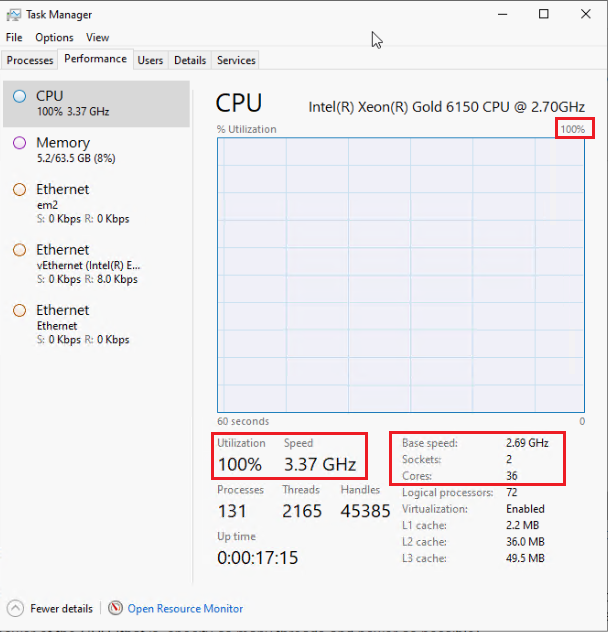
Use apps to watch your CPU in real time. These tools show your CPU’s activity on screen. Popular choices include HWMonitor, CPU-Z, and Core Temp. They update stats every second. Easy to read graphs help you understand CPU load instantly.
Tracking Temperature And Frequency
Temperature tells if your CPU runs too hot. High heat can harm parts and reduce speed. Frequency shows CPU speed in GHz. Higher frequency means faster processing. Track both to keep your CPU within safe limits.
Interpreting Performance Data
Look at CPU load, temperature, and speed together. High load with low speed means bottleneck. High temperature with high load means risk of overheating. Low frequency during heavy tasks may need tweaking. Use data to adjust cooling or settings.
Credit: support.lenovo.com
Troubleshooting Turbo Boost Issues
Troubleshooting Turbo Boost issues can improve your CPU’s speed and performance. Problems may stop Turbo Boost from working correctly. Fixing these issues helps your computer run faster and smoother.
Common Problems And Fixes
Turbo Boost may not activate due to outdated BIOS or drivers. Updating BIOS and CPU drivers can fix this. Some software may block Turbo Boost. Check and close such programs. Incorrect settings in the BIOS also cause issues. Reset BIOS to default or enable Turbo Boost manually.
Thermal Throttling Solutions
Overheating stops Turbo Boost to protect the CPU. Clean dust from fans and heatsinks regularly. Apply new thermal paste between CPU and cooler. Use better cooling systems if needed. Keep your computer in a cool place. Monitor CPU temperature with software and act quickly.
Power Management Settings
Power options in your operating system affect Turbo Boost. Set power plan to High Performance for best results. Disable any energy-saving modes that reduce CPU speed. In Windows, check advanced power settings and enable maximum processor state. This ensures Turbo Boost can run without limits.
Safety Tips For Turbo Boost
Turbo Boost can increase your CPU speed for better performance. It makes your computer faster but also puts more stress on the hardware. Safety is key to avoid damage and keep your system stable. Follow these simple tips to use Turbo Boost safely and efficiently.
Avoiding Overheating
High CPU speed creates more heat. Overheating can cause crashes and damage parts. Use good cooling systems like fans or liquid coolers. Keep your computer in a cool place. Clean dust from vents and fans regularly. Monitor your CPU temperature with software tools. Stop using Turbo Boost if temperatures get too high.
Maintaining Hardware Longevity
Running Turbo Boost nonstop can wear out parts faster. Give your CPU breaks by turning off Turbo Boost during light tasks. Use power-saving settings to reduce strain. Make sure your power supply is stable and strong. Update your BIOS and drivers for best hardware support. Treat your computer gently to help it last longer.
Balancing Performance And Stability
Turbo Boost improves speed but may cause instability. Test your system after enabling Turbo Boost. Watch for crashes or slowdowns. Adjust settings to find a balance between speed and reliability. Avoid pushing your CPU beyond safe limits. Stable performance prevents data loss and frustration. Keep your system updated for smooth operation.

Credit: www.reddit.com
Frequently Asked Questions
What Is Cpu Turbo Boost And How Does It Work?
CPU turbo boost increases the processor’s clock speed temporarily. It improves performance by allowing the CPU to run faster than its base frequency during heavy tasks. This feature optimizes speed without overheating or damaging the CPU, enhancing overall efficiency.
How Can I Enable Turbo Boost On My Cpu?
Turbo boost is usually enabled by default in BIOS or UEFI settings. You can check your motherboard’s firmware to ensure it’s active. Additionally, keep your system drivers updated to support turbo boost functionality properly.
Does Turbo Boost Increase Cpu Temperature Significantly?
Yes, turbo boost raises CPU temperature since it increases clock speed. However, modern CPUs manage heat efficiently with built-in safeguards. Proper cooling solutions, like fans or liquid cooling, help maintain safe temperatures during turbo boost.
Can Turbo Boost Improve Gaming Performance?
Turbo boost can enhance gaming performance by increasing CPU speed during demanding moments. It reduces lag and improves frame rates, especially in CPU-intensive games. However, the overall impact depends on your system’s cooling and power supply.
Conclusion
Boosting your CPU speed can improve your computer’s performance. Small changes, like adjusting settings or cleaning fans, help a lot. Keep your system cool and updated for best results. Remember to check your hardware limits before making changes. A faster CPU means smoother work and less waiting.
Try these tips carefully and enjoy a quicker computer experience.
