
Is your GPU running slower than it should? Wondering if it’s time for an upgrade or just a quick fix?
Knowing how to test your GPU can save you time, money, and frustration. In this guide, you’ll discover simple, effective ways to check your graphics card’s health and performance. Whether you’re a gamer, a designer, or just curious, these easy steps will help you spot problems before they become serious.
Keep reading to find out how to make sure your GPU is working exactly like it should.

Credit: www.youtube.com
Preparing For Gpu Testing
Preparing for GPU testing is an important step. It helps ensure accurate and reliable results. Taking time to get ready can save frustration later. A smooth testing process starts with good preparation.
Gathering Necessary Tools
Collect all tools before starting the test. This includes benchmarking software, monitoring apps, and stress testing programs. Examples are FurMark, MSI Afterburner, and GPU-Z. Having these ready helps avoid delays. Also, prepare a good cooling system for your PC. It keeps your GPU safe during heavy tests.
Updating Drivers And Software
Check for the latest GPU drivers from the manufacturer’s website. Updated drivers improve performance and fix bugs. Install the newest version before testing. Update your testing software too. New versions often add features and fix errors. This step ensures the test runs smoothly.
Checking System Requirements
Confirm your PC meets the test’s system needs. Check your CPU, RAM, and power supply. Some tests need high system specs to work well. Make sure your PC can handle the workload. This prevents crashes and false results during testing.
Basic Gpu Health Checks
Basic GPU health checks help ensure your graphics card runs smoothly. Regular checks can prevent damage and improve performance. These simple tests show if your GPU stays cool, gets enough power, and has secure connections.
Monitoring Temperature And Fan Speed
Heat can harm your GPU. Check its temperature while running games or apps. Use software like HWMonitor or GPU-Z to see the temperature. The fan speed should increase as the GPU gets hotter. If fans do not spin well, the GPU may overheat and slow down.
Checking Power Supply Stability
Your GPU needs steady power. Unstable power can cause crashes or errors. Make sure your power supply meets the GPU’s wattage needs. Use a multimeter or software tools to check voltage stability. Fluctuations or drops in power can signal a problem.
Inspecting Physical Connections
Loose or dusty connections harm GPU performance. Turn off your PC and open the case. Check if the GPU is firmly seated in the PCIe slot. Inspect power cables for tight, clean connections. Clean dust from connectors and fans with compressed air.
Running Benchmark Tests
Running benchmark tests is a key step to check your GPU’s performance. These tests push your GPU to its limits to show how well it handles tasks. Benchmarking helps find problems and compare your GPU with others. It also guides you in upgrading your system wisely.
Selecting Benchmark Software
Choose software that fits your needs and skill level. Some tools test games, while others focus on graphics or computing power. Look for popular options with good reviews. Free tools are great for basic checks. Paid versions offer deeper insights and more features.
Performing Synthetic Benchmarks
Synthetic benchmarks simulate heavy GPU workloads. They stress the GPU to reveal its true power. Run tests in a quiet environment to avoid interference. Close other apps to get accurate results. Watch the temperature and fan speeds during tests. These numbers show how well your GPU handles heat and load.
Analyzing Benchmark Results
Compare your scores with average results online. High scores mean your GPU is healthy and fast. Low scores could indicate issues like overheating or outdated drivers. Check if the performance matches your GPU model. Use graphs and charts to spot trends and problems easily. Adjust settings or update drivers based on your findings.
Credit: www.villaggiolepalme.com
Stress Testing The Gpu
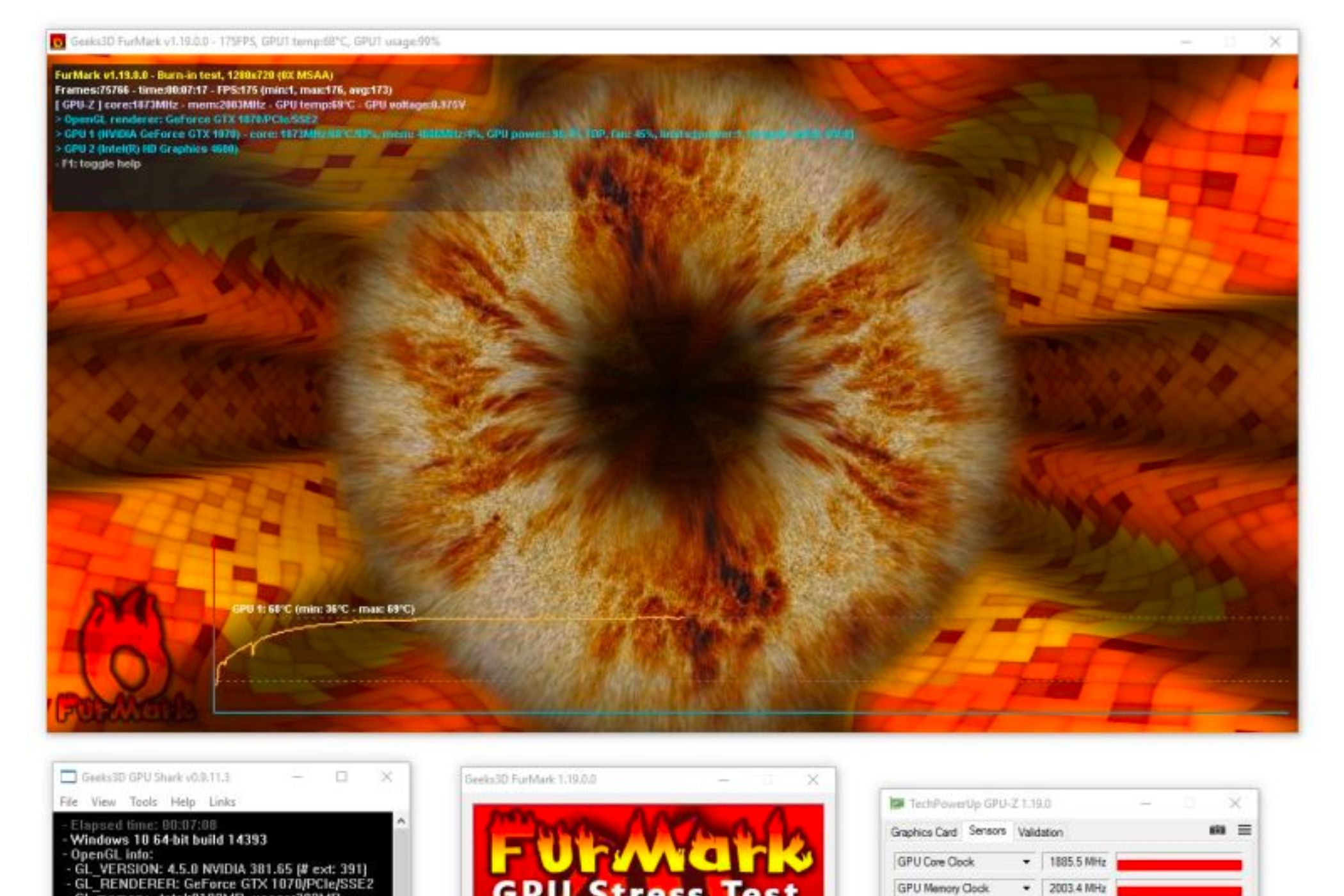
Stress testing the GPU helps check its stability and performance under heavy load. This test pushes the graphics card to its limits to find any issues. It shows how well the GPU handles intense tasks and if it overheats or crashes. Stress tests are important after installing new drivers or hardware changes.
Choosing Stress Test Tools
Pick a tool that fits your needs and skill level. Popular tools include FurMark, Heaven Benchmark, and 3DMark. These programs create demanding graphics scenarios to push the GPU hard. Some tools focus on temperature monitoring, while others test overall performance. Use trusted software from official sites to avoid risks.
Setting Test Duration
Run the stress test long enough to see real results. A typical duration is 15 to 30 minutes. Short tests may miss problems that appear after extended use. Watch the GPU temperature and performance during the test. Stop the test if temperatures get too high to protect your hardware.
Observing Performance Under Load
Look for steady frame rates and no crashes during the test. Check if the GPU temperature stays within safe limits. Sudden drops in performance or artifacts can signal issues. Note any unusual noises or system freezes. Record the results to compare with future tests or other GPUs.
Diagnosing Common Gpu Issues
Diagnosing common GPU issues helps keep your graphics card working well. It lets you spot problems early and fix them before they get worse. Many GPU issues show clear signs you can find by testing and observing your computer. Knowing what to look for makes troubleshooting easier and faster.
Identifying Artifacts And Visual Glitches
Artifacts appear as strange lines, dots, or colors on your screen. These glitches may happen during gaming or video playback. They often signal a faulty GPU or damaged VRAM. Test by running graphic-intensive applications and watching for unusual visuals. If artifacts appear, your GPU may need repair or replacement.
Detecting Overheating Problems
Overheating slows down your GPU and may cause crashes. Check GPU temperature using monitoring tools available online. Temperatures above 85°C are risky and need attention. Clean dust from fans and heatsinks to improve cooling. Make sure your PC case has good airflow to avoid heat buildup.
Troubleshooting Driver Conflicts
Driver conflicts cause crashes and poor GPU performance. Update your GPU drivers from the official website regularly. Uninstall old drivers completely before installing new ones. Use safe mode if your system won’t start normally. Proper drivers ensure smooth operation and fewer errors.
Optimizing Gpu Performance
Optimizing your GPU performance helps get the best results from your graphics card. This process improves speed and stability. It also prevents overheating and crashes. Small adjustments can make a big difference. Focus on these key areas to keep your GPU running smoothly and efficiently.
Adjusting Clock Speeds
Clock speeds control how fast your GPU works. Increasing them can boost performance but adds heat. Use software tools to adjust speeds carefully. Test changes step-by-step to avoid damage. Find a balance between speed and temperature. This keeps your GPU stable and fast.
Managing Power Settings
Power settings affect how much energy your GPU uses. Lower power saves energy but may reduce speed. Higher power increases performance but uses more electricity. Set your power plan based on tasks. For heavy work, choose maximum performance mode. For light use, save power to reduce heat and noise.
Keeping Drivers Updated
Drivers help your GPU communicate with your computer. Old drivers cause problems and slowdowns. Check for updates regularly on the official website. Updated drivers fix bugs and add features. Installing the latest version improves stability and speed. Keep your GPU software fresh for best results.

Credit: www.maketecheasier.com
Frequently Asked Questions
How Do I Check If My Gpu Is Working Properly?
You can test your GPU by running benchmarking software like FurMark or 3DMark. These tools stress the GPU and highlight performance or stability issues. Monitor temperatures and frame rates to ensure your GPU runs smoothly without errors or crashes.
What Software Is Best For Gpu Stress Testing?
Popular GPU stress testing software includes FurMark, MSI Kombustor, and Unigine Heaven. These programs push your GPU to its limits, helping identify overheating or instability. Choose one based on your GPU model and test needs to get accurate performance insights.
How Can I Monitor Gpu Temperature During Tests?
Use monitoring tools like GPU-Z, MSI Afterburner, or HWMonitor to track GPU temperature. These apps display real-time data and help prevent overheating by alerting you if temperatures exceed safe limits during testing.
How Long Should I Run A Gpu Test?
Run GPU stress tests for 15 to 30 minutes. This duration is enough to detect overheating, throttling, or crashes. Longer tests may be used for in-depth stability checks but always monitor temperatures closely.
Conclusion
Testing your GPU helps keep your computer running smoothly. Simple steps can show if your GPU works well or needs help. Use easy tools and watch for signs like overheating or slow speed. Regular checks stop big problems before they start.
Stay patient and follow the tests carefully. This way, your graphics card stays healthy and reliable for games, videos, and work. Small efforts now save time and money later. Keep your GPU in good shape for the best performance.
