

Wondering if your GPU is working the way it should? Whether you’re a gamer, a designer, or just someone who wants smooth performance, testing your GPU is key.
But how do you know if it’s running at its best or if there’s a hidden problem slowing you down? In this guide, you’ll learn simple and effective ways to check your GPU’s health and performance. By the end, you’ll feel confident that your graphics card is ready to handle anything you throw at it.
Keep reading to find out how to test your GPU quickly and easily.
Credit: www.sietesetenta.com.ar
Signs Of Gpu Issues
Knowing the signs of GPU issues helps you catch problems early. It saves time and avoids bigger damage. Your computer’s graphics card shows clear signs when it starts to fail. Watch for these common symptoms to test if your GPU needs attention.
Visual Artifacts And Glitches
Strange lines or shapes on the screen appear without reason. Colors may look wrong or flicker suddenly. Parts of the image might break into blocks or distort. These visual artifacts show the GPU is struggling to render graphics correctly.
Unexpected Crashes And Freezes
The computer or games crash without warning. Your screen might freeze or go black suddenly. These crashes happen especially during heavy graphics use. The GPU may overheat or have hardware faults causing this behavior.
Performance Drops
Games or videos run slower than before. Frame rates drop even with the same settings. Tasks that used to be smooth now lag or stutter. These slowdowns indicate the GPU is not performing well anymore.
Preparing For Gpu Testing
Preparing for GPU testing is a key step before starting any performance checks. This stage helps ensure accurate and reliable results. It also protects your hardware from damage during testing. Proper preparation saves time and avoids common issues.
Gathering Necessary Tools
Start by collecting all the tools needed for GPU testing. You will need benchmarking software, monitoring apps, and stress test programs. Popular choices include MSI Afterburner, FurMark, and 3DMark. Also, have a reliable system information tool to check your GPU details. A stable power supply is important to avoid crashes during tests.
Updating Drivers And Software
Updated drivers improve GPU performance and fix bugs. Visit the official GPU manufacturer’s website to download the latest drivers. Install the newest version of your testing software. Using old drivers or software can cause errors and inaccurate results. Keep your operating system updated for better compatibility.
Ensuring Proper Cooling
GPU testing can make your graphics card very hot. Proper cooling prevents overheating and damage. Clean dust from your PC fans and vents before testing. Make sure your case has good airflow. Consider additional cooling like extra fans or a cooling pad. Monitor your GPU temperature during tests to keep it safe.
Benchmarking Your Gpu
Benchmarking your GPU helps measure its performance clearly. It shows how well your graphics card handles games and software. This step is important to see if your GPU works correctly or needs upgrades. Testing also helps compare your GPU with others easily.
Start by choosing the right software. Then run synthetic tests to push your GPU. Finally, analyze the scores to understand the results.
Choosing Benchmark Software
Select software designed to test GPUs. Popular options include 3DMark, Unigine Heaven, and FurMark. These tools stress your GPU to reveal its power and stability. Pick software that suits your computer and skills. Free tools are good for beginners.
Running Synthetic Tests
Run the benchmark in a controlled environment. Close other programs to avoid interference. Start the test and watch your GPU work hard. These tests create heavy graphics loads to measure speed and temperature. Save the results after the test ends.
Analyzing Benchmark Scores
Compare your scores to typical results for your GPU model. High scores mean better performance. Low scores may indicate problems like overheating or outdated drivers. Use scores to decide if you need upgrades or fixes. Repeat tests after changes to track improvements.

Credit: www.youtube.com
Stress Testing The Gpu
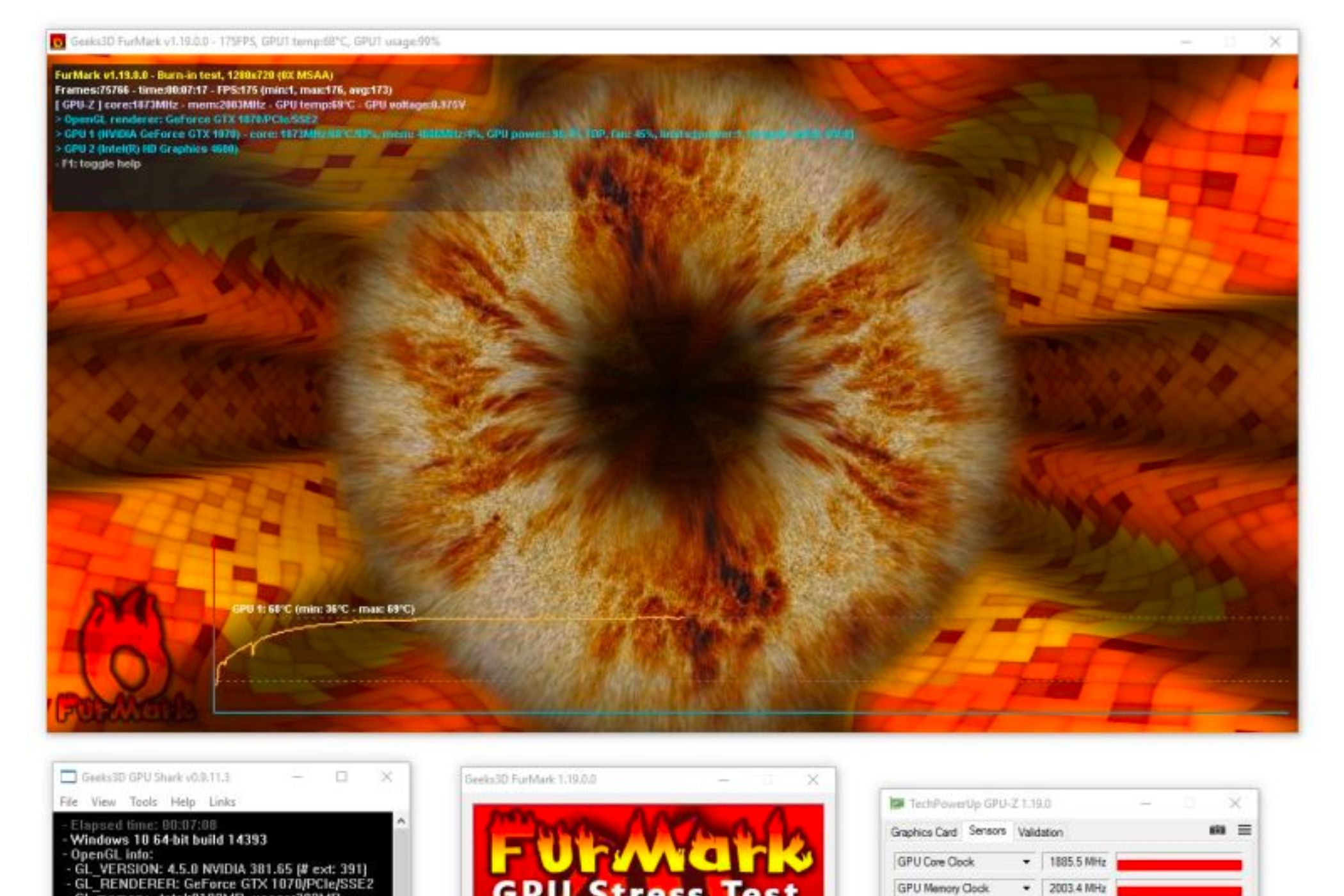
Stress testing the GPU helps check its performance under heavy use. It shows how well the GPU handles intense tasks. This test finds any problems before real use. It also helps measure the GPU’s stability and temperature.
Selecting Stress Test Programs
Choose reliable programs for stress testing your GPU. Popular options include FurMark, 3DMark, and Unigine Heaven. These tools push the GPU to its limits safely. Pick one that matches your experience and hardware.
Monitoring Temperatures And Stability
Watch the GPU temperature during the stress test. Use tools like MSI Afterburner or HWMonitor. Keep an eye on any crashes or glitches too. Stable performance means the GPU works well under pressure.
Interpreting Stress Test Results
Check the maximum temperature reached during the test. Temperatures above 85°C may cause damage. Look for any visual errors or system crashes. If the test runs smoothly, the GPU is healthy and stable.
Checking Gpu Health Metrics
Checking your GPU health is important to keep your computer running smoothly. It helps spot problems early. You can avoid crashes and slowdowns by watching key metrics. These numbers tell you how well your GPU works.
Different tools show these health metrics. You get details about temperature, fan speed, clock speed, and errors. These details help you understand your GPU’s condition.
Monitoring Temperature And Fan Speed
GPU temperature shows how hot your graphics card runs. High heat can cause damage or reduce performance. Keep temperature below the maximum limit set by the manufacturer. Fan speed cools down the GPU. Fans spin faster when it gets hotter. Watch if the fans run smoothly and change speed as needed.
Tracking Clock Speeds And Usage
Clock speed tells how fast your GPU processes data. It changes based on workload. Higher speeds mean better performance but more heat. Usage shows how much your GPU works. Low usage during gaming or heavy tasks may mean a problem. Check these numbers to see if your GPU runs as expected.
Detecting Error Rates
Error rates measure how many mistakes happen during GPU operations. High error rates can cause crashes and visual glitches. Some tools report memory errors and calculation errors. Watch for rising error rates over time. Fixing or replacing the GPU may be needed if errors stay high.

Credit: www.reddit.com
Using Diagnostic Utilities
Using diagnostic utilities helps check your GPU’s health and performance. These tools run tests to spot problems fast. They also show if your GPU runs at the right speed and temperature. Testing with these utilities is simple and clear. It gives you proof if the GPU needs repair or replacement.
Built-in Gpu Diagnostics
Many GPUs come with built-in diagnostic tools. These tools check basic functions and hardware status. You can access them through the GPU control panel or BIOS. They run quick tests on memory, cores, and fan speed. The results show if any parts work incorrectly or overheat. Using built-in diagnostics is free and safe for your system.
Third-party Tools
Third-party software offers more detailed GPU tests. Programs like GPU-Z, FurMark, and MSI Afterburner are popular. They measure GPU temperature, clock speed, and power use. Some tools stress-test the GPU to find stability issues. These tools often show live graphs for easy tracking. Download them from trusted sites to avoid malware risks.
Running Error Scans
Error scans check for hardware faults and driver conflicts. Utilities like Windows Device Manager can report GPU errors. Some third-party tools scan for memory leaks or corrupted files. Running these scans regularly keeps your GPU stable. They help spot issues before they cause crashes or slowdowns. Scan results guide you to fix or update drivers properly.
Troubleshooting Common Gpu Problems
Troubleshooting common GPU problems helps keep your graphics card running well. Problems like driver errors, overheating, and hardware failures can affect performance. Knowing how to fix these issues saves time and money.
Testing your GPU includes checking for these frequent problems. Simple steps can solve many issues without needing expert help. Here are some ways to troubleshoot common GPU problems.
Fixing Driver Issues
Drivers help your GPU work with your computer. Outdated or corrupted drivers cause crashes and poor performance. Check for the latest driver updates on the GPU maker’s website.
Uninstall old drivers before installing new ones. Use tools like Display Driver Uninstaller (DDU) for a clean removal. Restart your computer after updating the drivers. This can fix many display problems quickly.
Resolving Overheating
Overheating slows down your GPU and may cause shutdowns. Dust buildup blocks airflow and raises temperature. Clean your GPU and case fans regularly with compressed air.
Check if your GPU fans spin properly. Replace broken or noisy fans immediately. Improve case ventilation by managing cables and adding extra fans. Monitor temperatures using free software like MSI Afterburner.
Dealing With Hardware Failures
Hardware failures cause severe GPU problems like no display or artifacts. Inspect the GPU for physical damage or loose connections. Test the GPU in another computer to confirm the issue.
Use software tools to check for memory errors or component faults. If the GPU is under warranty, contact the manufacturer for repair or replacement. For old GPUs, consider upgrading to avoid recurring failures.
Maintaining Gpu Performance
Keeping your GPU in good shape helps it work better and last longer. Regular care stops problems before they start. It also keeps your computer running smoothly. Simple steps can protect your investment and avoid slowdowns. Let’s explore easy ways to maintain your GPU’s performance.
Regular Cleaning And Dust Removal
Dust builds up inside your computer over time. It blocks airflow and makes your GPU hotter. Hot parts work slower and may get damaged. Use a soft brush or compressed air to clean fans and vents. Clean every few months for best results. Make sure the PC is off and unplugged before cleaning.
Optimizing Settings For Longevity
Adjust GPU settings to reduce stress. Lowering clock speeds can keep the GPU cooler. Use software to monitor temperature and adjust fan speed. Avoid running heavy programs for long periods without breaks. Set power limits if your GPU supports it. Small changes can extend the life of your GPU.
Planning Upgrades And Replacements
Know when your GPU needs an upgrade. Older GPUs may struggle with new software or games. Check performance regularly using testing tools. If frame rates drop or crashes increase, consider a new GPU. Plan upgrades around your budget and needs. Replacing a GPU at the right time saves money and hassle.
Frequently Asked Questions
How Can I Check If My Gpu Is Working Properly?
You can test your GPU by running benchmark software like FurMark or 3DMark. These tools stress test your GPU to reveal performance and stability issues. Monitoring temperatures and frame rates during gaming also helps assess GPU health.
What Are The Best Tools To Test Gpu Performance?
Popular tools include FurMark, 3DMark, Heaven Benchmark, and MSI Afterburner. These programs evaluate GPU stability, temperature, and graphics rendering capabilities. Choose one based on your testing needs and GPU model compatibility.
How Do I Identify Gpu Overheating Issues?
Use monitoring software like HWMonitor or MSI Afterburner to track GPU temperatures. Overheating symptoms include crashes, screen flickering, or reduced performance. Ensure your GPU cooling system is clean and functioning properly.
Can I Test My Gpu Without Special Software?
Yes, you can test your GPU by playing demanding games or running graphical applications. Observe performance, frame rates, and any graphical glitches. However, dedicated software provides more precise and reliable results.
Conclusion
Testing your GPU helps ensure your computer runs smoothly and fast. Simple steps like running benchmarks and checking temperatures reveal its health. Regular tests catch problems before they grow. This saves time and money on repairs. Keep your drivers updated and monitor performance often.
A well-tested GPU means better gaming and work experiences. Try these easy methods today and see your GPU’s true power.
