
Is your computer running slower than usual? Or maybe you’re worried your CPU isn’t performing the way it should.
Knowing how to test your CPU can save you from unexpected crashes and frustrating slowdowns. In this guide, you’ll discover simple, effective ways to check your CPU’s health and speed. By the end, you’ll feel confident about your computer’s performance and know exactly when it’s time for an upgrade.
Keep reading to make sure your CPU is working at its best!
Signs Of Cpu Issues
Knowing the signs of CPU issues helps you spot problems early. Your computer’s CPU controls many tasks. Problems here can slow down your whole system.
Watch for unusual signs that show your CPU may need testing or repair. These signs often affect how your computer works every day.
Common Performance Problems
Slow computer speed is a top sign of CPU trouble. Programs may take longer to open or run. Your system might freeze or lag often. Simple tasks can feel harder and slower than usual.
Unexpected System Behavior
Your computer may restart by itself or shut down without warning. Errors and crashes can happen more often. You might see strange error messages on your screen. These problems can be a sign of CPU failure.
Thermal Throttling Effects
CPU gets too hot and slows down to cool off. This is called thermal throttling. Your computer may become slow only after some use. Fans may run loudly or constantly. Overheating reduces CPU speed and performance.

Credit: recoverit.wondershare.com
Essential Tools For Testing
Testing your CPU helps check its speed, stability, and temperature. Different tools serve unique purposes in this process. Using the right tools gives clear results and helps avoid problems.
Benchmarking Software
Benchmarking software measures CPU performance. It runs tests and scores your CPU. These scores help compare your CPU with others. Popular options include Cinebench, Geekbench, and PassMark. They are easy to use and give quick results.
Stress Testing Utilities
Stress testing tools push your CPU to its limits. They check how your CPU handles heavy work. Prime95 and AIDA64 are common stress testers. They find stability issues and cooling problems. Running stress tests for a while is important.
Monitoring Applications
Monitoring apps track CPU temperature, usage, and speed in real-time. They help watch your CPU while testing. Programs like HWMonitor, Core Temp, and MSI Afterburner work well. Keeping an eye on these numbers prevents damage.
Step-by-step Cpu Testing
Testing your CPU helps check its health and performance. It shows if your processor works well under load. Follow these steps to test your CPU accurately. This guide covers preparing your system, running benchmarks, and conducting stress tests. Each step ensures your CPU runs smoothly and reliably.
Preparing Your System
Start by closing all programs. This frees up CPU resources for testing. Save any work to avoid data loss. Check your computer’s cooling system. Clean dust from fans and vents. Overheating can affect test results. Update your operating system and drivers. This ensures compatibility with testing tools. Restart your computer before starting tests.
Running Benchmarks
Use benchmark software to measure CPU speed. Popular tools include Cinebench, Geekbench, and PassMark. These programs run tasks that simulate real use. They provide scores to compare performance. Run benchmarks several times for accuracy. Note the scores and check for consistency. Lower scores may indicate issues with your CPU.
Conducting Stress Tests
Stress tests push your CPU to its limits. Use tools like Prime95 or AIDA64 for this. Monitor CPU temperature during the test. High temperatures can cause damage. Run the test for 10 to 30 minutes. Watch for crashes or errors. If your computer shuts down or freezes, your CPU may have problems. Stop the test if temperatures rise too high.
Interpreting Test Results
Testing your CPU gives numbers and data. These results tell you how well your processor works. Understanding these numbers is key to knowing your CPU’s true performance. This section helps you read and use test results smartly.
Identifying Bottlenecks
A bottleneck happens when one part slows down the whole system. Check if your CPU is the slow part. Low CPU usage with slow tasks means another component causes the delay. High CPU usage with lag means the processor is working too hard. Spotting bottlenecks helps you fix slowdowns.
Comparing Scores
Benchmark scores show your CPU’s strength. Compare your scores to similar CPUs online. Scores much lower than average suggest problems. Scores close to or above average mean your CPU is fine. Use these numbers to see if your processor matches your needs.
Recognizing Thermal Issues
Heat affects CPU speed and health. High temperatures can cause slowdowns or crashes. Look at temperature readings during tests. If temps rise above 80°C, your CPU might be overheating. Clean fans and check cooling to keep your CPU cool and safe.
Tips To Boost Cpu Performance
Boosting CPU performance helps your computer run faster and smoother. It improves how your system handles tasks. Small changes can make a big difference in speed and stability. Focus on easy and effective ways to keep your CPU working well.
Optimizing Cooling Solutions
Heat slows down your CPU. Keep it cool to maintain speed. Clean dust from fans and vents regularly. Use good quality thermal paste between the CPU and cooler. Consider adding extra fans or a better cooler for high performance. Proper airflow inside the case is key.
Updating Drivers And Bios
Outdated drivers can limit CPU efficiency. Check for the latest drivers from your CPU and motherboard maker. BIOS updates improve hardware compatibility and fix bugs. Update BIOS carefully by following the official guide. These updates can help your CPU run smoother and faster.
Adjusting Power Settings
Power settings affect CPU speed and energy use. Set your computer to a high-performance power plan. This lets the CPU run at full speed when needed. Avoid power-saving modes that reduce CPU performance. Adjust settings through your operating system’s control panel for better speed.
Advanced Performance Tweaks
Advanced performance tweaks help you get more power from your CPU. These tweaks allow you to push your processor beyond its usual limits. It requires care and knowledge to avoid damage or instability. Small changes can lead to better speed and smoother operation.
Start with basic steps and increase complexity gradually. Testing your CPU after each change is important. This helps catch issues early and keep your system safe.
Overclocking Basics
Overclocking means running your CPU faster than its base speed. This can improve performance in tasks like gaming and video editing. Most CPUs have a default clock speed set by the manufacturer. Overclocking raises this speed to boost power.
You need a good cooling system to prevent overheating. Start by increasing clock speed in small steps. Test stability with stress testing software after each step. Watch the temperature closely to avoid damage.
Fine-tuning Voltage
Voltage controls the power supplied to the CPU. Increasing voltage can help stabilize higher clock speeds. But too much voltage causes heat and can shorten CPU life. Adjust voltage carefully and in small increments.
Use motherboard BIOS settings or special software for voltage changes. Monitor CPU temperature and system stability at every step. Lower voltage values can reduce heat while keeping performance.
Using Performance Profiles
Performance profiles are presets that adjust CPU settings automatically. These profiles balance speed, power use, and heat. Choose a profile based on your needs, like high performance or energy saving.
Many motherboards and CPUs support profiles in BIOS or software. Switching profiles is quick and safe. Test each profile to find what works best for your system and tasks.
Maintaining Cpu Health
Keeping your CPU healthy is important to ensure your computer runs smoothly. A healthy CPU works faster and lasts longer. It helps avoid crashes and slowdowns. Simple steps can help maintain your CPU’s health every day.
Regular Cleaning
Dust and dirt can build up inside your computer. This blocks air flow and makes the CPU hot. Use a soft brush or compressed air to clean vents and fans. Clean your computer every few months. This stops overheating and keeps the CPU cool.
Monitoring Temperatures
Check your CPU temperature often. High temperatures can damage the CPU over time. Use free software tools to see the temperature in real time. Keep the CPU temperature below 80°C for safety. If it gets too hot, check the cooling system.
Software Maintenance
Keep your operating system and drivers updated. Updates fix bugs and improve performance. Run antivirus software to avoid malware that can harm the CPU. Close unused programs to reduce CPU load. This helps the CPU work efficiently and stay healthy.

Credit: softwareg.com.au

Credit: www.youtube.com
Frequently Asked Questions
How Can I Check My Cpu Performance Easily?
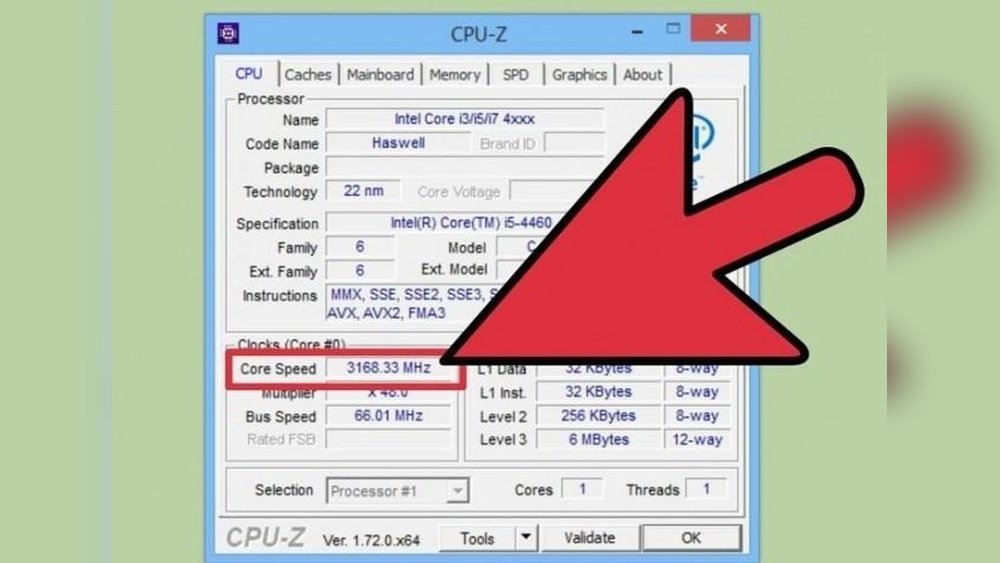
You can check CPU performance using built-in tools like Task Manager or third-party apps like CPU-Z. These tools provide real-time CPU usage and speed data, helping identify performance issues quickly.
What Software Is Best To Test Cpu Stability?
Prime95 and IntelBurnTest are popular for CPU stability testing. They stress your CPU to reveal overheating or instability, ensuring your processor runs smoothly under heavy loads.
How Do I Monitor Cpu Temperature During Testing?
Use tools like HWMonitor or Core Temp to track CPU temperature. Monitoring temperature prevents overheating and potential damage during stress tests or heavy usage.
Can I Test My Cpu Without Installing Software?
Yes, online CPU benchmarking tools exist but may be less accurate. For detailed tests, installing dedicated software is recommended to get precise results.
Conclusion
Testing your CPU helps keep your computer running smoothly. Simple steps like using software tools show how well your CPU works. Regular checks can find problems early and avoid big issues. Remember to monitor temperature and performance often. Stay patient and follow instructions carefully.
This way, you protect your device and improve its lifespan. Testing your CPU is easy and worth the effort. Try it today to ensure your computer stays fast and reliable.
