
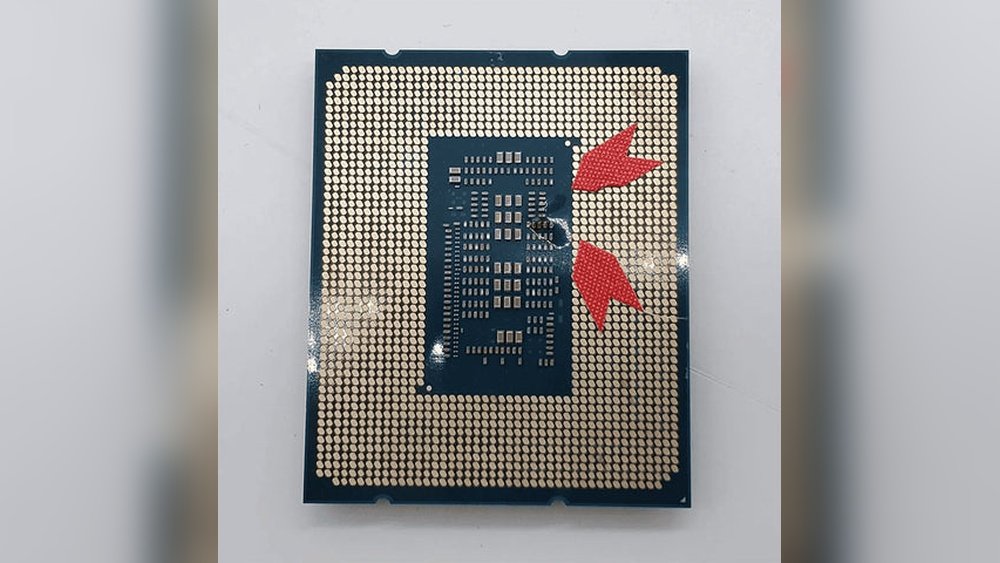
Is your computer acting slow or crashing unexpectedly? You might be wondering if your CPU has bad cores.
Knowing how to test your CPU for faulty cores can save you time, money, and frustration. You’ll discover simple and effective ways to check your CPU’s health. By the end, you’ll feel confident spotting issues before they cause serious damage.
Keep reading to protect your computer and keep it running smoothly.
Signs Of Bad Cpu Cores
Bad CPU cores can cause many problems on a computer. They affect how the system works and can lead to errors. Knowing the signs helps you find problems early.
Detecting bad cores is not always easy. Some issues seem like normal computer slowdowns. Others cause sudden crashes or freezes. Watching for certain symptoms can guide you.
Common Symptoms
Bad CPU cores often cause strange computer behavior. Programs may close without warning. The system might restart on its own. Unexpected error messages can appear too.
Sometimes, the computer struggles to start. It may show a black screen or freeze during boot. Fans might run loudly or the system may heat up quickly.
Performance Issues
Slow performance is a key sign of bad cores. Tasks take much longer than usual. Simple actions like opening files or apps lag.
Games and heavy software may run poorly or crash. The CPU may not use all cores properly. This reduces overall speed and power.
System Crashes And Freezes
Frequent crashes can point to damaged CPU cores. The system might freeze during work or gaming. You may see blue screens or error codes.
Random shutdowns without warning also happen. These stops can cause data loss and damage files. Stability problems often relate to CPU core issues.
Preparing For Cpu Testing
Preparing your computer before testing the CPU cores is very important. It helps protect your data and ensures accurate test results. Taking a few simple steps can save you time and prevent problems during the testing process.
Backup Important Data
Testing the CPU can sometimes cause crashes or unexpected errors. Back up all important files to an external drive or cloud storage. This keeps your data safe if anything goes wrong during the test. Do not skip this step to avoid losing important documents or photos.
Update System Drivers
Old or faulty drivers can affect how your CPU works. Update your system drivers, especially the chipset and graphics drivers. Updated drivers help the CPU run smoothly and improve test accuracy. Check the manufacturer’s website for the latest versions.
Ensure Proper Cooling
CPUs generate heat while testing, which can cause damage if not cooled properly. Make sure your computer’s cooling system is clean and working well. Check the fans and apply fresh thermal paste if needed. Good cooling keeps the CPU safe and stable during tests.
Using Built-in Diagnostic Tools
Testing your CPU for bad cores helps find hardware problems early. Built-in diagnostic tools offer an easy way to check your CPU’s health. These tools come pre-installed on most operating systems and run basic tests. They scan your CPU for errors and warn about faulty cores. Using these tools saves time and avoids extra software downloads. Below are some popular built-in diagnostics for Windows, Apple, and Linux systems.
Windows Memory Diagnostic
Windows Memory Diagnostic tests your system memory and CPU stability. It runs automatically after a system reboot. To start, type “Windows Memory Diagnostic” in the search box. Choose “Restart now and check for problems.” The tool scans your RAM and CPU cores for errors. After the test, Windows shows a report with detected issues. This tool helps spot hardware faults affecting CPU performance.
Apple Hardware Test
Apple Hardware Test checks your Mac’s CPU and other components. It runs outside the macOS to detect hardware issues. To access it, restart your Mac and hold the “D” key. Follow the on-screen instructions to start the test. The tool scans CPU cores and reports any problems. It is useful for identifying bad cores or faulty hardware in Macs.
Linux Cpu Stress Tools
Linux offers built-in tools to stress-test your CPU. Commands like “stress” or “stress-ng” push CPU cores to their limits. Open the terminal and install these tools using your package manager. Run them with simple commands to check CPU stability. They help find cores that fail under heavy load. These tests give a clear picture of your CPU health.

Credit: www.youtube.com
Third-party Software For Cpu Testing
Third-party software offers useful tools to test CPU cores for problems. These programs put your CPU under heavy load. They help detect bad cores by showing errors or crashes during the test. Using these tools gives a clear view of your CPU health.
Prime95 Stress Test
Prime95 is popular for testing CPU stability. It runs intense calculations that stress every core. Any bad core will cause errors or system crashes. The program also shows detailed logs of test results. It works well for checking CPU issues in a simple way.
Intel Processor Diagnostic Tool
This tool comes from Intel, designed for Intel CPUs. It performs various tests like stress, temperature, and functionality checks. The tool reports any core failures or errors. It is easy to use and provides clear feedback about CPU health.
Occt Cpu Test
OCCT is a versatile stress test software. It tests CPU cores under different workloads. The program shows real-time temperature and error monitoring. It alerts users if a core behaves abnormally. OCCT is suitable for detailed CPU testing and diagnostics.
Interpreting Test Results
Interpreting test results is a key step in finding bad CPU cores. It helps you understand what the data means. Clear insights guide your next moves. This section breaks down how to read your test outcomes.
Identifying Error Messages
Error messages often point to bad cores. Look for warnings about memory or calculation failures. Messages like “CPU error detected” or “core failure” are strong signs. Note down any repeated or unusual alerts during testing. These errors show where problems likely exist.
Analyzing Temperature And Performance Data
High CPU temperatures can stress cores and cause errors. Check if specific cores run hotter than others. Sudden drops in performance or frequent slowdowns suggest core issues. Use monitoring tools to track temperatures and speeds. Consistent overheating or lag needs attention.
Distinguishing Between Software And Hardware Issues
Not all test problems mean bad cores. Software bugs or driver conflicts cause errors too. Test with different programs to rule out software faults. Hardware issues stay consistent across tests and tools. Isolate the cause before replacing hardware parts.
Credit: www.intel.com
Steps After Detecting Bad Cores
Detecting bad cores in your CPU can affect your computer’s performance and stability. Taking the right steps after finding these faulty cores helps protect your system. Acting quickly can prevent further damage and improve your device’s lifespan.
Here are key actions to take after spotting bad cores in your CPU.
Disabling Faulty Cores
Disabling bad cores stops them from causing errors. You can do this through your computer’s BIOS or operating system settings. This action helps keep your system running with fewer problems. Performance might drop slightly, but stability will improve. It is a simple way to manage bad cores temporarily.
Seeking Professional Repair
Professional repair services can diagnose and fix deeper CPU issues. Experts use special tools to test and repair hardware. They can tell if your CPU still works well or needs replacement. Choosing a trusted technician ensures your computer gets proper care. This step is important if you lack technical skills.
Considering Cpu Replacement
Replacing the CPU is the best option for severe core damage. New CPUs restore full performance and reliability. Check compatibility with your motherboard before buying. Sometimes, upgrading to a newer model offers better speed and efficiency. This step is a long-term solution to core problems.

Credit: www.fmad.io
Frequently Asked Questions
How Can I Identify Bad Cores In My Cpu?
You can identify bad CPU cores using stress tests and diagnostic tools. Programs like Prime95 and IntelBurnTest highlight unstable cores by causing errors or crashes during testing.
What Tools Help Test Cpu Core Health Effectively?
Prime95, IntelBurnTest, and OCCT are popular tools for testing CPU core stability. They stress each core and report errors, helping you pinpoint bad or unstable cores quickly.
Can Windows Detect Bad Cpu Cores Automatically?
Windows does not automatically detect bad CPU cores. You need third-party stress testing software to identify and diagnose faulty cores effectively and accurately.
What Symptoms Indicate My Cpu Has Bad Cores?
Common symptoms include frequent crashes, blue screens, system freezes, and poor performance. These issues often signal that one or more CPU cores are malfunctioning.
Conclusion
Testing your CPU for bad cores helps keep your computer running well. Use simple tools to check each core’s health. Watch for crashes, slow speeds, or errors during tests. Fixing or replacing bad cores can improve performance and stability. Stay patient and follow steps carefully to get clear results.
Knowing your CPU’s condition saves time and money later. Keep your system healthy by testing regularly. Easy checks make a big difference in computer life.
