
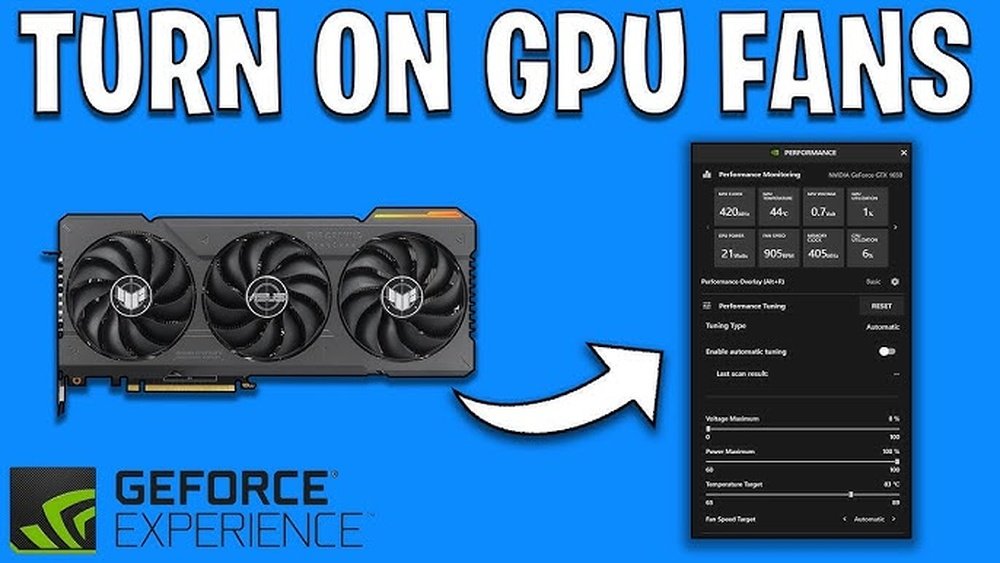
Is your GPU making strange noises or running hotter than usual? Your GPU fans might be the cause.
Knowing how to test GPU fans is crucial to keep your graphics card cool and your system running smoothly. You’ll discover simple, effective ways to check if your GPU fans are working properly. By the end, you’ll feel confident spotting fan problems early and avoiding costly damage.
Ready to protect your investment and boost your PC’s performance? Let’s dive in.
Signs Of Faulty Gpu Fans
GPU fans keep your graphics card cool and working well. Faulty fans can cause big problems fast. Knowing the signs helps you spot issues early. Check for sounds, heat, and looks to find fan trouble.
Unusual Noises
Listen closely to your GPU fan. Strange sounds like grinding, clicking, or rattling are bad signs. Fans should run quietly and smoothly. Noises often mean dirt, damage, or worn parts inside the fan.
Overheating Symptoms
Watch your computer’s temperature. Overheating can slow down your GPU or cause crashes. If your PC feels hot or shuts down suddenly, the fan might not cool properly. High temps show the fan is failing to work right.
Visual Inspection Tips
Turn off your PC and check the fan physically. Look for dust, dirt, or bent blades. Blades that don’t spin freely or wobble mean trouble. Clean fans carefully and check for loose cables or broken parts.

Credit: softwareg.com.au
Tools Needed For Testing
Testing your GPU fans requires some basic tools. These tools help check if the fans work well and keep your graphics card cool. Using the right tools makes the testing process easy and accurate.
Software Utilities
Software utilities monitor fan speed and temperature. Programs like MSI Afterburner and HWMonitor show real-time fan RPM and GPU temperature. These tools help detect if fans spin too slow or stop. They also allow you to control fan speed for testing purposes. Running these programs is simple and safe.
Hardware Tools
Hardware tools check the physical condition of GPU fans. A small screwdriver helps open your PC case safely. Compressed air cans clean dust from fan blades and vents. A multimeter can test the fan’s electrical connections. These tools ensure fans get power and spin correctly. Having them ready makes fan testing quick and effective.
Checking Fan Operation Through Software
Checking your GPU fans through software helps you know if they work well. Software tools show fan speed and temperature in real time. This method avoids opening your PC case or touching hardware. It is safe and easy, even for beginners. You get quick feedback about fan performance during normal use or gaming.
Using Gpu Monitoring Apps
Many free and paid apps help monitor GPU fans. Examples include MSI Afterburner, HWMonitor, and GPU-Z. These apps display fan speed as RPM or percentage. You can watch fan behavior while running games or stress tests. Some apps let you control fan speed manually. Always download apps from trusted sources to avoid malware.
Interpreting Fan Speed Data
Fan speed shows how fast your GPU fans spin. Higher speed means fans work harder to cool the GPU. If speed stays low while temperature is high, fans might be faulty. Sudden drops or stops in fan speed signal a problem. Compare your data to normal GPU specs for better understanding. Consistent, smooth fan speed changes mean fans operate correctly.
Manual Fan Spin Test
The Manual Fan Spin Test is a quick way to check your GPU fans. It helps find issues like stuck blades or rough movement. This test does not need software or special tools. You can do it in a few simple steps. The goal is to make sure the fans spin freely and smoothly.
How To Safely Spin Fans
First, turn off your computer and unplug it. Wait a few minutes for the fans to stop fully. Use your finger to gently spin each fan blade. Spin slowly and carefully. Do not use too much force. Avoid touching other parts inside the GPU. Your hand should not slip onto the circuit board.
What To Look For
Feel how the fan moves. It should spin without resistance. If it stops quickly or feels rough, there might be dirt or damage. Listen for any grinding or scraping sounds. These sounds mean the fan needs cleaning or replacement. Also, check if the fan blades wobble. Wobbling can cause noise and poor cooling.
Testing Fan Response Under Load
Testing GPU fan response under load is important to check if your cooling system works well. Fans should speed up as the GPU heats up. This keeps the graphics card cool and prevents damage. Watching how fans react during heavy use helps find problems early.
Stress Testing The Gpu
Start by running a stress test on the GPU. Use software like FurMark or MSI Kombustor. These tools push the GPU to high temperatures. This makes the fans work harder. Watch the GPU temperature rise during the test.
Keep the test running for 10 to 15 minutes. This time is enough to see fan changes. Avoid stopping the test too early. Let the GPU reach a stable high temperature.
Observing Fan Behavior
Look closely at the fans while the stress test runs. Fans should spin faster as temperature climbs. Listen for smooth, consistent noise without rattles or clicks. Sudden stops or slow speeds may mean fan issues.
Note the fan speed in the software or use a phone camera to watch blades. Fans that do not increase speed might need cleaning or replacement. Good fan response means your GPU stays cool under load.
Cleaning And Maintenance Tips
Keeping GPU fans clean and well-maintained helps your computer run cooler and last longer. Dust and dirt make fans slow and noisy. Regular care stops these problems. Simple steps can keep fans spinning smoothly and quietly.
Removing Dust And Debris
Turn off your computer and unplug it. Open the case carefully. Use a soft brush or canned air to remove dust from the fan blades. Hold the fan still while cleaning to avoid damage. Clean the vents and surrounding areas too. This helps air flow better and cools the GPU efficiently.
Lubricating Fan Bearings
Some GPU fans have small holes near the center for oiling. Gently peel back the sticker or cover. Add a drop of light machine oil or sewing machine oil. Avoid using heavy oils or grease. Spin the fan by hand to spread the oil evenly. Replace the cover and reassemble the case. Lubrication reduces noise and extends fan life.
When To Replace Gpu Fans
Knowing when to replace your GPU fans is important to keep your graphics card cool. Fans can wear out over time and stop working well. This can cause your GPU to overheat and slow down. Regular checks help you spot problems early and avoid damage.
Signs Replacement Is Needed
Listen for unusual noises like grinding or rattling. These sounds mean the fan bearings may be damaged. Check if the fan stops spinning or spins slowly. Overheating or frequent crashes during gaming also show fan issues. Dust buildup can reduce fan speed but cleaning helps. If problems persist, replacement is necessary.
Choosing Compatible Fans
Always pick fans made for your GPU model. Check the size and connector type before buying. Using the wrong fan can cause poor cooling or damage. Look for quality brands with good reviews. Proper installation is key to avoid extra noise or vibration. Replacement fans should match original specs closely.

Credit: softwareg.com.au

Credit: www.sietesetenta.com.ar
Frequently Asked Questions
How Do I Check If My Gpu Fan Is Working?
To check your GPU fan, visually inspect it while the PC is on. Use software like MSI Afterburner to monitor fan speed and temperature.
What Tools Help Test Gpu Fan Functionality?
Software tools like GPU-Z, MSI Afterburner, and HWMonitor help test GPU fan speed and temperature accurately.
Can A Faulty Gpu Fan Cause Overheating?
Yes, a faulty GPU fan can cause overheating. It reduces cooling efficiency, leading to higher GPU temperatures and potential hardware damage.
How Often Should I Clean My Gpu Fans?
Clean your GPU fans every 3 to 6 months. Dust buildup reduces fan efficiency and can cause overheating issues.
Conclusion
Testing GPU fans helps keep your computer cool and safe. Check the fan’s spin and listen for noise. Clean dust off regularly to keep it working well. Use simple tools like software or manual checks for best results. Catching problems early saves money and avoids damage.
Keep your GPU running smoothly with these easy steps. Stay patient and careful while testing. A healthy fan means better gaming and faster work.
