
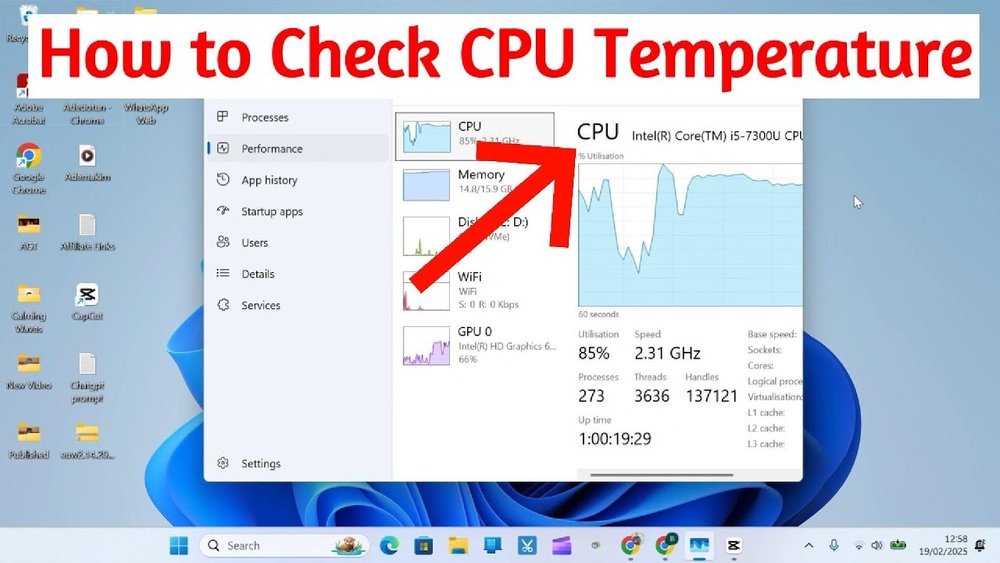
Is your computer running hotter than usual? Knowing how to test your CPU temperature is crucial to keeping your device safe and running smoothly.
If your CPU gets too hot, it can slow down, crash, or even get damaged. But don’t worry—checking your CPU temp is easier than you think. You’ll discover simple, step-by-step methods to monitor your CPU’s temperature quickly and accurately. Keep reading to protect your computer and boost its performance before heat becomes a problem.
Credit: www.avast.com
Why Monitor Cpu Temperature
Monitoring your CPU temperature is important for a healthy computer. The CPU works hard to run programs and processes. It produces heat while working. If the temperature gets too high, problems can occur. Knowing your CPU temperature helps you avoid damage and keep your computer fast.
Risks Of Overheating
High CPU temperatures can cause serious issues. Overheating may slow down your computer. It can also cause sudden shutdowns to protect the hardware. Long-term heat damage can shorten the CPU’s life. It might even damage other computer parts. Keeping the CPU cool prevents these risks.
Signs Of High Cpu Temp
Watch for signs that your CPU is too hot. Your computer may run slower than usual. You might hear loud fan noise trying to cool it down. Unexpected shutdowns or restarts can happen often. The system may freeze or crash without warning. These signs show it is time to check the CPU temperature.
Tools To Check Cpu Temperature
Checking your CPU temperature helps protect your computer from overheating. Many tools show this important info. They range from simple built-in options to detailed software programs. Understanding these tools makes it easier to keep your CPU safe and fast.
Each tool has its own way of showing temperature. Some work before your computer starts. Others work while you use your PC. Choose the right one for your needs and skills.
Built-in Bios/uefi Options
Your computer has built-in settings called BIOS or UEFI. These let you check CPU temperature without extra software. Restart your PC and enter BIOS/UEFI by pressing a key like F2 or Delete. Look for a section named “Hardware Monitor” or “PC Health.” The CPU temperature usually appears there.
This method is basic but reliable. It shows real-time temperature before Windows loads. Perfect for quick checks or troubleshooting hardware issues.
Popular Software Tools
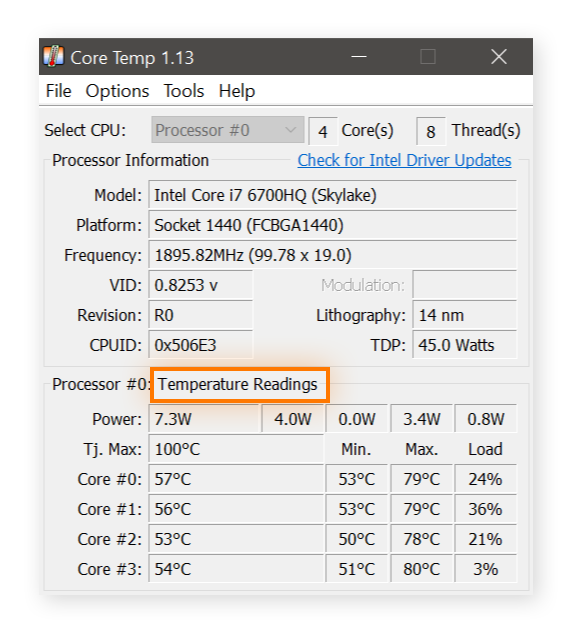
Many programs show CPU temperature inside Windows. Popular tools include HWMonitor, Core Temp, and Speccy. They give detailed info about your CPU and other parts.
These tools are easy to install and use. They update temperature readings in real time. Some also show minimum and maximum temperatures. Helpful for monitoring your PC during heavy tasks.
Choose software that fits your skill level. Some apps offer simple views, while others provide advanced data. Always download from trusted sources to avoid malware.
Step-by-step Temperature Testing
Testing your CPU temperature helps keep your computer safe and working well. It is important to check the temperature often. This guide shows you easy steps to test your CPU temperature. Follow these simple methods for accurate results.
Accessing Bios/uefi Temp Readings
Start by restarting your computer. Press the key to enter BIOS or UEFI setup. This key is usually F2, Del, or Esc. Look for a section called “Hardware Monitor” or “PC Health.” Here, you will see the CPU temperature. Note the reading before your system fully loads. This gives the temperature when the computer is idle.
Using Software For Real-time Monitoring
Install a CPU temperature monitoring program. Choose one that is easy to use and trusted. Open the software and check the live temperature. It shows how hot your CPU is while using your computer. Watch the temperature during daily tasks. This helps spot any unusual heat spikes.
Performing Stress Tests Safely
Run a stress test to see how your CPU handles heavy use. Use stress test tools designed for beginners. Start the test and monitor the temperature closely. Stop the test if the temperature goes too high. This step shows how well your cooling system works. Always keep an eye on temperatures to avoid damage.

Credit: www.alcpu.com
Interpreting Temperature Results
Checking your CPU temperature is just the first step. Understanding what the numbers mean helps you keep your computer safe. Reading these results correctly can prevent damage and improve performance. Let’s break down how to interpret your CPU temperature readings.
Normal Vs. Critical Temperatures
CPUs run at different temperatures depending on their work. Normal temperatures usually range from 30°C to 50°C during light tasks. Heavy tasks like gaming or video editing can push temperatures higher. A CPU temperature above 80°C is often a warning sign. Temperatures over 90°C can cause permanent damage to your CPU. Watch for sudden spikes or consistently high readings. These may mean your cooling system is failing or your CPU is under too much stress.
Temperature Thresholds For Different Cpus
Different CPUs have different safe temperature ranges. Intel processors often stay safe below 85°C. AMD CPUs might handle temperatures up to 95°C. Older CPUs usually run cooler but have lower max temps. Laptop CPUs often run hotter than desktop ones. Always check your CPU’s official specifications for exact limits. Using the right temperature range helps you avoid overheating and extend your CPU’s life.
Preventing Cpu Overheating
Preventing CPU overheating is important for your computer’s health. High temperatures can slow down your system or cause damage. Keeping the CPU cool helps your computer run smoothly and last longer. Below are key ways to stop your CPU from getting too hot.
Improving Airflow And Cooling
Good airflow moves hot air out and brings fresh air in. Keep your computer case clean and free of dust. Arrange cables neatly to avoid blocking air paths. Use fans to push hot air out of the case. Position your PC in a cool, open space, not inside a closed cabinet. This helps cool air reach the CPU easily.
Regular Maintenance Tips
Check and clean dust from fans and vents often. Dust blocks airflow and traps heat. Replace old thermal paste between the CPU and cooler yearly. Thermal paste helps heat transfer from the CPU to the cooler. Monitor CPU temperature regularly using simple software tools. Early detection of high temperatures can prevent damage.
Upgrading Cooling Solutions
Stock coolers may not be enough for heavy use. Consider upgrading to better air coolers with larger fans. Liquid cooling systems offer more effective heat removal. They are quieter and keep temperatures lower. Choose a cooling solution that fits your budget and needs. Better cooling means safer CPU temperatures and improved performance.

Credit: openhardwaremonitor.org
Frequently Asked Questions
How Can I Check My Cpu Temperature Easily?
You can check CPU temperature using software like HWMonitor or Core Temp. These tools display real-time temperature readings safely and accurately.
What Is A Safe Cpu Temperature Range?
A safe CPU temperature usually ranges between 30°C and 70°C under normal use. Temperatures above 80°C may cause overheating issues.
Why Is Monitoring Cpu Temperature Important?
Monitoring CPU temperature helps prevent overheating, which can damage hardware and reduce performance. It ensures your system runs smoothly and lasts longer.
Can Cpu Overheating Affect Computer Performance?
Yes, overheating can cause CPU throttling, slowing down your computer. It may also cause unexpected shutdowns to protect hardware.
Conclusion
Testing your CPU temperature helps keep your computer safe. It shows if your system runs too hot. You can avoid damage by checking temps often. Use simple tools to see the temperature clearly. Watch for high numbers and cool your PC if needed.
This small step can save you big problems later. Stay aware and keep your CPU healthy. It’s easy and worth the effort every time.
