
Is your computer running slower than usual? Or maybe it crashes unexpectedly?
These could be signs that your CPU isn’t in the best shape. Knowing how to test CPU health can save you from sudden breakdowns and costly repairs. You’ll discover simple, effective ways to check your CPU’s condition. By the end, you’ll feel confident about spotting problems early and keeping your computer running smoothly.
Ready to protect your device and boost its performance? Let’s dive in.

Credit: www.youtube.com
Signs Of Cpu Issues
Knowing the signs of CPU issues helps keep your computer healthy. A CPU problem can slow your system or cause crashes. Early signs show that your CPU may need attention.
Watching for these signs lets you fix problems before they get worse. It saves time and protects your data.
Common Symptoms
Unexpected shutdowns or restarts happen often. Your computer may freeze or show blue screens. Programs might close without warning. These are clear symptoms of CPU trouble. Strange noises from the fan can also mean overheating.
Performance Drops
Your computer runs slower than usual. Tasks take longer to finish. Simple actions like opening files become frustrating. Games or videos may lag or stutter. These drops usually point to CPU issues. The CPU might not handle tasks well due to damage or heat.
Overheating Alerts
Warning messages about high temperatures appear. The laptop or desktop feels very hot. Fans run loudly and constantly. Overheating can harm the CPU quickly. Ignoring these alerts risks permanent damage. Cooling problems often cause CPU overheating.
Preparing For Cpu Tests
Preparing your computer before testing the CPU is very important. It helps avoid errors and keeps your data safe. Taking simple steps can make the testing process smooth and accurate.
Gathering Tools
First, collect all the tools needed for CPU testing. This includes software like stress testers and monitoring apps. Also, have hardware tools ready if you plan to check physical components. Proper tools help find problems faster and more clearly.
Backing Up Data
Save all important files before starting the tests. CPU tests can sometimes cause crashes or shutdowns. Backing up protects your data from loss. Use an external drive or cloud storage for extra safety.
Ensuring Proper Ventilation
Check that your computer has good airflow. Proper ventilation stops the CPU from overheating during tests. Keep the area around the PC clear and clean dust from fans. Cooler temperatures help get accurate test results.
Using Built-in Diagnostic Tools
Testing your CPU health is important to keep your computer running well. Built-in diagnostic tools offer a simple way to check your CPU without extra software. These tools are easy to use and provide quick results. They help find problems early, saving time and money.
Windows Memory Diagnostic
Windows Memory Diagnostic checks your computer’s memory for errors. Memory problems often affect CPU performance. To use it, type “Windows Memory Diagnostic” in the search bar. Choose “Restart now and check for problems.” Your PC will reboot and run the test. After the test, Windows shows the results. This tool helps find RAM issues that slow down your CPU.
Mac Hardware Test
Mac Hardware Test checks your Mac’s hardware, including the CPU. Turn off your Mac and then turn it on while holding the “D” key. The test screen appears and you can start the check. It scans for hardware faults and reports any problems. This test helps identify if your Mac’s CPU or other parts need repair.
Bios And Uefi Diagnostics
BIOS or UEFI diagnostics are built into many computers. Restart your PC and press the setup key (like F2 or Delete). Look for a “Diagnostics” menu. These tools run tests on your CPU and other hardware. They find errors that affect system stability. Using BIOS diagnostics gives a deep check of your CPU health without extra tools.
Running Stress Tests
Running stress tests is a key step to check your CPU’s health. These tests push your processor to work hard. This helps find problems like overheating or crashes. Stress tests also show how well your CPU handles heavy work. You get a clear idea of its stability and performance.
Stress testing is simple. With the right tools, anyone can do it. Just follow the steps and watch your CPU closely. This way, you keep your computer safe and running smoothly.
Popular Stress Testing Software
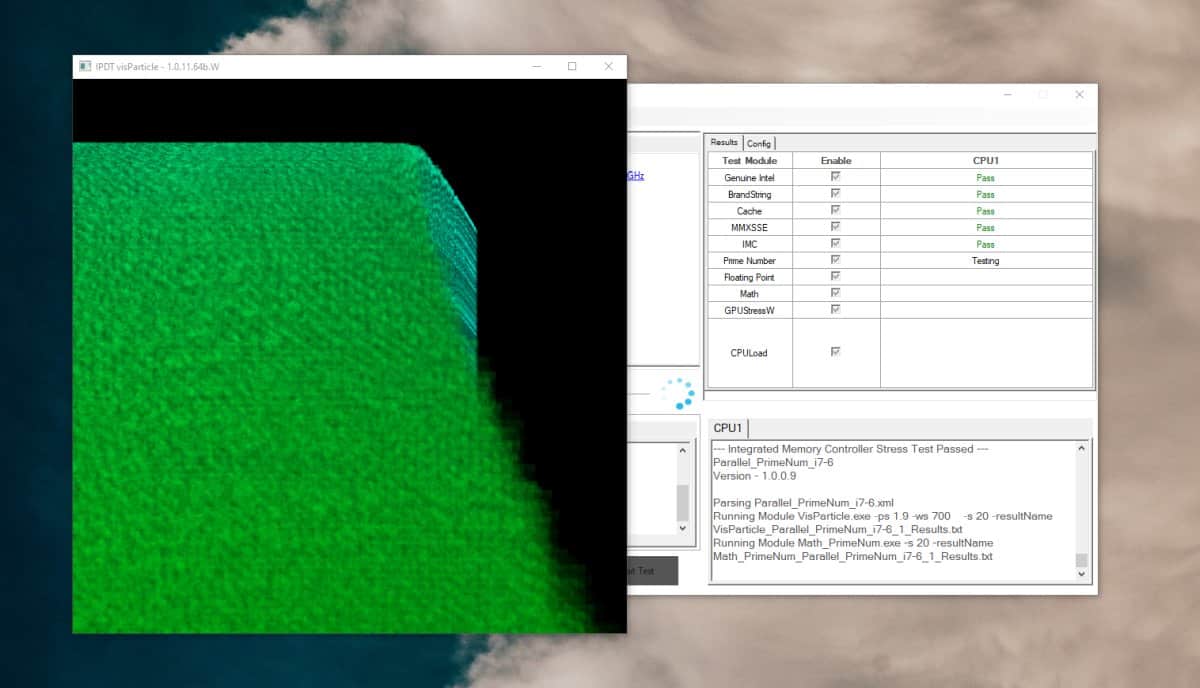
Many programs help you test your CPU health. Prime95 is a favorite for many users. It stresses the CPU by running complex calculations. Another option is AIDA64. This tool offers detailed tests and monitoring. IntelBurnTest is known for quick and intense stress. Each software has its own strengths. Choose one that suits your needs and skill level.
Monitoring Temperature And Usage
Watching your CPU temperature is vital during stress tests. Too much heat can harm the processor. Tools like HWMonitor or Core Temp show real-time temperatures. Keep an eye on CPU usage as well. It should stay near 100% during the test. Sudden drops or spikes may indicate issues. Stop the test if temperatures rise too high.
Interpreting Test Results
Look for errors or crashes during the test. These signs point to CPU problems. Stable tests with no errors mean a healthy CPU. High temperatures mean cooling problems. You may need better fans or thermal paste. Use the results to decide if your CPU needs repair or upgrade. Clear results help you understand your computer’s condition.
Checking Cpu Temperatures
Checking CPU temperatures is a key step in testing your CPU’s health. The CPU works hard and gets hot. If it gets too hot, it can slow down or stop working. Watching the temperature helps keep your computer safe and fast.
Many problems start with the CPU running too hot. This can cause crashes, freezes, or damage. Knowing the normal temperature and how to check it helps find problems early. It also shows if cooling parts are working well.
Ideal Temperature Ranges
Most CPUs run best between 30°C and 50°C when idle. During heavy use, temperatures can rise to 70°C or 80°C. Temperatures above 85°C are too high and may harm the CPU. Keeping the CPU below 80°C during use is safer. Different CPUs have different limits, so check your model’s specs.
Tools For Temperature Monitoring
Many free tools show CPU temperatures. Programs like HWMonitor, Core Temp, and SpeedFan are popular. These tools display real-time temperature readings. They also show other details like fan speed and voltage. You can run these tools while using your computer to see if temperatures stay normal.
Cooling Solutions
Good cooling keeps the CPU temperature low. Air coolers with fans are common and affordable. Liquid cooling systems are more efficient but cost more. Make sure your case has good airflow with clean fans. Dust buildup can block airflow and raise temperatures. Replacing old thermal paste between the CPU and cooler also helps improve heat transfer.
Benchmarking Cpu Performance
Benchmarking CPU performance helps check how well your processor works. It shows the speed and strength of your CPU. This testing is useful to find problems and see if your CPU runs as expected. It also helps compare your CPU with others. Regular benchmarking keeps your computer running smoothly.
Choosing Benchmark Tools
Select tools that match your CPU type and needs. Some tools test speed, others test multitasking. Use well-known programs like Cinebench or Geekbench. These give clear, reliable results. Avoid tools that are too complex or unclear. Pick software that is easy to use and trusted by many.
Comparing Results
Run the same test several times to get average scores. Compare your scores with online benchmarks for your CPU model. Look for big differences in numbers. This shows if your CPU is underperforming. Comparing results helps track changes over time. It also shows if updates or changes improve performance.
Identifying Bottlenecks
Bottlenecks slow down your CPU’s full potential. Check if other parts, like RAM or hard drive, limit performance. Benchmark tools sometimes show which part causes slowdowns. Fixing bottlenecks improves overall speed. Focus on the weakest link to boost CPU health and system speed.
Troubleshooting Common Cpu Problems
Troubleshooting common CPU problems helps keep your computer running smoothly. CPUs can face issues like overheating, slow performance, or hardware failures. Identifying these problems early saves time and prevents damage.
Fixing Overheating Issues
Overheating is a frequent CPU problem. Check if the CPU fan is working properly. Dust buildup can block airflow and cause heat. Clean the fan and vents regularly. Use thermal paste between the CPU and cooler to improve heat transfer. Make sure your computer is in a cool, ventilated space.
Resolving Performance Lags
Slow CPU performance can result from software or hardware issues. Close unused programs to reduce CPU load. Scan for viruses or malware that slow down the system. Updating drivers and the operating system can improve speed. Check the task manager to see which programs use the most CPU.
Handling Hardware Failures
Hardware failures may cause the CPU to stop working. Listen for unusual noises from the computer. Check if the CPU is properly seated on the motherboard. Test the CPU with diagnostic software to detect faults. Replace the CPU if tests show serious damage or failure.

Credit: softwareg.com.au
Maintaining Cpu Health
Maintaining CPU health is key to keeping a computer fast and reliable. The CPU handles all tasks and processes. Over time, dust, outdated drivers, and poor settings can slow it down or cause errors. Regular care helps the CPU run smoothly and last longer.
Regular Cleaning
Dust builds up inside a computer over time. It blocks airflow and traps heat. Heat damages the CPU and lowers its performance. Clean the inside of your computer every few months. Use compressed air to blow out dust from fans and vents. Keep the CPU cooler and prevent overheating.
Updating Drivers And Bios
Drivers and BIOS control how the CPU works with other parts. Old drivers cause bugs and slowdowns. Check for updates from your computer or motherboard maker. Install the latest versions carefully. Updated software fixes issues and improves CPU efficiency. This keeps the system stable and fast.
Optimizing System Settings
System settings affect CPU speed and power use. Turn off unused startup programs to reduce CPU load. Adjust power settings for balanced performance and energy use. Avoid running too many heavy apps at once. This helps the CPU focus on important tasks and stay healthy longer.
Credit: www.addictivetips.com
Frequently Asked Questions
How Can I Check My Cpu Temperature Safely?
You can use software like HWMonitor or Core Temp to check CPU temperature. Keep it below 80°C to avoid damage. Regular monitoring helps prevent overheating and maintains CPU health.
What Tools Test Cpu Performance Effectively?
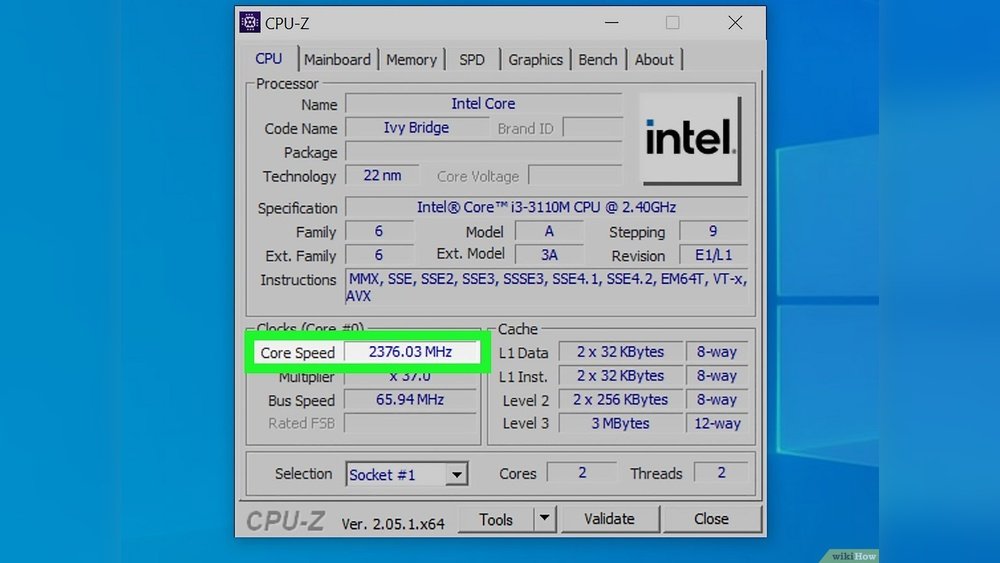
CPU-Z, Cinebench, and Prime95 are popular tools to test CPU performance. They analyze speed, stability, and overall functionality. These tools give accurate insights into your CPU’s health.
How Often Should I Test My Cpu Health?
It’s best to test your CPU health every few months. Frequent checks help detect problems early. Regular testing ensures your CPU runs efficiently and prevents unexpected failures.
Can Overheating Cause Permanent Cpu Damage?
Yes, overheating can permanently damage your CPU. High temperatures degrade performance and reduce lifespan. Proper cooling and monitoring are essential to protect your CPU.
Conclusion
Testing your CPU health helps keep your computer running smoothly. Regular checks can spot problems early. Use simple tools to measure temperature and performance. Watch for unusual noises or slow responses. Taking these steps saves time and money later. Stay aware of your CPU’s condition for better use.
A healthy CPU means a faster, more reliable device. Keep testing often to avoid sudden breakdowns. Small efforts now prevent big headaches later. Easy and quick checks make a big difference.
