
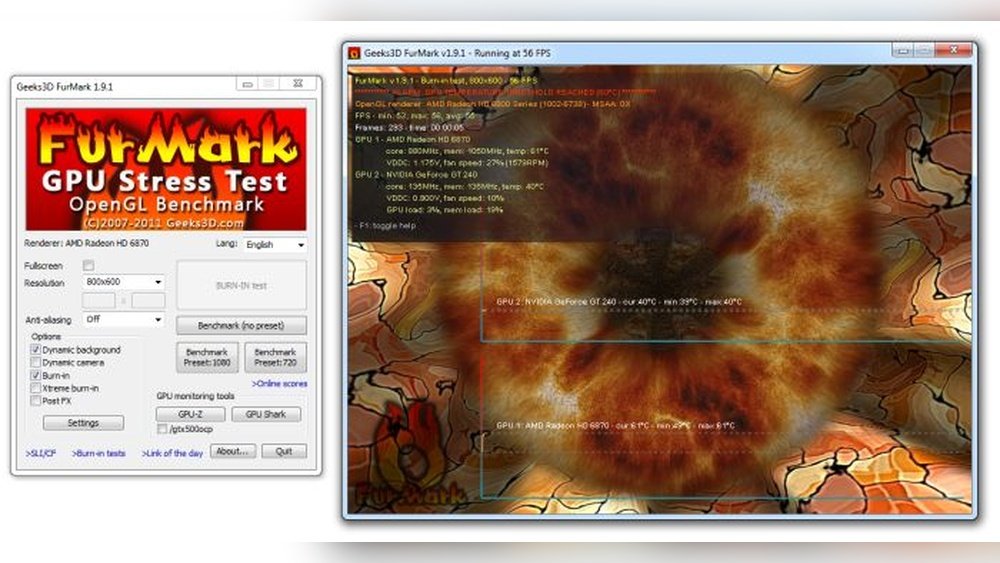
Are you worried that your GPU might not be working properly? Whether you’re a gamer, designer, or just someone who wants smooth computer performance, knowing how to test your GPU is key.
A faulty graphics card can cause crashes, slowdowns, or strange visuals, and catching these issues early can save you time and money. You’ll learn simple and effective ways to check your GPU’s health, so you can be confident your system is running at its best.
Keep reading, and you’ll discover easy steps to spot problems before they become serious.
Preparing Your System
Preparing your system is a key step before testing your GPU. It helps avoid errors and ensures accurate results. A well-prepared system runs tests smoothly and gives reliable data. Follow these steps to get your system ready for GPU testing.
Check Hardware Compatibility
Start by verifying your GPU fits your computer. Check the motherboard and power supply requirements. Ensure the GPU has enough space inside the case. Confirm your CPU and RAM meet the minimum specs. Incompatible hardware can cause test failures or crashes.
Update Drivers And Software
Download the latest GPU drivers from the manufacturer’s website. Updated drivers improve performance and fix bugs. Install any system updates available for your operating system. Use the newest version of testing software for accurate results. Outdated software can lead to incorrect data or errors.
Optimize System Settings
Close all unnecessary programs before starting tests. Disable background processes that may affect performance. Set your power plan to high performance in system settings. Turn off screen savers and sleep mode. These steps help the GPU run tests without interruptions.

Credit: softwareg.com.au
Choosing The Right Tools
Choosing the right tools is key for testing a GPU. Good tools give clear results. They help find problems fast. Using proper software shows how well the GPU works. It also checks if the GPU stays stable under pressure.
Different tools serve different purposes. Some measure speed. Others check stability. Some monitor temperature and usage. Picking the right set makes testing easier and more accurate.
Benchmarking Software Options
Benchmarking software measures GPU performance. It runs tests to show the GPU’s speed and power. Popular tools include 3DMark, Unigine Heaven, and FurMark. These programs give scores to compare GPUs. They help see how fast the GPU handles games and tasks.
Choose software that matches your GPU type. Some benchmarks focus on gaming, others on rendering. Testing with the right benchmark gives better insight.
Stress Testing Utilities
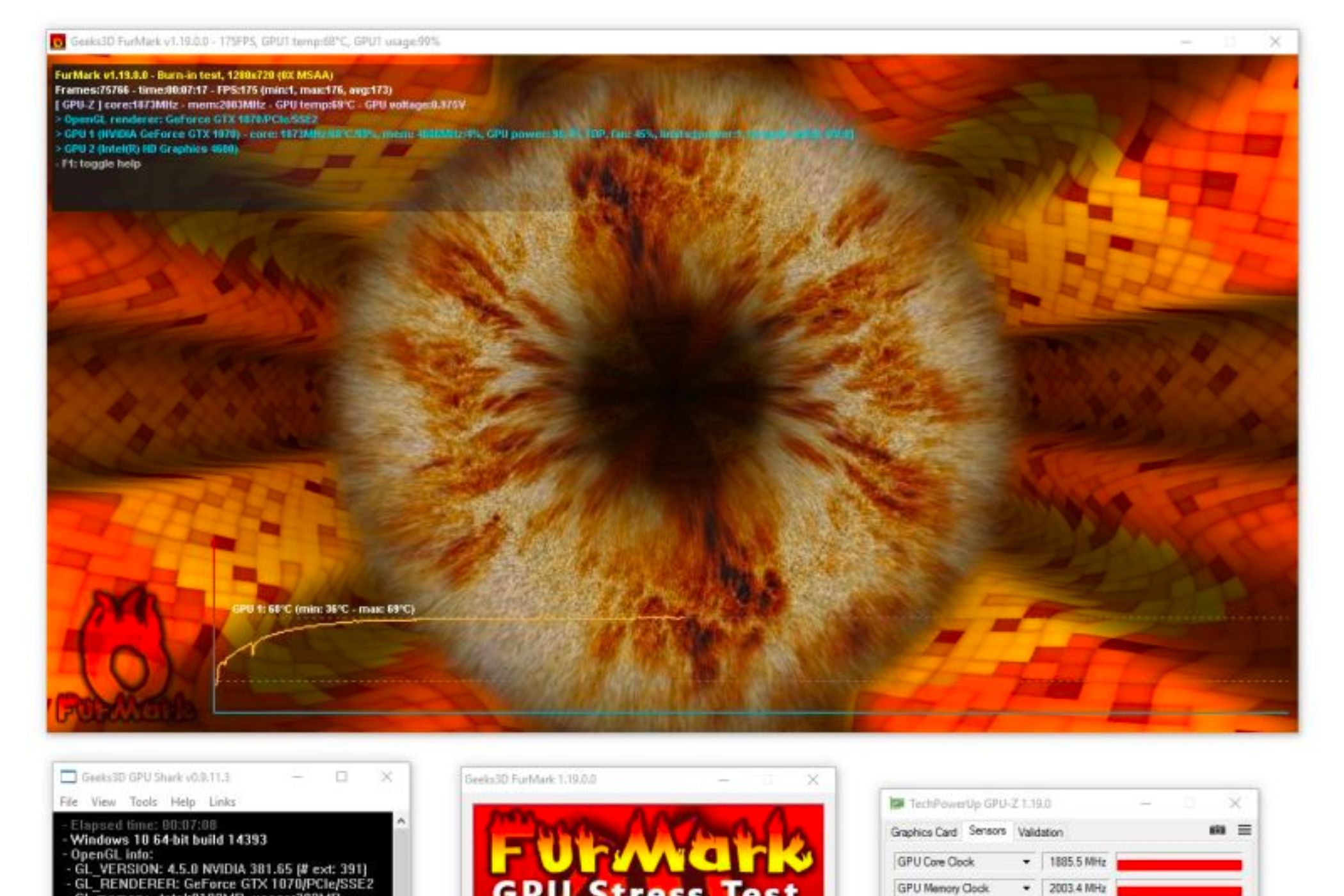
Stress testing tools push the GPU to its limits. They check if the GPU can work without errors for long times. FurMark and OCCT are common stress testers. These tools reveal hardware issues and stability problems. They help find overheating or power problems. Regular stress tests keep the GPU reliable.
Monitoring Tools
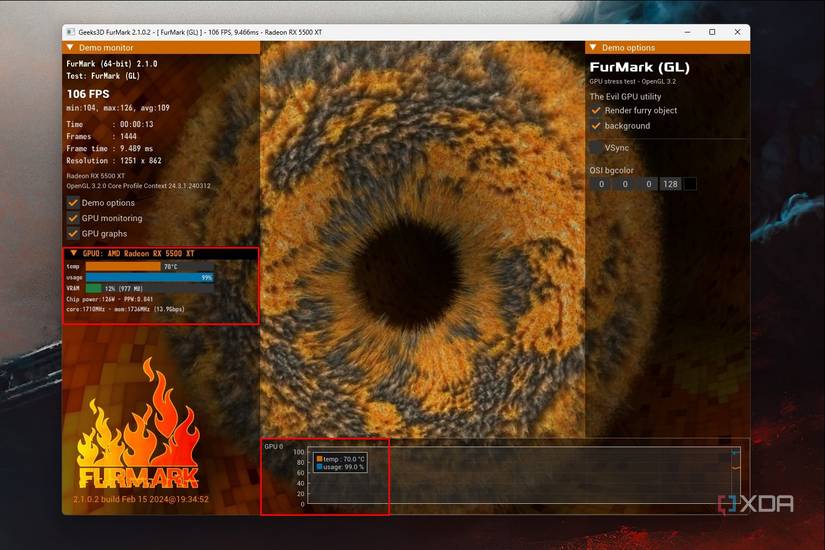
Monitoring tools track GPU temperature, usage, and clock speeds. Programs like MSI Afterburner and GPU-Z show real-time data. Watching these stats helps avoid overheating. It also shows if the GPU runs at full speed. Monitoring is useful during benchmarks and stress tests. It ensures the GPU stays safe and performs well.
Running Performance Tests
Running performance tests is a key step to check how well your GPU works. These tests show the speed, power, and stability of your graphics card. They help find any issues and compare your GPU to others. The process has three main parts: setting baseline metrics, running benchmark tests, and doing stress tests.
Setting Baseline Metrics
Start by noting your GPU’s normal performance. Check the current clock speed, temperature, and fan speed. Record the frame rate in your usual games or apps. This gives a clear idea of how your GPU works without extra load. Baseline data helps spot any changes after testing.
Executing Benchmark Tests
Use benchmark software to measure your GPU’s power. These tools run fixed tasks and score your GPU based on speed and quality. Popular benchmarks include 3DMark and Unigine Heaven. Compare your scores with typical results for your GPU model. This shows if your GPU performs as expected or needs attention.
Conducting Stress Tests
Stress tests push your GPU to its limits for a long time. They check stability and cooling under heavy load. Programs like FurMark work well for stress testing. Watch the temperature and fan noise during the test. Stop if the GPU gets too hot or crashes. Stress tests reveal hidden problems that normal use might miss.
Credit: www.blizanovy.cz
Analyzing Test Results
Analyzing test results is a key step after running GPU benchmarks. It helps you understand how well your GPU performs. This process shows if your GPU meets your needs or if it needs upgrades.
Clear analysis saves time and guides better decisions. The next sections explain how to read scores, find problems, and compare results.
Interpreting Benchmark Scores
Benchmark scores show your GPU’s speed and power. Higher scores mean better performance. Look at both average and peak scores for a full picture.
Focus on scores related to your tasks. Gaming, video editing, and 3D work have different needs. Scores help match your GPU to the job.
Identifying Performance Bottlenecks
Performance bottlenecks slow down your GPU’s output. Check for drops in frame rate or long rendering times. These signs show where the GPU struggles.
Temperature and power use also reveal issues. High heat or spikes in power consumption can limit performance. Fixing bottlenecks improves results.
Comparing Results With Standards
Compare your test scores with official or popular benchmarks. This shows if your GPU performs as expected. Use trusted sources for accurate standards.
Compare with similar GPUs to see where yours stands. This helps you decide if your GPU suits your needs or needs upgrading.
Troubleshooting Common Issues
Troubleshooting common GPU issues is key to keeping your graphics card working well. Problems like overheating, driver conflicts, and inconsistent performance can slow down or damage your system. Understanding how to spot and fix these problems helps you protect your GPU and enjoy smoother performance. This guide covers simple steps to handle these frequent issues.
Handling Overheating Problems
Overheating can cause your GPU to slow down or shut off. Check your GPU temperature using monitoring software. Clean dust from fans and vents to improve airflow. Make sure your computer case has good ventilation. Replace thermal paste if the GPU is old. Use a cooling pad or extra fans if needed. Avoid running heavy tasks for long periods without breaks.
Resolving Driver Conflicts
Driver conflicts often cause screen flickering or crashes. Uninstall old or corrupted GPU drivers completely. Download the latest drivers from the official GPU manufacturer website. Use a clean installation option if available. Restart your computer after installing new drivers. Avoid using third-party driver tools that might cause errors. Keep drivers updated to fix bugs and improve compatibility.
Dealing With Inconsistent Performance
Inconsistent GPU performance can mean slow frame rates or freezing. Close unnecessary background programs to free up resources. Check for malware that may slow down your system. Adjust your game or software settings for better balance. Update your GPU drivers regularly. Run performance tests to spot when and why issues occur. Consider upgrading hardware if problems persist.
Maintaining Optimal Gpu Performance
Keeping a GPU running well is key to good computer performance. A clean and updated GPU stays cooler and works faster. Small changes help avoid big problems. Simple tasks make a big difference over time.
Regular Cleaning And Maintenance
Dust blocks fans and slows cooling. Turn off the computer and open the case. Use a soft brush or air blower to remove dust. Clean the GPU fans and heat sink carefully. Check cables for secure connections. Do this every few months to keep airflow strong.
Updating Software And Firmware
Software updates fix bugs and improve speed. Visit the GPU maker’s website to find new drivers. Download and install the latest version. Firmware updates also help hardware work better. Regular updates keep your GPU stable and fast.
Adjusting Settings For Longevity
Lowering GPU clock speed reduces heat and wear. Use software tools to adjust fan speeds and power limits. Avoid running the GPU at full power all the time. Balanced settings extend the life of your GPU. Monitor temperatures and adjust settings as needed.
Credit: www.shoshitamam.com
Frequently Asked Questions
How Do I Check If My Gpu Is Working Properly?
Use software tools like GPU-Z or MSI Afterburner to monitor GPU health. Run stress tests with FurMark or 3DMark to check performance and stability.
What Is The Best Software To Test Gpu Performance?
3DMark and FurMark are popular tools for GPU benchmarking. They provide detailed reports on graphics card speed, temperature, and stability.
How Can I Identify Gpu Overheating Issues?
Monitor GPU temperature using HWMonitor or GPU-Z. If temperatures exceed 85°C under load, ensure proper cooling and clean dust from fans.
Can I Test A Gpu Without Specialized Software?
Yes, running graphically intensive games or applications can reveal GPU issues. Observe frame rates, artifacts, or crashes during gameplay.
Conclusion
Testing a GPU helps ensure it runs smoothly and meets your needs. Simple steps can show if it works well or has issues. Regular testing keeps your computer safe and fast. Use easy tools to check performance and temperature. Stay aware of signs that might mean problems.
A well-tested GPU supports better gaming and work. Take time to test before buying or upgrading. Clear results give confidence in your hardware choice. Keep your GPU healthy for longer use and fun.
