

Are you worried your CPU might not be working right? Knowing how to test a CPU can save you time, money, and frustration.
Whether your computer is running slow, crashing, or not turning on at all, checking your CPU is a smart first step. In this guide, you’ll learn simple and effective ways to test your CPU’s health and performance. By the end, you’ll feel confident spotting problems early and keeping your computer running smoothly.
Ready to find out if your CPU is up to the task? Let’s dive in.

Credit: recoverit.wondershare.com
Preparing For Cpu Testing
Preparing your computer before testing the CPU is very important. It helps get accurate results and keeps your hardware safe. Skipping preparation can cause errors or overheating issues.
This section covers key steps to get ready for CPU testing. Follow them carefully for a smooth process.
Gathering Required Tools
Collect all tools needed for the CPU test first. You will need software like CPU stress tests or benchmarking tools. Examples include Prime95, Cinebench, or AIDA64.
Also, have monitoring tools ready. These track temperature, clock speed, and CPU usage during the test. Popular choices are HWMonitor or Core Temp.
Make sure your computer’s power supply is stable and your system is plugged in. Uninterrupted power ensures the test runs without problems.
Ensuring Proper Cooling
CPU testing often pushes the processor to its limits. This causes it to heat up quickly. Proper cooling prevents damage and shutdowns during testing.
Check your CPU cooler is clean and working well. Remove dust from fans and heatsinks. Ensure the fan spins freely and the thermal paste is fresh.
Use additional cooling if needed. Place your PC in a cool room or use extra fans. Good airflow helps keep temperatures down.
Closing Background Applications
Background apps use CPU power and affect test accuracy. Close all unnecessary programs before starting the test.
Check the task manager for hidden apps running in the background. End tasks that are not essential.
Disable antivirus scans or other software that may start during testing. This keeps the CPU focused solely on the test.

Credit: softwareg.com.au
Choosing The Right Testing Software
Choosing the right software is key to test a CPU properly. Each program serves a different purpose. Picking the right one helps find the true strength and weaknesses of your processor.
Some tools focus on speed and performance. Others check stability under heavy load. Some simply watch the CPU’s health during use. Knowing what each type does makes testing easier and more accurate.
Benchmarking Tools
Benchmarking tools measure CPU speed and performance. They run set tasks and score your processor. Scores help compare your CPU with others. This shows how well your processor handles everyday tasks.
Stress Testing Programs
Stress tests push your CPU to the limit. They create heavy workloads that make the processor work hard. This reveals if the CPU can stay stable under pressure. Stress tests find overheating and crashing problems.
Monitoring Utilities
Monitoring software tracks CPU temperature and usage. It shows real-time data while testing or normal use. This helps spot overheating or power issues fast. Monitoring tools keep your CPU safe and healthy.
Running Basic Performance Tests
Running basic performance tests on a CPU helps measure its speed and efficiency. These tests show how well the processor handles tasks. They also reveal if the CPU works as expected under normal conditions.
Start with simple tests to check the CPU’s core functions. These tests are quick and give a clear idea of the processor’s real power. They focus on speed and how the CPU manages multiple tasks.
Cpu Speed And Frequency Check
CPU speed shows how fast the processor runs. It is measured in gigahertz (GHz). Higher speed means the CPU can handle more instructions per second.
Use software tools to see the current CPU frequency. These tools show the base and boost speeds. The base speed is the normal running speed. The boost speed is the maximum speed under heavy load.
Checking CPU speed helps find problems like overheating or throttling. Throttling lowers speed to prevent damage. If the CPU speed is lower than expected, it may need cleaning or better cooling.
Single-core Vs Multi-core Tests
CPUs have one or more cores. Each core can work on tasks separately. Single-core tests measure the performance of one core. They help understand how the CPU handles simple tasks.
Multi-core tests measure how well all cores work together. These tests show the CPU’s power for multitasking and complex programs. Multi-core performance is important for video editing, gaming, and software development.
Running both tests gives a complete view of the CPU’s strengths. It helps choose the right CPU for everyday use or heavy work.
Conducting Stress Tests Safely
Conducting stress tests safely is key to checking your CPU’s real power. Stress tests push your CPU hard to find any problems. Done right, these tests show if your CPU can handle heavy use without damage.
Stress tests need careful control. Running tests too long or ignoring heat can harm your CPU. Follow clear steps to keep your CPU safe while testing.
Setting Test Duration
Choose a test length that is long enough to check stability but not too long. A good start is 30 minutes to 1 hour. This time reveals if the CPU can handle constant load. Avoid running tests for many hours unless you are experienced. Too long can cause overheating and damage.
Monitoring Temperature And Stability
Keep an eye on the CPU temperature during the test. Use software tools to watch heat levels closely. Stop the test if the temperature gets too high, usually above 85°C. Also, watch for crashes or errors. These signs mean the CPU is struggling. Keeping temperature and stability in check protects your CPU from harm.
Analyzing Test Results
Analyzing test results is a key step in understanding CPU performance. It helps you see how well the processor handles tasks. This analysis guides you in making better decisions about upgrades or troubleshooting. Clear insight into the results ensures that you get the most from your CPU tests.
Interpreting Benchmark Scores
Benchmark scores show how fast your CPU runs specific tasks. Higher scores mean better performance. Compare scores with similar CPUs to know where yours stands. Look for consistent results across multiple tests. Sudden drops or spikes might indicate issues. Scores alone do not tell the full story, but they provide a solid reference point.
Identifying Performance Bottlenecks
Bottlenecks slow down the CPU and affect overall speed. Check if the CPU temperature is too high during tests. Overheating can cause the processor to throttle its speed. Monitor memory and disk usage as they also impact CPU performance. Pinpointing the bottleneck helps you fix or upgrade the right component. This step improves your system’s balance and efficiency.
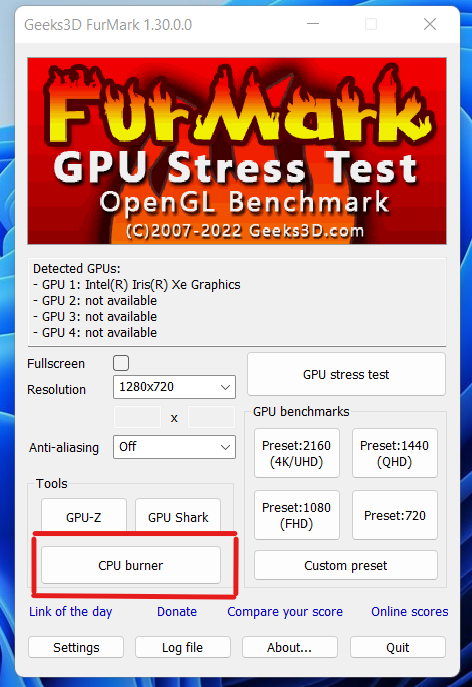
Credit: support.punchtechnology.co.uk
Troubleshooting Common Cpu Issues
Troubleshooting common CPU issues is essential to keep your computer running smoothly. Many problems stem from overheating and system crashes. Knowing how to identify and fix these issues saves time and prevents damage. This section covers simple steps to handle these challenges effectively.
Handling Overheating Problems
Overheating can harm your CPU and reduce performance. First, check if your computer feels hot or the fan runs loudly. Dust buildup often blocks airflow. Clean the vents and fans gently with compressed air.
Make sure your CPU cooler is properly attached. Thermal paste between the CPU and cooler helps transfer heat. Old or dried paste needs replacement. Use a small amount and spread it evenly.
Keep your computer in a cool, ventilated area. Avoid placing it near heat sources or in tight spaces. Monitoring CPU temperature with free software can alert you to overheating early.
Dealing With System Crashes
System crashes often relate to CPU issues or software conflicts. Check for error messages or blue screens that show specific codes. These codes help identify the problem.
Run a CPU stress test to see if the processor handles heavy loads. If crashes happen during testing, your CPU might be faulty or overheating. Update your computer’s drivers and BIOS for stability.
Faulty RAM or power supply can also cause crashes. Test memory using built-in tools and ensure your power supply delivers stable voltage. Regular system updates and malware scans improve reliability.
Maintaining Cpu Performance
Maintaining CPU performance is key to keeping your computer running smoothly. The CPU works best when it stays cool and has updated software support. Neglecting these aspects can slow down your system or cause crashes. Simple steps can help keep your CPU in good shape and extend its life.
Regular Cleaning And Cooling
Dust and dirt block air vents and fans. This causes the CPU to overheat and slow down. Clean your computer case and fans often. Use compressed air to remove dust from vents and heatsinks. Check that all fans work properly. Good airflow keeps the CPU cool. Cooler CPUs perform better and last longer.
Updating Drivers And Bios
CPU performance depends on the right software. Drivers control how the CPU talks to other parts. BIOS is the system firmware that helps start your PC. Update your drivers regularly from the official website. Also, check for BIOS updates from your motherboard maker. Updates fix bugs and improve compatibility. This keeps your CPU running efficiently and stable.
Frequently Asked Questions
How Do I Check If My Cpu Is Working Properly?
To check your CPU, use stress test software like Prime95 or IntelBurnTest. Monitor temperatures and performance during the test. High temps or crashes indicate potential CPU issues.
What Tools Can I Use To Test Cpu Performance?
Popular tools include Cinebench, Geekbench, and CPU-Z. These benchmark software measure your CPU’s speed, cores, and overall performance accurately.
How Do I Test Cpu Temperature Safely?
Use monitoring tools like HWMonitor or Core Temp. Run your CPU under normal load and check if temperatures stay below 80°C to avoid damage.
Can Windows Task Manager Help Test My Cpu?
Yes, Task Manager shows CPU usage and speed in real-time. It helps identify unusual spikes or performance drops during tasks.
Conclusion
Testing a CPU helps you find problems early and keep your computer healthy. Use simple tools and follow clear steps for accurate results. Check temperatures, run stress tests, and watch for errors. Regular testing can save time and money. Stay patient and careful while testing.
This way, your CPU works well and lasts longer. Keep learning to improve your skills over time. Testing a CPU does not need to be hard or confusing. Try these tips and keep your system running smoothly.
