
Are you wondering how to find out what kind of RAM your Mac has? Knowing your Mac’s RAM details can help you understand its speed, performance, and whether an upgrade might be needed.
But if you’re not sure where to look or what to check, it can feel confusing. Don’t worry—this guide will show you simple steps to quickly see your Mac’s RAM information. By the end, you’ll know exactly what your RAM is and how it affects your Mac’s performance.
Let’s get started!
Check Ram Using About This Mac
Checking your RAM on a Mac is simple with the “About This Mac” feature. It shows basic information about your computer’s memory quickly. This method helps you find out how much RAM your Mac has. No need to use complicated tools or apps.
Accessing About This Mac
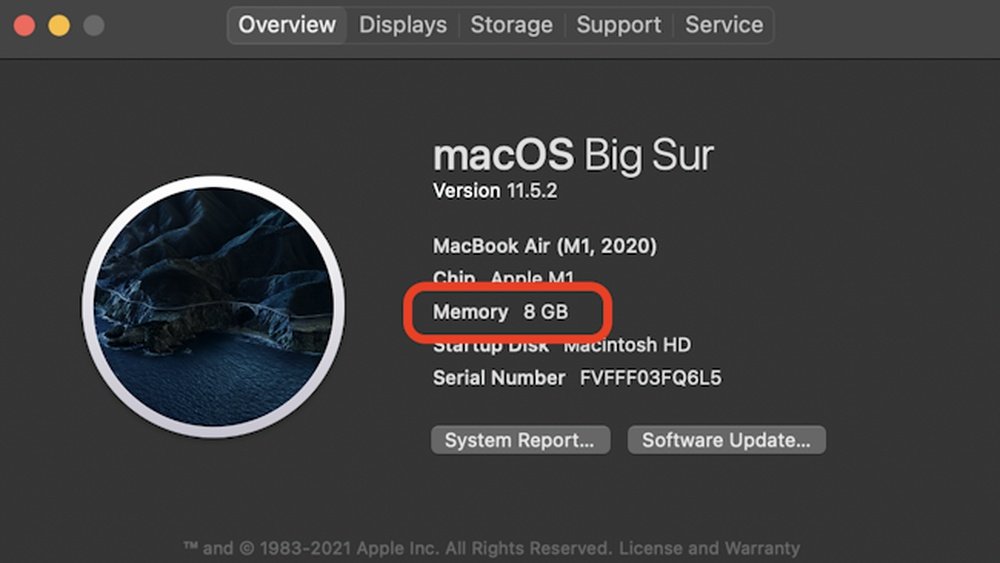
Click the Apple logo at the top-left corner of your screen. Select “About This Mac” from the drop-down menu. A new window will open with details about your Mac. This is the starting point to check your RAM.
Locating Memory Information
In the “About This Mac” window, find the “Overview” tab. Look for the “Memory” section listed here. It shows the total RAM installed on your Mac. You can see the size in gigabytes (GB). This lets you know how much memory your Mac uses.

Credit: www.ubergizmo.com
View Ram Details With System Report
Checking your Mac’s RAM details helps you understand your computer’s memory capacity. The System Report on Mac provides clear information about your RAM. It shows the type, size, and speed of the memory installed. This method gives more detailed info than the basic About This Mac window.
Accessing the System Report is simple and does not require extra software. It is useful for troubleshooting or planning upgrades. Follow the steps below to find your RAM details using the System Report.
Opening System Report
Click the Apple menu in the top-left corner of your screen. Select “About This Mac” from the dropdown. A window will appear showing basic info about your Mac.
Click the “System Report” button in this window. The System Information app will open, showing a detailed overview of your Mac’s hardware and software.
Navigating To Memory Section
In the System Information window, look at the sidebar on the left. Find and click on the “Memory” section under Hardware.
This section lists detailed RAM information. It shows the size of each memory slot and the total installed RAM. You can also see the type and speed of your RAM modules here.
Use Activity Monitor For Ram Usage
Checking your Mac’s RAM usage helps you understand how your computer works. The Activity Monitor is a built-in tool that shows real-time memory use. It helps you see which apps use the most RAM. This guide explains how to use Activity Monitor to check your Mac’s RAM.
Launching Activity Monitor
Open the Finder on your Mac. Go to the Applications folder. Find and open the Utilities folder. Click on Activity Monitor to launch it. You can also press Command + Space. Then type “Activity Monitor” and press Enter. The Activity Monitor window will appear on your screen.
Analyzing Memory Tab
Inside Activity Monitor, click the Memory tab at the top. This tab shows detailed information about RAM use. Look at the “Memory Used” to see total RAM in use. Check “Cached Files” to know how much RAM is free but ready to use. The “Swap Used” tells if your Mac uses disk space as extra memory. High swap use means low free RAM. Use this data to understand your Mac’s memory health.
Check Ram Via Terminal Commands
Checking your Mac’s RAM using Terminal commands is quick and clear. The Terminal lets you see detailed system info without extra apps. This method works on all Mac models and macOS versions. It helps you find exact memory size and other RAM details.
Using Sysctl Command
Open Terminal from the Utilities folder or Spotlight search. Type sysctl hw.memsize and press Enter. This command shows your Mac’s total RAM in bytes. It’s a simple way to get the memory size fast. No extra steps, just one command.
Interpreting Terminal Output
The output number is the RAM size in bytes. Divide this number by 1,073,741,824 to get gigabytes (GB). For example, 8589934592 bytes equals 8 GB. This helps you understand your Mac’s memory capacity easily. Use this info to check if you have enough RAM for your needs.
Identify Ram Type And Speed
Mac users can check their RAM type and speed easily through the System Information app. Just open it and select “Memory” to see details about your RAM. This helps you know what kind of memory your Mac uses and its performance.
Finding Ram Specifications
Knowing your Mac’s RAM type and speed helps with upgrades and performance checks.
Start by clicking the Apple menu at the top-left corner of your screen.
Select “About This Mac” from the dropdown menu. A window will open.
Click the “System Report” button to see detailed hardware info.
In the new window, find and click “Memory” in the sidebar.
Here, you will see your RAM type, like DDR3 or DDR4, and its speed in MHz.
This section shows the size of each memory module too.
Using Third-party Apps
Third-party apps give more detailed RAM information quickly.
Apps like Mactracker or CPU-Z provide easy-to-read memory specs.
Download and install one from a trusted source.
Open the app and navigate to the memory or RAM section.
These apps show RAM type, speed, and sometimes timings.
They also offer info about your Mac model and other hardware.
Use these tools to confirm what your Mac reports or to get extra details.
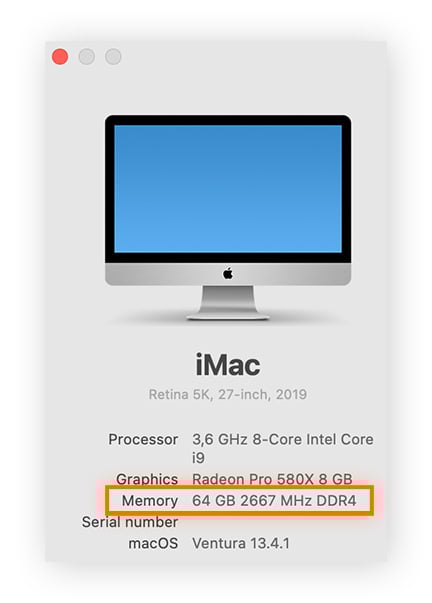
Credit: www.avast.com
Upgrade Ram On Mac
Upgrading RAM on your Mac can boost its speed and performance. More RAM helps your Mac run apps smoothly and handle more tasks. Before upgrading, know your Mac’s RAM limits and compatibility. Some Mac models allow easy RAM upgrades, while others do not. This guide helps you check if your Mac can be upgraded and shows simple steps to do it.
Checking Upgrade Compatibility
Start by finding your Mac model and year. Click the Apple logo, then select “About This Mac.” Note the model name and year shown. Visit Apple’s support site to see your model’s RAM upgrade options. Check the maximum RAM your Mac can support. Some newer Macs have RAM soldered on the motherboard. These models cannot be upgraded. Older Macs usually have removable RAM slots. Confirm the type and speed of RAM your Mac uses.
Steps To Upgrade Ram
Turn off your Mac and unplug all cables. Place it on a clean, flat surface. Open the back cover or bottom panel carefully. Ground yourself to avoid static damage. Locate the RAM slots and release the clips holding the RAM sticks. Gently remove the old RAM sticks. Insert new RAM modules firmly into the slots. Make sure they click into place. Close the cover securely and reconnect cables. Turn on your Mac and check the new RAM under “About This Mac.” Your Mac should now run faster with more memory.

Credit: www.youtube.com
Frequently Asked Questions
How Can I Check Ram Size On My Mac?
You can check RAM size by clicking the Apple menu, then “About This Mac. ” Under the “Overview” tab, it shows your memory details clearly.
Where To Find Ram Type On Mac?
Go to “About This Mac,” then “System Report. ” Under “Memory,” you’ll see the type and speed of your RAM.
Can I Upgrade Ram On My Mac?
Some Mac models allow RAM upgrades, but many newer ones have soldered RAM. Check your model’s specifications before attempting an upgrade.
Why Is Knowing Mac Ram Important?
Knowing your RAM helps in troubleshooting, upgrading, and optimizing performance. It ensures your Mac runs smoothly with your applications.
Conclusion
Knowing your Mac’s RAM helps keep your computer running smooth. Checking it is quick and easy. You just need a few clicks to find the info. This guide showed simple steps anyone can follow. Now, you can decide if your Mac needs more memory.
Remember, a well-maintained Mac works faster and lasts longer. Keep your system updated and clean for best results. Understanding your RAM is a smart step for better computer use. You have the power to check it anytime you want.
