
Are you curious about what GPU powers your computer? Knowing exactly which graphics card you have can help you make smarter decisions—whether you’re gaming, designing, or just upgrading your system.
But finding this info isn’t always straightforward. Don’t worry—you’re about to learn simple, clear steps to identify your GPU quickly. By the end of this article, you’ll feel confident understanding your hardware and ready to take the next step with your computer.
Keep reading to unlock the secrets of your GPU!
Check System Information
Checking your system information is an easy way to find out which GPU your computer has. Every operating system offers built-in tools to view hardware details. These tools show the exact model and specifications of your graphics card. This method does not require extra software or technical skills. Follow the steps for your operating system below to discover your GPU quickly.
Using Windows System Settings
Open the Start menu and click on Settings. Select System, then choose Display from the sidebar. Scroll down and click on Advanced display settings. Under Display information, you will see the name of your GPU next to “Display adapter.” This shows your current graphics card. Another way is to use Task Manager. Press Ctrl + Shift + Esc to open it. Click on the Performance tab and select GPU. Here, you can see your GPU’s name and usage details.
Using Macos About This Mac
Click the Apple logo on the top left corner of your screen. Select About This Mac from the dropdown menu. A window will open showing your Mac’s overview. Look for the Graphics section. It lists the GPU model installed in your Mac. You can also click on System Report for more detailed hardware information. Then, select Graphics/Displays on the sidebar to see full GPU details.
Accessing Linux System Details
Open a terminal window. Type the command lspci | grep VGA and press Enter. This command lists your graphics card info. Another command is lshw -C display. It shows detailed GPU data but requires root permission. You can also check settings in your desktop environment. For example, in Ubuntu, go to Settings > About. The Graphics section displays your GPU name. These methods work for most Linux distributions.
Credit: breezeresidency.com
Use Device Manager On Windows
Checking your GPU on Windows is simple with Device Manager. This tool shows details about your computer’s hardware. It helps identify which graphics card your system uses. No extra software needed. Just a few clicks.
Navigating To Device Manager
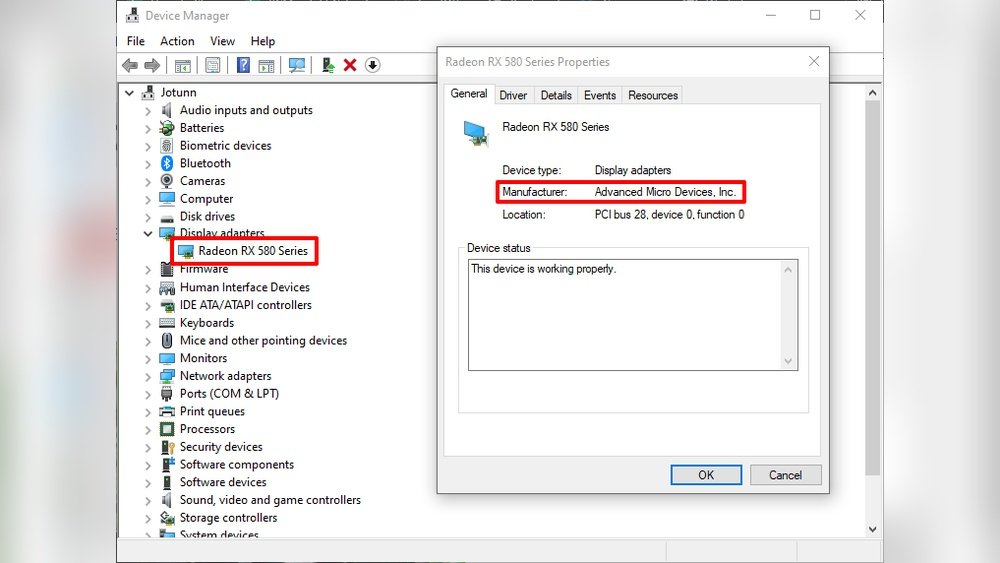
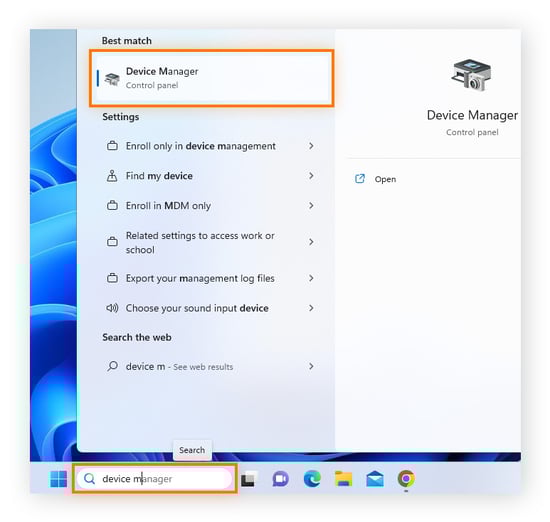
First, press the Windows key on your keyboard. Then type “Device Manager” in the search bar. Click on the Device Manager app that appears. You will see a list of hardware categories. Find and click the arrow next to “Display adapters.”
Identifying Your Gpu Model
Under “Display adapters,” your GPU name appears. This is your graphics card model. It might say something like “NVIDIA GeForce” or “AMD Radeon.” Right-click on the name and select “Properties” for more details. The “Driver” tab shows the driver version and date.
Leverage Graphics Control Panels
Graphics control panels help identify your GPU quickly. These tools come with your graphics card drivers. They show detailed information about your GPU model and settings. Using them is one of the easiest ways to check your graphics card.
Nvidia Control Panel
The NVIDIA Control Panel displays your GPU information clearly. Open it by right-clicking on your desktop and selecting it. Look under the “System Information” or “Help” tab. You will see your GPU name, model, and other specs.
Amd Radeon Settings
AMD Radeon Settings offers a simple way to find your GPU details. Right-click on the desktop and choose “AMD Radeon Settings.” Navigate to the “System” tab. Here, your graphics card name and driver version are listed.
Intel Graphics Command Center
Intel Graphics Command Center shows GPU info for Intel integrated graphics. Open it from the Start menu or search bar. The main screen displays your GPU model and driver details. This tool helps identify your Intel graphics hardware easily.

Credit: breezeresidency.com
Run Command Line Tools
Running command line tools is a quick way to find out what GPU your computer has. These tools work on different operating systems and show detailed information about your graphics card. You do not need extra software. Just a few simple commands in the command prompt or terminal.
Using command line tools helps you get exact GPU details. This method is helpful for troubleshooting or checking specs before installing new software or games.
Windows Command Prompt Commands
Open the Command Prompt by typing cmd in the Start menu. Then type wmic path win32_videocontroller get name and press Enter. The command will display the name of your GPU. You can also use dxdiag to open the DirectX Diagnostic Tool. Look under the Display tab for GPU details.
Macos Terminal Commands
Open the Terminal app from Applications > Utilities. Type system_profiler SPDisplaysDataType and press Enter. This command lists information about your graphics card. Look for the “Chipset Model” line to find your GPU name. It shows detailed info about the graphics hardware.
Linux Terminal Commands
Open your terminal window. Type lspci | grep VGA and press Enter. This shows the graphics card connected to your system. For more detail, use glxinfo | grep "OpenGL renderer". It gives the name of the GPU used for rendering. These commands work in most Linux distributions.
Third-party Software Options
Third-party software tools help identify your GPU quickly. These apps give detailed information about your graphics card. You do not need technical skills to use them. They work on different versions of Windows and provide easy-to-read data. Here are some popular options that many users trust.
Gpu-z For Windows
GPU-Z is a free tool designed specifically for GPUs. It shows your graphics card model, memory size, and clock speeds. The interface is simple and clear. You can see real-time data about your GPU’s performance. It supports most NVIDIA, AMD, and Intel graphics cards. GPU-Z helps confirm the exact GPU installed in your system.
Speccy For System Info
Speccy gives a full overview of your computer’s hardware. It lists CPU, RAM, motherboard, and GPU details. The GPU section shows the model name and driver version. Speccy’s clean layout makes it easy for beginners. You can save reports to share or keep for future use. It works well on all Windows editions.
Cpu-z For Hardware Details
CPU-Z is famous for CPU info but also shows GPU data. The Graphics tab displays the GPU name and manufacturer. It provides basic info on memory type and size. CPU-Z is lightweight and fast to install. It works best for users who want quick hardware checks. The tool supports most desktop and laptop systems.
Credit: vixencomposites.com
Check Physically On The Gpu
Checking your GPU physically is one of the simplest ways to know what graphics card you have. This method helps you see the exact model without using software. It works well for desktops because the GPU is inside the case. You just need to open your PC case carefully. Then, you can find the model information directly on the card.
Opening Your Pc Case Safely
First, turn off your PC and unplug it from the power source. This step is important for your safety. Next, place your PC on a flat surface with enough light. Find the screws or latches that hold the side panel in place. Remove the panel gently. Avoid touching any parts inside the PC except the GPU. Ground yourself to avoid static damage. You can do this by touching a metal part of the case.
Locating Model Information On The Card
Look inside the case for a large card near the CPU and memory slots. This card is the graphics card. The model name is usually printed on the side or top of the card. It may also have stickers with the brand and model number. Sometimes, the fan shroud shows the card name. Write down the model information you find. This helps you search for details or drivers later.
Identify Gpu In Laptops
Knowing which GPU your laptop has can help with many tasks. It affects gaming, video editing, and software performance. Identifying your GPU is easier than you think. There are simple ways to find this information. This guide explains two main methods to identify the GPU in your laptop.
Using System Tools
Most laptops have built-in tools to check hardware details. On Windows, open the Task Manager by pressing Ctrl + Shift + Esc. Click the “Performance” tab and select “GPU” from the sidebar. You will see the GPU name and usage details.
Another option is the DirectX Diagnostic Tool. Press Windows + R, type “dxdiag”, and hit Enter. Go to the “Display” tab. Here, the GPU model and manufacturer appear clearly. This method works without extra software.
Consulting Manufacturer Specs
Laptop manufacturers list GPU information on their websites. Find your laptop model number on the bottom or in the system settings. Search this model on the official site. The product page usually shows detailed specs, including the GPU.
This method is useful when system tools are unclear or unavailable. You get exact GPU details as originally installed. It helps to verify if your laptop has a dedicated or integrated graphics card.
Frequently Asked Questions
How Can I Check My Gpu On Windows 10?
Open the Device Manager, expand “Display adapters,” and see the GPU name listed there. Alternatively, use Task Manager’s Performance tab for GPU details.
How To Find Gpu Details On A Mac Computer?
Click the Apple menu, select “About This Mac,” then click “System Report. ” Under “Graphics/Displays,” you’ll find your GPU information.
What Software Shows Detailed Gpu Specifications?
Programs like GPU-Z, Speccy, and HWMonitor display detailed GPU specs and performance data in an easy-to-understand format.
Can I Identify My Gpu Using Command Prompt?
Yes, run the command wmic path win32_VideoController get name in Command Prompt to see your GPU name on Windows.
Conclusion
Knowing your GPU helps you choose the right software and games. Check your system’s settings or use simple tools to find it fast. This knowledge saves time and avoids confusion when upgrading or troubleshooting. Keep your drivers updated for better performance.
Now, you can easily tell what GPU you have. Stay confident and enjoy your computer experience.
