

Are you curious about the CPU cooler inside your computer but don’t know where to start? Knowing exactly what cooler you have can help you understand your system’s performance and decide if an upgrade is needed.
You’ll discover simple and effective ways to identify your CPU cooler quickly—no technical jargon, no confusion. By the end, you’ll feel confident about your hardware and ready to make smart choices for your PC. Keep reading to unlock the secrets of your CPU cooler!
Identify Your Cpu Cooler Model
Identifying your CPU cooler model helps with maintenance and upgrades. It tells you about compatibility and performance. This knowledge saves time and avoids mistakes when buying parts.
Finding the exact model is easy with a few simple steps. Look closely at your cooler and use some tools. Here are three ways to identify your CPU cooler model.
Check Manufacturer Labels
Most CPU coolers have labels from the maker. Look for stickers or print on the cooler itself. These labels show the brand and model number.
Labels can be on the fan, heatsink, or base of the cooler. Clean the area gently to read the text clearly. Write down the model name or number for reference.
Look For Serial Numbers
Serial numbers help identify specific cooler units. Find the serial number on the label or etched into the metal. It often includes a model code embedded in it.
Search the serial number online along with the manufacturer’s name. This will lead to product details and specifications. Serial numbers are unique and precise for identification.
Use Cpu Cooler Software
Some CPU coolers come with software for monitoring. This software often shows the cooler model and status. Install the software from the manufacturer’s website.
Run the program and check the system information tab. The cooler model and fan speed usually appear there. Software tools provide a quick and easy way to identify your cooler.
Inspect Cpu Cooler Physically
To find out what CPU cooler you have, start by inspecting it physically. This step gives clear clues about the cooler’s type and model. You do not need special tools, just a careful look inside your computer case. Open the case gently and observe the cooler attached to the CPU. Take your time to notice details on its shape and parts. These observations help identify the cooler accurately.
Examine Cooler Design
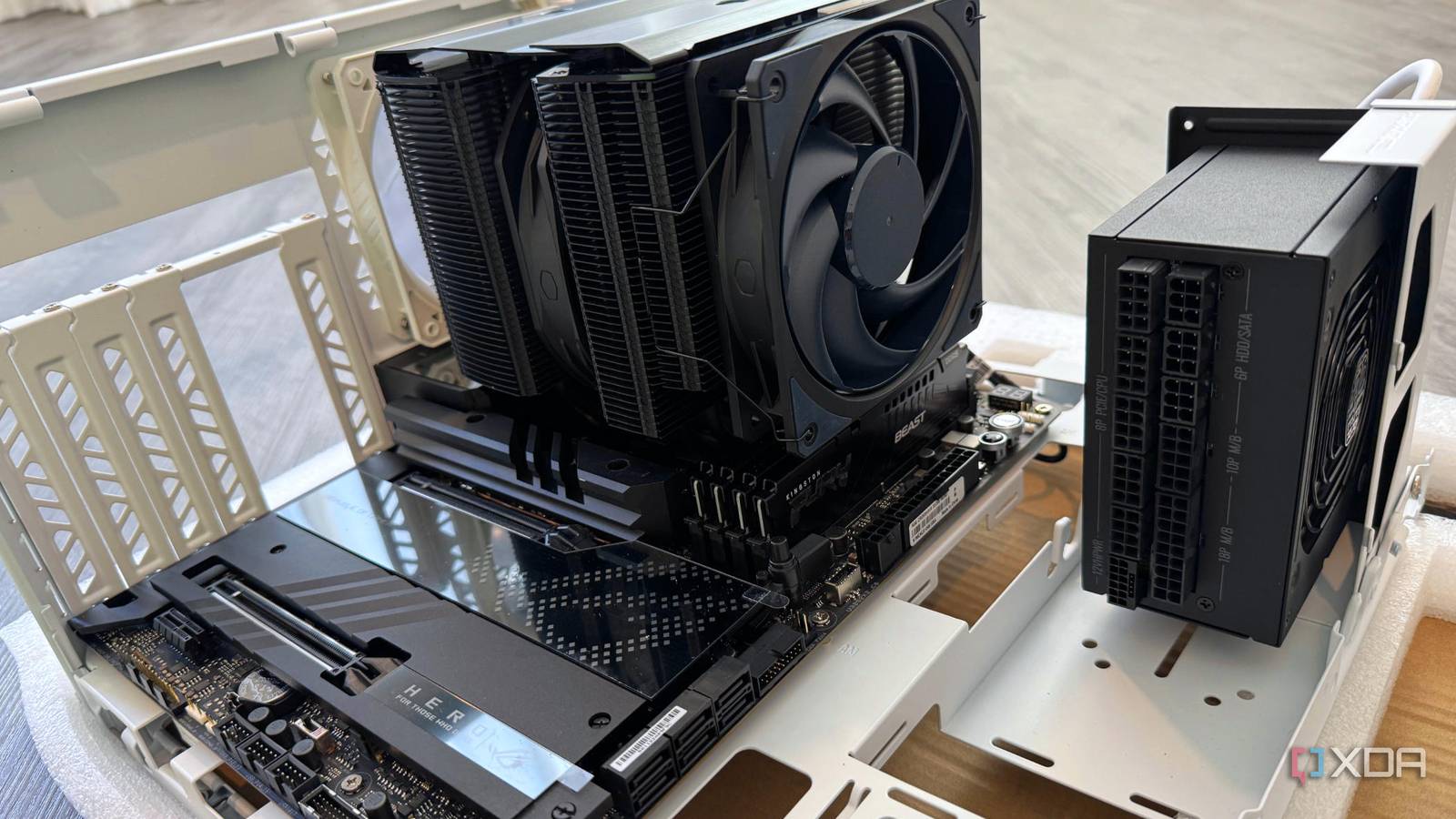
Look closely at the cooler’s overall design. Some coolers are simple with a small fan on a metal block. Others have large heatsinks with many fins. Air coolers usually have a metal heat sink with a fan on top or side. Liquid coolers have tubes connected to a small radiator. Spotting these features helps classify your cooler type quickly.
Note Fan Size And Shape
Check the fan attached to the cooler. Measure its size roughly by counting the blades or comparing it to the CPU socket nearby. Fans can be round or square and vary in size from 80mm to 140mm or more. The fan shape and size give clues about the cooler’s brand or model family. Some brands use unique fan designs that stand out.
Observe Heat Pipe Configuration
Heat pipes are thin metal tubes running through the cooler. They carry heat away from the CPU to the fins. Count how many pipes there are and how they curve. Some coolers have straight pipes, others curve around the heatsink. The arrangement and number of heat pipes can narrow down your cooler’s make. This detail helps identify it more precisely.
Use System Information Tools
System information tools help identify your CPU cooler without opening your PC. They show details about hardware inside your computer. These tools are easy to use and give quick results. This section explains how to use three common system tools to find your CPU cooler type.
Access Bios Or Uefi
Start your computer and enter BIOS or UEFI settings. This happens by pressing a key like F2, Delete, or Esc right after powering on. Inside BIOS, look for hardware or temperature sections. Some BIOS versions list the CPU cooler model or fan speed here. This method gives direct info from your motherboard.
Run Hardware Monitoring Software
Install hardware monitoring software on your PC. Programs like HWMonitor or SpeedFan check cooling devices and temperatures. These apps show fan speeds and sometimes cooler types. They are user-friendly and update info in real time. Use this to verify if your cooler is working well.
Use Third-party Cpu Identification Apps
Download CPU identification apps such as CPU-Z or Speccy. These apps scan your CPU and related parts. They provide detailed specs about the processor and cooling system. Some apps also display the cooler brand and model. They are small, free, and easy to run.

Credit: softwareg.com.au
Check Pc Documentation And Receipts
Checking your PC documentation and receipts is a simple way to find out what CPU cooler you have. These documents often include detailed information about your computer’s parts. They help you identify the exact model without opening your case or guessing.
These records are usually saved when you buy a PC or parts. They show the components installed at purchase time. This method saves time and reduces errors in identifying your cooler.
Review Purchase Records
Look at your purchase receipts or invoices. They often list the CPU cooler included in your order. If you bought your PC or cooler online, check your email for order details. Retail websites usually send a summary of the items you bought. This record can tell you the brand and model of your cooler.
Check Pc Build Sheets
PC build sheets are documents that detail every part inside your computer. They are common if you bought a custom-built PC. These sheets list the CPU cooler along with other hardware. Find the build sheet saved as a PDF or printed copy. It gives clear information about your cooler’s make and model.
Consult Manufacturer Website
Visit the website of your PC or cooler manufacturer. Use your PC’s model number to search for detailed specs. Most manufacturers provide full parts lists online. This helps you confirm the exact CPU cooler model installed. Manufacturer sites also offer manuals and support guides.
Compare With Popular Cpu Coolers
Compare your CPU cooler with popular models to identify it easily. Many coolers share common shapes and designs. Recognizing these helps you find the right match. Check the size, shape, and fan style of your cooler. Then, compare these with well-known CPU coolers.
Review Common Air Coolers
Air coolers use fans and heat sinks to cool the CPU. Some popular air coolers include Cooler Master Hyper 212 and Noctua NH-D15. These have distinct fan styles and heat sink fins. Note the number of fans and their size on your cooler. Also, check if the cooler has copper heat pipes or aluminum fins. This information helps narrow down your cooler model.
Look Into Popular Liquid Coolers
Liquid coolers use water blocks and tubes to move heat. Models like Corsair H100i or NZXT Kraken are common. They have tubes connecting the CPU block to a radiator. Check if your cooler has visible tubes and a pump. Look at the radiator size and fan count. This will guide you to the right liquid cooler match.
Match Features And Specifications
Compare your cooler’s features with product specs online. Look at fan speed, noise levels, and cooling capacity. Also, check the mounting system and socket compatibility. Match these details with your cooler’s appearance. This method helps confirm the exact model you have.

Credit: www.youtube.com
Tips For Maintaining Cpu Cooler
Keeping your CPU cooler in good shape helps your computer run smoothly. Dirt and dust can block airflow and cause overheating. Simple care steps keep your cooler working well and extend its life.
Follow these tips to maintain your CPU cooler and avoid common problems.
Regular Cleaning
Turn off your computer and unplug it before cleaning. Use a soft brush or compressed air to remove dust from the cooler. Clean the fan blades and heat sink gently. Do this every few months to keep dust from building up.
Check Fan Operation
Watch your CPU fan while the computer is on. Make sure it spins smoothly and quietly. Listen for strange noises or shaking. A faulty fan can cause overheating and damage the CPU. Replace the fan if it does not work properly.
Replace Thermal Paste
Thermal paste helps heat transfer from the CPU to the cooler. It can dry out over time and lose effectiveness. Remove the cooler carefully, clean off old paste with alcohol, and apply new paste in a thin layer. Do this every 1-2 years for best cooling.
Credit: www.xda-developers.com
Frequently Asked Questions
How Can I Identify My Cpu Cooler Model?
Check your PC manual or manufacturer’s website for exact cooler details. Alternatively, inspect the cooler physically for brand and model labels. Using system info tools like CPU-Z may also help detect cooler specifications.
What Tools Help Detect My Cpu Cooler Type?
Use software like HWMonitor or Speccy to gather hardware details. These tools can provide information about your CPU cooler type and temperature performance. Physical inspection remains the most accurate method.
Can I Tell Cpu Cooler By Its Appearance?
Yes, CPU coolers have distinct designs like air or liquid cooling. Air coolers usually have a large heatsink with fans, while liquid coolers have tubes and a radiator. Identifying features help distinguish the cooler type.
Why Is Knowing My Cpu Cooler Important?
Knowing your CPU cooler helps optimize cooling performance and upgrade decisions. It ensures compatibility with your CPU and case. Proper identification prevents overheating and system instability issues.
Conclusion
Knowing your CPU cooler helps keep your computer running well. Check its shape, size, and fan type carefully. Use software tools or look inside your PC for details. This small step can avoid overheating and improve performance. Always keep your cooler clean and working.
Now, you can identify your cooler with ease. Take good care of your CPU and stay safe. Simple actions make a big difference in computer health.
