
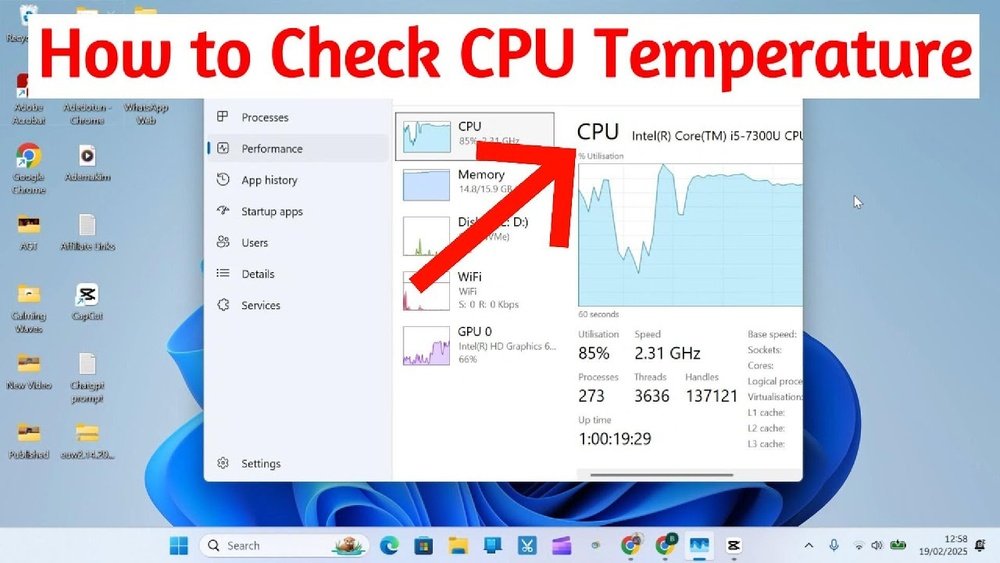
Are you worried that your computer is running too hot? Knowing how to tell the temp of your CPU is key to keeping your system safe and fast.
If your CPU gets too hot, it can slow down, crash, or even get damaged. But don’t worry—you don’t need to be a tech expert to check this. You’ll learn simple, clear steps to monitor your CPU temperature easily. Stay with me, and you’ll soon be able to protect your computer and boost its performance like a pro.
Why Monitor Cpu Temperature
Monitoring your CPU temperature is very important for your computer’s health. The CPU works hard to run programs and process data. It produces heat while working. Too much heat can cause serious problems. Knowing the temperature helps you keep the CPU safe. It also helps the computer run smoothly and last longer.
Risks Of Overheating
Overheating can damage your CPU and other parts. The heat may cause the computer to shut down suddenly. It can also lead to permanent damage. Some parts may stop working properly. Overheating can cause data loss and system crashes. It puts your whole computer at risk.
Impact On Performance
High temperatures make the CPU slow down. It lowers the speed to reduce heat. This is called thermal throttling. Your programs and games may lag or freeze. The computer will not work as fast as it should. Keeping the CPU cool keeps your system running well.
Longevity Of Components
Heat shortens the life of your CPU and parts. Constant high temperature breaks down materials inside the CPU. It causes wear and tear faster than normal. A cool CPU lasts longer and works better. Proper temperature control saves money on repairs and replacements.
Tools To Check Cpu Temperature
Knowing your CPU temperature helps keep your computer safe and fast. High temperatures can cause damage or slow down your system. Several tools can check your CPU temperature. These tools vary in ease and detail. Some are built into your computer. Others need software or extra devices. Let’s explore the main options to monitor CPU heat.
Built-in Bios/uefi Options
Your computer’s BIOS or UEFI shows basic CPU temperature info. You can access it during startup by pressing a key like F2 or Delete. This tool gives a quick look at your CPU heat without extra software. It shows real-time readings but lacks detailed history or alerts. BIOS/UEFI is simple but only for checking occasionally.
Third-party Software
Many free apps offer detailed CPU temperature data. Popular programs include HWMonitor, Core Temp, and SpeedFan. These tools show live temperatures and record changes over time. They also monitor other parts like GPU and motherboard. Some apps send alerts if your CPU gets too hot. Easy to install and use, these programs work well for daily checks.
Hardware Monitoring Devices
External devices provide direct temperature readings from your CPU. These tools often include small sensors placed near the CPU socket. They connect to your PC via USB or other ports. Hardware monitors give very accurate and constant temperature info. They are great for users who want precise control and data. This option is common for overclockers and tech enthusiasts.
Step-by-step Temperature Check
Knowing your CPU temperature helps keep your computer safe. Overheating can cause damage or slow down your system. Checking the temperature regularly is smart and easy. Follow these simple steps to find your CPU temperature and understand what the numbers mean.
Accessing Bios/uefi Temperature Readings
Turn off your computer. Press the key to enter BIOS/UEFI during startup. This key is often Delete, F2, or Esc. Look for a menu called “Hardware Monitor” or “PC Health.” Here, you will find the CPU temperature. The reading shows the temperature at rest. It does not update in real time. Note this number before you exit BIOS/UEFI. Restart your computer as usual.
Using Software For Real-time Monitoring
Download a trusted temperature monitoring app. Popular options include HWMonitor, Core Temp, or SpeedFan. Install and open the software. It shows CPU temperature in real time. Watch the temperature while you use your PC. This helps catch spikes during heavy tasks. Some apps can alert you if the CPU gets too hot. Use this tool regularly to keep track.
Interpreting Temperature Data
Normal CPU temperature ranges from 30°C to 50°C at idle. Temperatures above 70°C under load can be risky. Sustained heat over 85°C might cause damage. Different CPUs have different limits. Check your CPU model’s specifications online. If temperatures are high, check your cooling system. Clean dust from fans and vents. Replace thermal paste if needed. Keeping your CPU cool improves performance and lifespan.

Credit: www.alcpu.com
Safe Temperature Ranges
Knowing the safe temperature range of your CPU helps keep your computer healthy. It prevents damage and keeps your system running smoothly. Every CPU has different temperature limits. Understanding these ranges helps you spot issues early.
Idle Vs. Load Temperatures
Idle temperature means the CPU is not working hard. It usually stays between 30°C and 50°C. Load temperature happens when the CPU works hard, like running games or programs. It can go up to 70°C or more. A big difference between idle and load temperatures is normal.
Temperature Thresholds For Different Cpus
Intel and AMD CPUs have different safe limits. Most Intel CPUs are safe up to 100°C but work best below 85°C. AMD Ryzen CPUs usually stay safe under 95°C. Older CPUs may have lower limits. Always check your CPU model for exact numbers.
Signs Of Dangerously High Temps
Very high CPU temperature can cause problems. Watch for sudden shutdowns or restarts. The computer may freeze or slow down. The fan might run loudly all the time. These signs mean your CPU is too hot and needs attention.
Tips To Lower Cpu Temperature
Keeping your CPU cool is important for better performance and longer life. High temperatures can cause slowdowns and damage. Follow these tips to lower your CPU temperature easily. Each step helps your computer run smoother and safer.
Improving Airflow In The Case
Good airflow moves hot air out and brings cool air in. Arrange cables neatly to avoid blocking vents. Add extra fans if your case supports them. Position fans to create a clear path for air. This helps your CPU stay cooler during use.
Cleaning Dust And Debris
Dust blocks air and traps heat inside your PC. Turn off and unplug your computer first. Use a soft brush or compressed air to clean fans and vents. Clean the case inside and outside regularly. This simple step lowers temperatures effectively.
Upgrading Cooling Solutions
Stock CPU coolers may not be enough for heavy use. Consider buying a better air cooler or liquid cooling system. These coolers remove heat faster from the CPU. Make sure the cooler fits your case and CPU socket. Upgrading can reduce temperatures by many degrees.
Applying Thermal Paste Correctly
Thermal paste helps transfer heat from the CPU to the cooler. Too much or too little paste reduces cooling efficiency. Clean old paste completely before applying new paste. Spread a small, pea-sized amount evenly on the CPU. This improves heat transfer and lowers temperature well.

Credit: softwareg.com.au
Automating Temperature Alerts
Keeping your CPU temperature in check is vital for your computer’s health. Automating temperature alerts helps you avoid damage. This system notifies you if the CPU gets too hot. It saves time and prevents sudden shutdowns or hardware failure.
Setting Up Software Notifications
Many programs monitor CPU temperature continuously. You can set alerts to pop up on your screen. Some apps send emails or push notifications to your phone. This helps you act fast and cool down the CPU. Choose software that fits your computer and skill level.
Using Hardware Alarms
Some computers have built-in hardware alarms for temperature. These alarms beep or flash lights if the CPU overheats. You can also install external sensors connected to alarms. Hardware alarms work even if the computer freezes. They provide a reliable way to protect your CPU.
Benefits Of Automated Monitoring
Automatic alerts reduce the risk of CPU damage. They give you peace of mind during heavy computer use. You avoid guessing when the CPU is too hot. Automation helps maintain your system’s speed and lifespan. It also saves repair costs and downtime.
When To Seek Professional Help
Knowing the temperature of your CPU is important for your computer’s health. Sometimes, you may face issues that need expert help. Recognizing when to call a professional can save your computer from damage and extend its life.
Persistent Overheating Issues
If your CPU keeps overheating even after cleaning and applying new thermal paste, it signals a bigger problem. Overheating can cause your computer to shut down or slow down. A professional can diagnose and fix hidden issues like faulty fans or poor airflow.
Hardware Replacement Considerations
Warranty And Support Options
Credit: www.youtube.com
Frequently Asked Questions
How Can I Check My Cpu Temperature On Windows?
You can check CPU temperature using software like HWMonitor or Core Temp. These tools provide real-time temperature readings and detailed system info, helping you monitor your CPU’s health easily.
What Is A Safe Cpu Temperature Range?
A safe CPU temperature typically ranges between 30°C and 70°C during normal use. Temperatures above 80°C may indicate overheating and require immediate cooling measures.
Why Is Monitoring Cpu Temperature Important?
Monitoring CPU temperature prevents overheating, which can damage your hardware. It ensures optimal performance and prolongs your CPU’s lifespan by avoiding thermal throttling and system crashes.
Can Bios Show Cpu Temperature Directly?
Yes, most modern BIOS versions display CPU temperature under the hardware monitoring section. You can access it during system startup to quickly check your CPU’s thermal status.
Conclusion
Knowing your CPU temperature helps keep your computer safe. Check it often to avoid overheating problems. Use simple tools to see the temperature easily. A cool CPU works faster and lasts longer. Keep fans and vents clean for better airflow.
Watch the numbers and act if they get high. Staying aware means fewer crashes and better performance. Small steps make a big difference in computer health. Stay smart, check your CPU temperature today.
