
Have you ever wondered how to tell your CPU from other parts inside your computer? Knowing exactly what your CPU is can help you understand your computer’s speed and performance better.
Whether you’re upgrading, troubleshooting, or just curious, this simple guide will show you how to identify your CPU quickly and easily. Keep reading, and by the end, you’ll feel confident about knowing one of the most important pieces of your computer.
Check System Settings
Checking your CPU details through system settings is a quick and easy method. It helps you learn about your computer’s processor without extra software. This section shows simple steps for Windows, Mac, and Linux users.
Accessing Windows System Information
Press the Windows key and type “System Information.” Click the app that appears. Look for “Processor” in the system summary. You will see the CPU name, speed, and cores. This tool gives a clear overview of your CPU.
Finding Cpu Details On Mac
Click the Apple menu at the top left of your screen. Select “About This Mac.” A window opens showing your Mac’s overview. Find the “Processor” line to see your CPU type and speed. This method is fast and simple.
Using Linux Commands
Open the Terminal on your Linux machine. Type lscpu and press Enter. This command lists detailed CPU information. Alternatively, try cat /proc/cpuinfo for more data. These commands work on most Linux systems.

Credit: www.reddit.com
Use Task Manager Or Activity Monitor
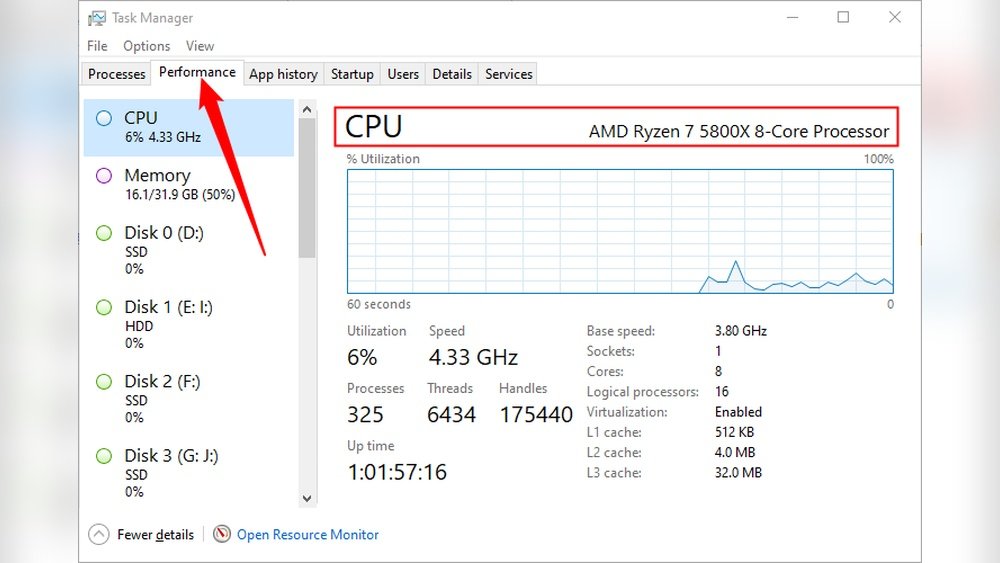
Task Manager on Windows and Activity Monitor on Mac are easy tools. They show important details about your CPU. You can see the CPU model, speed, and usage. This helps you understand your computer’s power and performance. Both tools are built into the system. No need to download extra software. Let’s learn how to open and find CPU info in each.
Opening Task Manager On Windows
Press Ctrl + Shift + Esc keys together. Task Manager will open immediately. You can also right-click the taskbar. Then choose Task Manager from the menu. The window shows running apps and system info. Click the “Performance” tab at the top. Select “CPU” from the left side menu. Here, you see your CPU’s name and speed. You also see how busy your CPU is in real time.
Locating Cpu Info In Activity Monitor
Open Finder on your Mac. Go to the “Applications” folder. Then open the “Utilities” folder. Double-click “Activity Monitor” to launch it. Click the “CPU” tab at the top. This shows the CPU usage of all processes. For detailed CPU info, click the Apple icon. Select “About This Mac.” The Overview tab shows the CPU type and speed. This helps you know your Mac’s processor easily.
Run Command Prompt Or Terminal Commands
Finding out your CPU details can be quick and simple. Using Command Prompt or Terminal commands gives you a direct way to see your processor information. These tools work on most computers without needing extra software.
Running these commands shows the CPU name, speed, and other key details. This method helps you learn about your computer’s power and capabilities fast.
Using Windows Command Prompt
Open the Command Prompt by typing “cmd” in the search bar. Press Enter to launch the app. Type wmic cpu get name and hit Enter. The CPU name will appear below the command. For more details, use wmic cpu get name, maxclockspeed, status. This shows the CPU name, speed, and status. It works on Windows 7, 8, 10, and 11.
Terminal Commands For Mac And Linux
On Mac, open Terminal from the Applications folder. Type sysctl -n machdep.cpu.brand_string and press Enter. The CPU model will show up immediately. Linux users open Terminal and type cat /proc/cpuinfo | grep 'model name' | uniq. Press Enter to see the CPU model name. These commands work on most Mac and Linux systems.

Credit: softwareg.com.au
Use Third-party Software
Using third-party software is an easy way to learn about your CPU. These tools give clear details about your processor. You do not need to open your computer or know technical terms. They show you the CPU model, speed, cores, and other important info.
Many programs also provide extra system details. They help you check if your computer runs well. This method is great for beginners and tech users alike. Just download and run the software to see your CPU data.
Popular Cpu Identification Tools
Several apps help identify your CPU quickly. CPU-Z is one of the most popular. It shows CPU name, number of cores, and cache size. Speccy is another tool that lists CPU and full system information. HWMonitor displays CPU temperature and voltage as well. These tools work on most Windows computers. They are free and easy to use.
How To Download And Use
First, go to the official website of the tool you want. Look for the download button and click it. Save the file to your computer. Open the downloaded file and follow the installation steps. After installation, run the program.
The software will scan your system automatically. It will display your CPU details on the screen. You can read the CPU name, speed, and other features. Some tools also let you save the report. This helps if you want to share your CPU info with others.
Check Physical Cpu Labels
Checking the physical labels on your CPU is a direct way to find out its exact model. This method gives clear and reliable information. It helps avoid guesswork or relying on software that might show incorrect details.
Physical labels usually include the brand, model number, and sometimes the batch code. These details help identify the CPU’s generation and specifications. You need to open your computer case carefully to see the CPU and its labels.
Opening Your Computer Case Safely
Turn off your computer and unplug all cables. Ground yourself to stop static electricity from damaging parts. Use a screwdriver if needed to remove the side panel of the case. Handle the case and parts gently to avoid harm. Set the panel and screws aside where you won’t lose them.
Reading Cpu Model Numbers
The CPU label is usually on the top of the processor. Look for a small sticker or engraved text. The model number often starts with letters followed by numbers, like Intel i5-10400 or AMD Ryzen 5 3600. Write down the numbers exactly as they appear. This helps you search for detailed specs online later.
Understand Cpu Model Numbers
Understanding CPU model numbers helps you identify your processor easily. These numbers show the family, generation, and features of your CPU. Knowing how to read them lets you compare different models and choose the right one for your needs.
Decoding Intel Processor Names
Intel CPU names follow a clear pattern. The name starts with the brand, like Core or Pentium. Next is the series number, such as i3, i5, i7, or i9. Higher numbers mean better performance.
After the series, a four-digit number appears. The first digit shows the generation. For example, 10xxx means 10th generation. The next three digits indicate the model within that generation.
Letters at the end give more details. ‘K’ means the CPU can be overclocked. ‘U’ shows a low power version for laptops. ‘F’ means no integrated graphics.
Decoding Amd Processor Names
AMD CPUs have a different naming style. Ryzen is the main brand for most users. The name starts with Ryzen followed by a series number like 3, 5, 7, or 9. Higher numbers generally mean stronger CPUs.
Next is a four-digit model number. The first digit shows the generation, such as 3xxx for third generation. The other digits show the model and performance level.
Suffixes also matter. ‘X’ means higher performance. ‘G’ means the CPU has integrated graphics. ‘U’ stands for low power use in laptops.

Credit: www.youtube.com
Frequently Asked Questions
How Can I Identify My Cpu Model On Windows?
You can find your CPU model by opening Task Manager and clicking the Performance tab. Look under the CPU section for details. Alternatively, use the System Information tool by typing “msinfo32” in the Run dialog.
What Tools Help Me Check My Cpu Specifications?
CPU-Z and Speccy are popular free tools that provide detailed CPU information. These apps show model, speed, cores, and cache details easily. They are user-friendly and perfect for quick CPU identification.
How Do I Check Cpu Details On A Mac?
On a Mac, click the Apple menu and select “About This Mac. ” The overview tab displays your processor type and speed. For more details, use the System Report for full CPU specifications.
Can I Check Cpu Info Through Bios Settings?
Yes, you can see your CPU information in BIOS. Restart your computer and press the BIOS key during startup. The CPU model and speed usually appear on the main or system information screen.
Conclusion
Knowing how to tell your CPU helps you understand your computer better. It shows you the speed and power inside your machine. You can check your CPU using simple tools on your computer. This knowledge helps you decide when to upgrade or fix issues.
Keep your system updated for best performance. Now, you can easily find your CPU details anytime. Stay curious and keep learning about your device. It makes using your computer easier and more fun.
