
Is your computer acting up during games or graphics-heavy tasks? You might be wondering if your GPU is dying.
Knowing the signs early can save you from sudden crashes, lost work, or expensive repairs. You’ll learn how to spot the warning signals your graphics card sends when it’s failing. Keep reading to protect your PC and avoid unexpected breakdowns.

Credit: www.reddit.com
Common Gpu Failure Signs
Knowing the common signs of GPU failure helps you act fast. A failing GPU shows clear symptoms. Spotting these signs early can save your computer from serious damage.
Watch your screen and system for unusual behavior. Problems may start small but grow worse over time. The GPU is a key part for graphics and gaming. When it struggles, your experience suffers.
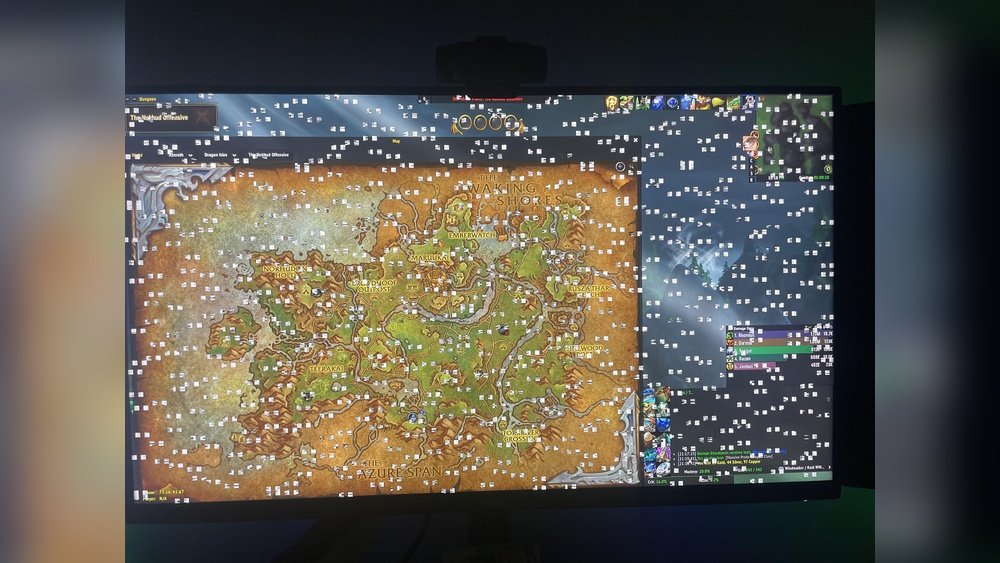
Visual Artifacts And Glitches
Look for strange lines, dots, or colors on the screen. Flickering or broken images often appear during games or videos. These glitches mean the GPU is not processing graphics correctly. They get worse as the GPU fails.
Frequent Crashes And Freezes
Your computer may crash or freeze without warning. Programs stop working or close unexpectedly. This happens because the GPU cannot handle tasks properly. Such crashes occur more during graphic-heavy use.
Unexpected Shutdowns
The system might shut down suddenly during use. This is a sign of hardware trouble, often linked to the GPU. Sudden power-offs protect the system from damage. Check your GPU if shutdowns happen often.
Overheating Issues
Feel if your GPU or PC gets very hot quickly. Overheating causes poor performance and can damage parts. Dust or poor cooling can make this worse. Keep an eye on temperatures to avoid GPU failure.

Credit: softwareg.com.au
Performance Problems
Performance problems often signal that a GPU is failing. These issues affect how smoothly your computer runs games and other graphic tasks. Watch for changes in speed and responsiveness. These clues help spot GPU trouble early.
Reduced Frame Rates
Frame rates drop when a GPU struggles. Games may not look smooth anymore. You might see choppy or slow-moving images. This happens because the GPU cannot process graphics fast enough. Reduced frame rates often mean the GPU is losing power.
Longer Load Times
Loading screens take more time than usual. Opening games or graphic programs slows down. The GPU has trouble handling data quickly. Longer load times can frustrate users and reduce productivity. This lag is a clear sign of GPU issues.
Stuttering And Lag
Graphics may freeze or jump unexpectedly. Stuttering happens when the GPU can’t keep up. Lag causes delays between your actions and the screen response. These problems disrupt gameplay and video playback. Stuttering and lag often point to a failing GPU.
Noise And Physical Symptoms
Noise and physical symptoms often reveal problems with your GPU early. These signs can help you spot trouble before serious damage occurs. Pay attention to any unusual sounds or visible issues. Acting quickly can save your GPU and your computer.
Loud Fan Noise
Fans usually spin quietly to cool the GPU. Loud or constant fan noise means the GPU is overheating. Dust buildup or failing fans can cause this noise. Loud fans may also indicate the GPU is working harder than normal. Clean the fans and check if noise continues.
Unusual Smells
Burning or chemical smells from your GPU are bad signs. These smells often mean electrical parts are overheating or melting. Stop using your computer immediately if you smell anything strange. Unusual smells can cause permanent damage or fire risks.
Physical Damage Or Wear
Look for cracks, corrosion, or burnt spots on your GPU. Loose or broken parts can cause failures and crashes. Worn-out thermal paste can increase heat and harm the GPU. Inspect your GPU regularly to catch physical damage early.
Diagnostic Tools And Tests
Checking your GPU’s health is important. Diagnostic tools and tests can help find problems early. They show how your GPU works under normal and heavy use. These tools give clear signs if the GPU is failing.
Using Gpu Monitoring Software
GPU monitoring software shows real-time data about your graphics card. It tracks usage, clock speed, and memory. Popular tools like MSI Afterburner and GPU-Z are easy to use. They help spot unusual behavior or drops in performance. Watching these numbers helps catch problems fast.
Running Stress Tests
Stress tests push your GPU to its limits. This reveals hidden faults or instability. Programs like FurMark and 3DMark simulate heavy gaming or rendering. If your GPU fails or crashes during tests, it may be dying. Stress tests confirm if the card handles intense work well.
Checking Temperature And Power Usage
High temperatures can harm your GPU over time. Monitoring temperature prevents overheating damage. Tools like HWMonitor show temperature and power use clearly. Consistently high readings suggest cooling or hardware issues. Keeping GPU cool extends its lifespan and performance.
Steps To Take When Gpu Fails
When your GPU starts to fail, taking the right steps can save your system. Acting quickly helps avoid bigger problems. Some fixes are simple and can bring your GPU back to life. Other times, replacement is the only choice.
Updating Drivers And Software
Old or corrupted drivers often cause GPU issues. Check your GPU manufacturer’s website for the latest driver updates. Download and install the newest drivers carefully. Updated drivers improve performance and fix bugs. Also, update your operating system and related software. This keeps your PC stable and compatible with the GPU.
Cleaning And Re-seating The Gpu
Dust and dirt can cause your GPU to overheat and fail. Turn off your PC and unplug it before cleaning. Open the case and gently clean the GPU with compressed air. Remove the GPU from its slot and inspect for damage. Re-seat it firmly back into the motherboard slot. This can restore connections and fix minor hardware issues.
When To Replace Your Gpu
Some problems do not go away with updates or cleaning. Frequent crashes, screen artifacts, or no display signal are bad signs. If your GPU overheats despite cleaning, it might be failing. Check the warranty status. If expired and issues persist, consider buying a new GPU. Replacing the GPU ensures stable and smooth performance again.

Credit: www.wikihow.com
Frequently Asked Questions
How Do I Know If My Gpu Is Failing?
Signs of a failing GPU include screen glitches, crashes, overheating, and artifacting during use. Consistent driver errors also indicate issues. Monitoring software can help detect abnormal temperatures or performance drops early.
What Causes A Gpu To Die Prematurely?
Overheating, dust buildup, poor ventilation, and power surges can damage a GPU. Excessive overclocking and outdated drivers also contribute to early GPU failure. Regular maintenance helps prevent these problems.
Can Software Issues Mimic Gpu Hardware Failure?
Yes, corrupted drivers or incompatible software can cause symptoms like crashes and glitches. Always update or reinstall drivers before assuming hardware failure. Troubleshooting software first saves time and resources.
Is Overheating A Common Gpu Failure Sign?
Overheating is a leading cause of GPU failure. It causes thermal throttling, crashes, and permanent damage if ignored. Ensure proper cooling and clean fans regularly to maintain GPU health.
Conclusion
A dying GPU shows clear signs you should not ignore. Strange noises, crashes, and poor graphics hint at trouble. Check these signs early to avoid big problems. Keep your drivers updated and clean your hardware. Acting fast can save you time and money.
Knowing your GPU’s health helps you plan upgrades smartly. Stay alert and keep your system running smooth. Your games and work will thank you for it.
