
Are you wondering if your CPU is running faster than it should? Knowing whether your CPU is overclocked is important because it affects your computer’s performance and stability.
If your CPU is overclocked without your knowledge, it could cause overheating or crashes. You’ll learn simple and clear ways to check if your CPU is overclocked. By the end, you’ll feel confident about your computer’s speed and safety. Keep reading to find out how to tell if your CPU is overclocked and what you can do about it.

Credit: www.reddit.com
Signs Of Overclocked Cpu
Overclocking a CPU means running it at a higher speed than its standard setting. This can lead to noticeable changes in how your computer behaves. Some signs show your CPU might be overclocked. Spotting these signs helps you understand your system better.
Performance Boosts
An overclocked CPU often runs faster. You may see apps open quicker. Games might load smoother. Tasks that need a lot of power finish sooner. These speed improvements suggest the CPU is working beyond normal limits.
Increased Heat Output
Higher speeds cause the CPU to produce more heat. Your computer’s fan may run louder. The case might feel warmer than usual. Overclocked CPUs need better cooling to avoid damage. Extra heat is a common sign of overclocking.
System Instability
Overclocking can make your computer less stable. It might freeze or crash without warning. You could see error messages more often. Programs may close suddenly or fail to open. These problems often point to an overclocked CPU.
Check Cpu Speed In Windows
Checking your CPU speed in Windows helps you find out if your processor is overclocked. Overclocking means running the CPU faster than its base speed. This can improve performance but may cause overheating or instability. Windows offers simple ways to view your CPU speed. You can use built-in tools or free software to get this information. Below are easy methods to check your CPU speed on a Windows PC.
Using Task Manager
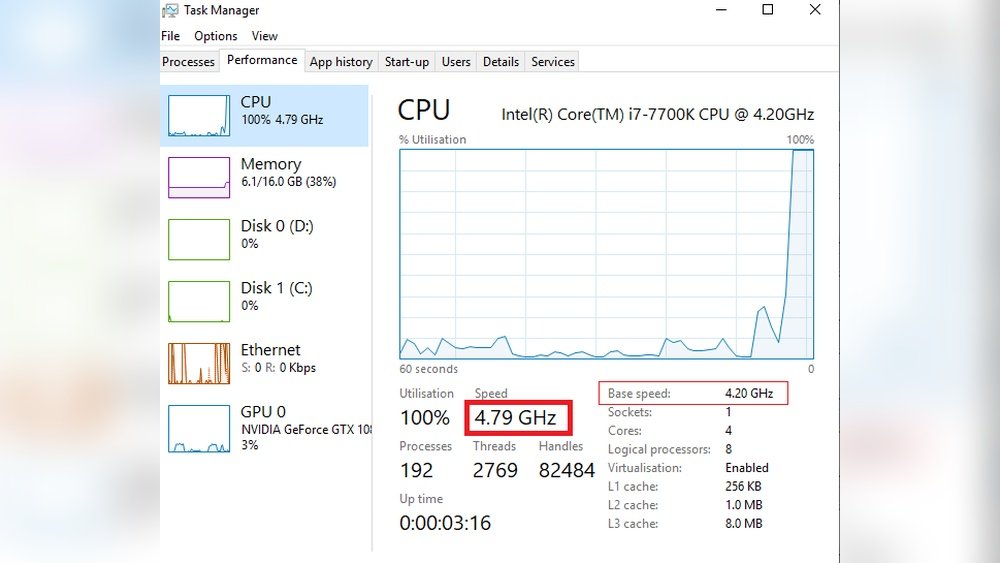
Task Manager shows real-time CPU speed quickly. Press Ctrl + Shift + Esc to open it. Click the Performance tab. Select CPU on the left side. You will see the current speed under the graph. This speed updates as the CPU runs tasks. Compare this speed with your CPU’s base speed listed online. If it is higher, your CPU might be overclocked.
Using System Information
System Information gives a detailed overview of your hardware. Press Windows + R to open the Run box. Type msinfo32 and press Enter. Look for Processor in the summary window. It shows the CPU model and speed. Check if the speed is above the normal rating. This is a sign of overclocking. System Information is easy to use and built into Windows.
Using Cpu-z Tool
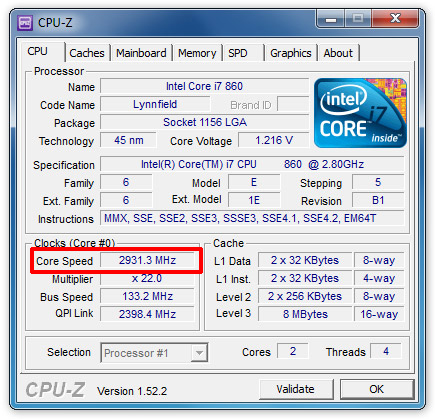
CPU-Z is a free program that shows detailed CPU data. Download it from the official website. Install and open the tool. The CPU tab displays the processor name and speed. It also shows the multiplier and bus speed. These numbers help confirm if the CPU is overclocked. CPU-Z updates the speed in real-time. It is popular for checking overclocking status.
Check Cpu Speed In Macos
Checking your CPU speed in macOS helps you know if your processor runs faster than usual. Overclocking means the CPU works at a higher speed than the default. This can make your Mac faster but also hotter and less stable. You can easily check your CPU speed with built-in tools on macOS. Two simple ways are using “About This Mac” and Terminal commands.
Using About This Mac
Click the Apple logo at the top-left corner of your screen. Select “About This Mac” from the menu. A window will appear showing your Mac’s overview. Look for the “Processor” or “Chip” section. Here you see the base speed of your CPU, like 2.3 GHz. This speed shows the normal clock rate set by Apple. If it looks higher than the advertised speed, your CPU might be overclocked.
Using Terminal Commands
Open the Terminal app from Applications > Utilities. Type the command sysctl -a | grep hw.cpufrequency and press Enter. This command shows your CPU frequency in hertz. Divide the number by 1,000,000,000 to get GHz. Compare this number to your CPU’s normal speed. A higher number can mean overclocking. Terminal gives a more exact reading than “About This Mac.”
Credit: cleanerone.trendmicro.com
Check Cpu Speed In Linux
Checking your CPU speed in Linux helps you know if it is overclocked. Overclocking means running the processor faster than its base speed. Linux offers simple ways to see your CPU speed right from the terminal. These methods show current speed and other details about your processor.
Using Lscpu Command
Open your terminal and type lscpu. This command shows detailed CPU information. Look for the line labeled “CPU MHz”. It shows the current speed of your processor in megahertz. If this number is higher than the base speed of your CPU, it might be overclocked. The speed can change based on workload, so check it a few times.
Using /proc/cpuinfo File
Another way is to read the /proc/cpuinfo file. Run cat /proc/cpuinfo in your terminal. Find the “cpu MHz” entry. This shows the processor speed at the moment. Compare it with your CPU’s official base speed. A higher number could mean the CPU is overclocked. This file also shows other details like CPU model and cores.
Use Bios/uefi Settings
Checking your CPU’s clock speed in BIOS or UEFI is a direct way to see if it is overclocked. These settings show the real-time speed of your processor. You do not need extra software to find this information. The BIOS or UEFI interface lets you view and adjust hardware settings, including CPU speed.
Entering BIOS or UEFI might seem hard, but it is simple with the right steps. Once inside, you can find the CPU frequency details. This helps you confirm whether your CPU runs at its base speed or a higher overclocked rate.
Accessing Bios/uefi
Restart your computer and watch the screen closely. Press the key that opens BIOS or UEFI. Common keys are Delete, F2, or Esc. The correct key often shows briefly on the screen at startup. Press it quickly before the operating system loads. This will take you to the BIOS or UEFI menu.
Locating Cpu Frequency Settings
Inside the BIOS or UEFI, look for a menu like “CPU Settings” or “Hardware Monitor.” Find the section that lists CPU speed or frequency. It usually shows the current clock rate and the base speed. Compare these values to your CPU’s standard speed. A higher current speed means the CPU is overclocked.

Credit: www.reddit.com
Compare With Stock Cpu Specs
Comparing your CPU’s current speed with its original specs helps you see if it is overclocked. The stock specifications show the speed set by the manufacturer. Any increase beyond this speed means the CPU runs faster than its default setting.
This comparison gives a clear view of your CPU’s performance status. It is a simple way to check if overclocking has been applied.
Finding Manufacturer Specifications
Start by finding the exact model of your CPU. You can check your system information or use tools like CPU-Z for this. Once you have the model, visit the manufacturer’s website. Look for the CPU’s base clock speed and other specs. These details tell you the original speed and power limits set by the maker.
Matching Current Speed With Stock Speed
Next, check your CPU’s current running speed. Use system tools or software like Task Manager or CPU-Z. Compare this speed with the manufacturer’s base clock speed. If the current speed is higher, your CPU is overclocked. This simple match helps confirm if your CPU runs beyond factory settings.
Tools To Monitor Cpu Frequency
Monitoring CPU frequency helps identify if your processor is overclocked. Various tools show real-time CPU speed and other vital details. These tools are easy to use and provide clear information. They work well for beginners and tech experts alike. Here are some popular tools to check your CPU frequency.
Hwmonitor
HWMonitor is a simple tool that shows your CPU frequency and temperature. It displays real-time data for all CPU cores. The interface is clean and easy to understand. It also shows voltages and fan speeds, which help detect overclocking. You can see if your CPU runs faster than its base speed.
Core Temp
Core Temp focuses on showing the temperature of your CPU cores. It also shows the current frequency of each core. This tool helps spot if your CPU is running above normal speed. It updates information every second for accurate monitoring. The small size makes it easy to run in the background.
Cpu-z
CPU-Z is a popular tool that gives detailed CPU information. It displays CPU model, core speed, and multiplier settings. You can compare the current speed with the official base speed. CPU-Z also shows cache size and motherboard details. This tool helps confirm if your CPU is overclocked or not.
Frequently Asked Questions
How Can I Check If My Cpu Is Overclocked?
You can check CPU overclocking using system BIOS or CPU monitoring software. Look for clock speed exceeding base frequency. Tools like CPU-Z show real-time CPU speed and multiplier changes.
Does Overclocking Affect Cpu Temperature?
Yes, overclocking increases CPU temperature. Higher clock speeds generate more heat. Monitoring temperatures with software ensures safe operating limits and prevents damage.
Can Windows Show If My Cpu Is Overclocked?
Windows doesn’t directly show overclock status. Use third-party tools like CPU-Z or HWMonitor for accurate clock speed readings. Compare values with your CPU’s base frequency.
What Risks Come With Cpu Overclocking?
Overclocking risks include overheating, system instability, and reduced hardware lifespan. Proper cooling and voltage adjustments minimize these risks. Always monitor system performance carefully.
Conclusion
Checking your CPU’s clock speed is the first step. Use simple tools like CPU-Z or your BIOS settings. Spotting an overclock helps you understand your computer better. It also guides you on cooling and stability needs. Keep your system safe by knowing its limits.
Regular checks avoid damage and improve performance. Stay informed, and your CPU will work well longer.
