
Is your computer acting slower than usual or suddenly shutting down? These could be signs that your CPU is overheating.
But how can you be sure? Knowing if your CPU is getting too hot is crucial to avoid damage and keep your system running smoothly. You’ll discover simple ways to check your CPU temperature, understand the warning signs, and learn easy steps to fix the problem before it gets worse.
Keep reading—you’ll want to protect your computer and save yourself from costly repairs.
Credit: www.reddit.com
Common Symptoms Of Cpu Overheating
CPU overheating can cause serious problems for your computer. It is important to recognize the signs early. Knowing the common symptoms helps protect your device from damage. These signs show your CPU is running too hot and needs attention.
Unexpected Shutdowns And Restarts
Your computer may turn off suddenly without warning. This happens because the CPU gets too hot and shuts down to cool off. You might also see random restarts. These actions protect your hardware from heat damage.
Slow Performance And Lag
A hot CPU often runs slower than usual. Programs might take longer to open or respond. You may notice lag during simple tasks. This slowdown happens because the CPU lowers its speed to reduce heat.
Frequent Freezing Or Crashing
The computer might freeze or crash often. This is a sign the CPU is struggling with high temperatures. You could lose unsaved work if your system crashes unexpectedly. Watch for repeated freezing as a warning.
Abnormal Fan Noise
The CPU fan may become louder or spin faster than normal. This noise means the fan works hard to cool the overheating CPU. Strange or constant loud fan sounds show your system is under stress.
Monitoring Cpu Temperature
Monitoring your CPU temperature helps you keep your computer safe. High temperatures can cause slowdowns or damage. Checking the temperature often helps you act fast. This section covers easy ways to monitor your CPU heat.
Using Built-in Bios Tools
Most computers have temperature tools in BIOS. Restart your PC and press the setup key (like F2 or Delete). Look for a section called “Hardware Monitor” or “PC Health.” You can see the CPU temperature there. This method does not need extra software. It shows the temperature before Windows starts.
Popular Third-party Software
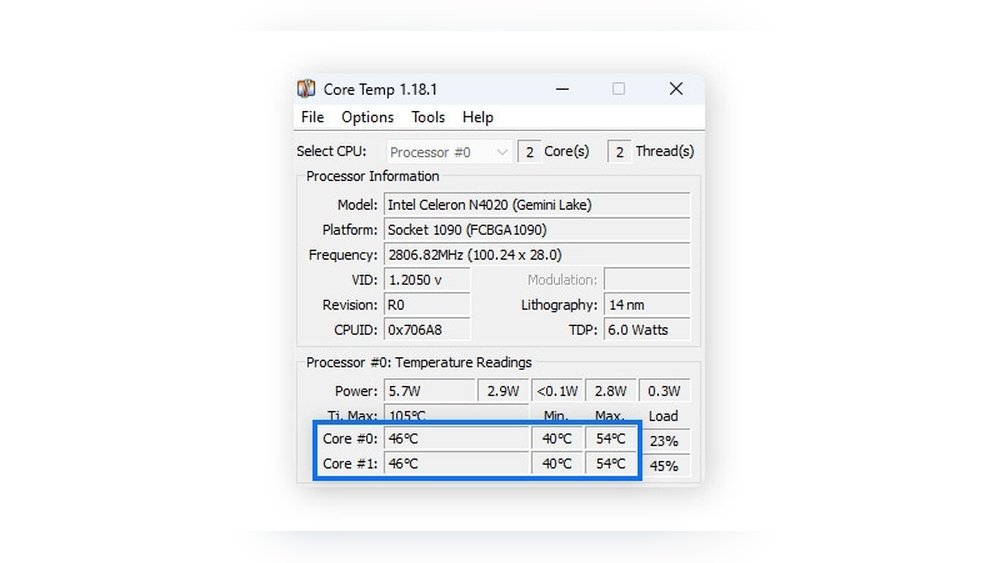
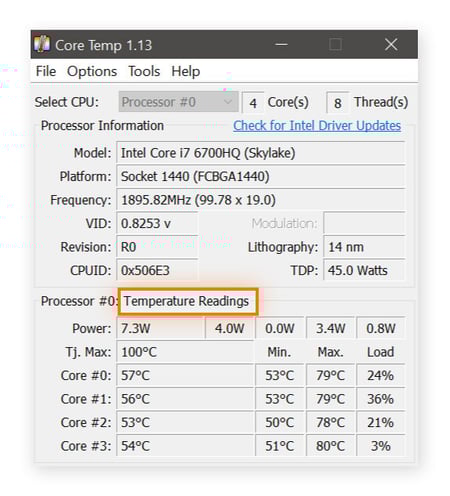
Many free programs track CPU temperature in Windows. Apps like HWMonitor, Core Temp, and SpeedFan are popular choices. They show real-time temperature and other stats. These tools are easy to install and use. You can see temperature while working or playing games.
Setting Temperature Thresholds
Set alerts to warn you of high CPU heat. Most software lets you choose a temperature limit. If the CPU goes above this, the app sends a warning. This helps you stop overheating early. Choose safe limits based on your CPU model.
Causes Of Cpu Overheating
CPU overheating happens for several common reasons. Knowing these helps prevent damage and slow performance. Some causes are easy to fix. Others need more attention. Understanding why your CPU gets too hot keeps your computer running well.
Dust And Debris Buildup
Dust blocks air from cooling the CPU. Fans get clogged and slow down. Dirt sticks to heat sinks and stops heat transfer. This makes the CPU hotter than normal. Cleaning dust regularly can stop overheating problems.
Poor Airflow And Ventilation
Bad airflow traps hot air inside the case. This raises the CPU temperature quickly. Cases need space for air to move freely. Cables or parts placed poorly can block airflow. Good ventilation keeps cool air flowing and heat away.
Faulty Or Inadequate Cooling System
The cooling system removes heat from the CPU. Broken fans or pumps fail to cool properly. Small or weak coolers cannot handle high heat. Thermal paste that is old or missing reduces heat transfer. Proper cooling parts and maintenance prevent overheating.
Overclocking Risks
Overclocking pushes the CPU beyond factory speeds. This creates more heat than normal. Without better cooling, the CPU overheats quickly. Overclocking needs strong cooling and careful monitoring. Otherwise, it can damage the CPU and shorten its life.
Preventive Measures
Preventive measures help keep your CPU cool and extend its life. Taking simple steps stops overheating before it starts. These steps improve your computer’s performance and avoid damage.
Cleaning Internal Components
Dust builds up inside your computer over time. Dust blocks airflow and traps heat around the CPU. Clean your PC’s inside every few months. Use a soft brush or compressed air. Focus on fans, vents, and heat sinks. Keep the environment dust-free to reduce buildup.
Improving Case Ventilation
Good airflow inside the case lowers CPU temperature. Make sure all fans work correctly. Add extra fans if your case supports them. Arrange cables neatly to avoid blocking air paths. Open vents and mesh panels help air move freely. Cooler air flows in, hot air moves out.
Upgrading Cooling Solutions
Stock coolers may not be enough for heavy use. Aftermarket air coolers are larger and better at heat removal. Liquid cooling systems offer even stronger cooling power. Choose a cooler that fits your CPU and case. Better cooling means lower temperatures and quieter operation.
Proper Thermal Paste Application
Thermal paste helps transfer heat from CPU to cooler. Old or poorly applied paste reduces cooling efficiency. Clean off old paste with isopropyl alcohol. Apply a small, even amount of new paste. Too much or too little paste causes problems. Proper application helps your cooler work well.
When To Seek Professional Help
Knowing when to seek professional help for an overheating CPU is important. Some problems need expert care to avoid damage. Quick action can save your computer and data.
Persistent Overheating Issues
If your CPU keeps overheating after cleaning and cooling fixes, get help. Continuous high temperatures can harm the CPU and other parts. A professional can check your system with special tools. They find hidden problems like bad thermal paste or failing fans. Do not ignore repeated shutdowns or slow performance. These signs mean your CPU needs expert attention.
Hardware Replacement Considerations
Sometimes, overheating means parts must be replaced. A pro can tell if your CPU or cooling system is worn out. They know which parts fit your computer model. Trying to replace hardware without skills may cause more damage. Professionals also test new parts to ensure they work well. Trusting experts helps keep your PC safe and running smoothly.

Credit: ms.codes
Credit: www.avast.com
Frequently Asked Questions
How Can I Check If My Cpu Is Overheating?
You can monitor CPU temperature using software like HWMonitor or Core Temp. High temperatures above 85°C often indicate overheating.
What Are Common Signs Of Cpu Overheating?
Signs include frequent shutdowns, system crashes, slow performance, and loud fan noise. These symptoms suggest your CPU is running too hot.
Can Overheating Damage My Cpu Permanently?
Yes, prolonged overheating can cause permanent CPU damage. It reduces lifespan and may lead to hardware failure.
How Do I Reduce My Cpu Temperature Effectively?
Clean dust from fans, improve airflow, and apply fresh thermal paste. Using a quality CPU cooler also helps maintain safe temperatures.
Conclusion
Knowing your CPU temperature helps protect your computer. Watch for signs like slow performance or loud fans. Use simple tools to check CPU heat anytime. Keep your system clean and well-ventilated to avoid issues. Acting early can save you from costly repairs.
Stay aware and keep your CPU cool for better use. Small steps matter in keeping your computer safe.
