
Are you planning to upgrade your computer but unsure if your motherboard will work with your new CPU? Choosing the right combination can be tricky and costly if you get it wrong.
Imagine buying a powerful processor only to find out it won’t fit or function properly with your motherboard. That frustration is avoidable. You’ll learn simple and clear ways to check if your motherboard is compatible with your CPU. By the end, you’ll have the confidence to make the best choice for your build without any guesswork.
Keep reading to save time, money, and hassle on your next upgrade.
Check Socket Type
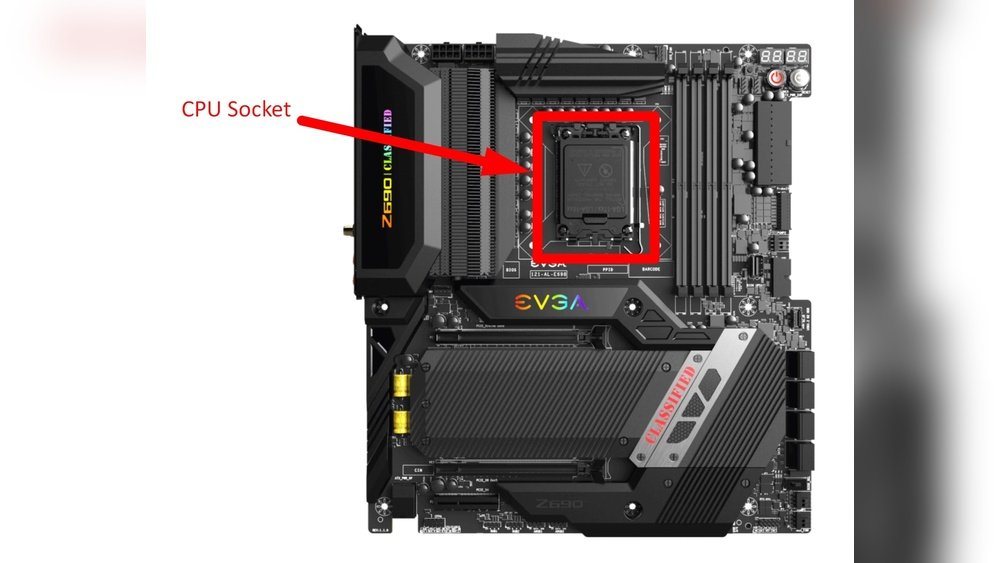
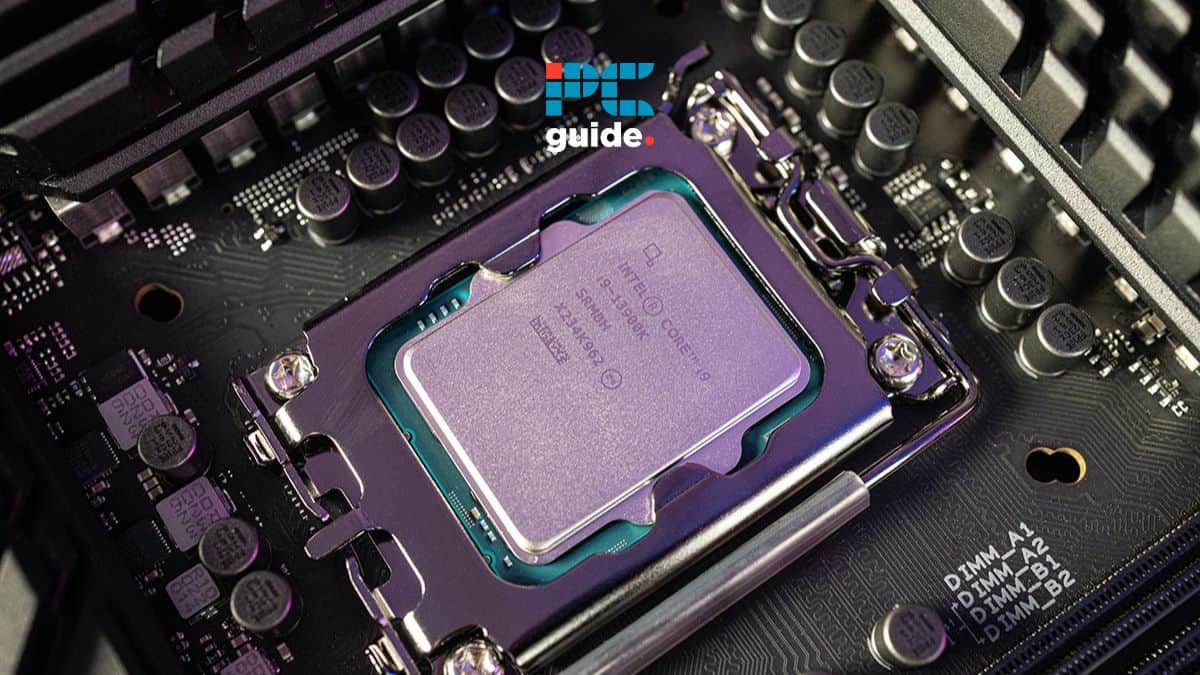
Checking the socket type is the first step in confirming if your motherboard matches your CPU. The socket is the physical interface where the CPU fits on the motherboard. It must match perfectly for the CPU to work.
Each CPU has a specific socket type. The motherboard must have the same socket type to hold the CPU. Without this match, the CPU will not fit or function.
Match Cpu And Motherboard Sockets
Look at the CPU model to find its socket type. This info is on the box or the manufacturer’s website. Then, check the motherboard’s specs for its socket type.
Both socket types must be the same. For example, an Intel CPU with LGA 1200 socket only fits a motherboard with an LGA 1200 socket. The same rule applies to AMD and other brands.
Common Socket Types
Intel CPUs often use sockets like LGA 1151, LGA 1200, and LGA 1700. Each supports different CPU generations. AMD CPUs commonly use AM4, AM5, or TR4 sockets.
Knowing common sockets helps avoid buying incompatible parts. Always double-check socket types before purchasing a CPU or motherboard. This simple step saves time and money.
Review Chipset Compatibility
Reviewing chipset compatibility is a key step before buying a motherboard or CPU. The chipset acts as the bridge that connects the CPU to other parts of the computer. Not all chipsets work with every CPU. Knowing which chipset fits your CPU saves time and money.
Understanding chipset compatibility helps you avoid problems like poor performance or hardware conflicts. It also ensures your system runs smoothly and supports features you need.
Role Of Chipset
The chipset controls communication between the CPU and other devices. It manages data flow to memory, storage, and graphics cards. The chipset also determines system features like USB ports and overclocking support. A compatible chipset matches the CPU’s technology and power needs. It keeps the computer stable and efficient.
Popular Chipsets For Cpus
Intel and AMD CPUs use different chipsets. For Intel, common chipsets include Z690, B660, and H610. These chipsets support various Intel processors and features. For AMD, popular chipsets are X570, B550, and A520. Each chipset supports specific AMD CPU generations. Choosing the right chipset ensures your CPU works well and your system has the features you want.
Consider Bios Support
Consider BIOS support as a key factor in CPU and motherboard compatibility. The BIOS acts as the bridge between the hardware and the operating system. Without proper BIOS support, the motherboard may not recognize or fully support the CPU. This can cause startup problems or poor performance. Checking BIOS compatibility can save time and prevent hardware issues.
Importance Of Bios Updates
BIOS updates often add support for new CPUs. Manufacturers release updates to fix bugs and improve system stability. A motherboard with an old BIOS may not work with the latest CPU models. Updating the BIOS ensures the CPU functions correctly and uses all its features. Skipping BIOS updates can lead to crashes or failure to boot.
How To Verify Bios Compatibility
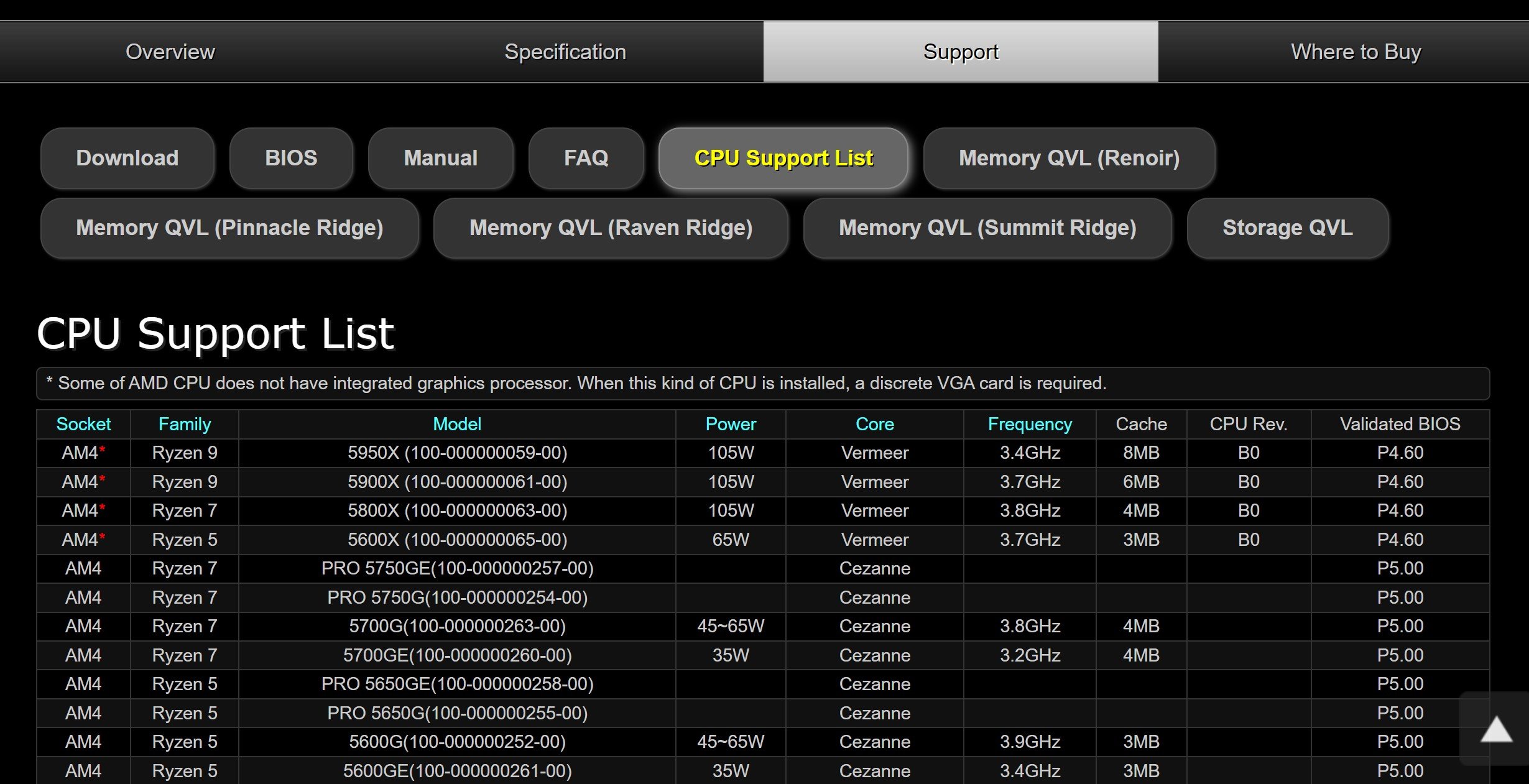
Start by visiting the motherboard manufacturer’s website. Look for the CPU support list or compatibility page. Check the required BIOS version for your chosen CPU. Compare it with your motherboard’s current BIOS version. If the BIOS needs updating, download the latest version and follow the update guide carefully. This step guarantees the CPU and motherboard will work smoothly together.

Credit: www.youtube.com
Examine Power Requirements
Examining power requirements is key to matching a CPU with a motherboard. The CPU needs a steady and correct power supply to work well. The motherboard must deliver enough power without problems. Check both the CPU’s power needs and the motherboard’s power system.
Cpu Power Needs
Every CPU has a power rating called TDP (Thermal Design Power). It shows how much power the CPU uses under normal conditions. A higher TDP means the CPU needs more power and better cooling. Check the CPU’s TDP in its specifications. Make sure the motherboard supports that power level. Using a CPU with too high power needs can cause instability or damage.
Motherboard Vrm Quality
The motherboard uses VRMs (Voltage Regulator Modules) to supply power to the CPU. Good VRMs provide clean and stable power. Low-quality VRMs may cause power drops or overheating. Check reviews or specs to see the VRM quality. A motherboard with strong VRMs can handle high-power CPUs better. It also improves system stability and lifespan.
Check Ram Compatibility
Checking RAM compatibility is an important step to ensure your motherboard works well with your CPU. RAM affects your computer’s speed and performance. Not all RAM types fit all motherboards and CPUs. Knowing the supported memory types and maximum RAM speeds helps avoid problems.
Supported Memory Types
Motherboards and CPUs support certain RAM types. Common types include DDR3, DDR4, and DDR5. Your motherboard manual lists the supported memory type. The CPU also has limits on RAM type. Installing unsupported RAM can cause your system to fail to start or run poorly. Match the RAM type to both your motherboard and CPU for smooth operation.
Maximum Ram Speeds
RAM speed is measured in megahertz (MHz). Motherboards and CPUs have maximum RAM speeds they support. Using faster RAM than supported will not increase speed. Instead, the RAM runs at the maximum supported speed. Check both CPU and motherboard specs for max RAM speed. Choose RAM that matches or is below this speed for best results.
Credit: www.cgdirector.com
Look At Physical Size And Form Factor
Understanding the physical size and form factor of a motherboard is key to ensuring it fits your CPU and computer case. These aspects affect how components align and connect inside your PC. Knowing the size and shape helps avoid compatibility problems and saves time during assembly.
Motherboard Sizes
Motherboards come in various sizes like ATX, Micro-ATX, and Mini-ITX. Each size defines the layout and the number of slots for CPU, RAM, and expansion cards. Larger boards have more slots but need bigger cases. Smaller boards fit compact builds but offer fewer features. Check the motherboard size before buying your CPU to ensure it supports your needs.
Case Compatibility
Your computer case must match the motherboard’s form factor. A large motherboard will not fit in a small case. Cases list compatible motherboard sizes in their specifications. Confirm this to avoid space issues. Proper fit keeps airflow good and prevents hardware damage. Always match the case size to the motherboard’s form factor for smooth assembly.
Use Manufacturer Resources
Manufacturer resources offer the most reliable information about motherboard and CPU compatibility. These resources come directly from the companies that make the parts. They include detailed guides, lists, and tools designed to help users find the right match. Using these resources reduces the chance of buying incompatible hardware.
Compatibility Lists
Motherboard manufacturers publish compatibility lists online. These lists show which CPUs work with each motherboard model. They include supported processor generations and socket types. Checking these lists is a quick way to confirm compatibility. The lists often include BIOS version requirements too. This ensures your CPU works perfectly after installation.
Support Forums And Tools
Support forums hosted by manufacturers allow users to ask questions and share experiences. Here, you find advice from experts and other users. Some companies also offer online tools to check compatibility by entering CPU and motherboard details. These tools provide clear answers fast. Using forums and tools helps avoid costly mistakes.
Credit: www.pcguide.com
Test With Compatibility Tools
Testing your motherboard and CPU compatibility saves time and money. Compatibility tools make this process simple and clear. These tools check if your chosen CPU fits your motherboard’s socket and chipset. They help avoid buying parts that do not work together.
Online Compatibility Checkers
Online compatibility checkers are free and easy to use. Enter your motherboard model and CPU name. The tool quickly tells if they match. Some websites also list compatible CPUs for each motherboard. This helps you find the best CPU options fast.
These checkers update often to include new parts. They remove guesswork and confusion. Using them before buying parts is smart and safe.
Software Utilities
Software utilities run directly on your computer. They scan hardware and provide detailed reports. These tools show if your CPU and motherboard work well together. Some utilities suggest BIOS updates for better compatibility.
Using software utilities can reveal hidden issues. They give clear advice on hardware upgrades. This helps keep your system stable and fast.
Frequently Asked Questions
How Do I Check Cpu Socket Compatibility?
Check the CPU socket type on the motherboard and match it with the CPU’s socket type. Both must be identical for compatibility.
Can Motherboard Chipset Affect Cpu Compatibility?
Yes, the motherboard chipset must support the CPU’s generation and features for full functionality and stability.
Is Bios Update Necessary For Cpu Compatibility?
Sometimes, a BIOS update is required to support newer CPUs on an older motherboard. Check manufacturer guidelines.
How To Verify Ram Compatibility With Cpu And Motherboard?
Ensure the RAM type and speed are supported by both the CPU and motherboard for optimal performance.
Conclusion
Choosing the right motherboard and CPU is key for your computer’s performance. Check the socket type and chipset before buying. Make sure the BIOS supports your CPU model. Look at the power requirements and RAM compatibility too. Small details make a big difference.
Take your time to compare specs carefully. This will help avoid problems and save money. A good match means your system runs smoothly and lasts longer. Keep these tips in mind for a smart purchase. Simple checks ensure your parts work well together.
