
Is your computer acting up when you play games or run graphics-heavy programs? If you’re seeing strange lines on your screen, sudden crashes, or your system just feels sluggish, your GPU might be failing.
Knowing how to tell if your GPU is failing can save you from unexpected downtime and costly repairs. You’ll discover simple signs to watch for and easy tests you can do right now to check your graphics card’s health. Keep reading to protect your computer and keep it running smoothly.
Common Gpu Failure Symptoms
Recognizing common GPU failure symptoms helps protect your computer’s health. These signs warn that your graphics card may soon stop working properly. Catching these early saves time and money.
Watch for unusual behavior on your screen, strange noises, and performance problems. Each symptom points to possible GPU trouble. Understanding these clues helps you decide the next step.
Screen Artifacts And Glitches
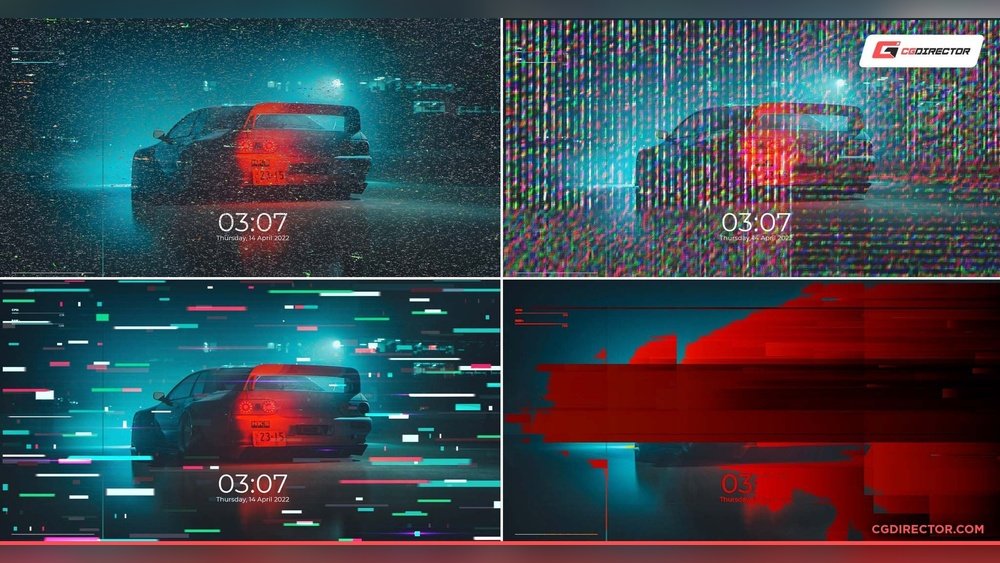
Screen artifacts are strange lines, dots, or colors on the display. These glitches can appear during normal use or gaming. They show the GPU struggles to render images correctly. Flickering or distorted visuals often mean the card is failing.
Frequent Crashes And Freezes
Games or programs closing suddenly or freezing is a bad sign. The GPU may cause the system to crash due to errors. Frequent restarts or blue screens point to hardware problems. Stability issues often relate to GPU failure.
Overheating Issues
High temperatures damage the GPU over time. Overheating can cause shutdowns or reduced performance. Dust buildup or failing fans make cooling less effective. Watch your system’s temperature and keep it cool.
Unusual Noises From Gpu Fan
Noises like grinding, clicking, or buzzing from the fan are warning signs. The fan may be damaged or clogged with dust. Poor cooling leads to overheating and hardware failure. Clean or replace noisy fans quickly.
Performance Drops In Games
Sudden slowdowns and low frame rates hurt gaming experience. The GPU may lose power and fail to process graphics well. Lower quality or lag during gameplay signals trouble. Declining performance often means the GPU is aging or damaged.
Credit: www.reddit.com
Diagnosing Gpu Problems
Diagnosing GPU problems is key to keeping your computer running well. A failing GPU can cause crashes, glitches, or slow performance. Catching issues early helps avoid bigger troubles. Follow these steps to check your graphics card’s health.
Monitoring Temperatures
High temperatures can harm your GPU. Use software like HWMonitor or MSI Afterburner to track heat levels. Keep the GPU under 85°C during heavy use. If temperatures rise quickly or stay high, clean your fans and check airflow. Overheating can cause crashes and damage.
Running Stress Tests
Stress tests push your GPU to its limits. Programs like FurMark or 3DMark help detect problems. Watch for crashes, screen flickering, or artifacts during the test. These signs point to hardware issues. Stop the test if you see errors or overheating.
Checking Driver And Software Issues
Outdated or corrupt drivers cause many GPU problems. Visit your GPU maker’s website for the latest drivers. Uninstall old drivers before installing new ones. Use device manager to check for hardware conflicts. Software updates can fix bugs and improve stability.
Inspecting Physical Damage
Look inside your PC for visible GPU damage. Check for broken fans, dust buildup, or loose cables. Bent or damaged pins on the card can cause failures. Clean dust gently with compressed air. Physical damage often needs professional repair or replacement.
Steps To Confirm Gpu Failure
Confirming a failing GPU needs careful steps. This helps avoid wrong conclusions and wasted money.
Check the GPU in different ways. Test hardware and software to find the problem. Follow these steps for clear results.
Testing With Another Gpu
Swap your current GPU with a known good one. This shows if the problem is with the GPU or another part. If the new GPU works fine, your old GPU likely has issues.
Try this in the same PC to keep results accurate. If the new GPU also has problems, look at other components.
Using Diagnostic Tools
Run GPU diagnostic software to check for errors. Tools like GPU-Z, FurMark, or MSI Afterburner help monitor temperature and performance.
Watch for crashes, freezes, or unusual readings. These signs often mean the GPU is failing or overheating.
Checking Power Supply And Connections
Inspect power cables and connectors to the GPU. Loose or damaged cables can cause display or performance issues.
Make sure the power supply delivers enough wattage for the GPU. Insufficient power can mimic GPU failure symptoms.
Credit: www.pcguide.com
Preventing Gpu Failure
Preventing GPU failure is key to keeping your computer running smoothly. A graphics card works hard, so it needs care. Taking simple steps can extend its life and avoid costly repairs. Focus on cooling, cleaning, and updates to keep your GPU healthy.
Maintaining Proper Cooling
Heat is the enemy of your GPU. High temperatures cause damage over time. Make sure your computer has good airflow. Use fans or liquid cooling to keep the GPU cool. Avoid blocking air vents or placing your PC in tight spaces. Check temperatures regularly with software tools.
Regular Cleaning And Dust Removal
Dust buildup blocks airflow and traps heat. Clean your computer inside every few months. Use compressed air to blow dust off fans and heatsinks. Avoid using a vacuum, which can cause static damage. Keep your workspace clean to reduce dust entering your PC.
Updating Drivers And Firmware
Drivers control how your GPU works with your computer. Outdated drivers can cause errors and crashes. Check for updates on the GPU maker’s website or use update software. Firmware updates improve hardware performance and fix bugs. Regular updates keep your GPU running well and stable.
When To Replace Your Gpu
Knowing when to replace your GPU can save you time and money. A failing GPU can cause many problems, from crashes to poor graphics performance. Sometimes repairs do not fix the core issue. Other times, a new GPU is a better choice. Understanding the signs and costs helps in making the right decision.
Signs Beyond Repair
Look for constant crashes during games or heavy tasks. Flickering screens or strange colors are warning signs. Overheating even after cleaning can mean hardware damage. Loud fan noise or no fan spin indicates failure. Artifacts on the screen usually show serious GPU problems. These signs often mean the GPU cannot be fixed easily.
Evaluating Repair Costs Vs Replacement
Repairs can be expensive and not always reliable. Check the cost of fixing your GPU compared to buying a new one. Sometimes, a new GPU offers better performance and warranty. If repair costs reach half the price of a new GPU, replacement is better. Consider your budget and how long you plan to keep your PC.
Choosing A New Gpu
Pick a GPU that fits your needs and budget. Look for good reviews and energy efficiency. Ensure compatibility with your PC’s motherboard and power supply. Consider future-proofing with newer models. Buying a trusted brand can provide better support and reliability.

Credit: www.reddit.com
Frequently Asked Questions
How Can I Identify A Failing Gpu?
A failing GPU often shows artifacts, crashes, or screen flickering. It may also cause overheating or system freezes during graphics-intensive tasks.
What Are Common Symptoms Of Gpu Failure?
Common symptoms include distorted graphics, frequent crashes, driver errors, and poor gaming performance. Unusual fan noise or overheating also signals problems.
Can Gpu Overheating Cause Hardware Failure?
Yes, excessive heat can damage GPU components. Overheating reduces performance and lifespan, leading to permanent failure if not addressed promptly.
How Do I Test If My Gpu Is Failing?
Use benchmarking tools like FurMark or MSI Kombustor to stress test your GPU. Monitor temperatures and look for crashes or graphical glitches.
Conclusion
A failing GPU can cause many problems with your computer. Watch for strange screen glitches, crashes, or slow performance. Keep your drivers updated and check your hardware regularly. Catching issues early can save time and money. Trust your eyes and listen to your PC.
Acting fast helps avoid bigger troubles later. Stay alert, and your computer will run smoother longer.
