
Is your computer acting up, and you suspect your GPU might be dead? It’s frustrating when your screen flickers, games crash, or your system won’t boot properly.
But how can you be sure if the problem is really your graphics card? You’ll discover clear signs to watch for and simple tests you can do to find out if your GPU is truly dead. Keep reading—knowing the truth could save you time, money, and a lot of headaches.
Credit: www.reddit.com
Common Signs Of A Dead Gpu
Identifying a dead GPU early can save time and frustration. The graphics card is vital for visuals and smooth performance. Signs of failure often show in how your computer behaves or looks. Spotting these signs helps decide if repair or replacement is needed.
No Display Or Black Screen
The screen stays black after turning on the PC. No logo or boot screen appears. The monitor may show “no signal” messages. This often means the GPU is not sending video output. Checking connections or testing another GPU can confirm this.
Frequent Crashes And Freezes
Programs close suddenly without warning. The computer stops responding and freezes. Crashes happen during gaming or video playback. These issues can signal GPU hardware problems. Drivers might also cause this, but hardware failure is common.
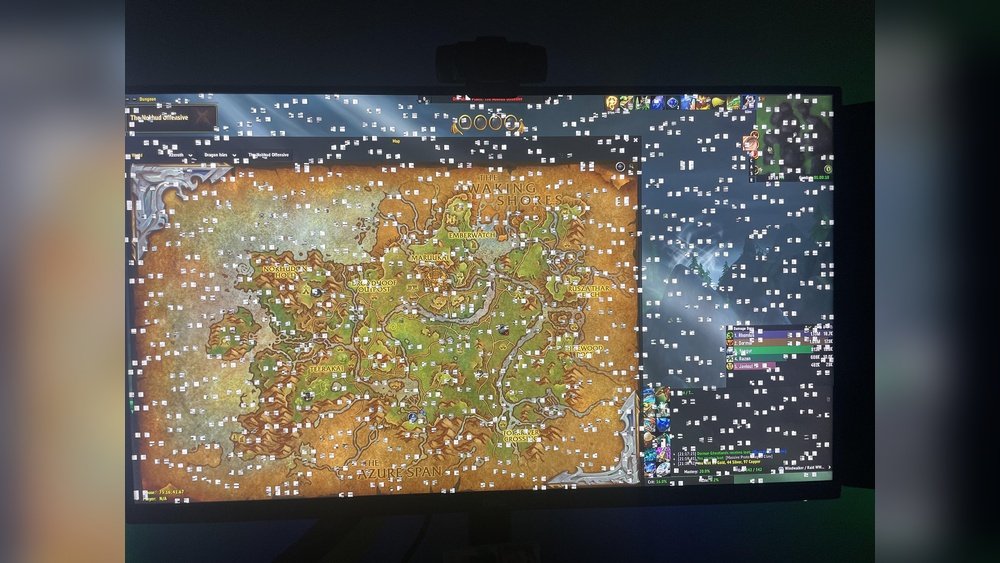
Artifacts And Visual Glitches
Strange lines, dots, or shapes appear on the screen. Colors may look wrong or flicker constantly. Images could be distorted or corrupted. These artifacts suggest the GPU is malfunctioning. Overheating or physical damage often causes this.
Overheating And Loud Fan Noise
The GPU gets very hot quickly under use. Fans spin loudly, trying to cool the card. Persistent overheating can damage the GPU permanently. Dust buildup or broken fans increase heat problems. Monitor temperatures with software to detect this early.
System Won’t Boot Or Post Errors
The computer fails to start or stops during booting. Beep codes or error messages appear on startup. The system may freeze on the motherboard logo screen. These issues can point to GPU failure. Testing without the GPU helps isolate the problem.
Initial Troubleshooting Steps
Starting with basic troubleshooting helps find GPU problems fast. These simple checks can save time and avoid unnecessary repairs. Follow each step carefully to see if your GPU is working or not.
Check Power Connections
Make sure your GPU gets enough power. Look at the cables from your power supply to the GPU. Sometimes, cables can come loose or get damaged. Firmly plug all connectors back into place. No loose wires means better chances your GPU works.
Reseat The Gpu
Turn off your computer and unplug it. Open the case and carefully remove the GPU from its slot. Check for dust or dirt on the card and slot. Clean gently if needed. Push the GPU back into the slot firmly. A loose GPU can cause no display or errors.
Test With Another Monitor Or Cable
Try a different monitor or video cable to rule out display issues. Sometimes the problem is with the screen or cable, not the GPU. Switch HDMI, DisplayPort, or VGA cables and see if the screen shows anything. No image might mean the GPU is faulty.
Update Or Reinstall Graphics Drivers
Old or corrupted drivers cause many GPU problems. Download the latest drivers from the GPU maker’s website. Uninstall current drivers before installing new ones. Updated drivers improve GPU performance and fix bugs. This step might restore your display without hardware changes.
Testing The Gpu Outside Your Pc
Testing the GPU outside your PC helps find if the card is truly dead. It removes other PC parts from the problem. This step gives a clearer idea about your GPU’s health. You can see if the card works in a fresh setup.
Use Another Compatible System
Take your GPU to a different computer. Make sure the other PC supports your GPU model. Install the card carefully and connect the display cable. Power on the system and check for normal display output. If the screen shows graphics, your GPU still works. No display means the card may be faulty.
Run Diagnostic Software
Use GPU testing tools on the second system. Programs like GPU-Z or FurMark help test performance and temperature. Run a stress test to push the card. Watch for crashes or artifacts on the screen. If the software fails to detect the GPU, it might be dead. Successful tests mean the card is okay.
Check For Physical Damage
Look closely at the GPU’s circuit board and connectors. Search for burnt marks, broken parts, or bulging capacitors. Dust or debris can block connections and cause issues. Clean the card gently with compressed air. Physical damage often means repair or replacement is needed. No visible damage but no function means internal failure.

Credit: www.wikihow.com
Simple Fixes To Revive Your Gpu
Sometimes, a GPU may seem dead but only needs simple care. These fixes can help bring your GPU back to life. They are easy to do and do not require special tools or skills. Try these steps before thinking about replacement.
Each step helps your GPU run cooler and more stable. Cooler GPUs last longer and perform better. Clean parts and correct settings can solve many problems.
Clean Dust And Improve Cooling
Dust blocks fans and vents. This causes the GPU to heat up quickly. Use a soft brush or compressed air to clean the GPU and case. Keep the area around the PC clean to avoid more dust. Good airflow helps your GPU stay cool and work well.
Adjust Power Settings
Sometimes, the GPU gets too little or too much power. Check your computer’s power settings. Set the GPU to balanced or maximum performance mode. This can stop crashes and freezes. Proper power helps the GPU run smoothly without damage.
Underclock The Gpu
Underclocking means lowering the GPU speed. This reduces heat and stress on the GPU. Use a simple tool to reduce clock speed and memory speed. This can fix problems if the GPU crashes or shows errors. It is safe and can extend GPU life.
Apply Thermal Paste
Thermal paste helps heat move from the GPU chip to the cooler. Old or dry paste causes overheating. Remove the cooler carefully and clean old paste with alcohol. Apply a new, thin layer of thermal paste. Reattach the cooler tightly. This keeps the GPU cooler and prevents damage.
When To Replace Your Gpu
Knowing the right time to replace your GPU can save you from ongoing problems. Some issues are fixable, but others mean your GPU is beyond repair. Deciding when to get a new GPU helps keep your computer running smoothly. Below are key signs and tips to guide your decision.
Persistent Issues After Fixes
Try basic fixes first, like updating drivers or checking connections. If problems like crashes or display errors continue, your GPU may be failing. Repeated freezes or artifacts on the screen are red flags. These issues show the GPU might be damaged internally. Continuing with a faulty GPU can harm other parts of your PC.
Warranty And Support Options
Check if your GPU is still under warranty. Manufacturers often cover defects for a limited time. Contact support for troubleshooting or replacement options. Sometimes, repairs or swaps come at no extra cost. Knowing your warranty status helps avoid unnecessary expenses. Keep purchase receipts and product details handy for faster service.
Choosing A Replacement Gpu
Pick a GPU that fits your needs and budget. Consider your computer’s power supply and case size. Look for models that match your usage, like gaming or video editing. Research performance and reliability before buying. A balanced choice prevents future problems and keeps your system stable. Upgrading can also improve your overall experience.

Credit: softwareg.com.au
Frequently Asked Questions
How Can I Check If My Gpu Is Dead?
Check for no display output, artifacting, or system crashes. Test the GPU in another PC or use diagnostic software to confirm.
What Are Common Signs Of A Failing Gpu?
Look for screen flickering, driver crashes, overheating, or unusual noises. These symptoms often indicate GPU hardware issues.
Can A Dead Gpu Cause Computer Not To Boot?
Yes, a dead GPU can prevent booting, causing no display or error beeps. Removing or replacing it can help diagnose.
Is Overheating A Sign Of Gpu Failure?
Overheating can damage your GPU and cause failure. Ensure proper cooling and clean fans to avoid overheating issues.
Conclusion
Checking your GPU’s health is not hard. Watch for strange screen issues or crashes. Test with different games or apps to see if problems repeat. Clean your computer to avoid dust buildup. Remember, simple steps can save time and money.
If problems stay, consider professional help or replacement. Keeping your GPU working well keeps your computer fast and smooth. Stay patient and follow these tips carefully. Your PC will thank you.
